



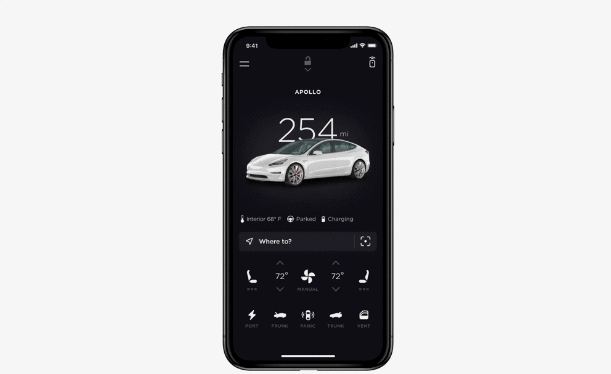
The Tesla app is more than a companion tool. It is how you lock and unlock your car, check your charge level from anywhere, precondition the cabin before you get in, and use your phone as a key. For new Tesla owners, getting the app set up properly is one of the first things worth doing.
This guide walks through everything step by step, from downloading the app to pairing your phone as a key and syncing your contacts and calendar.
What the Tesla App Can Do
Before setting up, it helps to know what you are working with.
The Tesla app gives you remote control over most of your vehicle's functions. From anywhere with mobile signal, you can lock and unlock the doors, open the charge port, check battery level and charging status, start and stop charging remotely, control the cabin temperature before you drive, defrost the windshield, vent or close the windows, flash the lights and honk the horn to locate the car in a car park, and track the car's location on a map.
Beyond remote control, the app allows your phone to act as a digital key through Bluetooth and the mobile app connection. Walk up to the car with your phone in your pocket and it unlocks automatically. Walk away and it locks itself.
Before You Start
You need three things in place before beginning.
A Tesla account is required. If you do not have one, go to tesla.com and create an account before downloading the app. The email address you use must match the account associated with your vehicle.
Your vehicle must be connected to a network. Tesla cars use LTE connectivity for most remote features. When the car has a cellular or Wi-Fi signal, the app can communicate with it. Without connectivity, some features will not work until the car reconnects.
Keep your key card nearby during initial setup. This is important. If something goes wrong during phone key setup, the key card is your backup to get into and drive the car. Never remove the phone key or unpair your vehicle from the app without having a key card accessible.
Step 1: Download and Install the Tesla App
Open the App Store on iPhone or Google Play on Android. Search for Tesla and download the official Tesla app. It is free.
Open the app once it has installed.
Step 2: Sign In to Your Tesla Account
On the app's opening screen, tap Sign In. Enter the email address and password associated with your Tesla account. If you have two-factor authentication enabled on your account, you will receive a verification code by text or authenticator app. Enter it to complete sign-in.
Once signed in, the app attempts to locate your vehicle automatically using the VIN associated with your account. If you purchased the car new from Tesla, the VIN is already linked. If you purchased it second-hand and the previous owner transferred ownership to you, the car appears in your account once the transfer is complete.
Step 3: Enable Mobile Access on the Car
This is a step that first-time owners sometimes miss, and it is required for the app to communicate with the vehicle.
Sit inside the car and tap the menu on the touchscreen. Go to Controls, then Safety, and find the option labelled Allow Mobile Access. Make sure this is switched on. Without it, the Tesla app cannot connect to the car remotely regardless of your account credentials.
Step 4: Add Your Vehicle to the App
In the Tesla app, tap the menu icon in the top left corner. Select Add Product, then choose Vehicle. The app asks for your VIN. You can find this on the driver's side dashboard near the windshield, on a sticker inside the driver's door frame, or in the car's touchscreen under Controls, Software.
Enter the VIN and tap Next. The app locates the vehicle and adds it to your account. The main screen of the app now shows your car with its current status including charge level, locked or unlocked state, and cabin temperature.
Step 5: Set Up Phone as Key
Using your phone as a key is one of the most useful features the app enables. It uses Bluetooth Low Energy to detect when you are near the car and unlocks it automatically without requiring you to open the app.
Do this step while you are sitting inside the car, with your key card in your pocket as a backup.
On the car's touchscreen, go to Controls, then Locks. Tap the plus icon next to Phone Key. A prompt appears asking you to confirm the setup with your key card. Hold the key card against the card reader on the centre console pillar. The car confirms the key card and then links your phone as an additional key.
The app on your phone will show a notification confirming that phone key setup is complete.
Once set up, walk up to the car with Bluetooth enabled on your phone and the Tesla app running in the background. The car detects your phone and unlocks the door handle. Walk away and it locks automatically. You do not need to open the app or press anything.
Step 6: Pair Your Phone via Bluetooth for Calls and Audio
Phone key uses a separate low-energy Bluetooth connection from the standard Bluetooth pairing used for calls and music. You need to do both if you want hands-free calling and audio streaming through the car.
On the car's touchscreen, tap the Bluetooth icon in the top menu bar. Tap Add New Device. On your phone, open Bluetooth settings and select the car from the list of available devices. Confirm the pairing code shown on both screens matches, then tap Pair.
Once paired, go to Controls, Bluetooth, Paired Devices on the touchscreen. Expand the dropdown next to your phone's name. Here you can allow the car to access your contacts and recent calls. If you enable this, a confirmation prompt may appear on your phone asking you to approve the contact sync. Accept it.
With contacts synced, you can make calls directly from the car's touchscreen or using voice commands without touching your phone.
Step 7: Sync Your Calendar
The Tesla app can sync your phone's calendar so your upcoming events appear on the car's navigation system. If an event has an address, the car can automatically suggest routing to it when you get in to drive.
To enable this, open the Tesla app on your phone and tap the Profile icon in the bottom right corner. Go to Settings, then Calendar Sync, and toggle it on.
On your phone, go to Settings and find the Tesla app in your list of applications. Under permissions, allow the Tesla app to access your calendar. The app then periodically sends calendar data to your car in the background.
When you enter the car within two hours of a calendar event that includes an address, the touchscreen automatically suggests navigating to that location. You can accept or dismiss the suggestion.
Step 8: Configure App Notifications
The Tesla app can send you push notifications about charging status, security alerts, software updates, and other vehicle activity.
Open the app and go to Profile, then Settings, then Notifications. Review the list of notification types and turn on the ones you want. Useful ones include charging reminders when the car has not been plugged in overnight, alerts when charging is complete, security notifications if the car's alarm triggers, and software update availability.
Allow push notifications from the Tesla app when your phone prompts you, otherwise none of these will come through.
What to Do if the App Cannot Find the Car
If the app connects to your account but shows the car as unavailable or offline, the most common causes are the car lacking cellular connectivity, the Allow Mobile Access setting being switched off, or a temporary server issue on Tesla's end.
Check that Allow Mobile Access is enabled in the car's touchscreen under Controls and Safety. If the car is parked in an underground garage with no signal, the app cannot reach it until it reconnects. Move the car to an area with LTE coverage and try again.
If the car appears online but the app still will not connect, sign out of the Tesla app completely, close it, and sign back in. This refreshes the connection between your account and the vehicle.
Frequently Asked Questions
Can multiple phones be set up as a key for the same Tesla?
Yes. Multiple phones can be added as phone keys for the same vehicle, which is useful for households where more than one person drives the car. Each person needs their own Tesla account, and each phone key is added separately through the Locks settings on the touchscreen. Each key can also be given a name to identify it in the Locks menu.
Does phone key work if my phone battery is dead?
No. Phone key requires the phone to be on and Bluetooth to be active. If your phone battery dies, you cannot use phone key to unlock the car. This is exactly why Tesla provides a physical key card with every vehicle. Always keep the key card somewhere accessible, such as your wallet, for situations where your phone is unavailable.
Do I need the Tesla app open for phone key to work?
No. Phone key works as a background Bluetooth connection. The app does not need to be open or in the foreground. However, Bluetooth must be enabled on your phone and the app must be installed and logged in. If you force quit the Tesla app entirely on iPhone, phone key may stop working until you reopen it.

Discussion (0)
Be the first to comment.