




Changing the system default language in Windows 10 sounds simple, but it’s one of those settings that can behave inconsistently if you don’t do it properly. You might change the display language and still see parts of the system in another language, or run into issues with system accounts and the login screen.
The reason is straightforward. Windows handles language settings across multiple layers, not just one toggle.
If you want a clean, system-wide change, you need to approach it the right way.
What “System Default Language” Actually Means
When people talk about changing the system language, they usually mean more than just the display language.
In Windows 10, this involves:
- Display language for menus and system UI
- Input language and keyboard layout
- System accounts like the welcome screen and new users
Changing only one of these can lead to a mixed-language experience, which is where most confusion comes from.
Step 1: Add the Language You Want
Start by adding the language properly.
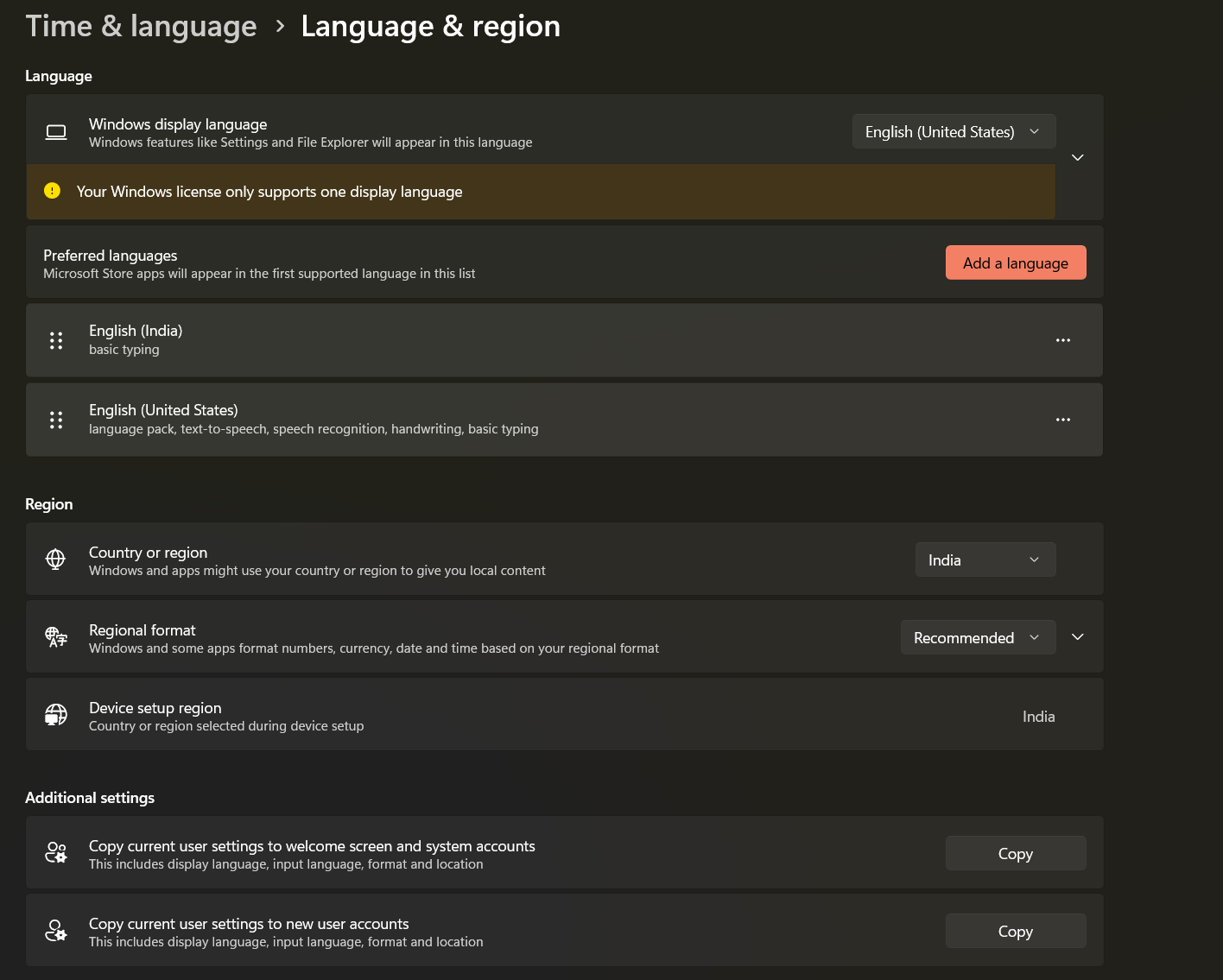
Go to Settings > Time & Language > Language
Click Add a language, then choose the language you want. Make sure to install all relevant components, including the language pack.
This step is important. If the language pack isn’t fully installed, Windows won’t apply it consistently.
Step 2: Set It as Display Language
Once the language is added, set it as your Windows display language.
This will change the interface for your current user account. You may need to sign out and sign back in for the changes to apply fully.
At this point, most of the system will switch, but not everything.
Step 3: Change System Locale (Often Missed)
This is where many people stop, and it’s why issues happen.
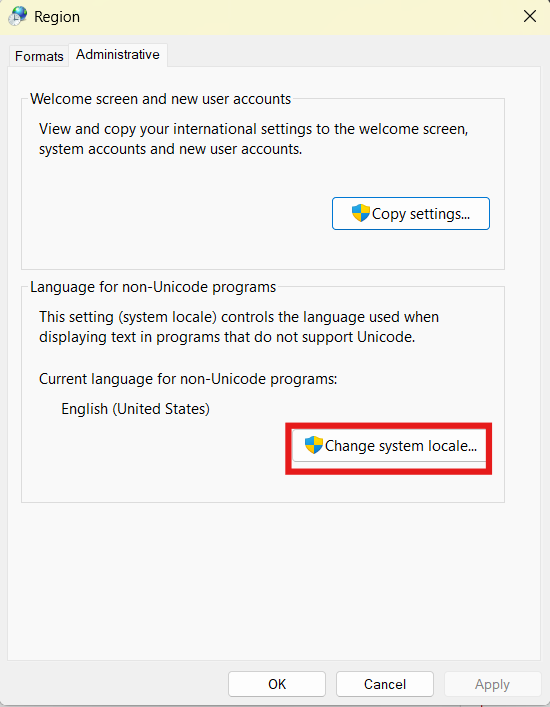
Go to Control Panel > Region > Administrative tab
Click Change system locale and select your desired language.
This ensures that non-Unicode programs and deeper system components align with your chosen language.
Without this step, parts of Windows may still behave as if the old language is active.
Step 4: Apply Settings to Welcome Screen and New Users
If you want a true system-wide change, you need to extend your settings beyond your current account.
In the same Administrative tab, click Copy settings.
Then check:
- Welcome screen and system accounts
- New user accounts
This applies your language settings to the login screen and any future users created on the system.
It’s a small step, but it makes a big difference in consistency.
Step 5: Restart Your System
A restart helps ensure everything is applied correctly.
Without restarting, some parts of the system may still show the old language temporarily.
Real-World Usage: Why This Matters
If you only change the display language, Windows can feel inconsistent.
You might see:
- Login screens in a different language
- System dialogs not matching your settings
- Certain apps behaving differently
For casual use, this might not matter much. But in a professional or shared environment, consistency is important.
Taking the extra steps ensures everything aligns properly.
Common Issues and How to Avoid Them
One of the most common problems is partial language changes.
This usually happens when:
- The language pack isn’t fully installed
- System locale isn’t updated
- Settings aren’t applied to system accounts
Another issue is keyboard layout confusion. Adding a language often adds a new keyboard layout, which can switch unexpectedly.
It’s worth reviewing your input settings and removing layouts you don’t need.
Limitations You Should Know
Not all editions of Windows 10 support full language changes equally.
For example, some versions have restrictions on changing display languages without additional setup.
Also, certain pre-installed apps or third-party software may not fully support all languages, which can lead to mixed interfaces.
Final Thoughts
Changing the system default language in Windows 10 isn’t difficult, but it’s easy to do incompletely.
If you follow the full process, including system locale and account settings, you’ll get a clean and consistent experience.
Skip those steps, and you’ll likely end up with a system that feels partially translated.
It’s one of those settings where doing it properly once saves you from small annoyances later.
FAQs
Why is my Windows still showing multiple languages?
Because only the display language was changed. You also need to update system locale and apply settings to system accounts.
Do I need to restart after changing the language?
Yes, restarting ensures all changes are applied correctly.
Can I change the language for all users?
Yes, by using the “Copy settings” option in the administrative language settings.
What is system locale in Windows 10?
It controls how non-Unicode programs display text and ensures deeper system compatibility.
Will changing the language affect my files?
No, it only changes how the system interface is displayed, not your personal data.

Discussion (0)
Be the first to comment.