




If a web page scrolls forever but your printer only shows half of it, you probably wonder how to print entire web page in Google Chrome without losing anything. Chrome’s print preview lets you capture the full page, adjust scale, tweak margins, and even save the whole site as a PDF instead of paper. You just need the right options so long articles, receipts, and confirmation pages do not get cut off at the bottom.
This guide walks you through printing a full web page in Google Chrome on Windows and Mac, with simple steps you can repeat on any site. You also see how to use Chrome print to PDF when you want a digital copy, and how to enable background graphics so the printout looks closer to what you see on screen. The same Chrome print settings help with long blog posts, invoices, tickets, and support pages.
Print Entire Web Page In Google Chrome (Windows And Mac)
You can print a full web page in Chrome with the built-in print dialog. These steps work the same way on most desktop versions, whether you use Windows or macOS.
- Open Google Chrome and go to the web page you want to print, such as a long article or receipt that scrolls beyond one screen.
- Press Ctrl + P on Windows or Command + P on Mac to open Print. You can also click the three dots > Print in the top-right corner.

- Check the Destination field and pick your printer if you want a paper copy, or choose Save as PDF if you want to keep the entire web page as a file.
- Under Pages, select All so Chrome includes every part of the page instead of only the current page range.
- Click More Settings to expand additional Chrome print options for scaling, margins, and graphics.
- Adjust Scale if the preview cuts off content. Try a value like 90% or 85% so everything fits on the page without shrinking the text too much.
- Set Margins to Default or Minimum. Smaller margins help you print the whole web page without chopping off the edges.
- If the site has important background colors or images, turn on Background graphics under Options so your printout looks closer to the original design.
- Review the preview pane on the left. Scroll through it to confirm that the entire web page appears, from top header to bottom footer.
- Click Print to send it to your printer, or click Save if you selected Save as PDF to store a full-page copy on your computer.
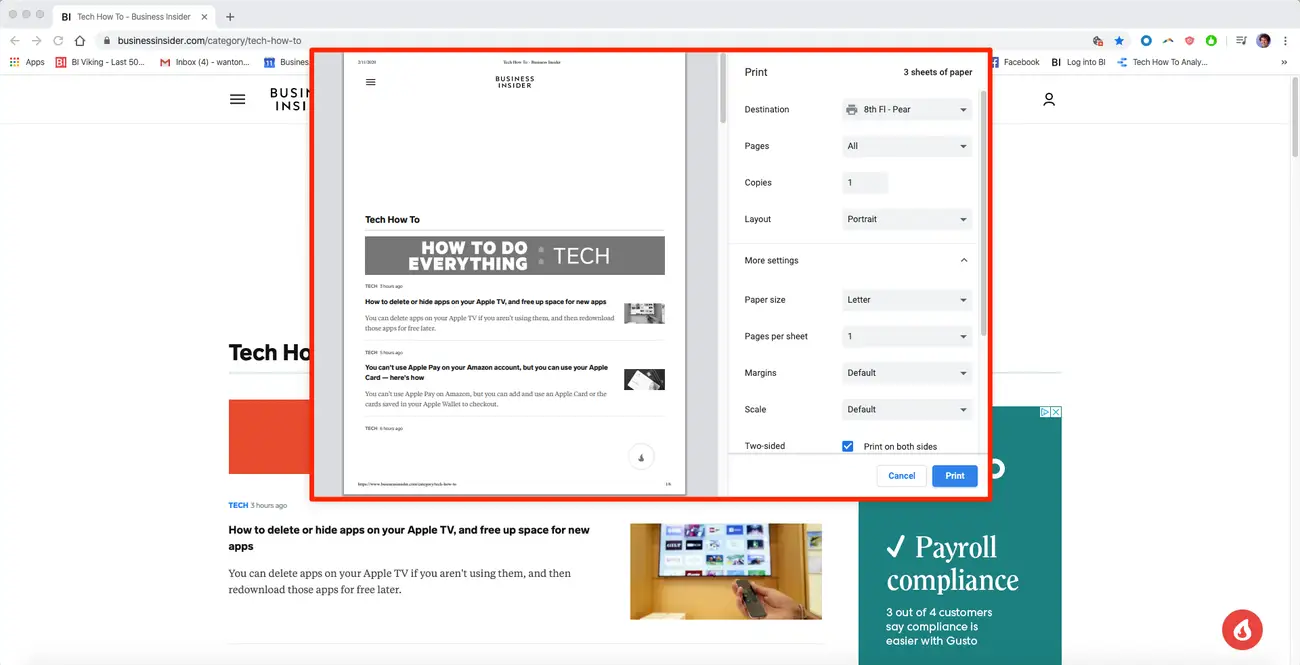
These print settings help with secondary tasks like printing long support pages, full email threads displayed in a browser, or a complete shopping cart page. If something still looks cut off, tweaking scale and margins usually fixes it.
Use Chrome Print To PDF For Long Web Pages
Sometimes you do not need paper at all and just want to save the entire web page in Chrome as a PDF. This makes it easier to share or archive confirmations, tickets, and receipts without worrying about printer issues.
- Open the page in Google Chrome, then press Ctrl + P or Command + P to open Print.
- Set Destination to Save as PDF so Chrome creates a file instead of sending the job to a printer.
- Keep Pages set to All so the entire web page appears in the PDF, not just the visible section.
- Click More Settings and adjust Scale or Margins if the preview shows content cut off or broken in awkward places.
- Turn on Background graphics if logos, colored sections, or shaded blocks matter for your PDF copy.
- Scroll through the preview to confirm the full web page appears across all PDF pages.
- Click Save, choose a folder, and name your file so you can find it later, for example, “full-webpage-chrome-print.pdf.”
Using Chrome print to PDF keeps the entire site layout together and avoids issues like faded ink or missing pages. It also works well for very long web pages that would consume a lot of paper if you printed them directly.
Adjust Chrome Print Settings To Avoid Cut-Off Pages
If the sides of a page are missing or the bottom line disappears, you likely need to fine-tune a few print options. These Chrome print settings help you print the entire web page without losing important content.
- Open Print with Ctrl + P or Command + P, then expand More Settings to see all options.

- Reduce Scale in small steps, such as moving from 100% down to 95% or 90%, until headings, images, and text fit correctly in the preview.
- Switch Margins from Default to Minimum if the edges of the content look clipped.
- Disable Headers and footers if they push content to the next page and you do not need the URL or date on every sheet.
- Try Landscape orientation when you print wide pages with many columns or large charts that do not fit in portrait mode.
- Toggle Background graphics off if the page uses heavy colors and you only care about the text. This can reduce ink use and make the printout easier to read.
Once you understand how scale, margins, and orientation work together, you can quickly dial in the best layout for each site. That makes it easier to print entire web pages in Google Chrome without trial and error every time.
Troubleshooting Common Problems
Even when you use the right Chrome print settings, things can still go wrong. These quick checks help when the browser will not print the full content or the page looks wrong on paper.
- Page Cuts Off At The Bottom – Lower the Scale a bit and recheck the preview. Make sure Pages is set to All instead of a fixed range.
- Right Side Of Page Is Missing – Switch to Landscape orientation or reduce margins. Some wide layouts need more horizontal space.
- Print Preview Looks Blank – Refresh the page, then open Print again. If that fails, try disabling any ad blocker or reading mode that might hide elements.
- Background Colors Do Not Show – Under More Settings, turn on Background graphics to include backgrounds and patterns.
- Fonts Look Huge Or Tiny – Change Scale instead of Zoom in the browser. Print scale affects the page layout without changing your screen view.
- Printer Skips Some Pages – Confirm the printer is online, check paper and ink levels, and verify Pages is not set to a custom range that excludes those sections.
Tips
A few practical tips save time and avoid wasting paper when you print full web pages in Chrome.
- Take a moment to skim the preview before printing so you can fix layout issues in advance.
- For very long articles, use Save as PDF first, then print only the specific PDF pages you need instead of the whole thing.
- Use Minimum margins when you want to fit more content on each sheet, especially for receipts or order summaries.
- Turn off Headers and footers when you care more about content than the URL and date on every page.
- Keep your printer driver up to date so it works smoothly with the latest Chrome print engine at the time of writing.
- On shared or office printers, print one test page first before sending a long full-page job that uses a lot of paper.
FAQ
Can I Print An Entire Web Page On One Sheet Of Paper?
You can try by lowering the Scale in Chrome’s print preview, but shrinking too much makes text unreadable. For most users, printing a long page across several sheets or saving it as a PDF is more practical.
How Do I Save A Complete Web Page As PDF In Google Chrome?
Open Print with Ctrl + P or Command + P, set Destination to Save as PDF, keep Pages on All, adjust More Settings if needed, then click Save. Chrome creates a PDF with the full web page content.
Why Does Chrome Not Print Background Colors Or Images?
Chrome disables background graphics by default to save ink. Open More Settings in the print dialog and turn on Background graphics if you want the full design, including colored sections and backgrounds.
Is There A Way To Print Only Part Of A Web Page?
Yes. Highlight the section you want, then open Print. In some Chrome versions you can enable Selection only in the print dialog. If that option does not appear, consider copying the selection into a document and printing from there.
Does This Work The Same On Chromebook?
On a Chromebook, Chrome OS uses the same print preview interface. You still press Ctrl + P, choose a printer or Save as PDF, and adjust scale, margins, and background graphics in the same way.
Summary
- Use Chrome’s built-in Print dialog with Ctrl + P or Command + P to capture an entire web page.
- Set Pages to All, then adjust Scale and Margins so no content gets cut off.
- Pick Save as PDF when you want a digital copy instead of paper for long web pages.
- Turn on Background graphics if you need logos, colored blocks, and design elements to appear on the printout.
- Use troubleshooting steps and tips to fix cut-off text, missing colors, and preview issues before you print.
Conclusion
Printing an entire web page in Google Chrome works best when you treat the print preview as part of the process, not an afterthought. By choosing the right destination, adjusting scale and margins, and deciding whether you want background graphics, you control exactly how much of the page appears on paper or in a PDF. Once you get comfortable with Chrome’s print settings, you can quickly print full web pages without surprises, whether you are saving receipts, archiving articles, or documenting online transactions.

Discussion (0)
Be the first to comment.