




Halo Infinite does not offer official split screen support for campaign mode, but you can still play local co-op using a reliable menu glitch on Xbox consoles. This guide explains how to set up split screen, prepare your controllers, avoid patch issues, and fix common problems.
Table of contents
- Check if split screen works on your version of Halo Infinite
- Prepare your console and controllers
- Start a campaign session for the split screen glitch
- Trigger the menu glitch to enable local split screen
- Understand the limitations of the split screen glitch
- Can you play split screen on PC?
- Fix common split screen issues
- Tips for more stable split screen sessions
- FAQs about Halo Infinite split screen
- Summary
Check if split screen works on your version of Halo Infinite
The split screen glitch only works on certain patches of Halo Infinite. Some updates remove or break the method, so you need to confirm version compatibility before setting it up.
Confirm current patch compatibility
Open Halo Infinite and check the version listed in the game details section. The glitch works only when menu layering still exposes the hidden join option.
Disable auto-updates temporarily
Turn off automatic updates on your Xbox so the game does not patch itself and break the glitch. You can turn updates back on after finishing your co-op session.
Prepare your console and controllers
You need at least two controllers and two Xbox profiles. The host profile controls the campaign save file and loads the map before the glitch works.
Sign in the main profile
Sign in with the profile that owns the campaign progress. The glitch works only after the game loads into the open world.
Connect additional controllers
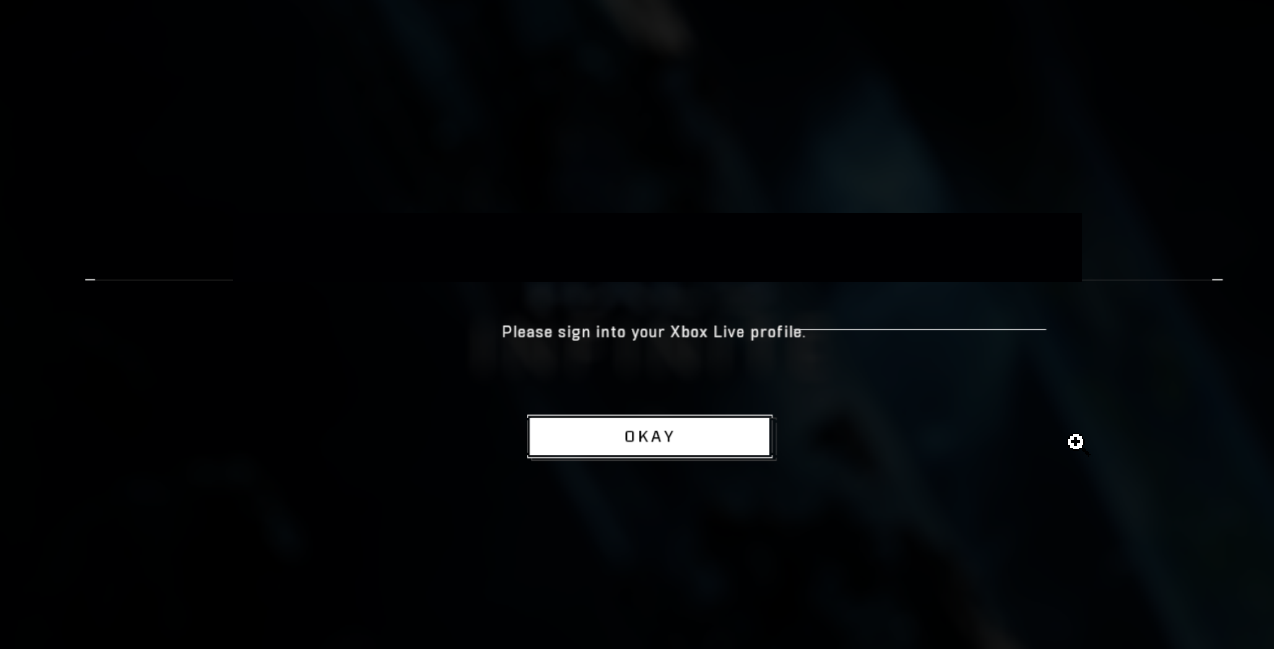
Turn on the second controller and sign it into any Xbox profile. Each added player must have a unique profile for the console to detect them.
Start a campaign session for the split screen glitch
You must load directly into the open world before trying to trigger the glitch. This ensures the menus behave correctly when switching between modes.
Load an existing save or start a new one
Open the campaign menu and choose a save file. Any mission works as long as it enters the open world.

Pause the game and open the settings menu
When the game loads, press the Menu button and open the settings panel. The glitch uses layered menus, so starting here matters.
Trigger the menu glitch to enable local split screen
The glitch works when you open the multiplayer menus without fully leaving the campaign screen. This exposes the hidden join option for local players.
Open the multiplayer menu without leaving campaign
Press the View button and switch to the multiplayer tab while the campaign settings menu stays open. This overlaps the menus and allows the join prompt to appear.

Add additional players through the Fireteam pane
Open the Fireteam menu and select the option to add a local player. The second controller should register, and the game adds Player 2 to your Fireteam.

Resume campaign with multiple players active
Return to the paused campaign screen and resume the mission. Halo Infinite reloads the world with both players in split screen mode.
Understand the limitations of the split screen glitch
The glitch does not fully match official co-op behavior, so you should understand its restrictions.
Save restrictions and desync issues
Only the host profile keeps campaign progress. Player 2 progress does not sync.
Feature limitations inside co-op
Fast travel, some objectives, and certain open-world markers may behave differently in split screen mode.
Can you play split screen on PC?
Halo Infinite on PC does not support split screen campaign. The glitch works only on Xbox consoles.
Experimental modding options
Some community mods attempt partial local co-op support. These setups can cause crashes or instability and do not act as full replacements.
Fix common split screen issues
- What to do when Player 2 cannot join: Make sure Player 2 is signed into a profile. Repeat the menu layering steps if the join option does not appear.
- Fix crashes or infinite loading: Restart Halo Infinite and return to the same save file. Perform the glitch again, but avoid switching between menus too quickly.
- Improve frame rate on Series X/S and Xbox One: Use performance mode if available. Restart the game between major missions to reduce memory load and improve stability.
Tips for more stable split screen sessions
- Use smaller in-game areas to reduce crashes.
- Restart the game after long sessions to clear memory.
- Avoid fast travel while in co-op mode.
- Keep both controllers active to prevent dropouts.
- Save often using the host profile.
FAQs about Halo Infinite split screen
Can you play official split screen campaign in Halo Infinite?
No. Halo Infinite does not include official split screen for campaign mode. You can only use the menu glitch on Xbox to enable local co-op.
How many players can join the split screen glitch?
The glitch supports up to two local players in most cases. Some users report three players on older patches, but results vary.
Does split screen work on Xbox One and Xbox Series consoles?
Yes. The glitch works on Xbox One, Xbox Series S, and Xbox Series X. Series X provides the most stable performance during co-op sessions.
Why does Player 2 keep disconnecting?
This usually happens when the controller signs out or the menu glitch does not fully activate. Sign in the second profile again and repeat the menu layering steps.
Can you get banned for using the split screen glitch?
No. The glitch does not modify game files or violate Xbox policies. It only uses in-game menus, so it has no risk of enforcement action.
Summary
- Check your Halo Infinite version for glitch compatibility.
- Prepare profiles and controllers for each player.
- Load into the campaign and open the settings menu.
- Layer the multiplayer menus to expose the join option.
- Add local players, resume the mission, and play split screen.
The split-screen glitch gives you a workable way to enjoy Halo Infinite campaign co-op locally on Xbox. It takes a few attempts to master the menu layering, but it offers a stable experience once configured correctly. If the glitch breaks after updates, turn off auto-updates and retry using the same steps.

Discussion (0)
Be the first to comment.