




Pasting in Windows is a fundamental action that allows users to quickly transfer text, images, and files between applications and locations. Whether you're copying a block of text, an image, or an entire folder, understanding the various paste options on Windows can improve your efficiency. This guide covers the basic and advanced methods, along with troubleshooting tips for when things don't work as expected.
1) Basic methods to paste on Windows
Using keyboard shortcuts
One of the fastest ways to paste content in Windows is by using the Ctrl + V keyboard shortcut. This method works universally across most applications, making it a go-to for users who want to streamline their workflow. Simply copy the desired content (via Ctrl + C) and hit Ctrl + V where you want to paste it.
Right-click context menu

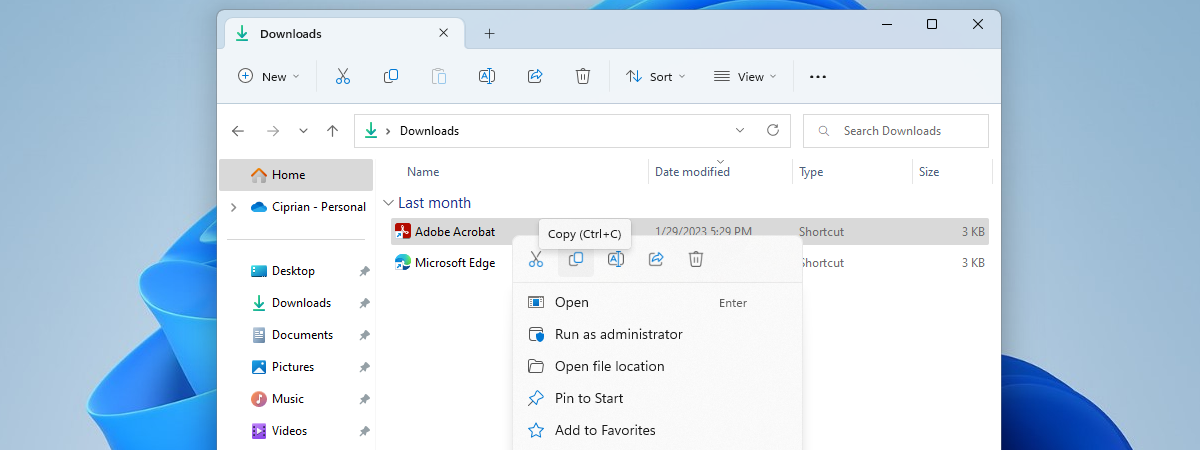
Another easy way to paste is through the right-click context menu. After copying content, right-click at the location where you want to paste and select the Paste option from the menu. This method is intuitive for users who prefer using the mouse.
Using the menu bar
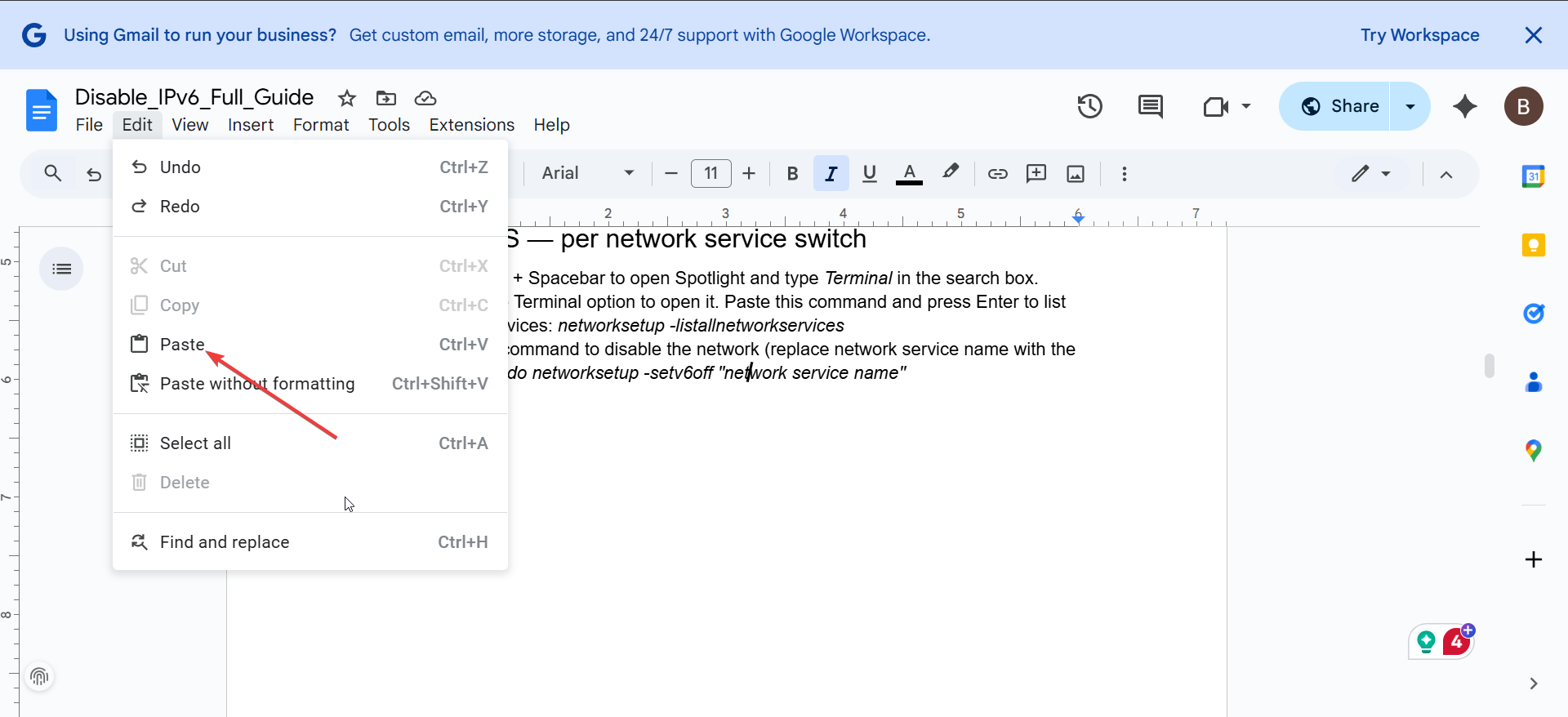
In applications like Microsoft Word or Excel, you can paste content by selecting the Paste option in the menu bar under the Edit section. This method is particularly useful in programs that focus heavily on editing and formatting.
2) Advanced paste options in Windows
Pasting as plain text
When you copy content that includes formatting - such as from a webpage - you might only want the raw text. To paste without formatting, use the Ctrl + Shift + V shortcut in apps that support it. This will strip any bold, italics, or hyperlinks, leaving just the plain text for you to use.
Clipboard history (Windows 10/11)
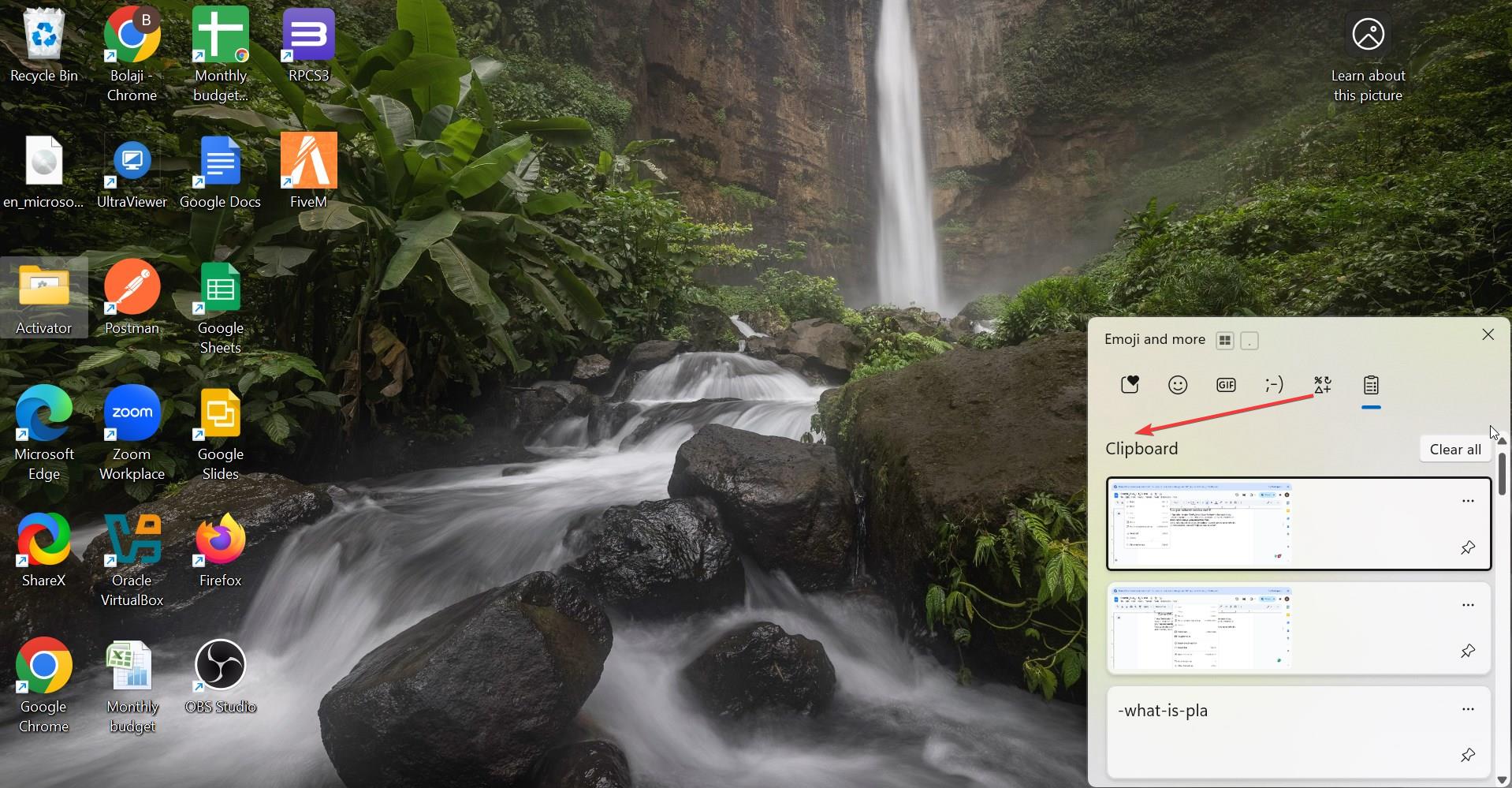
Windows 10 and 11 offer a feature called clipboard history. This allows you to access multiple items you’ve copied in the past and paste them easily. To use this feature, press Windows + V to bring up your clipboard history. From there, you can select an item to paste, making it perfect for tasks that require repeated copying and pasting of different content.
3) Copying and pasting files/folders
Drag-and-drop method

For users looking to copy and paste files or folders, the drag-and-drop method is simple and effective. Open File Explorer, select the file or folder you want to copy, then drag it to the desired location. Release the mouse button to drop the item. This method works in all file-management scenarios and can be used to transfer files across devices connected to your network.
Using the Command Prompt
Advanced users can use the Command Prompt to copy and paste files using commands like copy or xcopy. This method is particularly useful for automating file transfers or working in environments where the graphical interface is not available. For instance, typing copy C:\source\file.txt D:\destination\ will copy a file from one directory to another.
Troubleshooting paste issues
- Clearing the clipboard: If pasting stops working, the clipboard may be full or corrupted. To resolve this, clear the clipboard manually. You can do this by restarting your PC or using a third-party tool to clear the clipboard's history.
- Fixing paste failures with third-party tools: If paste issues persist, third-party clipboard managers can help manage the clipboard more effectively. Tools like Ditto or ClipX offer enhanced clipboard functionality, allowing you to store and quickly access multiple clipboard items.
Tips to enhance your paste experience
- Clipboard managers: For users who frequently copy and paste a lot of content, clipboard managers are a game-changer. These tools track your clipboard history and make it easy to paste anything you’ve copied, even if it was copied days ago.
- Using Windows PowerToys for advanced functionality: Windows PowerToys is a free tool that adds additional functionality to Windows. For users who need more advanced clipboard features, PowerToys offers a Clipboard Manager that lets you access clipboard history with ease.
FAQs
How do I paste without formatting on Windows? To paste without formatting, use the keyboard shortcut Ctrl+Shift+V in supported applications. This will paste only the raw text, stripping away any bold, italics, or other formatting.
How do I access clipboard history on Windows? In Windows 10 and 11, you can access the clipboard history by pressing Windows + V. This feature allows you to view and paste previously copied items, including text, images, and more.
Can I paste files and folders using shortcuts? Yes, you can use the Ctrl + C and Ctrl + V keyboard shortcuts to copy and paste files and folders in File Explorer. Alternatively, you can drag and drop items from one location to another.
How can I paste content from other devices on Windows? If you have clipboard history enabled and are signed into the same Microsoft account across devices, you can sync clipboard content and paste it across different Windows 10/11 devices.
Summary
- Use Ctrl + V to quickly paste content from your clipboard into most Windows applications.
- Right-click and select Paste from the context menu as an alternative method.
- For pasting plain text, use the Ctrl + Shift + V shortcut to strip formatting.
- Access the clipboard history with Windows + V to paste previously copied items.
- Drag and drop files or use Ctrl + C and Ctrl + V to copy and paste files and folders in File Explorer.
- Troubleshoot paste issues by clearing your clipboard or using third-party clipboard managers.
Conclusion
Mastering the various ways to paste content in Windows is essential for boosting productivity and working efficiently. From the standard keyboard shortcuts to more advanced methods like clipboard history and third-party managers, there's a method that suits every user. By utilizing these techniques, you can streamline your workflow, save time, and avoid the frustration that comes with copying and pasting.
Discussion (0)
Be the first to comment.