




The Windows 11 Startup folder sits in two places: one folder runs items for your current account, and another runs items for everyone who signs in on the PC. You usually add a shortcut there so Windows launches the app at sign-in.
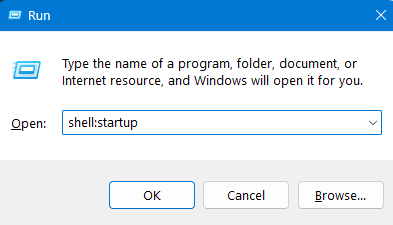
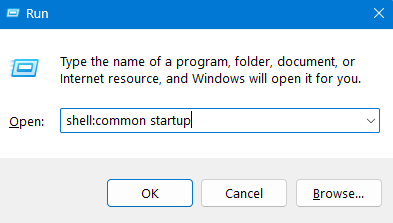
For the fastest access, use Run commands. Type shell:startup for your account’s Startup folder, or shell:common startup for the all-users Startup folder.
If you prefer direct paths, Windows stores these folders under your profile’s Roaming Start Menu path (current user) and under ProgramData (all users).
Startup folder locations in Windows 11
| Scope | Run command | Folder path |
|---|---|---|
| Current user (only your account) | shell:startup | C:\Users<YourUserName>\AppData\Roaming\Microsoft\Windows\Start Menu\Programs\Startup |
| All users (every account on the PC) | shell:common startup | C:\ProgramData\Microsoft\Windows\Start Menu\Programs\Startup |
Tip: The “direct path” can vary if Windows lives on another drive, but the Run commands still open the correct folder.
How to open the Startup folder
Method 1: Use Run (fastest)
- Press Win + R
- Type
shell:startupand press Enter (current user)

- Type
shell:common startupand press Enter (all users)
Method 2: Use File Explorer
- Press Win + E
- Paste the path from the table above into the address bar and press Enter
What works in the Startup folder
Windows 11 handles shortcuts best. In practice, you add an app shortcut (.lnk), and Windows launches it at sign-in.
It can also launch other files (like a document), because Windows opens the file with its default app. That said, most people use the Startup folder for shortcuts to apps, scripts, or folders.
Common items you can place in Startup
- App shortcuts (
.lnk) - Website shortcuts (
.url) - Documents (
.txt,.pdf, etc.), which open in the default app
How to add apps to the Startup folder in Windows 11
Option A: Add an app for your account only (recommended for most people)
- Press Win + R, type
shell:startup, press Enter - Create a shortcut to the app:
- Find the app’s
.exe(or use the Start menu search, then open file location if available), then right-click and create a shortcut.
- Find the app’s
- Drag the shortcut into the Startup folder.
- Sign out and sign back in, or restart, to test.
Option B: Add an app for all users (requires admin rights)
- Press Win + R, type
shell:common startup, press Enter

- Create the app shortcut (same idea as above).
- Move the shortcut into the all-users Startup folder.
- Approve the admin prompt if Windows asks.
How to remove items from the Startup folder
- Open the Startup folder (current user or all users).
- Delete the shortcut you no longer want to run at sign-in.
- Restart or sign out and back in to confirm.
Deleting the shortcut does not uninstall the app. It only stops the auto-launch behavior.
Manage startup apps without the Startup folder
Some apps register themselves through Windows startup settings and never appear as shortcuts in the Startup folder. When that happens, use these tools instead.
Task Manager
- Press Ctrl + Shift + Esc
- Open Startup apps
- Disable what you do not want to launch at startup
Windows Settings
- Open Settings
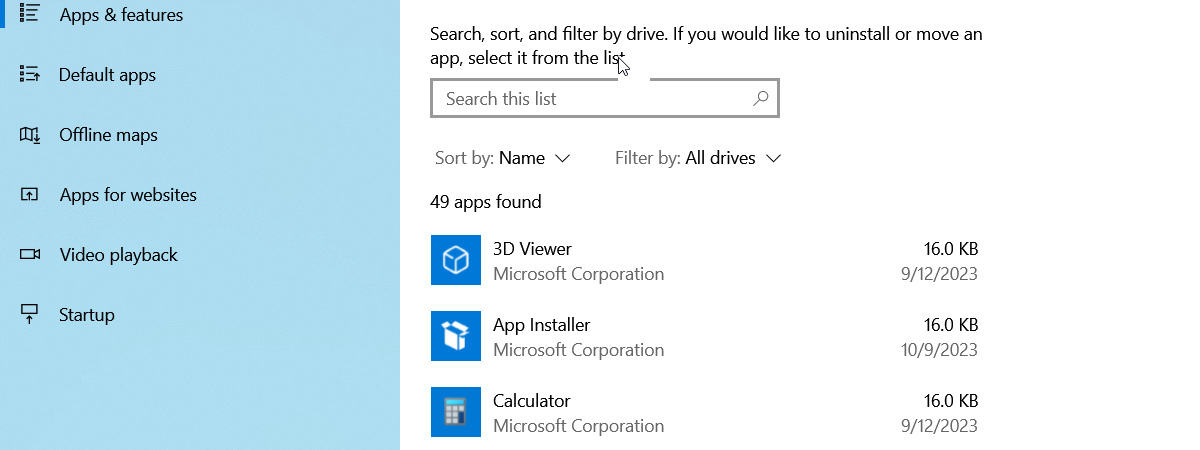
- Go to Apps > Startup
- Toggle apps on or off
Practical tips that prevent slow boots
- Keep Startup limited to essentials like security tools, clipboard managers, and key drivers.
- If an app launches slowly but you still need it, disable it in Startup and open it manually after sign-in.
- Sort by “startup impact” in Task Manager to spot the biggest boot-time offenders.
Troubleshooting: Startup folder not working
| Symptom | Likely cause | Fix |
|---|---|---|
| Shortcuts do not launch | You placed the app file, not a shortcut | Use a .lnk shortcut instead |
| Works for you, not other users | You edited the current-user folder | Use shell:common startup for all users |
| Script does not run | PowerShell policy or permissions block it | Use Task Scheduler, or run a shortcut that calls the script with proper permissions (admin if needed) |
| Startup folder “missing” | Folder path differs or got deleted | Use Run commands, or recreate the folder at the correct path |
FAQs
Where is the Startup folder in Windows 11?
Windows 11 uses two Startup folders:
- Current user:
C:\Users<YourUserName>\AppData\Roaming\Microsoft\Windows\Start Menu\Programs\Startup - All users:
C:\ProgramData\Microsoft\Windows\Start Menu\Programs\Startup
What is the quickest way to open it?
Press Win + R, then run shell:startup (current user) or shell:common startup (all users).
Do I need admin rights?
You need admin rights only when you add or remove items from the all-users Startup folder under ProgramData.
Why do some startup apps not show up in the Startup folder?
Many apps register through Windows startup settings instead of placing a shortcut in Startup. Manage those in Task Manager > Startup apps or Settings > Apps > Startup.
Summary
- Use
shell:startupfor your account andshell:common startupfor all users. - Add app shortcuts to the Startup folder to launch them at sign-in.
- If an app does not appear in Startup, disable or enable it in Task Manager or Settings.
- Keep Startup lean to protect boot time and day-to-day performance.
Discussion (0)
Be the first to comment.