




You can make Windows look and feel very close to macOS without replacing your operating system. With the right tools and settings, Windows 10 or Windows 11 can mimic the Dock, Finder, Spotlight, fonts, icons, and overall visual style of macOS while staying stable and reversible.
This guide focuses on safe customization methods that work on real systems, not experimental hacks.
Before you start (important prep)
Before changing anything, create a restore point so you can roll back instantly.
Steps
- Press Windows + R, type sysdm.cpl, then press Enter.


- Open the System Protection tab.
- Click Create.
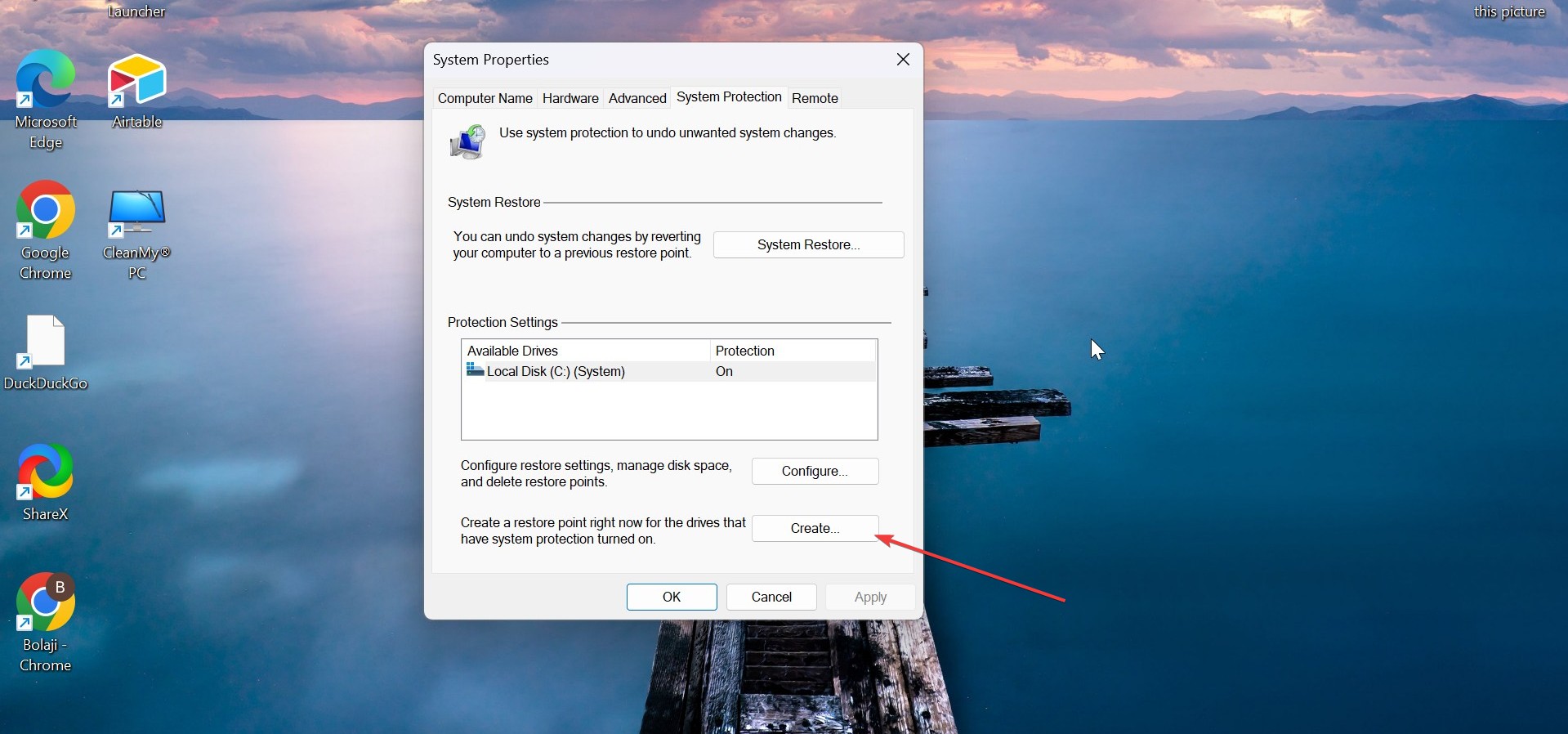

- Name it “Before macOS look” and confirm.
This protects you if a Windows update resets visuals.
Make Windows look like macOS step by step
Replace the Windows taskbar with a macOS-style Dock
The Dock is the most important visual change.
What you’ll use
- RocketDock or Winstep Nexus (Windows 10 + 11)
Steps
- Install the Dock app and launch it


- Right-click the Dock, then click Dock Settings
- Turn on Auto-hide
- Set position to Bottom
- Remove unused icons by dragging them off the Dock
- Add apps by dragging shortcuts onto the Dock
Hide the Windows taskbar
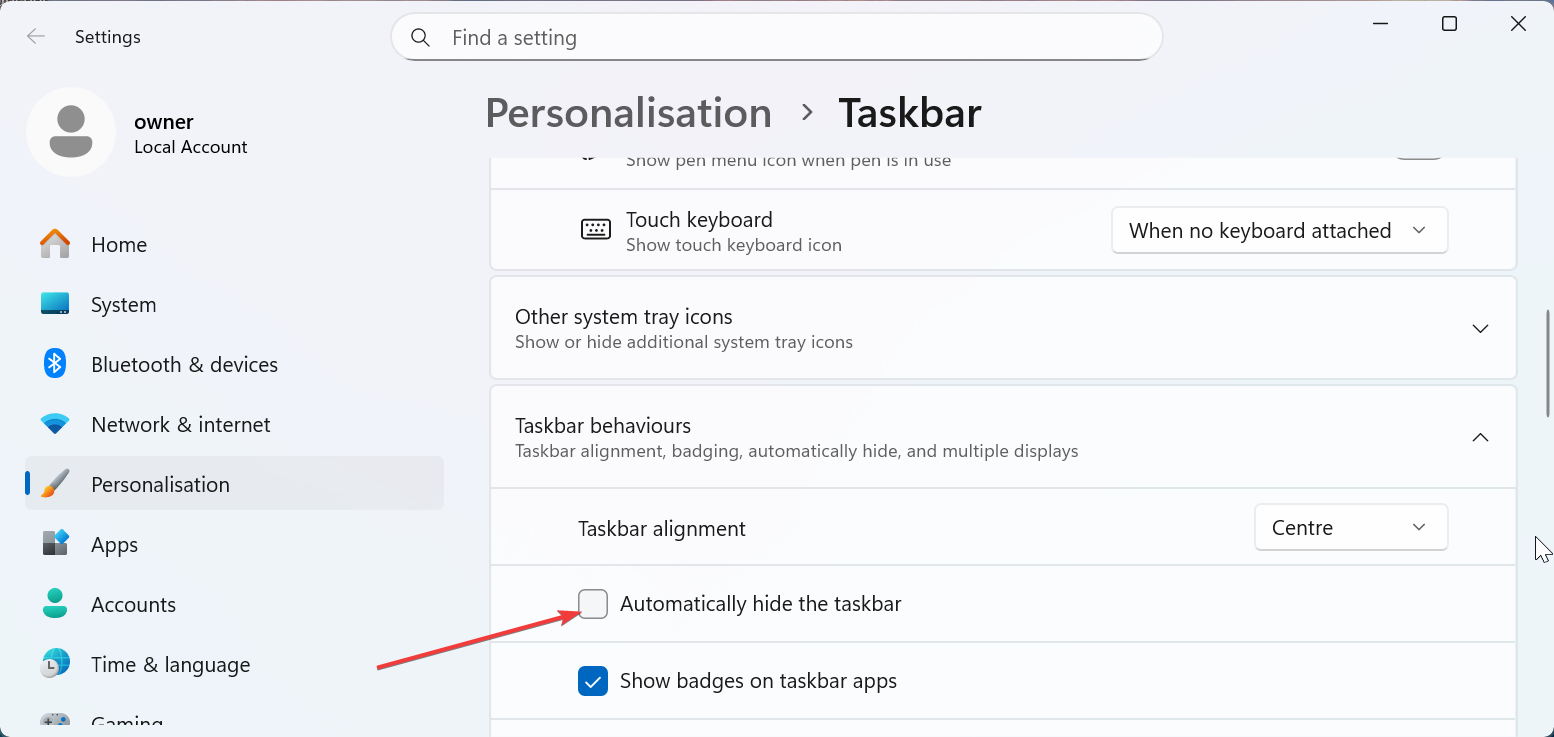
- Right-click the taskbar, then click Taskbar settings.
- Turn on Automatically hide the taskbar under the Taskbar behavior section.

Undo
- Turn off auto-hide or uninstall the Dock app
Change Windows icons to macOS-style system icons
Icons sell the illusion more than themes.
What you’ll use
- A macOS icon pack
- 7TSP GUI or IconPackager
Steps
- Install the icon manager
- Import the macOS icon pack
- Apply icons system-wide
- Restart File Explorer when prompted
Fix missing icons
- Restart File Explorer or rebuild the icon cache
Undo
- Restore default icons inside the icon tool
Apply a macOS-style window theme
Themes affect title bars, window buttons, and spacing.
Windows 11
- Use light macOS-style themes only
- Avoid full theme patching
Windows 10
- Supports deeper theming
Steps
- Download a macOS-style Windows theme
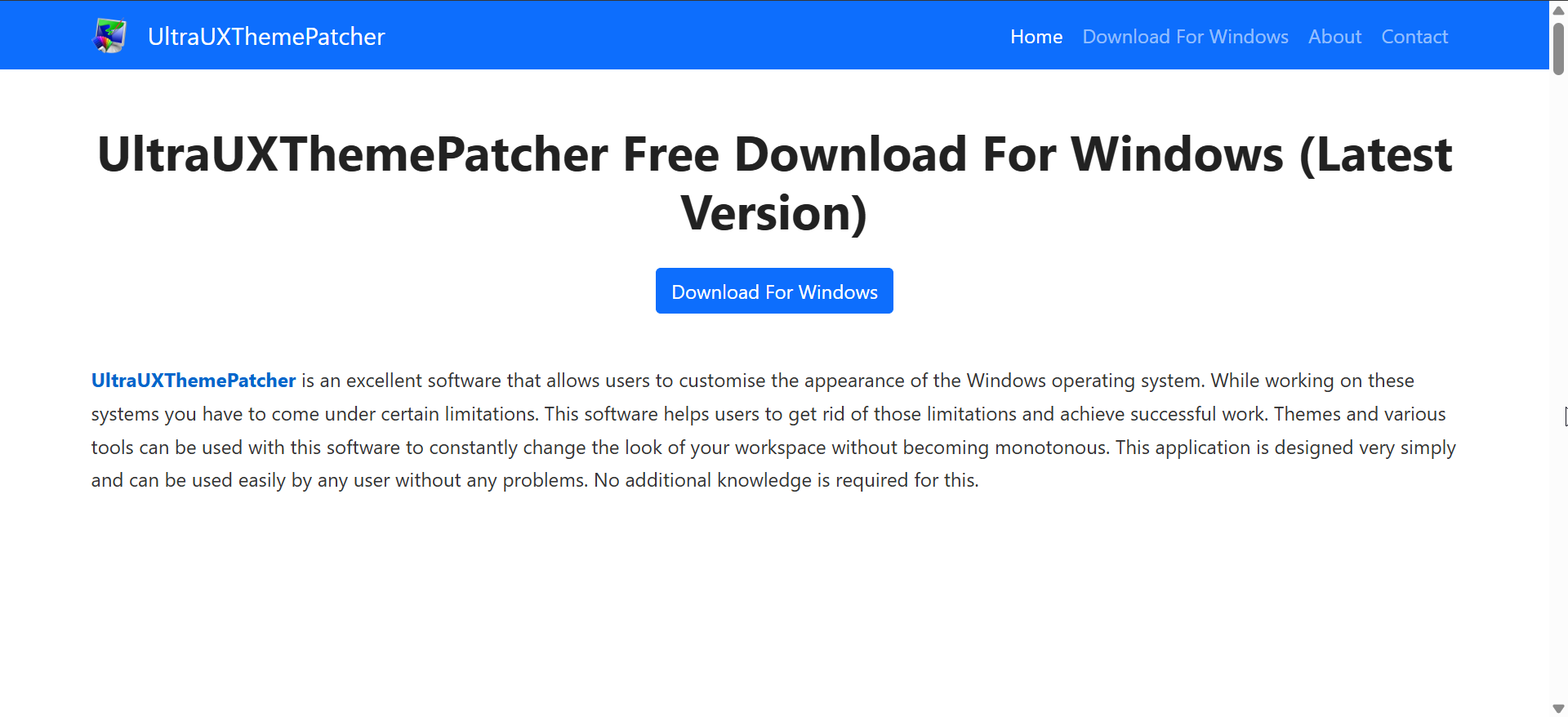
- Install UltraUXThemePatcher (Windows 10 only)
- Copy theme files to C:\Windows\Resources\Themes
- Open Settings, click Personalization, then click Themes
- Select the macOS-style theme
Undo
- Switch back to a default Windows theme
- Uninstall the patcher if you used it
Make File Explorer look and behave like Finder
Explorer will not become Finder, but you can simplify it.
Steps
- Open File Explorer
- Click View, then turn on the Preview pane


- Turn off unnecessary columns and toolbar clutter
- Pin frequently used folders to Quick access
Optional
- Use a Finder-style file manager app if you prefer a closer match
Undo
- Reset File Explorer options to defaults
Add a Spotlight-style search experience
Spotlight-style search changes how you use Windows daily.
What you’ll use
- PowerToys Run or Listary
Steps
- Install the launcher
- Set the shortcut to Alt + Space
- Turn on app search, file search, and calculations
- Turn off Windows Search indexing if you need faster results
Undo
- Disable or uninstall the launcher
Match macOS system fonts, cursors, and UI spacing
Fonts subtly change everything.
Fonts
- Download the San Francisco font
- Open Settings, click Personalization, then click Fonts
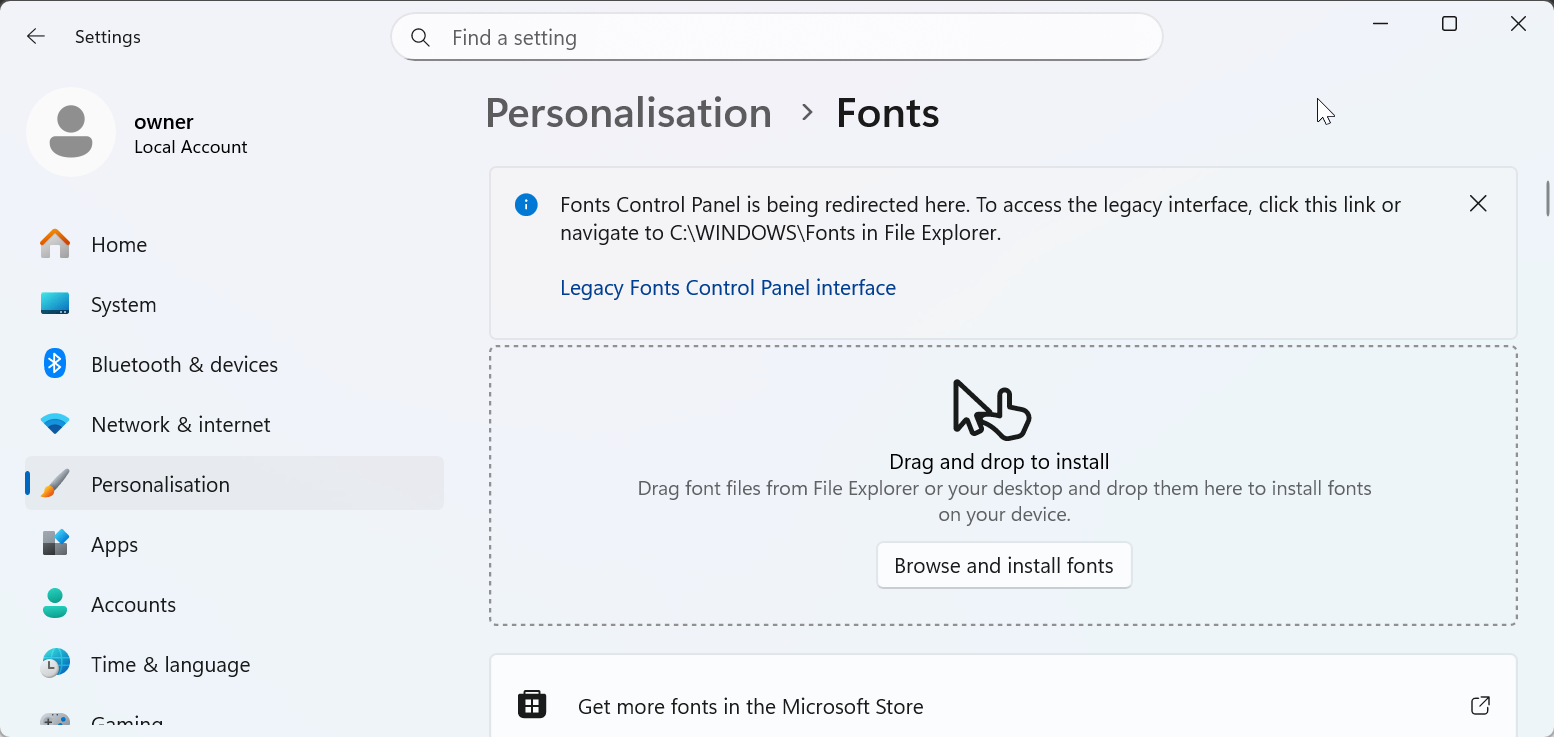
- Drag the font files into the Fonts window
- Use a font changer tool to apply the font system-wide
Cursors
- Download a macOS cursor pack
- Open Control Panel, click Mouse, then click Pointers
- Replace each pointer manually
- Click Save As and save it as a new scheme
Undo
- Restore default fonts and the default cursor scheme
Use macOS wallpapers and accent colors correctly
Wallpaper and color tone matter.
Steps
- Download official macOS wallpapers
- Open Settings, click Personalization, then click Background
- Set the background to Picture
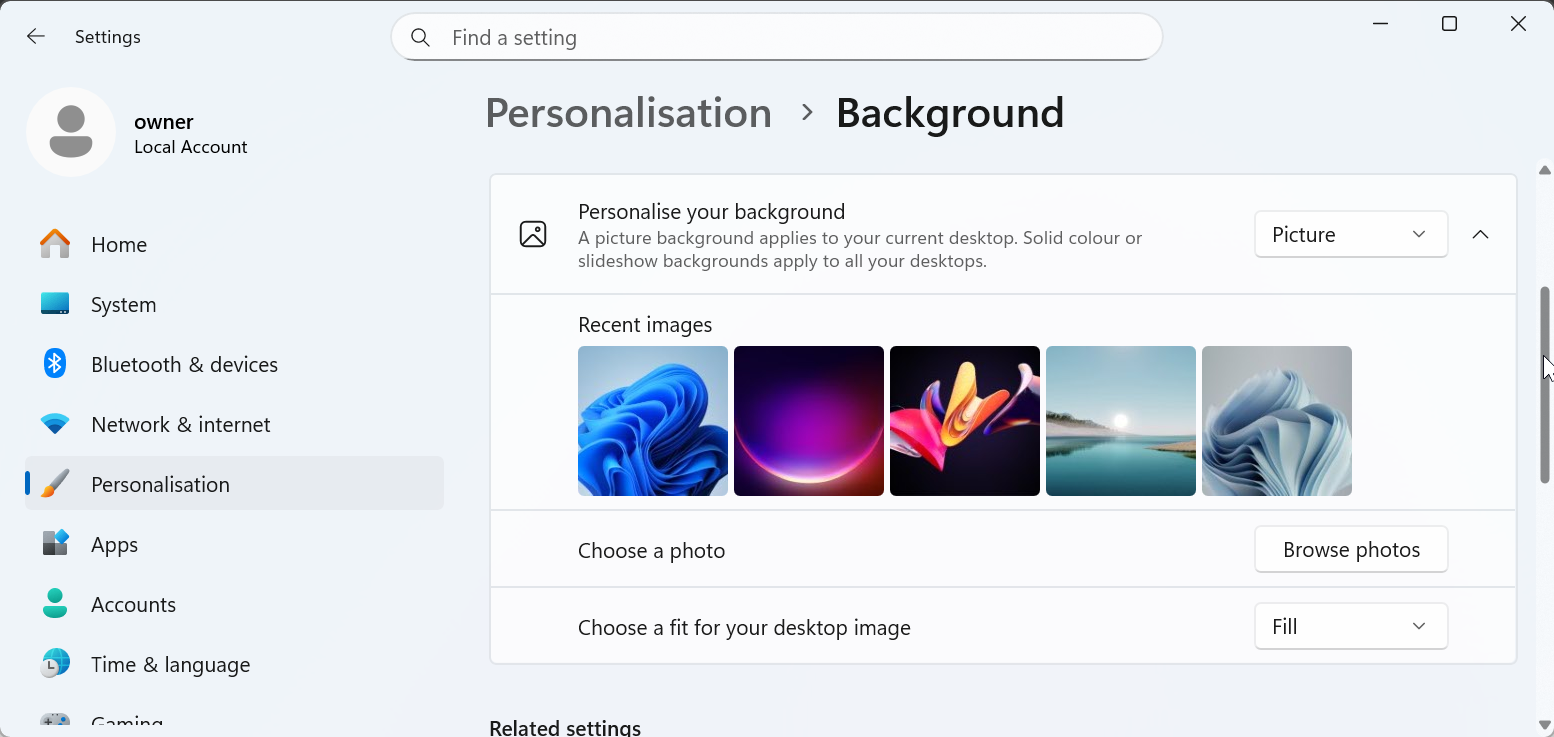
- Choose neutral accent colors
- Turn on Transparency effects
Avoid
- Bright Windows accent colors
Enable macOS-style system sounds
Sound completes the illusion.
Steps
- Download a macOS sound pack
- Open Control Panel, click Sound
- Click the Sounds tab
- Replace system sounds manually
- Save the scheme
Undo
- Switch back to the Windows Default sound scheme
macOS look options by Windows version
Best setup for Windows 11
Windows 11 already uses centered UI and rounded corners. Focus on the Dock, icons, fonts, wallpapers, and Spotlight-style search.
Avoid aggressive theme patching because updates may reset changes or cause glitches.
Best setup for Windows 10
Windows 10 allows full window themes, deeper icon replacement, and better Finder-like layouts. Windows 10 can look closer to macOS overall.
Performance and stability considerations
Dock apps and search launchers use the most resources. Icons, fonts, and wallpapers use almost none.
Tips
- Use one Dock only
- Avoid multiple launchers
- Disable unnecessary startup apps
How to revert Windows back to the default look
Undo changes in this order:
- Uninstall Dock and launcher apps
- Restore default icons
- Switch back to the default theme
- Reset fonts and cursors
- Turn on the Windows taskbar
If you need a full rollback, use the restore point you created at the start.
Common problems and fixes
- Icons missing: rebuild the icon cache
- Transparency broken: restart File Explorer
- Theme resets after update: reapply the theme
- Dock not showing: restart the Dock app
Tips for a cleaner macOS-style setup
- Keep the Dock simple and avoid overcrowding
- Use one consistent icon pack across the system
- Disable unnecessary Windows visual effects
- Reapply tweaks after major Windows updates
FAQs
Is this legal to do on Windows?
Yes. These tools customize appearance only and do not copy macOS code.
Will this slow down my PC?
Minimal impact occurs if you use only one Dock and one launcher.
Can Windows fully replace macOS this way?
No. This approach changes visuals and workflows, not underlying macOS features.
Summary
- Prepare Windows with a restore point before customization
- Replace the taskbar with a macOS-style Dock
- Apply macOS icons, fonts, wallpapers, and sounds
- Adjust File Explorer and search for Finder and Spotlight behavior
- Keep performance and rollback options in mind
You can make Windows look strikingly similar to macOS with the right combination of tools and settings. The key lies in focusing on the Dock, icons, fonts, and search behavior rather than forcing deep system changes.
If you follow a reversible setup and avoid unsafe theme patching, you get the macOS aesthetic without sacrificing Windows stability or updates.


Discussion (0)
Be the first to comment.