




Microsoft Teams is a communication and collaboration app used for meetings, chats, calls, and file sharing. It is widely used for work, school, and personal communication. Installing Microsoft Teams is straightforward, but the steps vary depending on your device.
This guide explains how to install Microsoft Teams on Windows, Mac, Android, and iPhone, and what to do if installation fails.
What Is Microsoft Teams?
Microsoft Teams is an app developed by Microsoft that combines chat, video meetings, voice calls, and file sharing in one place. It is commonly used by businesses, schools, and remote teams.
You can use Teams for:
- Video and audio meetings
- One-on-one and group chats
- Sharing files and documents
- Collaborating with coworkers or classmates
Types of Microsoft Teams Versions
Before installing, it helps to know which version you need.
- Microsoft Teams for Work or School
Requires a Microsoft 365 work or school account - Microsoft Teams Free
Works with a personal Microsoft account - Microsoft Teams Classic
Older version that is being phased out
Most users should install the latest version of Microsoft Teams.
How to Install Microsoft Teams on Windows
Microsoft Teams can be installed on Windows 10 and Windows 11.
Method 1: Install from Microsoft Website
- Open a web browser
- Go to the official Microsoft Teams download page
- Click Download for desktop
- Run the downloaded installer
- Follow the on-screen instructions
- Sign in with your Microsoft account
Teams will launch automatically after installation.
Method 2: Install from Microsoft Store
- Open Microsoft Store
- Search for Microsoft Teams
- Click Install
- Wait for the download to complete
- Open the app and sign in
This method keeps Teams updated automatically.
How to Install Microsoft Teams on Mac
Steps:
- Open a web browser
- Go to the Microsoft Teams download page
- Download the macOS version
- Open the installer file
- Drag Microsoft Teams to the Applications folder
- Launch Teams and sign in
How to Install Microsoft Teams on Android
Steps:
- Open Google Play Store
- Search for Microsoft Teams
- Tap Install
- Open the app after installation
- Sign in with your account
Teams works on most modern Android phones and tablets.
How to Install Microsoft Teams on iPhone
Steps:
- Open the App Store
- Search for Microsoft Teams
- Tap Get
- Install the app
- Open Teams and sign in
Make sure your iPhone is running a supported iOS version.
How to Fix Microsoft Teams Installation Issues
If Microsoft Teams does not install or open properly, try these fixes.
Common Fixes
- Restart your device and try again
- Check your internet connection
- Install all pending system updates
- Make sure enough storage space is available
Windows-Specific Fixes
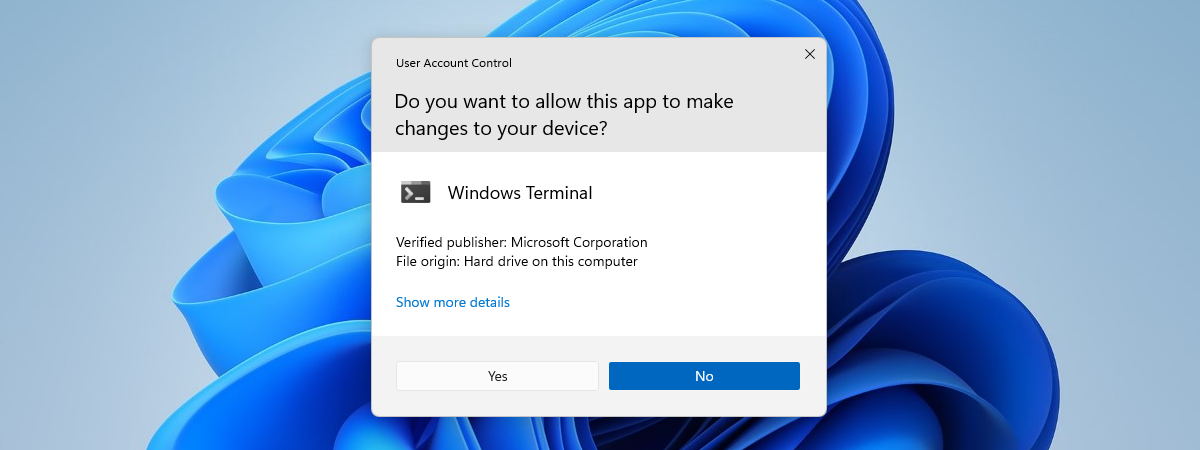
- Run the installer as administrator
- Disable antivirus temporarily during installation
- Remove older versions of Teams before reinstalling
Final Thoughts
Installing Microsoft Teams is simple on most devices. Whether you use Windows, Mac, Android, or iPhone, Microsoft provides official installers and app store versions. If installation issues occur, basic troubleshooting steps usually resolve them quickly.
Once installed, Teams makes it easy to communicate, meet, and collaborate from anywhere.


Discussion (0)
Be the first to comment.