




Microsoft Store is an essential part of Windows 11. It allows you to download apps, games, and system utilities safely. If Microsoft Store is missing, broken, or not opening on your PC, you can reinstall it using a few reliable methods.
This guide explains why Microsoft Store may be missing, how to install or reinstall it on Windows 11, and what to do if it still does not work.
Why Microsoft Store Is Missing on Windows 11
Microsoft Store can disappear or stop working for several reasons, including:
- Corrupted system files
- Incomplete Windows updates
- Accidental removal by system tools
- Issues after upgrading from Windows 10
- Disabled background services
In most cases, Microsoft Store is not permanently removed and can be restored.
Check if Microsoft Store Is Already Installed
Before reinstalling, make sure Microsoft Store is not simply hidden.
Steps:
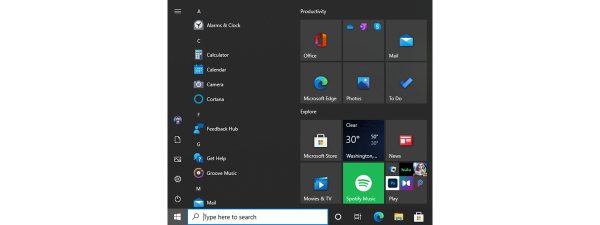
- Click the Start button
- Type Microsoft Store
- If it appears, try opening it
If it opens but does not load properly, you may only need to reset it instead of reinstalling.
Install Microsoft Store Using PowerShell (Recommended Method)
This is the most reliable way to reinstall Microsoft Store on Windows 11.
Steps to Reinstall Microsoft Store
- Right-click the Start button
- Select Windows Terminal (Admin) or PowerShell (Admin)
- Copy and paste the following command:
Get-AppxPackage -allusers Microsoft.WindowsStore | Foreach {Add-AppxPackage -DisableDevelopmentMode -Register "$($_.InstallLocation)\AppxManifest.xml"}
- Press Enter
- Wait for the process to complete
- Restart your PC
After restarting, Microsoft Store should appear and work normally.
Reinstall Microsoft Store Using Windows Troubleshooter
If PowerShell does not work, Windows includes built-in tools that may fix the issue.
Steps
- Open Settings
- Go to System
- Select Troubleshoot
- Click Other troubleshooters
- Run the Windows Store Apps troubleshooter
This tool scans for common problems and fixes them automatically.
Fix Microsoft Store Not Opening After Installation
If Microsoft Store installs but still does not open, try these additional steps.
Reset Microsoft Store
- Open Settings
- Go to Apps
- Select Installed apps
- Find Microsoft Store
- Click Advanced options
- Select Reset
Check Windows Update
- Open Settings
- Go to Windows Update
- Install all pending updates
- Restart your PC
Verify Required Services
Make sure these services are running:
- Windows Update
- Background Intelligent Transfer Service
- Microsoft Store Install Service
Final Thoughts
If Microsoft Store is missing or not working on Windows 11, reinstalling it is usually quick and safe. PowerShell is the most effective method, while Windows troubleshooters help fix minor issues. Keeping Windows updated and system services enabled reduces the chances of the problem returning.
Discussion (0)
Be the first to comment.