




Waze offers a variety of voices to guide you through your trips, from standard TTS (Text-to-Speech) voices to fun custom options. Changing your voice in Waze can make the driving experience more personalized or just a bit more fun. Whether you want a new language, accent, or even a custom recording, this guide walks you through the different ways to install and use new voices in Waze.
1) How to change voice in Waze: Official Methods
Changing the default Waze voice
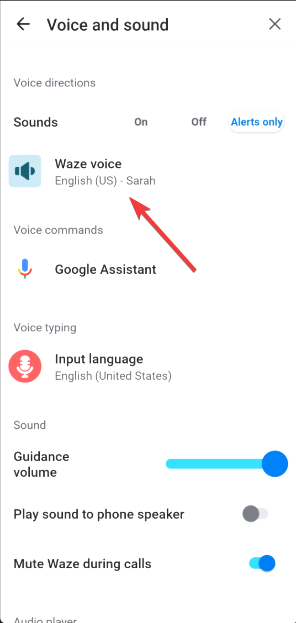
Changing the voice in Waze is simple. Open the Waze app and go to Settings > Voice and Sound. Tap Waze Voice, and select from the list of available options. You can choose from multiple languages, accents, and voices, including options for male and female voices.
Enabling text-to-speech (TTS) voices
To enable Text-to-Speech (TTS) voices, navigate to the Voice and Sound menu in Waze settings. Next, tap Waze Voices and select any of the voices that show Includes street names.

TTS voices read out street and road names and other important details as you drive. They are available in multiple languages and accents, enhancing your navigation experience.
2) How to record your own custom voice for Waze
Waze allows you to create a personalized navigation experience by recording your own voice. To start, go to Settings > Voice and Sound > Add voice. Select prompts like Turn left in 200 meters, and follow the on-screen instructions. Once done, save your recordings and set them as your default voice.

Tip: For the best results, ensure you’re recording in a quiet environment with a good microphone. Speak clearly, and try to record each prompt in one take to avoid inconsistencies.
3) How to install community and custom voice packs
Community-made voice packs allow you to change your Waze voice to something more unique. These packs can include voices from celebrities, fictional characters, or even custom recordings from other Waze users.
To find these packs, check community sites or voice pack repositories. Once you've found the voice you want, download the pack directly to your device.
Next, on Android, use a file manager to access the downloaded voice pack files and move them to the correct folder in the Waze directory. On iOS, you may need a third-party app to import custom voice packs. Once the voice pack is on your device, select it from Settings > Voice and Sound.
4) Voice ethics considerations
While community-made voice packs can be fun, it's essential to be mindful of legal and ethical considerations. Some voice packs may be unlicensed or AI-generated, which could lead to privacy or copyright concerns. Always opt for voices that are either officially supported or created by users with proper permissions.
5) Troubleshooting Waze voice installation issues
- Fixing voice not working after installation: Go to Settings > Voice & Sound, then select a different voice and switch back to your preferred one. If the issue persists, try clearing the app cache or reinstalling Waze.
- Solving issues with custom voice packs: When custom voice packs don't play as expected, ensure the file format is supported by Waze. For Android users, check that the voice pack is placed in the correct directory. On iOS, verify that the third-party app used for importing voices supports Waze. If the issue continues, try re-downloading the pack or using a different one.
FAQ
How do I revert to the default Waze voice? To return to the default voice, go to Settings > Voice & Sound and select the default Waze voice.
Can I use my own music or sounds in place of a voice? While you can’t replace the voice with music, you can change to a custom voice for a personalized touch.
Will custom voices work offline in Waze? Yes, once the custom voice is downloaded, it will work offline.
Are there any celebrity voices available in Waze? Celebrity voices come and go, so check the available list in Settings or explore community sites for any current offerings.
Summary
- Change the Waze voice by selecting from built-in options in the settings menu.
- Record your own custom voice for a personalized experience in Waze.
- Download and install community voice packs from external sources.
- Troubleshoot issues with resetting settings or reinstalling the app.
Conclusion
Changing the voice in Waze can enhance your navigation experience, whether you're using pre-recorded voices, creating your own, or downloading custom voice packs. Follow the steps in this guide to get your preferred voice up and running.
If you encounter any issues, refer to the troubleshooting section for quick fixes. Remember to consider the quality and ethics of custom voice packs to ensure a safe and enjoyable driving experience.

Discussion (0)
Be the first to comment.