



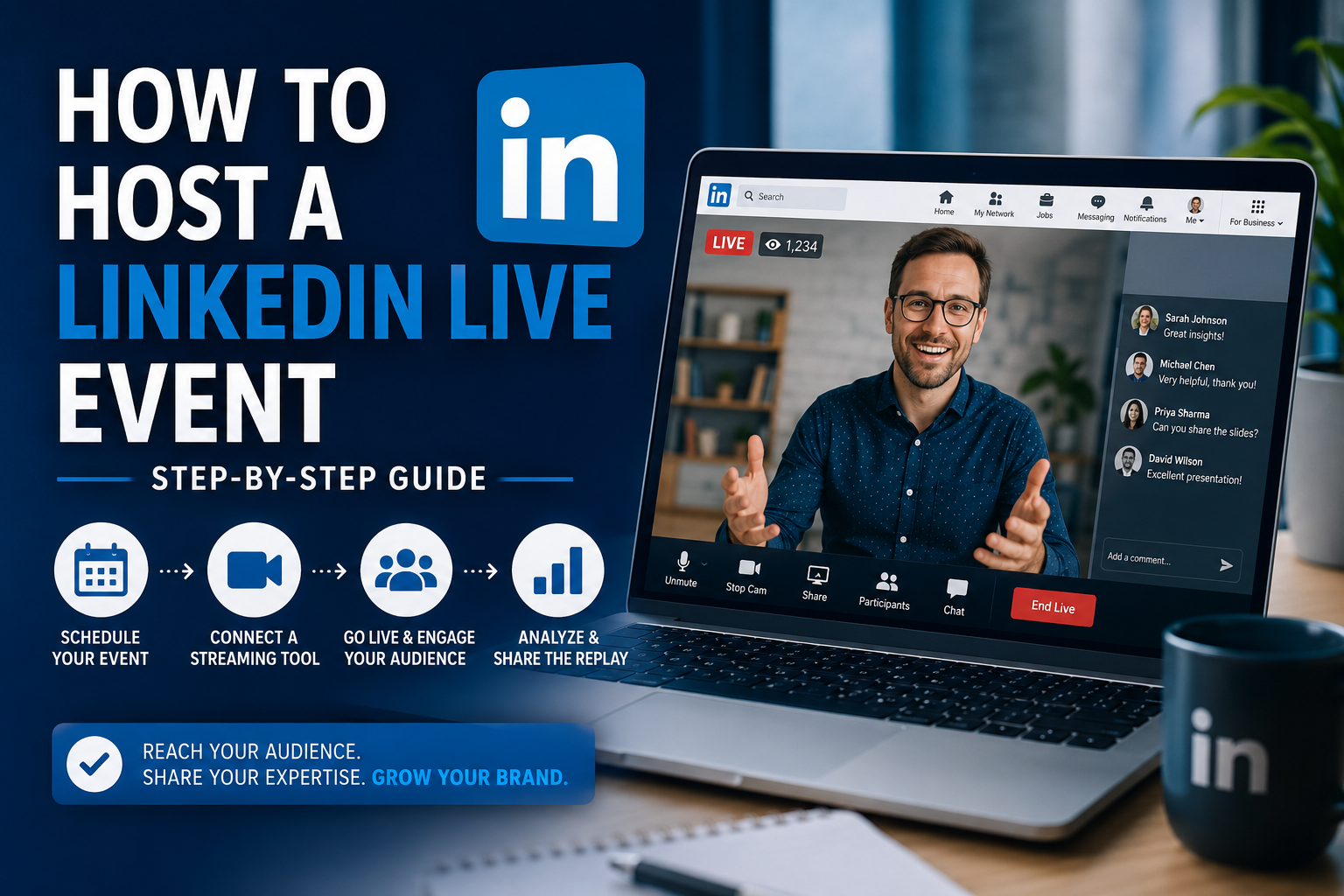
To host a LinkedIn Live event, confirm that your profile or company Page is eligible, create an online event with LinkedIn Live as its format, connect a supported streaming tool, test your audio and video, and then start the broadcast.
LinkedIn does not let you stream directly from its website or app. You need a broadcasting platform such as StreamYard, Restream, Socialive, or Switcher, or you can connect software such as OBS or Zoom through LinkedIn’s custom RTMP streaming option. (LinkedIn)
Important 2026 update: LinkedIn discontinued spontaneous Live broadcasts on June 22, 2026. Every stream must now be scheduled as a LinkedIn Event first. You can still schedule an event only a few minutes before you intend to start. (LinkedIn)
How does LinkedIn Live work?
LinkedIn Live lets an eligible person or organization stream video to a personal profile, company Page, or LinkedIn Event.
Your scheduled event appears as a post in the LinkedIn feed. People can select Attend, share the event, invite connections, and receive reminders. When the broadcast begins, the event post automatically displays the live video.
After the stream ends, the recording remains available on the organizer’s profile or Page as a previously recorded live video. LinkedIn Live broadcasts are public, so they should not be used for private meetings or confidential customer briefings. (LinkedIn)
The current process is:
- Check that your profile or Page is eligible.
- Schedule a LinkedIn Live Event.
- Connect a broadcasting tool.
- Test your microphone, camera, and stream.
- Start the broadcast.
- Moderate comments and audience questions.
- End the stream and reuse the recording.
Who can host a LinkedIn Live event?
Not every LinkedIn account automatically receives Live access.
LinkedIn evaluates both personal profiles and company Pages using the following requirements:
| Requirement | LinkedIn Live rule |
|---|---|
| Audience | More than 150 followers, connections, or a combination of both |
| Account age | The profile or Page must be at least 30 days old |
| Account standing | The profile, Page, and its admins must comply with LinkedIn’s Professional Community Policies |
| Location | LinkedIn Live is not available to profiles or Pages based in mainland China |
| Subscription | LinkedIn Premium is not required |
There is no separate application form for LinkedIn Live. Eligible accounts can trigger an immediate review by attempting to create a Live Event or by connecting their account to a preferred broadcasting partner. (LinkedIn)
How to check whether you have LinkedIn Live access
On a desktop computer:
- Sign in to LinkedIn.
- Select Home.
- Open Events from the left-hand menu.
- Select Create an Event.
- Open the Event format menu.
- Look for LinkedIn Live.
If LinkedIn Live appears, the selected profile or Page has access.
When checking access for a company Page, select the Page under Organizer. A personal profile may be eligible even when a Page you manage is not, and the opposite may also be true. (LinkedIn)
If the LinkedIn Live option is missing, confirm that:
- The correct profile or Page is selected as the organizer.
- The account has more than 150 followers or connections.
- The account is at least 30 days old.
- The account and its administrators remain in good standing.
What do you need before going live on LinkedIn?
Prepare the following before creating your event.
An eligible LinkedIn profile or Page
Decide whether the broadcast should appear on your personal profile or your company Page.
A personal profile can be effective when the host already has an engaged professional audience. A company Page may be more appropriate for product demonstrations, branded webinars, research presentations, customer interviews, and corporate announcements.
The organizer cannot be changed after the event has been published, so make this choice carefully. (LinkedIn)
A streaming tool
LinkedIn currently recognizes the following preferred broadcasting partners:
- Restream
- Socialive
- StreamYard
- Switcher
These platforms can connect directly to an eligible LinkedIn profile or Page and schedule or broadcast a Live Event.
More advanced production teams can use LinkedIn Live Studio with a custom RTMP or RTMPS stream. This makes it possible to broadcast through software and encoders such as OBS or Zoom. (LinkedIn)
A stable internet connection
LinkedIn recommends an upload speed of at least 10 Mbps.
Use a wired Ethernet connection where possible. If Wi-Fi is your only option, position the broadcasting computer near the router and pause unnecessary cloud backups, downloads, or video calls during the event. (LinkedIn)
A clear event concept
A LinkedIn Live works best when it promises a specific professional outcome.
Suitable formats include:
- An expert interview
- A panel discussion
- An industry briefing
- A product demonstration
- A research presentation
- A live tutorial
- A question-and-answer session
- A company announcement
- A conference or trade-show broadcast
Avoid vague titles such as “Join Our LinkedIn Live.” Explain what attendees will learn instead.
For example:
Weak title: Join Our Marketing Live
Stronger title: How B2B Marketers Can Adapt to AI Search in 2026
A moderator
The host should not have to present, troubleshoot the stream, and monitor every comment at the same time.
Assign someone to:
- Watch the public event from a separate device.
- Confirm that the audio and video are working.
- Remove spam or inappropriate comments.
- Collect audience questions.
- Alert the host to technical problems.
- Post relevant resources in the comments.
LinkedIn specifically recommends using another device or browser window to view the public stream and having at least one person dedicated to moderation. (LinkedIn)
How to host a LinkedIn Live event
The following steps cover the complete process from scheduling to broadcasting.
1. Choose your organizer
Decide whether you are hosting from:
- Your personal LinkedIn profile
- A company LinkedIn Page
For a company Page, you must have the necessary Page permissions. A content admin or super admin can begin the broadcast through a connected third-party tool. (LinkedIn)
Remember that LinkedIn will not let you change the organizer after the event has been published.
2. Choose your streaming method
There are two main ways to stream to LinkedIn.
Option A: Use a preferred broadcasting partner
This is generally the simplest method for first-time hosts.
Connect your LinkedIn account to StreamYard, Restream, Socialive, or Switcher. The platform will check whether your selected profile or Page has LinkedIn Live access.
A preferred tool is suitable when you want to:
- Invite remote speakers.
- Add names, logos, or branded layouts.
- Share your screen.
- Display audience comments.
- Manage the stream without configuring an encoder.
- Potentially broadcast to multiple platforms.
Option B: Use a custom RTMP stream
Custom RTMP streaming is more appropriate for production teams using OBS, Zoom, an external encoder, or an established webinar workflow.
You will configure the event in LinkedIn Live Studio, generate a Stream URL and Stream Key, and enter those credentials in your broadcasting software.
Never share your Stream Key publicly. Anyone with the key may be able to send video to the configured event.
3. Create the LinkedIn Live Event
To create an event on desktop:
- Open your LinkedIn homepage.
- Select Events from the left-hand menu.
- Select Create an Event.
- Choose your personal profile or company Page under Organizer.
- Set the event type to Online.
- Set the event format to LinkedIn Live.
- Upload a cover image.
- Enter the event name.
- Select the date, time, and time zone.
- Add an end time when appropriate.
- Add a registration form if the organizer is an eligible company Page.
- Write the event description.
- Add the speakers.
- Select Next.
- Write the accompanying promotional post.
- Select Post to finish creating the event.
LinkedIn accepts 16:9 event images, including 1280 by 720 pixels. The minimum image width is 480 pixels. Add descriptive alt text to make the image accessible to people using screen readers. (LinkedIn)
Be careful before publishing
After the event is posted, LinkedIn does not allow you to change:
- The organizer
- The event type
- The event format
You can still update details such as the event title, description, date, and time, but confirm the organizer and format before selecting Post. (LinkedIn)
Should you create the event on LinkedIn or inside your streaming tool?
Create the event directly on LinkedIn when you want to use a native LinkedIn registration form.
LinkedIn Pages cannot add the native registration form when the Live Event is originally created through a third-party broadcasting tool. (LinkedIn)
This distinction matters for brands that want to collect attendee information. Page registration forms also require a link to a privacy policy explaining how the collected information will be used. (LinkedIn)
4. Connect the streaming tool to your event
The exact interface depends on the platform you choose, but the general process is similar:
- Sign in to the streaming platform.
- Connect your LinkedIn account.
- Authorize access to the correct profile or Page.
- Create a new livestream.
- Select LinkedIn as the destination.
- Choose the existing LinkedIn Live Event.
- Add your speakers and production elements.
- Save the broadcast.
Example: Connect a LinkedIn event in StreamYard
In StreamYard:
- Select Create.
- Select Live stream.
- Choose the LinkedIn profile or Page that created the event.
- Select Use an existing LinkedIn Event.
- Choose the correct event.
- Select Use selected event.
- Create the livestream.
- Enter the studio shortly before the scheduled time.
- Check your microphone and camera.
- Select Go live when ready.
LinkedIn recommends that StreamYard users do not initiate the stream more than 10 minutes before the scheduled event time. (LinkedIn)
5. Connect a custom RTMP stream
For OBS, Zoom, or another custom encoder:
- Open LinkedIn Live Studio.
- Go to Manage streams.
- Find the scheduled event.
- Select Prepare to go live.
- Choose the closest available region.
- Select Get URL.
- Copy the Stream URL and Stream Key.
- Paste both into your streaming software.
- Start sending the stream from your encoder.
- Check the preview in LinkedIn Live Studio.
- Select Go live in LinkedIn when the preview is correct.
For standard profiles and unverified Pages, Prepare to go live normally becomes available one hour before the event. Verified Pages can access it two hours before the scheduled start. (LinkedIn)
The preview is not visible to the audience. Do not select Go live until the speakers, microphone, screen sharing, and visual layout are ready.
6. Test the broadcast
Do not wait until the scheduled start time to discover that a microphone is muted or the wrong screen is being shared.
Test:
- Camera framing
- Microphone volume
- Screen sharing
- Speaker permissions
- Name labels
- Brand graphics
- Internet stability
- Lighting
- Echo and background noise
- Video orientation
- Public comment monitoring
LinkedIn Pages can create a built-in test event instead of creating temporary Pages or publishing a public test broadcast. RTMP users can also start sending video to the private preview and end the test without selecting LinkedIn’s public Go live button. (LinkedIn)
Use a simple run of show
A 40-minute event might follow this structure:
| Time | Segment |
|---|---|
| 0:00 to 2:00 | Welcome and explanation of what viewers will learn |
| 2:00 to 5:00 | Introduce the host and guests |
| 5:00 to 25:00 | Main discussion or presentation |
| 25:00 to 35:00 | Audience questions |
| 35:00 to 38:00 | Key takeaways |
| 38:00 to 40:00 | Clear next step and closing |
Avoid spending the opening minutes reading biographies or waiting silently for more people to arrive. Viewers joining later can watch the replay.
7. Start the LinkedIn Live
LinkedIn lets you begin a scheduled Live Event from 15 minutes before its stated start time until two hours after it.
If you do not begin within that window, LinkedIn may mark the event as canceled. (LinkedIn)
Before selecting Go live:
- Confirm that all speakers are present.
- Check the public event on a second device.
- Confirm that the correct event is connected.
- Close private messages, email, and other sensitive windows.
- Start any local recording your production team requires.
- Confirm that the moderator can access the comments.
- Make sure everyone knows when the broadcast becomes public.
Once live, open with the promised value:
“Today, you will learn how to plan, schedule, and run a LinkedIn Live event without losing viewers to technical setup problems.”
Then introduce the speakers and move quickly into the subject.
8. Moderate and engage with viewers
LinkedIn Live attendees can react and leave comments in real time.
The moderator should:
- Welcome attendees by name where appropriate.
- Collect useful questions.
- Remove spam.
- Post links mentioned by the speakers.
- Tell the host when an important question appears.
- Confirm whether the stream remains stable.
- Encourage relevant discussion without repeatedly asking for reactions.
Do not leave all questions until the final minute. Bring relevant comments into the conversation as the topic develops.
9. End the stream properly
When the presentation finishes:
- Deliver the final call to action.
- Thank the speakers and attendees.
- Tell viewers where to find related resources.
- End the broadcast in your streaming tool.
- Confirm that LinkedIn has ended the public stream.
- Save any local recordings and chat notes.
The replay remains on the profile or Page after the event. Organizers can also download the event recording from the Event Details page. Personal profiles can review video post analytics, while company Pages can access relevant performance information through their analytics area. (LinkedIn)
Can brands host live events on LinkedIn?
Yes. Brands can host a LinkedIn Live Event through an eligible company Page.
A Page administrator should:
- Open the company Page’s admin view.
- Create an event with the company Page selected as the organizer.
- Choose Online as the event type.
- Choose LinkedIn Live as the event format.
- Add the event information and registration form.
- Connect the Page to a supported broadcasting platform.
- Promote the event from the Page and participating employees’ profiles.
- Begin the broadcast through the connected tool.
A Page content admin or super admin can initiate the broadcast. The person operating the stream should confirm that the company Page, rather than their personal profile, is selected as the destination. (LinkedIn)
Use a company Page when lead generation matters
Company Pages can add a LinkedIn registration form to an event created directly on LinkedIn. This can help a business collect attendee information and follow up with registrants after the broadcast.
Remember that:
- The form is available to Page-hosted events, not personal-profile events.
- A privacy policy is required.
- The event should be created directly on LinkedIn when the native registration form is needed.
- The livestream itself should be treated as public content.
Recommended LinkedIn Live technical settings
Custom RTMP users should configure their encoder according to LinkedIn’s recommended specifications.
| Setting | Recommended value |
|---|---|
| Aspect ratio | 16:9 |
| Resolution | 720p recommended, 1080p maximum |
| Frame rate | 30 frames per second |
| Keyframe interval | Every 2 seconds |
| Video bitrate | 3.5 Mbps recommended, 6 Mbps maximum |
| Audio bitrate | 128 Kbps |
| Audio sample rate | 48 kHz |
| Video encoding | H.264 |
| Audio encoding | AAC |
| Protocol | RTMP or RTMPS |
| Upload speed | At least 10 Mbps |
If LinkedIn fails to process the stream, use the Baseline video profile rather than the High or Main profile. LinkedIn warns that higher profiles can introduce B-frames or timestamp problems that prevent successful ingestion. (LinkedIn)
How long should a LinkedIn Live event be?
LinkedIn’s technical guidance recommends broadcasting for at least 10 minutes so that the event has time to attract an audience. The maximum LinkedIn Live duration is four hours. (LinkedIn)
LinkedIn’s event marketing guidance suggests streaming for longer than 15 minutes but usually finishing within one to two hours to limit viewer drop-off. (LinkedIn Business Solutions)
For most interviews, presentations, and panel discussions, 30 to 60 minutes provides enough time to deliver useful information and answer questions without unnecessarily extending the event.
How to promote a LinkedIn Live event
Creating the event does not guarantee that people will attend. Treat the event like a campaign rather than a single post.
Schedule it early
LinkedIn recommends scheduling Live Events at least two weeks in advance. Its broader event marketing guidance suggests planning two to four weeks ahead when possible. (LinkedIn)
A longer promotional period gives you time to:
- Invite relevant connections.
- Ask speakers to share the event.
- Mention it in newsletters.
- Publish supporting posts.
- Add the event to company communications.
- Run an Event Ad when appropriate.
For urgent news or commentary, LinkedIn still allows you to schedule an event only minutes before starting.
Write an outcome-focused event title
The title should tell people what they will learn.
Examples:
- How AI Search Is Changing B2B Content Strategy
- Five LinkedIn Ad Mistakes Reducing Your Conversion Rate
- What Marketing Leaders Need to Know About First-Party Data
- Live Website Audit: How to Find Technical SEO Problems
- Building a Practical AI Workflow for Content Teams
Use the description to answer four questions
The event description should explain:
- Who should attend?
- What problem will the event address?
- What will viewers learn?
- Who will be speaking?
Finish with a clear reason to select Attend.
Activate the speakers
Give every speaker:
- The event link
- A suggested promotional post
- The banner image
- The date and time in relevant time zones
- The key audience takeaway
- A reminder shortly before the event
A speaker’s personal network may generate more engagement than the company Page alone.
Invite relevant connections
Use LinkedIn’s invitation feature selectively. Invite people who are genuinely likely to benefit from the subject rather than sending indiscriminate invitations.
Scheduled attendees receive reminders before the event, including notifications three days and 15 minutes before the scheduled start. LinkedIn may also notify a subset of the organizer’s followers. (LinkedIn)
Promote the replay
The event continues to have value after the live broadcast.
Turn the recording into:
- Short video clips
- Quote graphics
- A summary article
- A newsletter edition
- Individual speaker posts
- A question-and-answer post
- A downloadable checklist
- Sales enablement material
- A follow-up email for registrants
LinkedIn also recommends repurposing useful moments from the recording and continuing the conversation with attendees after the event. (LinkedIn Business Solutions)
Common LinkedIn Live problems and how to fix them
| Problem | Likely cause | What to do |
|---|---|---|
| LinkedIn Live is missing from the event format menu | The profile or Page does not meet the access criteria | Check audience size, account age, standing, location, and selected organizer |
| There is no “go live now” option | LinkedIn discontinued spontaneous broadcasts | Schedule a Live Event first, even if it starts in a few minutes |
| The registration form is missing | A personal profile is organizing the event, or the Page event was created through a third-party tool | Create the event directly on LinkedIn with an eligible Page selected |
| The event does not appear in the streaming tool | The wrong profile or Page is connected | Reconnect LinkedIn and select the account that created the event |
| The RTMP preview is blank | Incorrect Stream URL, Stream Key, encoder settings, or inadequate upload speed | Regenerate the credentials and compare the encoder with LinkedIn’s specifications |
| LinkedIn marked the event as canceled | The stream did not start in the permitted window | Start between 15 minutes before and two hours after the scheduled time |
| You cannot change the organizer or format | Those fields become permanent after publishing | Cancel and recreate the event with the correct settings |
| The host cannot see comments | Comments are not being monitored on the public event | Open the LinkedIn event on a second device or assign a moderator |
| Audio echoes during the broadcast | The public stream is playing near an active microphone | Mute the monitoring device or use headphones |
These limitations reflect LinkedIn’s current scheduling, eligibility, event creation, and broadcasting rules. (LinkedIn)
Frequently asked questions
Can anyone host a LinkedIn Live event?
No. LinkedIn Live is limited to eligible personal profiles and company Pages. The account must have more than 150 followers or connections, be at least 30 days old, remain in good standing, and meet LinkedIn’s geographic requirements. (LinkedIn)
How many followers do you need to go live on LinkedIn?
A profile or Page needs more than 150 followers, connections, or a combination of the two before it can be evaluated for LinkedIn Live access. Meeting the audience threshold does not override LinkedIn’s other eligibility requirements. (LinkedIn)
Can a company Page go live on LinkedIn?
Yes. An eligible company Page can create and host LinkedIn Live Events. A Page super admin or content admin can operate the broadcast through a connected streaming platform. (LinkedIn)
Can you go live directly from LinkedIn?
No. LinkedIn requires a third-party broadcasting tool or custom RTMP streaming software. There is no native camera button that starts a LinkedIn Live broadcast directly. (LinkedIn)
Can you go live on LinkedIn without scheduling an event?
No. Since June 22, 2026, LinkedIn requires every Live broadcast to be scheduled as an event. You can schedule the event only a few minutes before starting when you need to react quickly. (LinkedIn)
Can you create a LinkedIn Live event on mobile?
LinkedIn’s mobile app can be used to create an event, select the organizer, and choose LinkedIn Live as the event format. However, the actual video broadcast still requires a compatible streaming tool. (LinkedIn)
Is LinkedIn Live available without LinkedIn Premium?
Yes. LinkedIn Premium is not required. Personal profiles and Page admins can receive Live access when they meet the eligibility requirements. The broadcasting platform you select may have its own free and paid plans. (LinkedIn)
Are LinkedIn Live events recorded?
Yes. LinkedIn Live events are recorded, and the replay remains on the organizer’s profile or company Page. Organizers can also download the recording from the event details. (LinkedIn)
Can you stream prerecorded video as a LinkedIn Live?
It may be technically possible through some broadcasting tools, but LinkedIn discourages presenting prerecorded material as a live broadcast. LinkedIn says Live streams should take place in real time to preserve audience trust. (LinkedIn)
Can you stream to LinkedIn and another platform simultaneously?
Some third-party broadcasting platforms support simulcasting to LinkedIn and other destinations. Check the capabilities and account limits of the streaming platform you plan to use. (LinkedIn)
What is the maximum length of a LinkedIn Live?
The maximum duration is four hours. LinkedIn recommends streaming for at least 10 minutes, while its marketing guidance suggests exceeding 15 minutes when the subject supports it. (LinkedIn)
LinkedIn Live checklist
Before starting the broadcast, confirm that:
- Your profile or Page has LinkedIn Live access.
- The correct organizer is selected.
- The event is scheduled.
- The streaming tool is connected to the correct event.
- The title clearly communicates the value.
- The cover image uses a 16:9 ratio.
- The event description includes the agenda and speakers.
- The registration form and privacy policy are configured when needed.
- The camera, microphone, lighting, and screen sharing have been tested.
- The upload speed is at least 10 Mbps.
- A moderator is monitoring the public stream.
- Speakers know the event format and running order.
- Sensitive notifications and windows are closed.
- The call to action is ready.
- The team has a plan for the replay and follow-up content.
Once these elements are ready, enter the broadcasting studio, verify the public preview, and start the event within LinkedIn’s permitted broadcast window.
Suggested internal links
- How to Create a LinkedIn Company Page
- How to Optimize Your LinkedIn Profile
- LinkedIn Video Marketing Strategy
- How to Promote a Webinar
- LinkedIn Lead Generation Guide
- Best Social Media Management Tools for Businesses
Discussion (0)
Be the first to comment.