




Streaming makes it easy to binge shows on your own, but sometimes you want that shared couch energy. A Netflix watch party lets you sync playback with friends, chat in real time, and react to every twist together, even when you all sit in different homes.
In this guide, you learn how to have a watch party on Netflix using Teleparty (the successor to Netflix Party) and a few alternative options. You also see what each person needs, how to fix common problems, and how to host a smooth Netflix watch party from start to finish.
What You Need For A Netflix Watch Party
Before you host a Netflix watch party, make sure everyone has the basics covered. This avoids connection issues once the movie starts.
- An active Netflix subscription for each viewer (Teleparty does not share accounts).
- A laptop or desktop computer running a Chromium browser such as Google Chrome, Microsoft Edge, or Brave.
- The Teleparty browser extension installed on every computer that joins the Netflix watch party.
- A stable high-speed internet connection, preferably over Wi-Fi or Ethernet rather than mobile data.
- Headphones or speakers with comfortable volume levels so you can hear dialogue over chat notifications.
Teleparty works best on computers. If you want to watch on a TV, you can cast your browser tab or connect your laptop to the TV with an HDMI cable while still controlling the watch party from the computer.
Method One: Use Teleparty For A Netflix Watch Party
Teleparty remains the most popular way to have a watch party on Netflix. It syncs video playback and adds a chat sidebar next to your Netflix window so everyone stays on the same scene.
Step One: Install The Teleparty Extension
Start by adding Teleparty to the browser you plan to use during your Netflix watch party.
- Open Google Chrome, Microsoft Edge, or another Chromium-based browser on your computer.
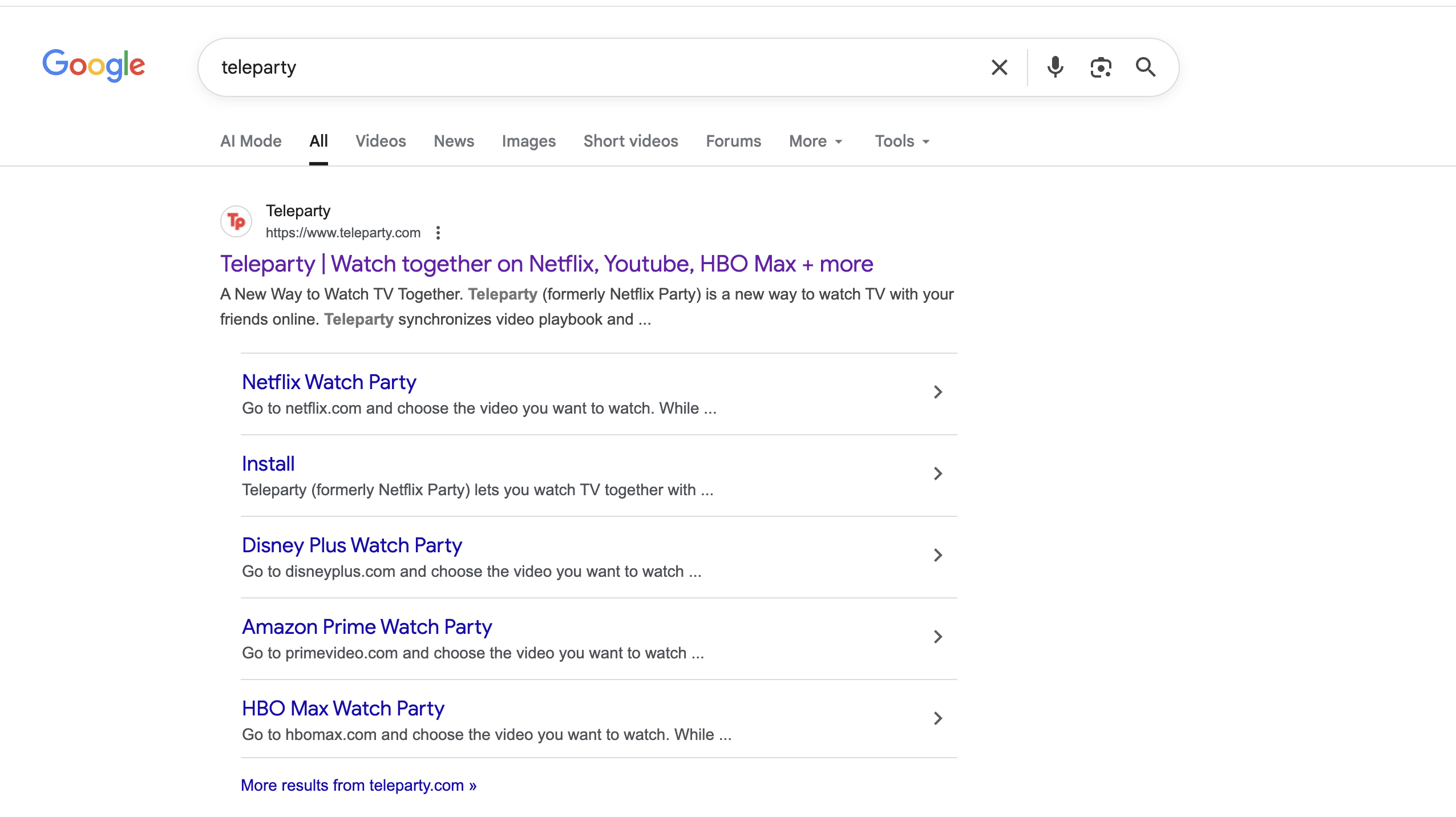
- Visit the official Teleparty page in the Chrome Web Store or Edge Add-ons store. Click Install Netflix Party or Teleparty.

- You'll be redirected to Netflix Party's page (in the Google Chrome web store). Click the button to add the Teleparty extension to your browser.

- Pin the Teleparty (TP) icon to your toolbar so you can reach it quickly while Netflix runs.
Ask every friend who joins the Netflix watch party to complete the same Teleparty installation on their own computer.
Step Two: Sign In To Netflix And Pick Your Title
Next, you need to choose what the Netflix watch party will stream.
- Open a new browser tab and go to the Netflix website.
- Sign in with your Netflix account and confirm it loads normally.
- Browse or search for the movie or TV show you want to watch with friends.
- Start playing the title, then pause it once the video loads so everyone can join at the same starting point.
You can host multiple Netflix watch parties over time, so do a quick poll in your group chat before the night begins and shortlist a few options.
Step Three: Create Your Netflix Watch Party In Teleparty
With your title ready, you can create the actual watch party on Netflix through Teleparty.
- Click the Teleparty (TP) icon in your browser toolbar while the Netflix video tab stays active.
- Select the option to start the party and decide whether only you control playback or everyone can pause and play.
- Teleparty generates a unique watch party link for this specific Netflix session.
- Click the copy button to place that watch party link on your clipboard.
You now act as host for the Netflix watch party. As long as you keep the tab open, Teleparty keeps video playback synced for everyone who joins.
Step Four: Invite Your Friends To The Netflix Watch Party
Everyone needs the same link to join your Netflix watch party room.
- Paste the Teleparty link into a group chat, text thread, or email so your friends can access it.
- Remind everyone to sign in to the same regional version of Netflix that you use.
- Ask them to open the link in the browser where Teleparty is installed.
- Tell each guest to click the TP icon after Netflix loads so Teleparty connects them to the watch party.
As everyone joins, you can see profile icons appear in the chat sidebar. Once your group arrives, you can start the Netflix watch party by pressing play.
Step Five: Chat, React, And Stay In Sync
During the Netflix watch party, Teleparty keeps playback synchronized and adds tools that help the group feel like you sit in the same room.
- Use the text chat to share live reactions, jokes, and theories while the show plays.
- Pause the video from the host account when someone needs a quick break so nobody falls behind.
- Encourage guests to mute or lower chat sounds if they find notifications distracting.
- Switch to a new Netflix episode or movie from the host tab when the current title ends.
If the Netflix watch party desynchronizes for anyone, they can often fix it by refreshing the browser tab and clicking the Teleparty icon again.
Method Two: Use Video Calls Or SharePlay As A Backup
Teleparty offers the smoothest way to have a watch party on Netflix, but you still have backup options when someone cannot install the extension or wants to watch on a different device.
- SharePlay On Apple Devices: If everyone uses iPhone, iPad, or Apple TV with the Netflix app and FaceTime, you can start a FaceTime call, start streaming, and let SharePlay sync playback while you talk.
- Screen Sharing On Video Calls: You can place a group call on apps like Zoom or Discord and have each person press play at the same moment while you keep mics open for reactions.
- In-Person Hybrid Watch Parties: Some friends watch together on one TV while others join through Teleparty from their own homes, then you all chat in the same thread.
These backup methods do not feel as automated as a dedicated Netflix watch party extension, yet they still let you experience the show together when Teleparty is not an option.
Tips For A Smooth Netflix Watch Party
A little preparation keeps your Netflix watch party running smoothly and helps every guest enjoy the stream.
- Ask everyone to test their Netflix login and Teleparty extension earlier in the day.
- Encourage viewers to close heavy downloads or online games that might slow their connection.
- Set basic rules in the chat, such as no major spoilers and no off-topic spam.
- Start the Netflix watch party a few minutes before the scheduled time so late arrivals can join without missing the opening scene.
- Consider turning on subtitles if the group includes people in noisier households.
Summary
- Each person needs a Netflix account, a compatible browser, and the Teleparty extension.
- The host opens Netflix, starts the video, clicks the Teleparty icon, and copies the watch party link.
- Friends open the link, sign in to Netflix, and join the Teleparty room to sync playback.
- Chat and controls live inside the Teleparty sidebar, so the whole group stays on the same frame.
- Backup options like SharePlay or video calls help when someone cannot run Teleparty.
Conclusion
Once you know how to have a watch party on Netflix, long-distance movie nights become easy to plan. Teleparty keeps shows perfectly in sync, while chat brings back the running commentary you miss when you stream alone.
Pick a night, choose a series, send out your Netflix watch party link, and let everyone join from their own couch. With the right setup, your living rooms merge into one big virtual theater where the whole group can laugh, jump, and react together in real time.


Discussion (0)
Be the first to comment.