



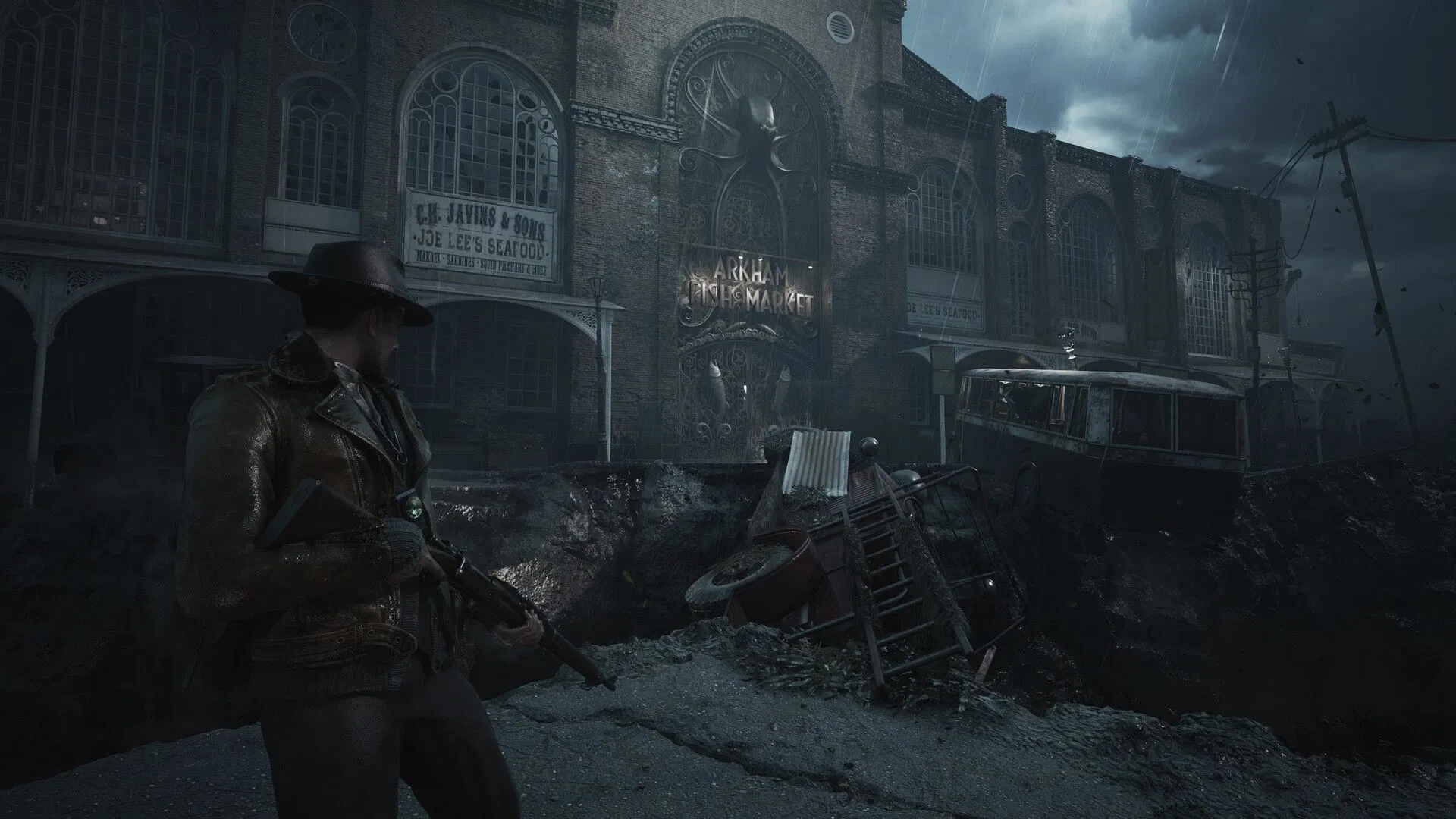
To get the best performance in The Sinking City 2 on PC, use DLSS Super Resolution if you have a GeForce RTX GPU, keep View Distance, Textures, Post Processing, and Foliage at Ultra, lower Effects and Global Illumination to Medium, and set Reflections, Shading, and Hair to High. This optimized combination improved average performance by 18% in testing while keeping the game visually close to the Ultra preset.
The Sinking City 2 is a demanding Unreal Engine 5.8 game that uses hardware Lumen global illumination and reflections, Nanite, MegaLights, and Virtual Shadow Maps. Its biggest weakness on PC is that many graphics options offer almost no useful performance scaling, so simply lowering every setting is not an effective way to gain FPS.
Best optimized settings for The Sinking City 2
| Graphics setting | Recommended value |
|---|---|
| Upscaling | DLSS Super Resolution on GeForce RTX, TSR on AMD Radeon and Intel Arc |
| View Distance | Ultra |
| Anti Aliasing | Medium |
| Post Processing | Ultra |
| Textures | Ultra |
| Effects | Medium |
| Foliage | Ultra |
| Reflections | High |
| Global Illumination | Medium |
| Shading | High |
| Hair | High |
These settings preserve hardware Lumen for reflections and global illumination while cutting back the few options that meaningfully affect GPU performance.
Use DLSS if you have an NVIDIA RTX GPU
DLSS Super Resolution is currently the strongest upscaling option in the game.
Testing found that DLSS produced both better image quality and better performance than Unreal Engine 5's TSR. At 1440p and 4K, DLSS Quality is the recommended starting point. Balanced or Performance modes should only be used when you need additional frame rate.
AMD Radeon and Intel Arc owners currently have fewer options. AMD FSR appears in the graphics menu but could not be enabled during testing, while Intel XeSS is absent.
Frogwares said FSR was unavailable at launch because the required Unreal Engine 5.8 support was not ready. The developer plans to add it later.
Keep View Distance, Textures and Foliage at Ultra
Several settings are worth leaving at maximum quality because reducing them produced almost no measurable performance improvement.
View Distance showed no meaningful FPS benefit when lowered, while Post Processing and Foliage behaved similarly.
Textures can also remain at Ultra in most cases. Testing found no clear difference in texture fidelity or dedicated VRAM consumption between the available settings.
The measurements suggest that 8GB of VRAM should generally be enough for 1440p Ultra textures, while around 6GB may be suitable for 1080p and 10GB or more is a reasonable estimate for 4K. These are estimates rather than fixed requirements.
Lower Effects and Global Illumination to Medium
Effects is one of the settings where reducing quality actually produces a worthwhile benefit.
Medium offered the best balance between image quality and performance without removing the visual effects that define combat and the atmosphere of Arkham.
Global Illumination should also be set to Medium.
Do not use Low if you can avoid it. Medium and higher settings use hardware Lumen, while Low can visibly damage the lighting presentation. Medium keeps hardware ray traced global illumination enabled while avoiding the small additional cost of High and Ultra.
Set Reflections to High
Reflections also use hardware Lumen from Medium upward.
Low can make reflections look visibly broken, so it is not a good option even if you are struggling with performance.
High provides a better compromise. It retains the intended Lumen reflection quality while reducing some of the cost of Ultra, and the visual difference between High and Ultra is difficult to notice during normal gameplay.
Reduce Hair and Shading to High
Ultra hair enables real time hair strands and is noticeably more demanding.
High keeps character hair convincing during normal gameplay while reducing the extra GPU load of the Ultra implementation.
Shading should also be set to High. Testing found that High looked very close to Ultra in motion while contributing to the performance gains of the optimized preset.
How much faster are the optimized settings?
The optimized configuration was tested at 2560 × 1440 under GPU limited conditions.
| Metric | Ultra preset | Optimized settings | Improvement |
|---|---|---|---|
| Average FPS | 102 | 120 | 18% |
| 1% low | 87 | 98 | 13% |
| 0.1% low | 76 | 86 | 13% |
Average performance increased from 102 FPS to 120 FPS, while both 1% and 0.1% lows improved by 13%.
The gains are useful rather than dramatic because many settings have almost no effect on performance. If you need a much larger FPS improvement, reducing internal resolution through DLSS or TSR is more effective than continuing to lower conventional graphics settings.
PC requirements are relatively high
The official recommended specification targets 1440p at 60 FPS on the Medium preset using TSR or a comparable technology.
| Tier | CPU | GPU | RAM | Target |
|---|---|---|---|---|
| Minimum | Core i7 8700K or Ryzen 5 3600X | GTX 1070 or RX 5700 8GB | 16GB | 1080p, 30 FPS, Low |
| Recommended | Core i5 14600K or Ryzen 5 7600X | RTX 4070 Ti or RX 7900 XT 12GB | 32GB | 1440p, 60 FPS, Medium |
A 70GB SSD, Windows 11 64 bit, and DirectX 12 are required.
The recommended RTX 4070 Ti or RX 7900 XT requirement confirms that this is a GPU heavy game, particularly because the stated 1440p target already relies on temporal reconstruction.
Shader stutter is handled better than expected
One area where The Sinking City 2 performs well is shader compilation.
The game does not show a dedicated PSO compilation screen, but it compiles shaders during the initial startup sequence when the shader cache is cold or empty.
If you attempt to load a save before compilation finishes, the process continues during the loading screen and the game waits until the required shaders are ready before beginning gameplay.
As a result, testing encountered very little obvious shader compilation stutter.
Traversal was also generally smooth, although occasional frame time spikes appeared while travelling quickly through Arkham by boat.
CPU performance can still be inconsistent
CPU performance is less predictable.
Testing with a Core i7 14700K produced a high average frame rate, but occasional frame time spikes reduced the 1% and 0.1% lows.
There were also unexplained periods of elevated CPU usage without an obvious gameplay or visual trigger. These did not cause severe problems on the test system but may become more noticeable on slower processors.
The game appears to use many cores, but at high frame rates the CPU memory subsystem may become more important than raw core count alone.
Features still missing on PC
The PC version currently lacks several features that would improve the experience.
There is no HDR support and no field of view slider, despite the default camera feeling narrow in some situations.
DLAA is also missing, while AMD FSR is not functional at launch and Intel XeSS is unavailable.
DLSS Frame Generation and Multi Frame Generation are currently the only native frame generation options, making the NVIDIA feature set considerably more complete than the AMD or Intel alternatives.
FAQs
Should I use the Ultra preset in The Sinking City 2?
Not necessarily. The optimized settings increased average performance by 18% while keeping the visual presentation close to Ultra.
Should I lower Global Illumination to Low for more FPS?
No. Low can make the lighting look visibly broken. Medium keeps hardware Lumen enabled and provides a better balance between quality and performance.
Is DLSS better than TSR in The Sinking City 2?
Yes, based on the supplied testing. DLSS Super Resolution provided both better image quality and higher performance than TSR on GeForce RTX hardware.
Does The Sinking City 2 support AMD FSR and Intel XeSS?
FSR appears in the menu but was not functional during testing, while XeSS is currently absent. Frogwares plans to add FSR once the required Unreal Engine 5.8 support becomes available.
Does The Sinking City 2 suffer from shader compilation stutter?
Very little was observed during testing. The game compiles required shaders before allowing gameplay to begin, which significantly reduces obvious shader compilation stutter.

Discussion (0)
Be the first to comment.