




Microsoft Store may stop opening, crash, or fail to download apps on Windows 11 for many reasons. Most problems result from corrupted cache, wrong system settings, account issues, or outdated files.
You can fix these issues with built-in tools, commands, and settings in Windows 11. These steps help you get the Store working again without reinstalling Windows first.
Basic Checks Before Fixing
Start with these simple steps. They solve many common Store problems.
- Restart your computer. A reboot clears temporary glitches.
- Check your internet. Store needs a stable connection to connect to Microsoft servers.
- Make sure date and time are correct. Open Settings > Time & Language > Date & Time. Turn on “Set time automatically” and “Set time zone automatically”.
- Check region settings. Settings > Time & Language > Language & Region should match your location.
Common Fixes for Microsoft Store Issues
Follow these steps in order. They address typical Store errors and loading problems.
1. Run the Store Apps Troubleshooter
This tool scans for errors and fixes them automatically.
- Open Settings
- Go to System > Troubleshoot
- Click Other troubleshooters
- Run the Windows Store Apps troubleshooter
- Follow on-screen prompts
2. Repair or Reset Microsoft Store

These options fix corrupted app components.
- Open Settings
- Go to Apps > Installed apps
- Find Microsoft Store
- Click Advanced options
- First, click Repair


- If that does not help, click Reset
Reset clears app data and may require you to sign in again.
3. Clear Microsoft Store Cache
Windows uses a cache to speed up app loading. A broken cache can block the Store.
- Press Windows key + R
- Type wsreset.exe
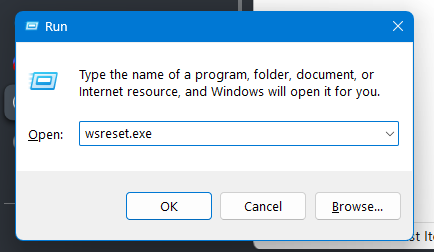

- Press Enter
- Wait; a Command Prompt will open, clear the cache, and close
This often fixes loading issues.
4. Re-register Microsoft Store
This re-installs the Store without removing it.
- Press Windows key + X
- Open Windows Terminal (Admin) or PowerShell (Admin)
- Enter the command:
Get-AppxPackage -AllUsers Microsoft.WindowsStore | Foreach {Add-AppxPackage -DisableDevelopmentMode -Register "$($_.InstallLocation)\AppXManifest.xml"}
- Restart your PC
5. Reinstall Microsoft Store
If re-registering does not help, fully reinstall the app.
- Open PowerShell (Admin)
- Run:
Get-AppxPackage *WindowsStore* | Remove-AppxPackage
- Then reinstall with:
Get-AppXPackage *WindowsStore* -AllUsers | Foreach {Add-AppxPackage -DisableDevelopmentMode -Register "$($_.InstallLocation)\AppXManifest.xml"}
- Restart and open Store
Advanced Troubleshooting
If the Store still fails after basic fixes, try these.
- Check Windows Update. Install all pending updates. Some Store issues resolve after a system update.
- Create a new user account. A corrupted user profile can block Store access.
- Temporarily disable firewall or antivirus. Security software can block Store connections.
- Run system file checks:
sfc /scannow
Dism /Online /Cleanup-Image /RestoreHealth
- Disable proxy or VPN. Proxy settings can interfere with Microsoft Store connections.
Troubleshooting Table
| Problem | Fix |
|---|---|
| Store does not launch | Reset cache, repair app, check internet |
| Store opens but crashes | Run troubleshooter, reset or reinstall Store |
| Apps won’t download | Update Windows, check region/time |
| Store keeps loading | Clear cache with wsreset |
| Specific error codes | Re-register or reinstall Store |
Frequently Asked Questions
Why does the Microsoft Store fail after updates?
Windows updates can change system files. This sometimes corrupts the Store cache or settings. Updating Store or Windows often fixes this.
Does resetting delete my apps?
Resetting the Microsoft Store does not delete apps you installed from the Store. You will need to sign back in.
Will this fix error codes like 0x80131500 or 0x803f8001?
Many error codes relate to cache or connection issues. Clearing the cache and updating Windows resolves most of them.
Summary
Microsoft Store issues often spring from cache errors, settings conflicts, or outdated components. Start with updates, time, and region checks, and cache clearing. Use built-in repair tools before deeper fixes like re-registering or reinstalling the app. If problems persist, system checks or a new user account can help isolate the cause. These steps restore Store functionality in most Windows 11 setups.
Discussion (0)
Be the first to comment.