




Bluetooth support helps you connect wireless headphones, speakers, controllers, and keyboards to your Samsung Smart TV. It adds a level of flexibility and lets you get the best out of your TV. This guide shows you easy ways to enable Bluetooth on your Samsung TV and the alternatives you can explore if your TV does not support Bluetooth.
1) Check if your Samsung TV supports Bluetooth
Open Settings, select Support, and choose About This TV. You can also check the label on the back of the TV. Then, search it on Google or on the official website to know if it supports Bluetooth.
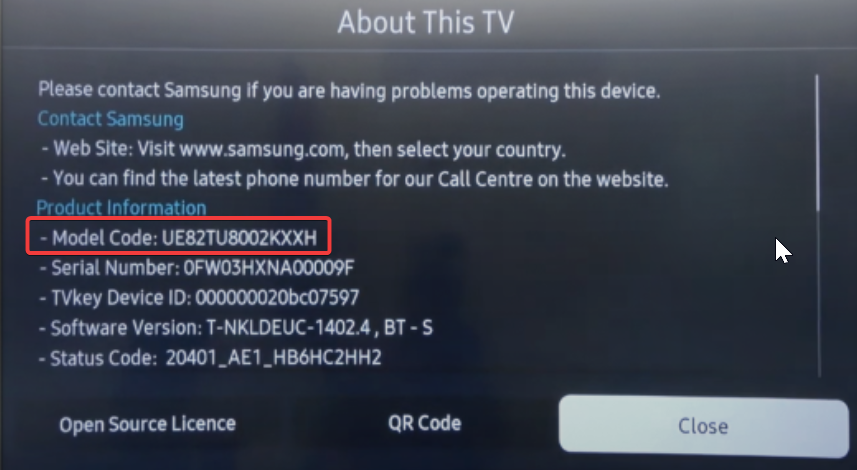
Most Samsung models from 2016 onward support Bluetooth, but Series 5 and some Hospitality models do not. Knowing your model year helps you follow the correct steps and avoid confusion.
2) Enable Bluetooth in the standard Samsung TV menu
Most Samsung TVs include a built-in Bluetooth menu. The steps vary slightly depending on the Tizen version and model year.
Enable Bluetooth on 2022–2025 Samsung TVs
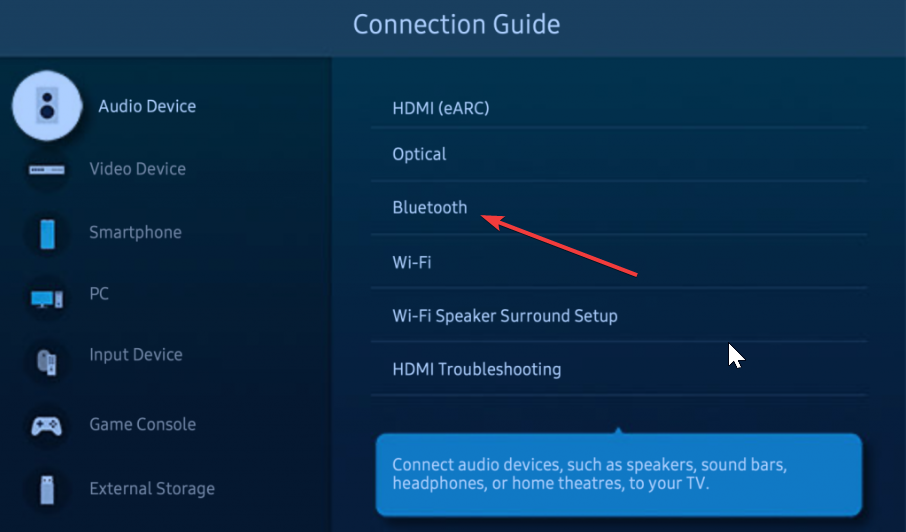
Press Home on the remote and go to Menu > Settings > All Settings > Connection Guide. Now, open Bluetooth and turn it on.
Enable Bluetooth on 2018–2021 Samsung TVs
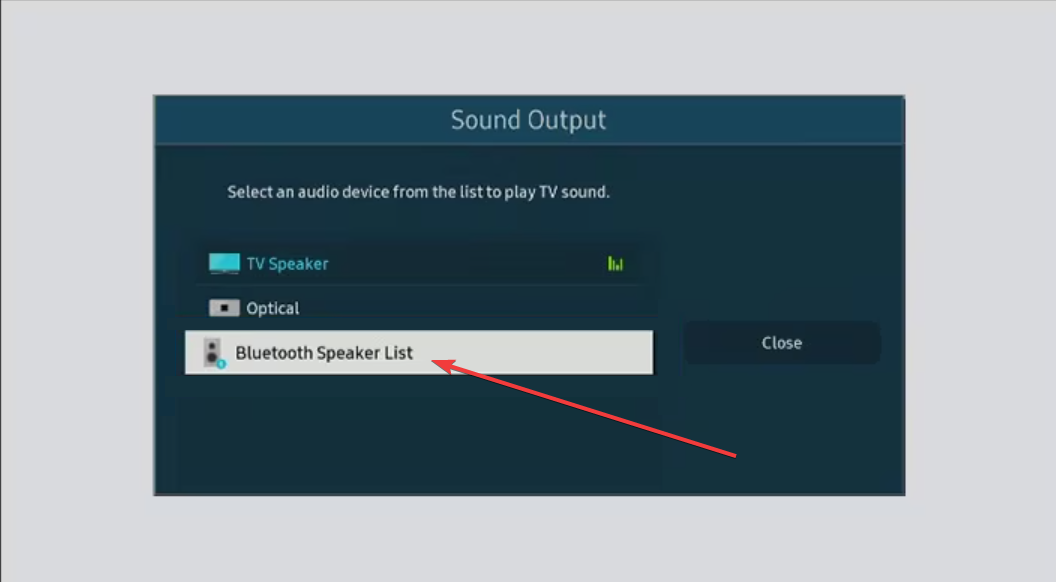
Press Home and go to Settings > Sound > Sound Output. From here, select Bluetooth Speaker List, enable Bluetooth, and choose your device.
Enable Bluetooth on 2016–2017 Samsung TVs
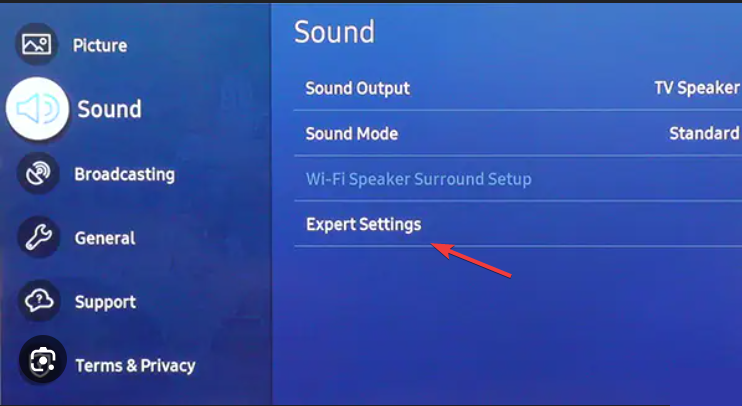
Press Home and go to Settings > Sound > Expert Settings. Next, open Wireless Speaker Manager and select Bluetooth Audio. Lastly, enable it and select your device.
3) Enable Bluetooth using the hidden service menu (advanced)
Some Samsung models ship with Bluetooth disabled in firmware. You can enable it using the TV’s service menu.
Access the secret engineering menu
The service menu requires a specific remote sequence. Only change Bluetooth options to avoid damaging the TV configuration.
To get started, turn the TV off and press Info, Menu, Mute, then Power on the remote. Now, wait for the engineering menu to load.
Turn on the BT Support flag
Many Series 6 and Series 7 models require manually enabling Bluetooth. To enable the flag, navigate to Options, then open MRT Options and find BT Support. Now, set it to On and restart the TV.
4) Pair Bluetooth devices with your Samsung TV
Once Bluetooth is on, the TV can pair with audio devices, controllers, and keyboards.
Pair Bluetooth headphones or speakers
To connect your Bluetooth speaker, put the headphone or speaker in pairing mode. Now, on your TV, open Settings and go to Sound > Sound Output. From here, select Bluetooth Speaker List and pick your device from the list.

Pair Bluetooth controllers or keyboards
Turn on your controller or keyboard in pairing mode and press the Home button on your TV remote. Next, go to Settings > General and choose External Device Manager. Now, select Input Device Manager and pair your device.
5) Alternatives if your Samsung TV doesn’t support Bluetooth
Use a Bluetooth audio transmitter
You can plug a transmitter into the optical or headphone port. You just need to connect the transmitter to the TV’s audio output and power it on. Next, put your headphones in pairing mode and pair the two devices.
Use a streaming device with Bluetooth
Devices such as Apple TV or Fire TV include Bluetooth audio output. Start by connecting the streaming device to the HDMI. Then, open its Bluetooth settings and pair your headphones or speaker.
6) Troubleshoot Bluetooth not showing in the menu
- Restart the TV and reset Quick Settings: Hold the Power button on the remote for 5 seconds and wait for the TV to reboot. Now, open Settings and check if Bluetooth appears.
- Switch the TV to a different input: Press Home and move to a different input such as TV or Source. Then open Settings and check the Bluetooth menu again.
- Update the TV software: Go to Home > Settings > Support > Software Update and select Update Now.
FAQs
Why is Bluetooth missing from my Samsung TV settings? The Bluetooth menu may disappear because of an outdated firmware version, a temporary input bug, or disabled Bluetooth support in the service menu. Switching inputs, updating the software, or enabling BT Support usually fixes it.
Which Samsung TV models support Bluetooth? Most Samsung Smart TVs from 2016 and newer support Bluetooth, including QLED, Frame, Serif, S-Series, and many UHD models. Some entry-level Series 5 units and Hospitality TVs may not include Bluetooth hardware.
How do I fix audio delay when using Bluetooth? Bluetooth audio lag improves when you adjust Digital Output Audio Delay in the sound settings. Keeping the device close to the TV and reducing wireless interference also helps.
Tips for using Bluetooth on Samsung TVs
- Keep your Bluetooth device close to the TV for the strongest signal.
- Remove older paired devices you no longer use.
- Restart the TV after major firmware updates.
- Reduce wireless interference by keeping routers away from the TV.
Summary
- Verify that your Samsung TV model supports Bluetooth.
- Enable Bluetooth using the standard Settings menu.
- Pair headphones, speakers, and controllers from the Bluetooth list.
- Fix missing menus by restarting the TV or updating firmware.
- Use the service menu to enable Bluetooth on models where it is disabled.
- Try alternatives such as Bluetooth transmitters if the TV lacks support.
Conclusion
Most Samsung Smart TVs support Bluetooth and can pair with audio devices and controllers in a few steps. If Bluetooth settings do not appear, firmware updates or the hidden engineering menu usually restore support. When the TV does not include Bluetooth hardware, using a transmitter or streaming device provides a reliable workaround.


Discussion (0)
Be the first to comment.