




Xbox lets you capture highlights from your gameplay, but finding the best way to download those clips can feel confusing. You can save them from Xbox.com, the Xbox app, your console, or your phone, depending on where they sync.
This guide shows every reliable method so you can grab your clips fast and move them to your PC, edit them, or share them anywhere you want.
1) Check your Xbox clip settings first
Your capture settings determine which clips you can download. Clip length, resolution, and upload rules all affect what appears on the Xbox website or app.
Confirm auto-upload to the Xbox network
Click Capture in the left sidebar and select Capture Settings. Now, check if Auto-upload sends clips from your console to the cloud. This setting ensures your clips show up in the Xbox app and on Xbox.com.

Verify capture resolution and length
Some clips do not sync if the file exceeds your console’s limits. Shorter clips and standard resolution settings sync faster and download more reliably.
2) Download Xbox clips on Xbox.com
Go to the Xbox website and sign in with the same Microsoft account you use on your console. Next, select your profile and choose Captures. You see all clips uploaded to the Xbox network.
Finally, click a clip to open it, then select Download to save the MP4 file to your device.
3) Download Xbox clips in the Xbox app for Windows
Launch the Xbox app on your PC and sign in with your Xbox account. Select Captures from the sidebar and wait for synced clips to appear automatically in the list. Now, choose a clip, select Download, and the file will save to your default Windows downloads folder.
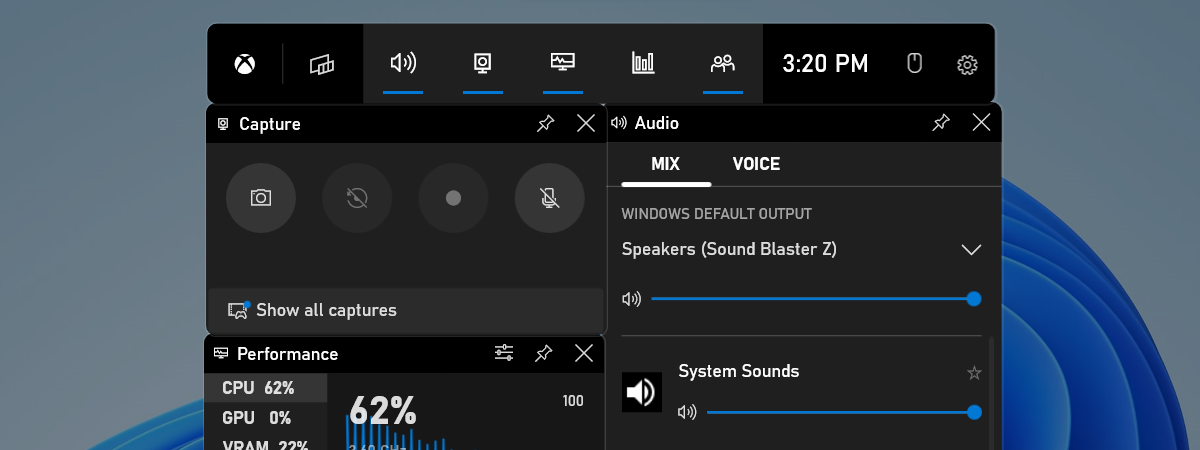
Tip: If you record clips on Windows using Game Bar, open Videos > Captures to find them stored locally.
4) Download Xbox clips in the Xbox mobile app
Open the Xbox app on your iOS or Android device, then sign in and tap your profile image. Next, choose Captures to view synced clips from your Xbox account. Now, open a clip, then tap Save.

5) Download Xbox clips directly from your console
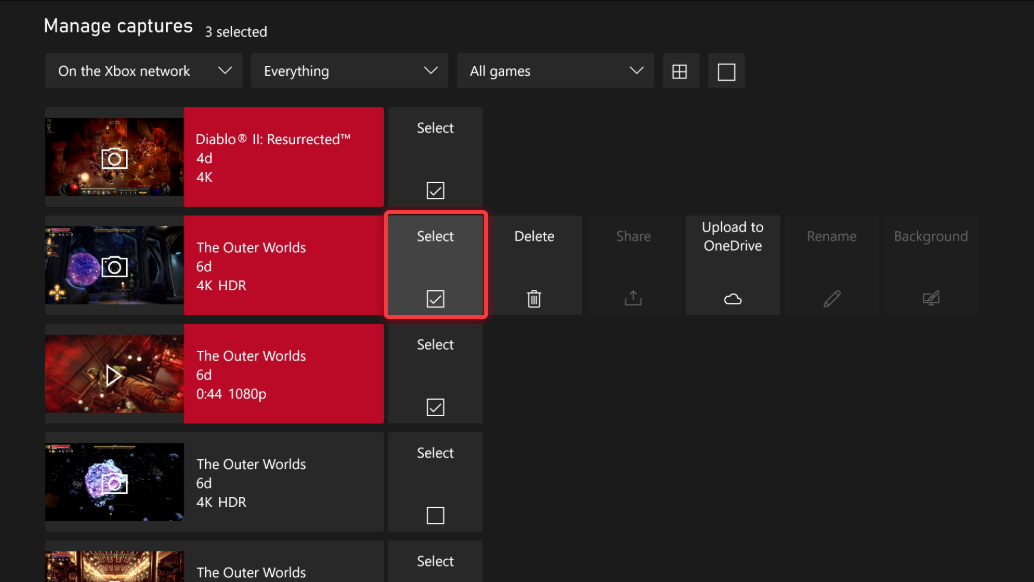
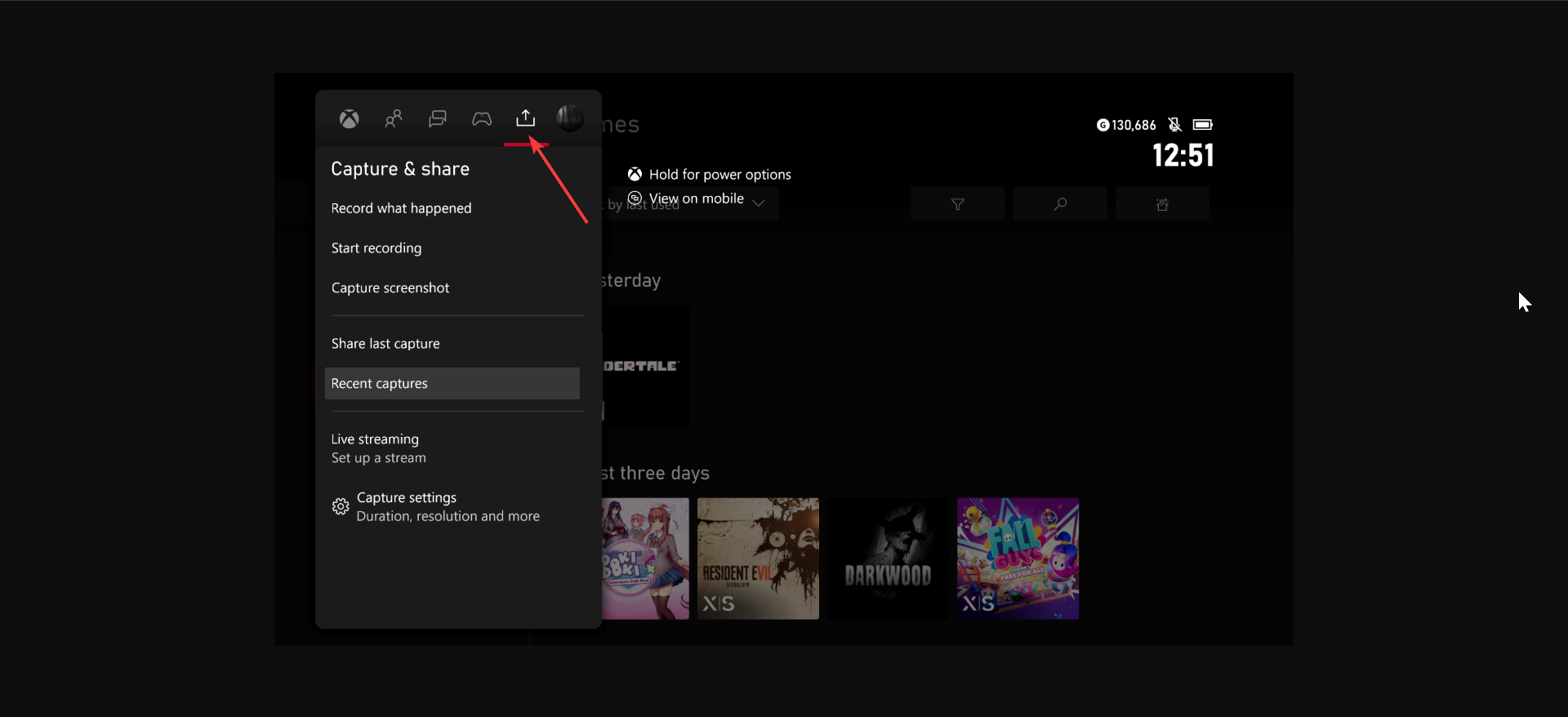
If a clip does not sync online, exporting it from your Xbox console works as a reliable fallback. Connect a USB 3.0 flash drive to your Xbox console and allow it to format the drive if needed. Next, go to Settings > Preferences > Capture & share > Recent captures to see your clips.
Now, choose a clip, open Manage, and select Copy to external drive to export it. Finally, insert the USB drive into your computer and copy the MP4 files to your preferred folder.
6) Download Xbox clips with OneDrive
On your console, open Capture & share, select the clip, and choose Upload to OneDrive to upload your clip.

You can now open OneDrive on any device, locate your uploaded clips, and download them to local storage.
7) Troubleshooting missing or unavailable Xbox clips
- Clip not showing in the Xbox app: Refresh your captures list or wait a few minutes for cloud sync to complete. Restart the app if clips still do not appear.
- Download button missing: Some clips need visibility set to Everyone or Friends. Private clips sometimes hide the download option on Xbox.com and in the app.
- Cloud upload failed on console: Retry the upload from Recent captures and check your network connection. Large clips may take longer to upload successfully.
- Video quality drops after download: Clips sometimes compress during cloud upload. Export clips from your console directly for the best possible quality.
Tips for managing your Xbox clips
- Use clear file names when storing clips on your PC.
- Create a separate folder for clips you plan to edit or share.
- Back up your clips to cloud storage on a regular schedule.
FAQ
Why can’t I download certain clips? Some clips expire or fail to sync correctly. Others remain locked behind privacy settings or were not uploaded to the Xbox network.
Can I download 4K clips from Xbox? You can download 4K clips if you captured them in 4K and uploaded them manually or exported them through USB. Not all cloud clips keep full 4K quality.
Where do downloaded clips save on PC? Most browser downloads go to the Downloads folder. Game Bar clips save under Videos > Captures unless you changed the path.
Does Xbox compress clips? Xbox may compress clips that upload to the cloud. Direct exports from your console usually keep higher quality and larger file sizes.
Summary
- The fastest method is downloading clips from Xbox.com in a browser.
- The Xbox app for Windows makes local file management simple.
- The Xbox mobile app works well for quick downloads and sharing.
- USB export helps when clips fail to sync to the cloud.
- OneDrive gives you easy multi-device access to important clips.
Downloading Xbox clips stays simple once you know where they sync and which device to use. Xbox.com offers the fastest option, while the apps and your console give you flexible backups and offline access.
After you save your clips, you can edit them, share them online, or store them safely. Use the methods in this guide to build a smooth workflow for every highlight you capture.

Discussion (0)
Be the first to comment.