




If you want to download Unreal Engine from Epic Games Store, you need to install the Epic Games Launcher and use it to access Unreal Engine. Unreal Engine is a powerful game development platform used for creating games, simulations, and 3D applications.
The process is simple and works on Windows 11. This guide walks you through downloading and installing Unreal Engine using the Epic Games Store.
What Is Unreal Engine?
Unreal Engine is a real-time 3D creation tool developed by Epic Games. It is widely used for:
- Game development
- Film and animation production
- Architecture visualization
- Virtual reality (VR) and augmented reality (AR)
It includes tools for rendering, physics, scripting, and asset creation.
Requirements Before Downloading Unreal Engine
Before you download Unreal Engine from Epic Games Store, make sure your system meets basic requirements.
Typical requirements include:
- Windows 10 or Windows 11
- At least 8 GB RAM (16 GB recommended)
- Modern GPU (NVIDIA or AMD)
- Sufficient storage space (50 GB or more recommended)
A powerful system ensures smoother performance.
Download Epic Games Launcher
To install Unreal Engine, you first need the Epic Games Launcher.
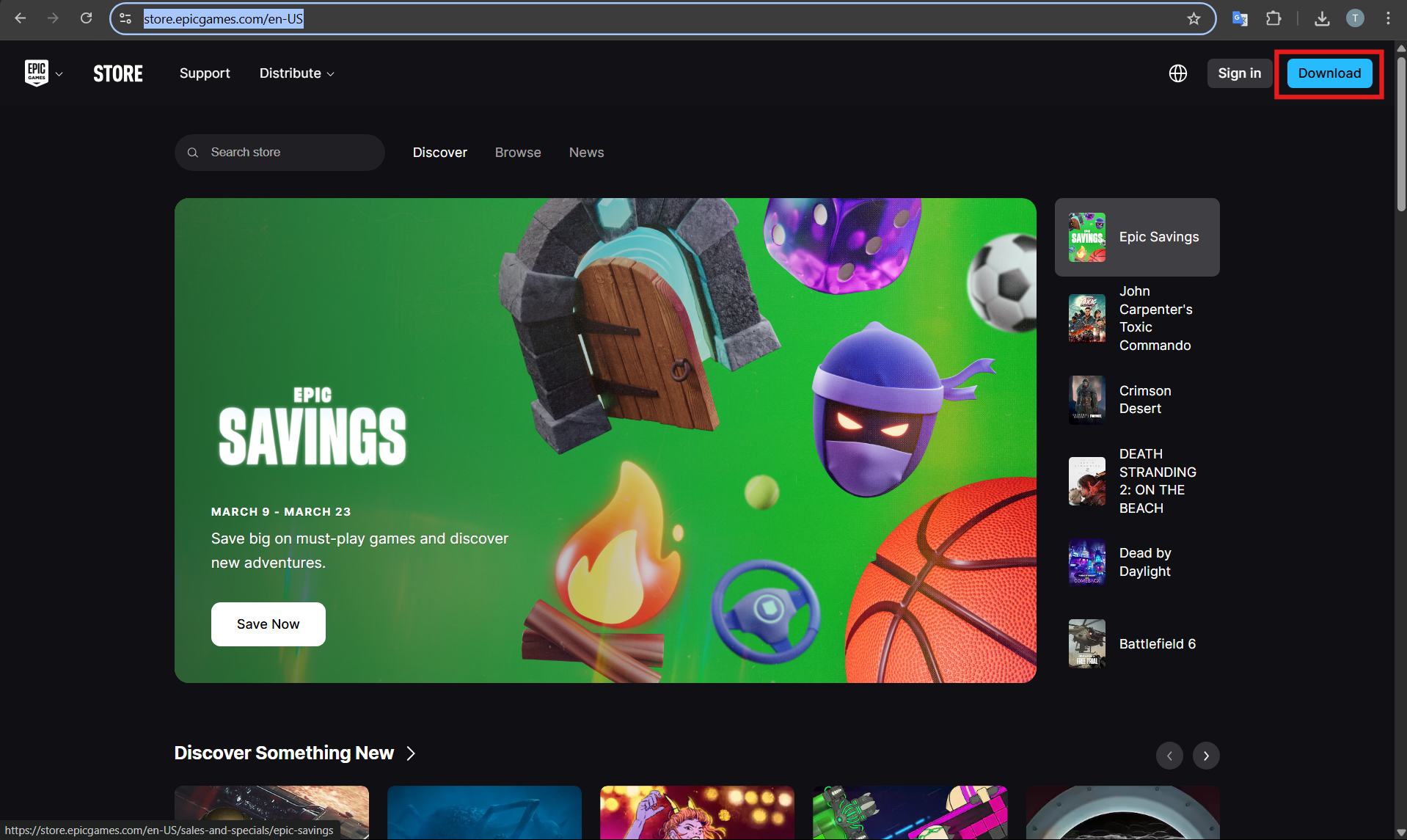
Step 1: Visit the Epic Games Website
- Open your web browser.
- Go to the Epic Games official website.
Step 2: Download the Launcher
- Click Download.
- Save the Epic Games Launcher installer.
Install Epic Games Launcher
After downloading the installer, follow these steps.
Step 1: Run the Installer
- Locate the downloaded file.
- Double-click the installer.
Step 2: Complete Installation
- Follow the setup instructions.
- Wait for installation to finish.
- Launch the Epic Games Launcher.
Sign In to Your Epic Games Account
You need an Epic Games account to download Unreal Engine.
Steps:
- Open Epic Games Launcher.
- Click Sign In.
- Enter your account details or create a new account.
Download Unreal Engine from Epic Games Store
Now you can download Unreal Engine.
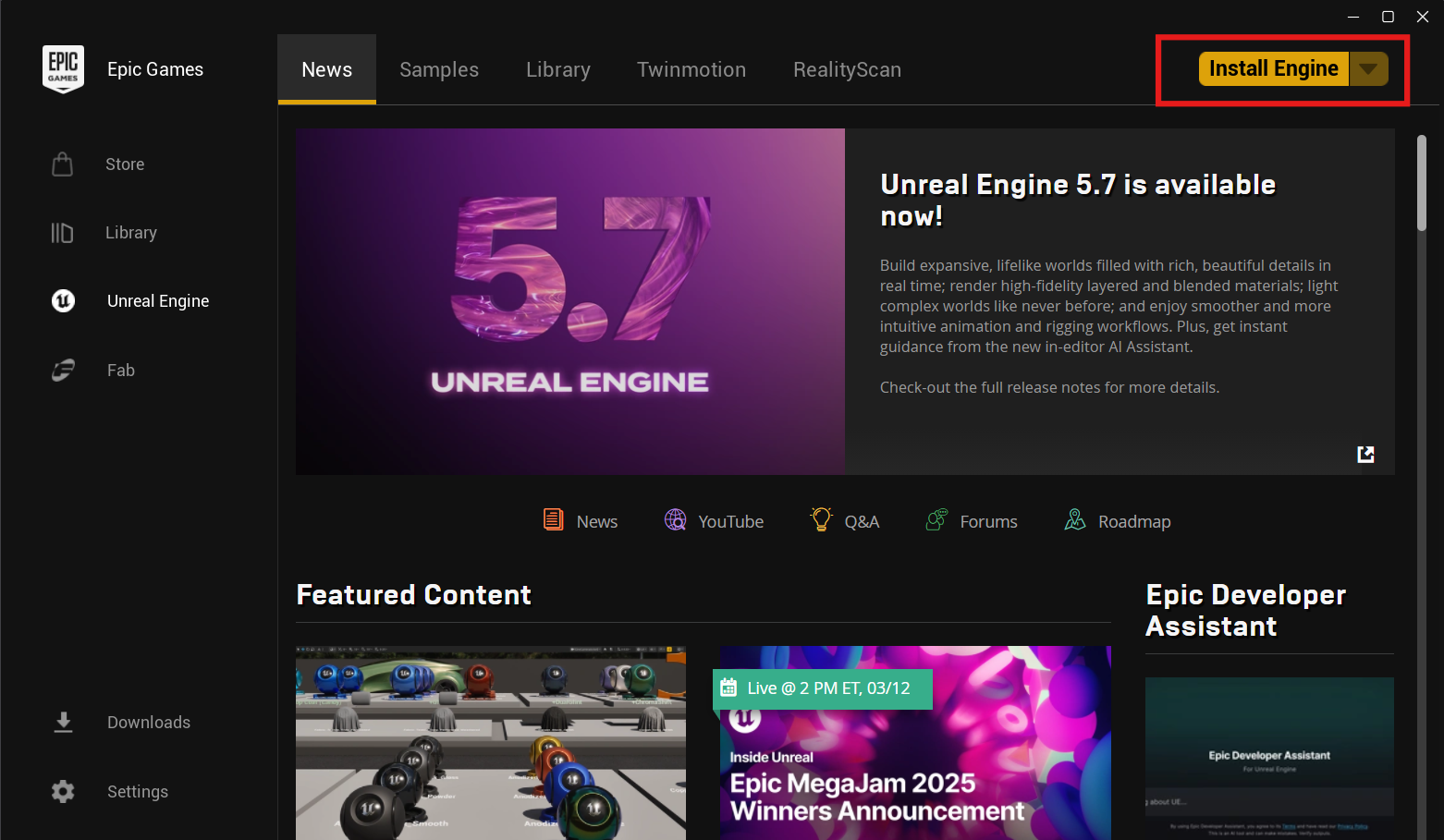
1: Open the Unreal Engine Tab
- In the launcher, click the Unreal Engine tab.
- Select Library.
2: Add Unreal Engine Version
- Click Install Engine.
- Choose the version you want.
3: Start the Download
- Select installation location.
- Click Install.
The download will begin and may take some time depending on your internet speed.
Launch Unreal Engine
After installation:
- Go to the Library section.
- Click Launch next to the installed engine version.
Unreal Engine will open and you can start creating projects.
Tips for Installing Unreal Engine
To ensure a smooth installation:
- Use a fast internet connection
- Keep enough free storage space
- Update graphics drivers
- Close unnecessary applications during installation
These steps help avoid installation issues.
Final Thoughts
Learning how to download Unreal Engine from Epic Games Store is the first step toward creating games and 3D projects. By installing the Epic Games Launcher and downloading the engine, you gain access to one of the most powerful development tools available.
Once installed, you can begin building games, animations, and interactive experiences using Unreal Engine.
FAQs
Do I need Epic Games Launcher to install Unreal Engine?
Yes. Unreal Engine is installed through the Epic Games Launcher.
Is Unreal Engine free?
Yes. Unreal Engine is free to use, although royalties may apply for commercial projects.
How large is Unreal Engine?
The installation can require 50 GB or more, depending on components.
Can I install multiple versions of Unreal Engine?
Yes. The Epic Games Launcher allows multiple engine versions to be installed.



Discussion (0)
Be the first to comment.