




Downloading models for Source Filmmaker helps you build scenes faster and work with higher-quality assets. Most creators use the Steam Workshop because it handles downloads automatically. Manual installation still matters when you work with models from outside Steam or need stricter folder control.
This guide shows the full workflow, from subscribing on Steam to fixing missing textures and locating your files on Windows.
But before going straight to the steps below, ensure that Source Filmmaker is added to your Steam Library, and you have enough disk space on your Windows PC. Windows 10 and Windows 11 store SFM files in the same locations, but some users keep multiple Steam Libraries, which affects where Workshop files download.
1) Download models from the Steam Workshop
Open Steam, select Library, and switch to Software. Next, choose Source Filmmaker, then open the Workshop tab. This page lists all SFM-compatible models, maps, and props.
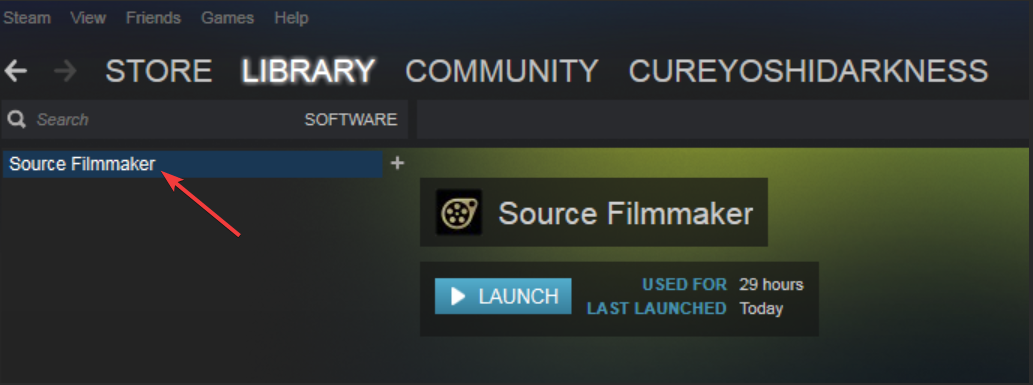
Now, open a model’s page and click Subscribe. Keep Steam running while it downloads the model into your SFM directory. Note that syncing usually takes a few seconds, but large packs take longer.
Lastly, launch SFM, open the Model Browser, and type the model name into the search bar. If Steam finished syncing, the model loads immediately.
2) Install SFM models manually (non-Steam sources)
You can also download the models from external sources. External creators often package models as ZIP or RAR archives. Inside, you’ll find models, materials, and sometimes particles folders.

Right-click the downloaded file, select Extract All > Extract to extract them to your desktop so you can confirm the folder structure. Now, copy the files to the correct SFM directory using the path below:
C:\Program Files (x86)\Steam\steamapps\common\SourceFilmmaker\game\usermod\Place each folder into usermod without renaming anything. This ensures SFM reads the correct paths.
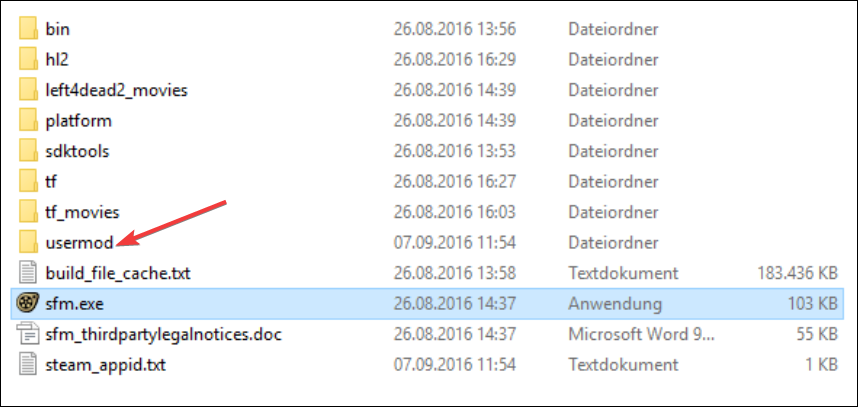
However, if the model doesn’t load, open the usermod/gameinfo.txt file and add your custom folder as an extra search path. Then, save the file and relaunch SFM.
3) Find your downloaded SFM models on your PC
Steam stores Workshop downloads in your Steam Library folder under:
steamapps\workshop\content\1840\This helps when you need to confirm downloads or move assets between projects.
4) Manage and organize your SFM models
Organized folders help you work faster. Use project-based directories and avoid special characters in folder names. SSD storage also speeds up loading for large scenes.
5) Fix missing textures or invisible models
- Check that materials are included: Broken textures appear as purple and black squares. Confirm that the download included
.vmtand.vtffiles. If they’re missing, SFM can’t apply the model’s materials. - Fix invisible models by correcting folder names: Invisible or error models happen when folders are named incorrectly. Make sure the models and materials folders match the original structure from the download.
- Rebuild spawnlists if models don’t show up: Some creators include spawnlists. If they fail to load, remove the old spawnlist file, restart SFM, and let it rebuild automatically.
- Fix Workshop models not appearing in SFM: Restart Steam and SFM to force a refresh. Confirm the model exists in your Workshop directory before you relaunch.
Tips for downloading SFM models smoothly
- Restart SFM after any new Workshop subscription.
- Verify SFM files inside Steam if models keep failing to load.
- Keep all SFM assets on the same drive to avoid path conflicts.
- Clear Workshop cache when downloads stall.
- Use the usermod folder for personal project assets.
FAQs
Why isn’t my subscribed model showing in SFM? Steam may still be syncing files. Restart Steam, then SFM, and confirm the model exists in the Workshop folder.
Where does Steam store SFM Workshop downloads? Files appear inside the Workshop folder linked to App ID 1840. This is where Steam keeps all SFM assets.
Can I use SFM models outside of Source Filmmaker? You can export them, but each tool has its own requirements. Always check licensing before you reuse assets.
Do I need to relaunch SFM after subscribing? Yes. SFM loads models at startup, so new Workshop content won’t appear until you restart it.
Summary
- Open Steam and visit the SFM Workshop.
- Subscribe to models to download them automatically.
- Install external models manually in the usermod folder.
- Fix missing textures by checking materials and folder names.
- Verify Workshop paths if your model doesn’t appear.
Conclusion
Steam Workshop downloads give you the fastest way to add new models to Source Filmmaker. Manual installation helps when you work with models from outside Steam or need a custom directory setup.
Once you understand how downloads, folders, and materials work, you can install and organize assets with confidence on any Windows system.


Discussion (0)
Be the first to comment.