




If you or your kids love cute virtual pets, learning how to download Puppy Playtime is an easy way to turn your phone into a mini dog park. The Puppy Playtime game lets you feed, groom, and play with a digital pup without the real-world mess and responsibility.
The good news: you can download Puppy Playtime on most modern Android phones and tablets in just a few taps. You only need a stable internet connection, a bit of free storage, and the ability to install apps from the Google Play Store.
This guide walks you through how to download Puppy Playtime on Android, how to open it the first time, and what to do if the app will not install or keeps crashing. You can follow these steps even if you are not very tech-savvy.
How To Download Puppy Playtime On Android
You can install the Puppy Playtime app on most Android phones and tablets through the Google Play Store. Follow these steps to find the correct Puppy Playtime game and download it safely.
- Unlock Your Android Device – Turn on your phone or tablet and make sure you can see the home screen.
- Open Google Play Store – Look for the Play Store icon, then tap it once to launch the app store.
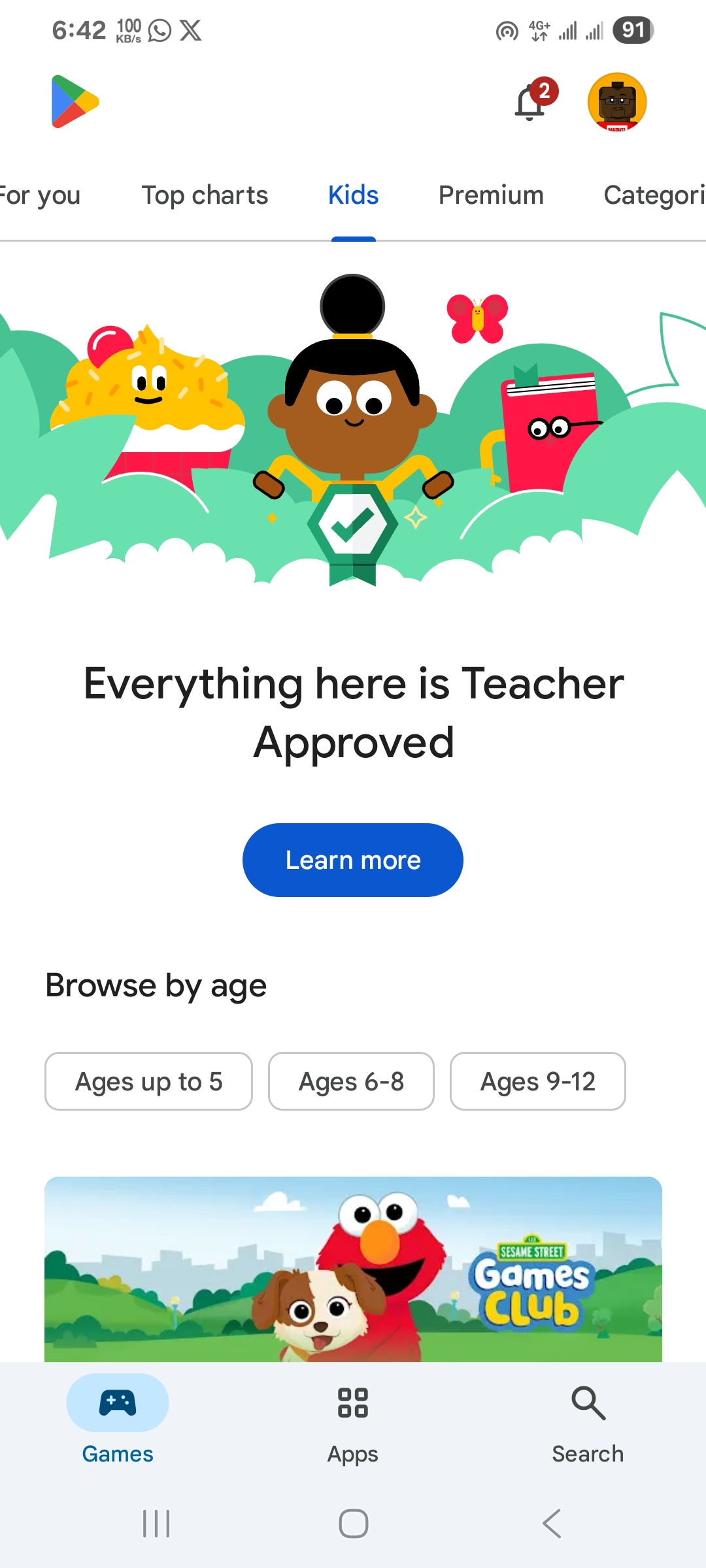
- Tap The Search Bar At The Top – Tap inside the search box so the keyboard appears.
- Type “Puppy Playtime” And Search – Enter the game name carefully, then tap the search icon on the keyboard.
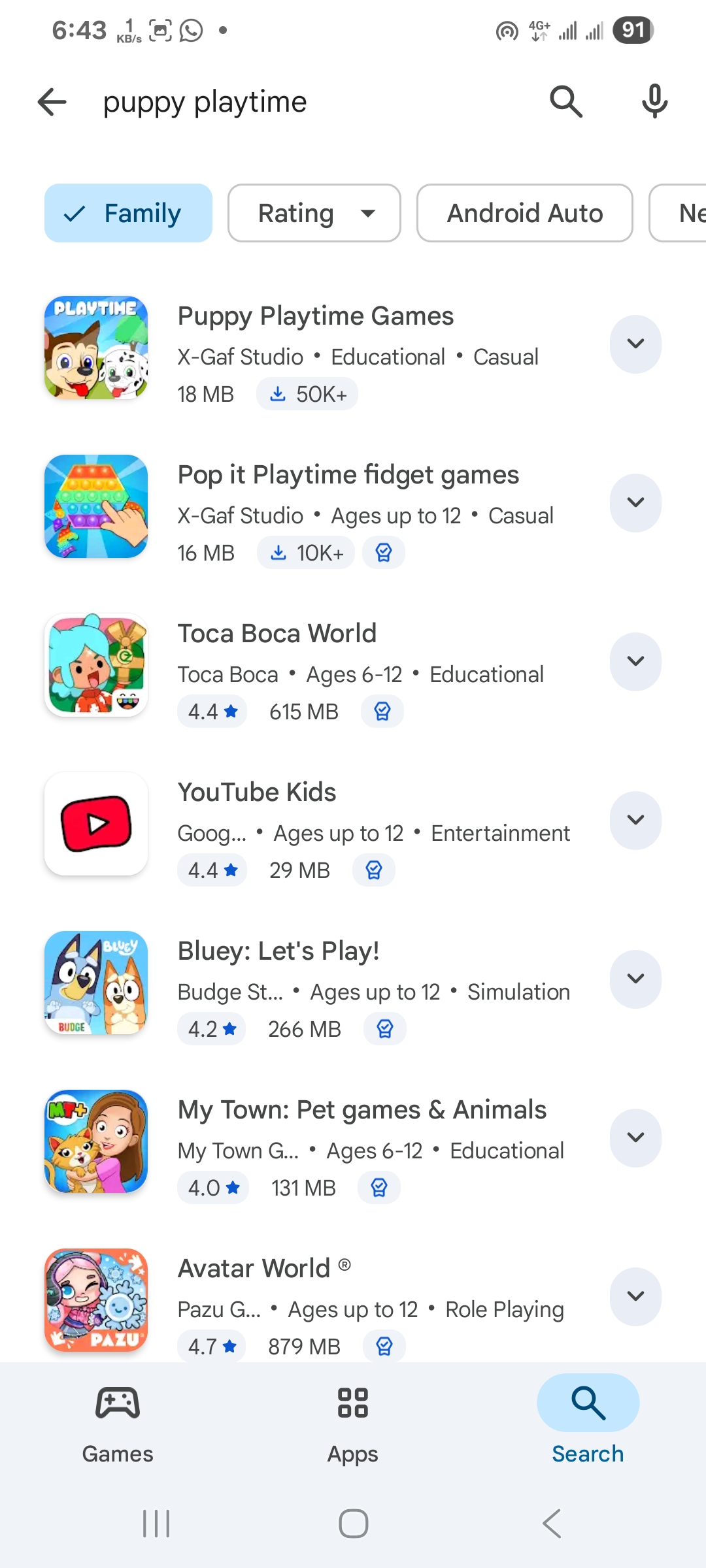
- Find The Correct Puppy Playtime App – Look for a virtual pet or puppy simulator game that matches the description and icon you expect. Avoid random clones that look suspicious or have very poor reviews.
- Tap The App Result – Open the Puppy Playtime app page so you can see screenshots, ratings, and reviews.
- Check Compatibility And Size – Scroll down to confirm your device is compatible and you have enough free storage space for the download.
- Tap “Install” – Start the Puppy Playtime download and installation. Stay on Wi-Fi if possible so you do not burn mobile data.
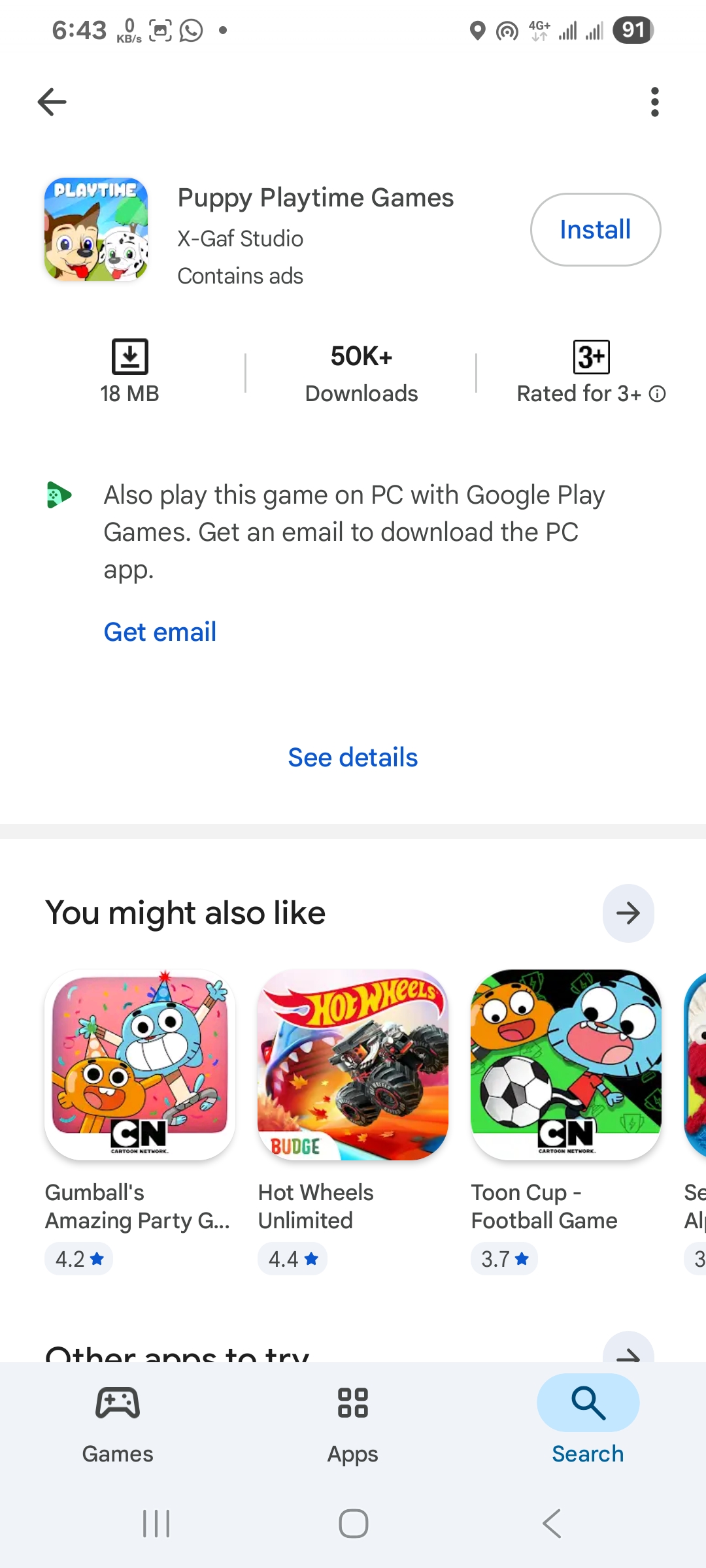
- Wait For The Progress Bar To Finish – Keep your phone awake while Google Play installs the game in the background.
- Tap “Open” Or Use The App Icon – Once the Play Store shows “Open,” tap it or find the Puppy Playtime icon on your home screen or app drawer to launch the game.
How To Set Up Puppy Playtime After Download
After you download Puppy Playtime on Android, you can customize the game so it matches how you or your kids like to play. A quick setup helps the app run smoothly and keeps in-app purchases under control.
- Allow Basic Permissions – When the app asks for storage or notification access, only allow what you feel comfortable with and what the game truly needs.
- Adjust Sound And Music – Open the settings inside Puppy Playtime and lower sound effects or music if you plan to play in public or around sleeping kids.
- Check In-App Purchase Options – If children will use the game, review any store or coin systems and lock purchases behind your app store password or parental controls.
- Create A Player Name – Choose a fun but safe player name that does not reveal real-world personal information.
- Run The Tutorial – Follow the first mission or tutorial so you understand how to feed, groom, and play with your virtual puppy.
Troubleshooting Common Problems
Sometimes the Puppy Playtime download does not go as planned. These quick fixes usually solve the most common install and launch issues on Android.
- Download Stuck Or Very Slow – Pause the Puppy Playtime download in the store, reconnect to a strong Wi-Fi network, then resume the download. Restart your phone if the progress bar still does not move.
- Not Enough Storage Space – Delete old photos, videos, or unused apps, then try the Puppy Playtime install again. Aim for a bit more free space than the game’s listed size.
- App Not Compatible With Device – If the store shows a compatibility warning, your phone or tablet may be too old. Try a newer device that runs a more recent version of Android.
- Puppy Playtime Crashes On Launch – Force close the app, restart your device, and reopen the game. If it still crashes, update both the app and your system software from the settings menu.
- Cannot Find Puppy Playtime In The Store – Check your spelling, then filter results by “Apps.” If the game still does not appear, it may not be available in your region at the time of writing.
Tips
Once you know how to download Puppy Playtime, a few extra habits can keep the game fun, fast, and safe for everyone using your device.
- Use Wi-Fi For Large Updates – Many pet games receive frequent content updates. Download them on Wi-Fi to avoid hitting mobile data caps.
- Turn On Parental Controls – If kids will play Puppy Playtime, use built-in Android parental controls to restrict purchases and set age-appropriate limits.
- Check Battery Settings – Reduce screen brightness and limit background apps when you play to keep your battery from draining too quickly.
- Update The Game Regularly – Install Puppy Playtime updates when the store suggests them. Updates often fix bugs and improve performance.
- Back Up Your Device – If the game stores progress locally, regular device backups can help protect your save data when you switch phones.
FAQ
Is Puppy Playtime Free To Download?
Most versions of Puppy Playtime on Android use a free download model with optional in-app purchases. You can usually start playing without paying, but you may see ads or cosmetic items for sale inside the game.
Can I Download Puppy Playtime On My PC?
Puppy Playtime mainly targets phones and tablets. You can sometimes run mobile games on a PC with an Android emulator, but performance and controls may vary. For the simplest setup, download Puppy Playtime directly on a phone or tablet.
Why Does Puppy Playtime Ask For Permissions?
The game may request access to storage, notifications, or limited device information so it can save progress and send alerts. You can deny nonessential permissions in your system settings if you feel uncomfortable with them.
Does Puppy Playtime Work Offline?
Some parts of the Puppy Playtime app may work offline after download, but many games use online features for events, ads, or cloud saves. Expect the best experience when you have a stable internet connection.
What Should I Do If My Child Makes An Accidental Purchase?
First, turn on purchase protection in Google Play so purchases always require your password. Then contact the relevant store support as soon as possible to ask about options for reversing the charge.
Summary
Learning how to download Puppy Playtime only takes a few minutes. You search the app store, confirm the right game, tap Install or Get, and wait for the progress bar to finish. After that, you only need to open the app and follow the on-screen tutorial.
If the Puppy Playtime download fails, you can usually fix it by freeing storage, improving Wi-Fi, or updating your phone software. Once everything works, a quick dive into sound, privacy, and parental controls makes the game safer and easier to manage, especially for younger players.
Conclusion
Now you know how to download Puppy Playtime, install it on Android, and deal with the most common install errors. The steps stay simple: use the official app store, pick the correct Puppy Playtime game, and let your device handle the download in the background.
After you set up the app and adjust basic settings, you can focus on what really matters: feeding, grooming, and playing with your new virtual puppy. Whether you hand the phone to a child or keep the game for yourself, a clean install and a few smart tweaks create a smoother, safer Puppy Playtime experience from the very first launch.

Discussion (0)
Be the first to comment.