




Want to keep playing Call Of Duty: Black Ops II multiplayer without dead servers or hackers everywhere? Learning how to download Plutonium BO2 lets you jump into active community servers, custom maps, and modded game modes while still using your own Black Ops 2 game files.
This guide explains how to download the Plutonium BO2 game safely, what you need before you start, and how to fix the most common launcher errors. All steps use bullet lists so you can follow them quickly on any Windows PC.
What Plutonium BO2 Actually Is
Plutonium BO2, also called Plutonium T6, is a custom launcher and client for Call Of Duty: Black Ops II. It adds community servers, built-in anti-cheat, server browser filters, and support for custom mods and maps while still relying on official BO2 game assets.
The launcher does not provide a free copy of the game. You still need legitimate Black Ops 2 files from Steam or another legal source before you install Plutonium Black Ops 2 on your PC.
Safety And Legal Notes Before You Download
Before you follow any Plutonium BO2 download tutorial, keep these points in mind so you stay safe and avoid issues with your system or accounts.
- Own A Legal Copy: Always use game files from a legitimate Black Ops II purchase. Avoid cracked or repacked downloads.
- Use The Official Launcher: Download the Plutonium launcher only from the official Plutonium website, not from random mirrors or file-sharing sites.
- Keep Antivirus Enabled: Allow the launcher and game through your antivirus and Windows Firewall instead of disabling protection completely.
- Never Share Your Account: Your Plutonium login is tied to anti-cheat systems. Keep the password private.
- Mod Responsibly: Keep mods on community or private servers. Do not attempt to use the Plutonium client on official Steam servers.
Requirements To Install Plutonium BO2
Plutonium runs on most modern Windows gaming PCs, but checking the basics first prevents a lot of “Plutonium BO2 not working” errors.
- Operating System: Windows 10 or Windows 11, fully updated.
- Storage: At least 25 GB free for Black Ops 2 plus Plutonium BO2 files.
- RAM: 8 GB or more for smoother multiplayer.
- Graphics Card: Any mid-range GPU that already runs the original Black Ops II.
- Internet Connection: Stable broadband for downloading the Plutonium launcher and game updates.
- Game Files: A full copy of Call Of Duty: Black Ops II (Steam or local backup).
How To Download Plutonium BO2 Step By Step
The exact screens in the launcher change from time to time, but the general “how to download Plutonium BO2” game workflow stays the same. Follow these sections in order.
Create Your Plutonium Account
You need a free Plutonium account for authentication, anti-cheat, and server access.
- Open your browser and go to the official Plutonium website.

- Click the option to sign up or register a new account.
- Enter a username, email address, and strong password.
- Confirm the email by clicking the verification link in your inbox.
- Keep your login details handy; the launcher uses the same credentials.
Download And Install The Plutonium Launcher
Next, you install the Plutonium launcher that actually downloads the BO2 client and keeps it updated.
- Sign in to your Plutonium account in the browser if you are not already logged in.
- Go to the downloads section and locate the official Plutonium launcher for Windows.
- Click the launcher download button and save the file to your PC.

- Right-click the downloaded installer and choose Run As Administrator.
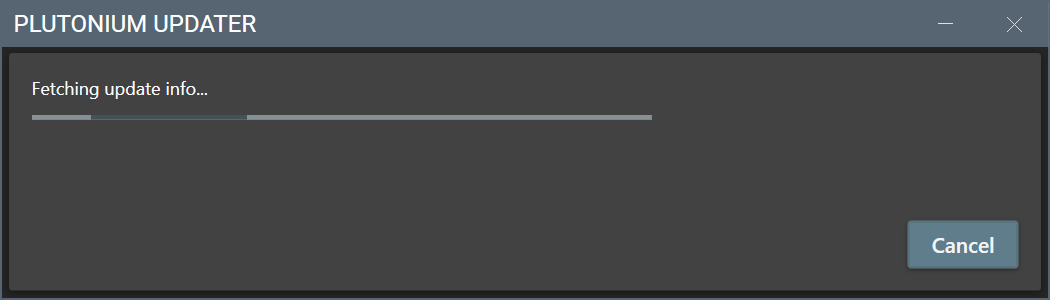
- Follow the on-screen prompts and finish installing the Plutonium launcher.
- Launch the Plutonium app once the installer closes.
Point Plutonium BO2 To Your Game Files
When you open the launcher for the first time, it needs to know where your existing Black Ops 2 files sit so it can patch them into Plutonium T6.
- Log in to the launcher using your Plutonium username and password.
- Find T6 or Black Ops II in the games list inside the launcher.
- Click the small folder icon or settings icon next to the T6 entry.
- Browse to the folder that contains your original Black Ops 2 files (for example, your Steam common\Call Of Duty Black Ops II directory).
- Select that folder and save the path so the launcher can use those files.
If you do not have game files yet, the launcher usually offers a direct “Download Game Files” option for Plutonium Black Ops 2. Use that only from the official launcher and avoid unofficial repacks or torrents.
Download And Play Plutonium BO2
Once the path is set, the real Plutonium BO2 download starts. The launcher pulls required files, updates, and its own anti-cheat components.
- In the launcher, click the Play or Install button next to T6.
- Wait while the launcher downloads any missing Plutonium BO2 game data.
- Allow firewall prompts so the Plutonium launcher and BO2 client can reach the internet.
- When the status changes to Ready, click Play again to launch Plutonium BO2.
- Use the in-game server browser to join community servers for multiplayer or Zombies.
How To Keep Plutonium BO2 Updated
The launcher automatically updates the Plutonium BO2 client when new builds release, but you can also trigger checks manually.
- Open the Plutonium launcher before you start gaming.
- Look at the status text under the T6 game entry.
- Click the small refresh or update icon if you see an available update.
- Wait until the progress bar finishes before launching the game.
Staying current prevents many “Plutonium BO2 server error” messages and keeps you in sync with the anti-cheat system.
Fixing Common Plutonium BO2 Download Problems
Even when you follow every step, the first Plutonium Black Ops 2 download can still throw errors. These quick fixes handle the most common ones at the time of writing.
Launcher Stuck On Downloading Or Updating
- Close the Plutonium launcher completely from the system tray.
- Right-click the launcher shortcut and choose Run As Administrator.
- Make sure your antivirus did not quarantine any Plutonium files and add the launcher folder to its allowed list.
- Move the game and launcher folders to a simple path such as C:\Games\Plutonium to avoid permission issues.
- Restart your router if downloads seem extremely slow compared to other apps.
Game Crashes After Pressing Play
- Verify that your original Black Ops 2 files are complete by checking them in Steam or replacing any missing files.
- Update your graphics drivers from NVIDIA, AMD, or Intel.
- Disable background overlays such as GeForce Experience, Discord overlay, or third-party recording tools.
- Run the launcher and BO2 executable in Windows 7 or Windows 8 compatibility mode if crashes continue.
- Delete the Plutonium configuration folder in your user profile, then let the launcher create a fresh one on the next launch.
Frequently Asked Questions About Downloading Plutonium BO2
Is Plutonium BO2 Free?
The Plutonium launcher and Plutonium BO2 client are free downloads, but you still need legitimate Black Ops 2 files. Think of Plutonium as a custom multiplayer client layered on top of your paid game.
Can You Get Banned On Steam For Using Plutonium?
Plutonium runs separately from official Steam servers, and you connect only to Plutonium BO2 servers when the client is open. Never attempt to inject the Plutonium files into the official Steam multiplayer client, and avoid using cheats on any platform.
Do You Need A VPN For Plutonium BO2?
Most players do not need a VPN to download or play Plutonium Black Ops 2. A VPN can sometimes improve routing to distant servers, but it can also add lag, so test both options and stick with whatever keeps ping lowest.
Can You Play Plutonium BO2 Offline?
The focus of Plutonium BO2 is online multiplayer and Zombies through community servers. Some users run custom offline setups, but those methods change frequently, so always follow the current instructions on the official Plutonium documentation if you try them.
Summary
Downloading Plutonium BO2 is the easiest way to revive Call Of Duty: Black Ops II multiplayer with active servers, better anti-cheat, and plenty of custom content. You create a free Plutonium account, install the official launcher, point it at your existing BO2 files, and let the client handle the rest.
Conclusion
Now you know exactly how to download Plutonium BO2, connect it to your Black Ops 2 install, and troubleshoot the most common launcher issues. Keep your game files legitimate, grab the launcher only from the official site, and stay up to date with new T6 builds for the smoothest experience.
Once everything runs correctly, jump into your first Plutonium Black Ops 2 server, tweak your settings, and enjoy BO2 multiplayer the way the community keeps it alive today.


Discussion (0)
Be the first to comment.