



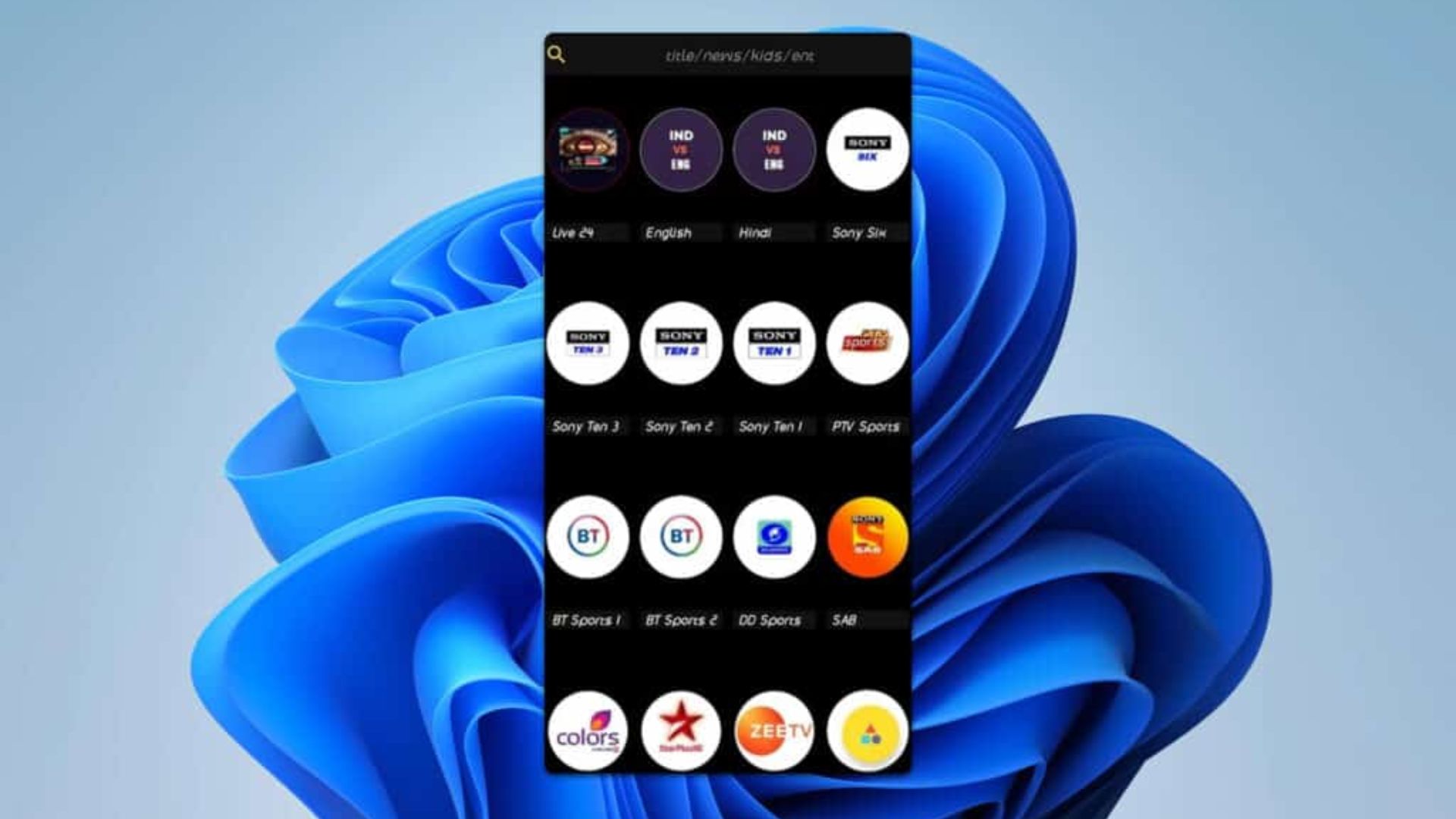
Pikashow is an Android streaming app that does not have a native Windows 11 version. To run it on a Windows 11 PC or laptop, you must install an Android emulator first. An emulator lets Android apps run inside Windows like regular software. Once the emulator is set up, you can install the Pikashow APK file and launch the app on your Windows 11 system.
Here are the basic steps:
- Install an Android emulator such as BlueStacks or LDPlayer.
- Download the Pikashow APK file from a trusted source.
- Open the emulator and install the APK inside it.
- Launch Pikashow from the emulator home screen.
The next sections provide exact steps and tools you can use.
What You Need Before You Start
Windows requirements for smooth use:
| Requirement | Minimum |
|---|---|
| Windows version | Windows 11 |
| CPU | Dual-Core Intel or AMD |
| RAM | 4 GB |
| Free storage | 150 MB+ |
| Internet | Stable broadband |
Step-by-Step Installation (Emulator Method)
1. Choose and Install an Android Emulator
You need an emulator because Windows 11 does not support Android apps directly. Popular choices include:
| Emulator | Key Points |
|---|---|
| BlueStacks | Easy to use, widely supported |
| LDPlayer | Lightweight, good performance |
| Nox Player | Stable for streaming apps |
Download the emulator installer from the official website of your chosen tool. Run the file and complete the setup just like any other Windows program.
2. Sign In to Android Inside the Emulator
Open the emulator after installation. It works like a mini Android device.
- Sign in with a Google account when prompted.
- Allow any basic permissions the emulator asks for.
This step lets the emulator access Google Play and other services.
3. Download the Pikashow APK
You cannot install Pikashow from the Microsoft Store because it is an Android app.
- Open your regular browser inside Windows.
- Go to a trusted APK source.
- Save the latest Pikashow APK file to your PC.
Safety tip: Run a virus scan on the APK file before installing.
4. Install Pikashow Inside the Emulator
Each emulator has an option to install APK files.
- Look for “Install APK” or similar in the emulator interface.
- Click it and browse to the Pikashow APK you downloaded.
- Select the file and let the emulator install it.
After a short wait, Pikashow will appear like an app icon inside the emulator home screen.
5. Open and Use Pikashow
Double-click or tap the Pikashow icon inside the emulator. The app runs as if it were on an Android tablet or phone.
You can now browse movies, TV shows, and live content from inside the emulator.
Alternative Methods (Limited Support)
Windows Subsystem for Android
Windows 11 once supported an Android subsystem that let APKs run without emulators. Microsoft has scaled back this feature. As of mid-2025, it may not work reliably for Pikashow.
For now, emulators remain the most reliable method.
Tips for a Better Experience
- Keep the emulator updated.
- Close other apps to free memory if streaming lags.
- Pick an emulator that updates frequently.
- Use a stable broadband connection for live streams.
Common Questions
Can I install Pikashow directly on Windows 11 without an emulator?
No. Windows 11 no longer supports most Android APKs natively. You must use an Android emulator.
Is it safe to use Pikashow on Windows 11?
Safety depends on where you download the APK. Use reputable APK sources and scan the file before installing.
Which emulator should I pick for the best performance?
Many users choose BlueStacks for general use and LDPlayer if they want lighter performance. Choose based on your hardware and preferences.
Summary
You cannot install Pikashow directly on Windows 11. The only reliable way is through an Android emulator like BlueStacks, LDPlayer, or Nox Player. Download the emulator, sign in, get the Pikashow APK from a trusted source, and install it inside the emulator. After that, you can open Pikashow from within the emulator and stream movies, TV shows, and live events on your PC.


Discussion (0)
Be the first to comment.