



Windows users often admire iMovie for its simple, polished video editing tools. But there is no native way to download and use the app on a PC, as Apple is yet to release a Windows version ofwhen they try to install it, they discover Apple never released a Windows version. The good news is that you can still enjoy a similar editing experience using safe, legitimate options and we will show you how in this guide.
1) Run iMovie through a macOS Emulator
iMovie is only designed for macOS and iOS, so there is no way to run it native on Windows. However, you an iOS emulator like Ipadian to simulate the iOS environment on your PC. This allows you to download and install iOS apps.
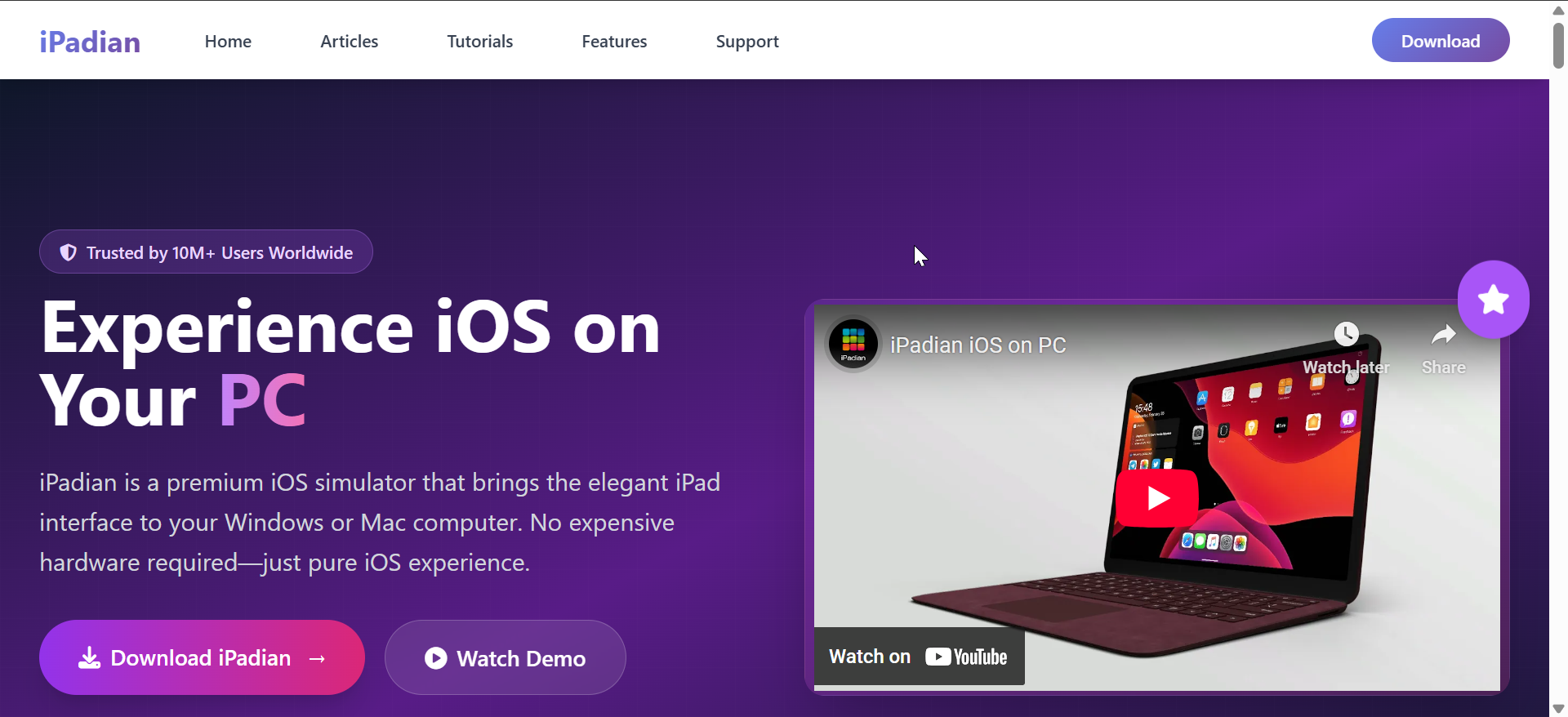
To get started, go to the iPadian official website and click the Download iPadian button. After the download is complete, run the installer and follow the onscreen instructions to complete the installation.

From here, open the iPadian, sign in with your Apple ID or sign up if you are not apple user. Next, go to the emulator's app store, search for iMovie, and click the Install button to download and install the app on the emulator.
2) Use a Virtual Machine
A more stable method to run macOS apps on your PC is to use a Virtual Machine. With a VM, you can easily use all macOS apps on your PC. However, this method is a bit technical.
To use a VM, go to the official website of either VMware or VirtualBox to download your preferred tool. Double-click the installer in your Downloads folder to run it and follow the onscreen instructions to complete the process.
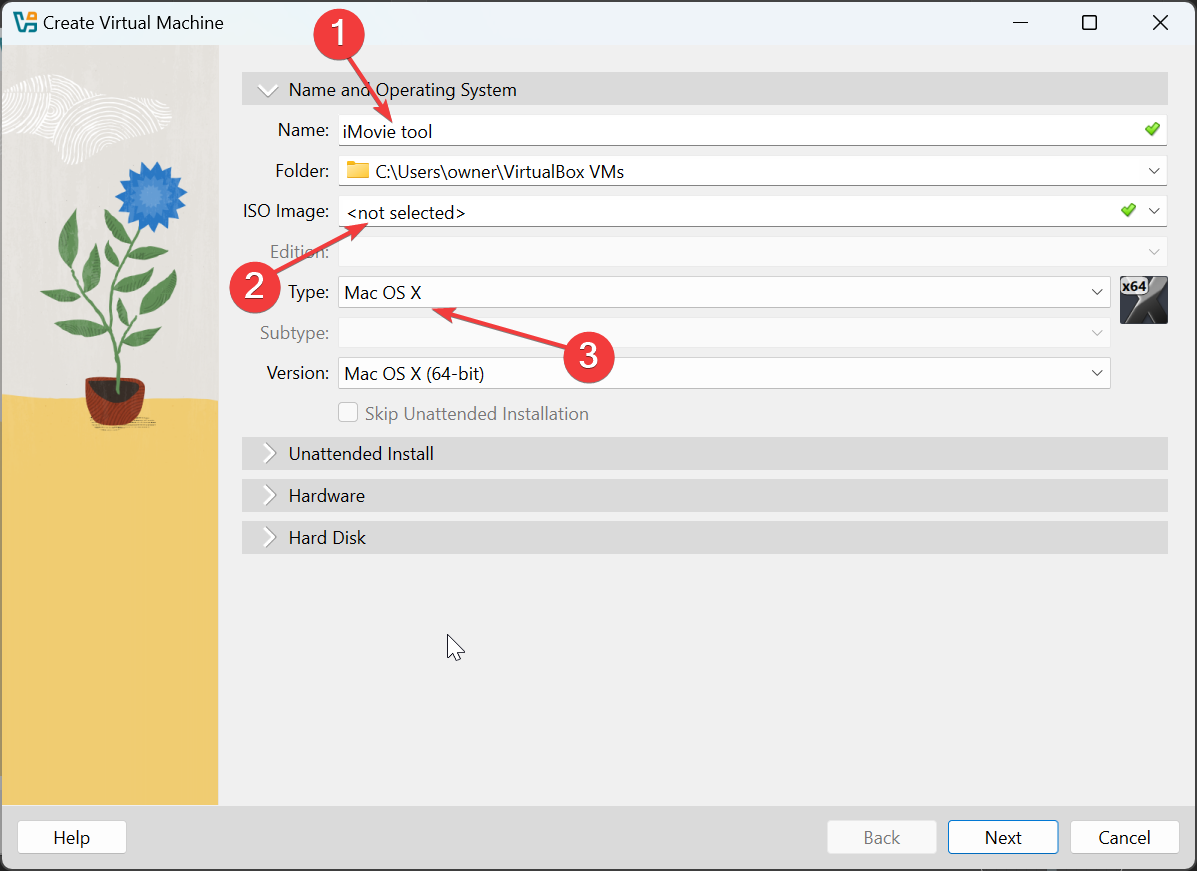
Once the app is open, check online for a legit macOS image and download it. Now, go to your VM - VirtualBox, for example - click the Machine option at the top > New > enter a Name for your VM.
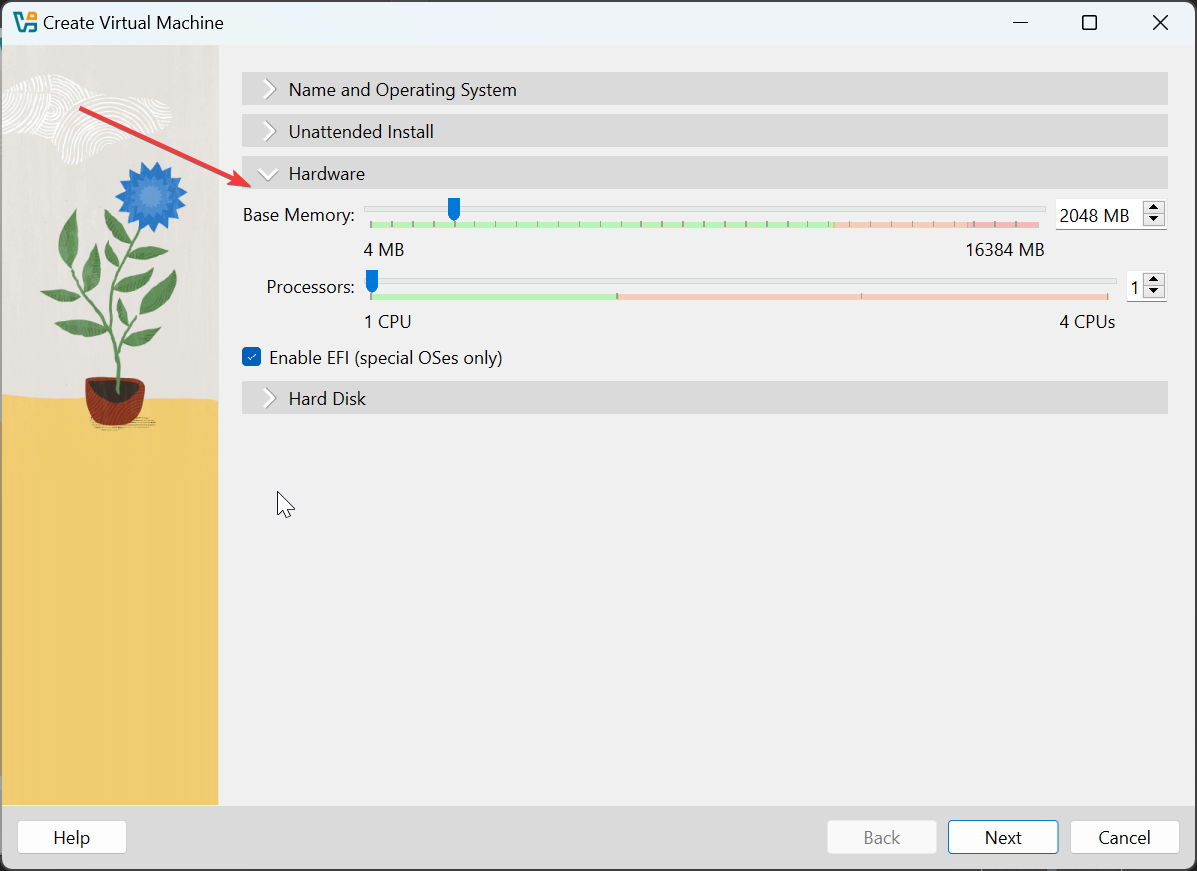
Next, change the Type to macOS, click the ISO image dropdown, and select the macOS image you downloaded earlier. Note that the macOS version of the image must be the same as the one in the Type box. From here, click the Hardware dropdown to allocate RAM space and CPU to your VM, then the Hard disk dropdown to allocate Hard disk enough space.
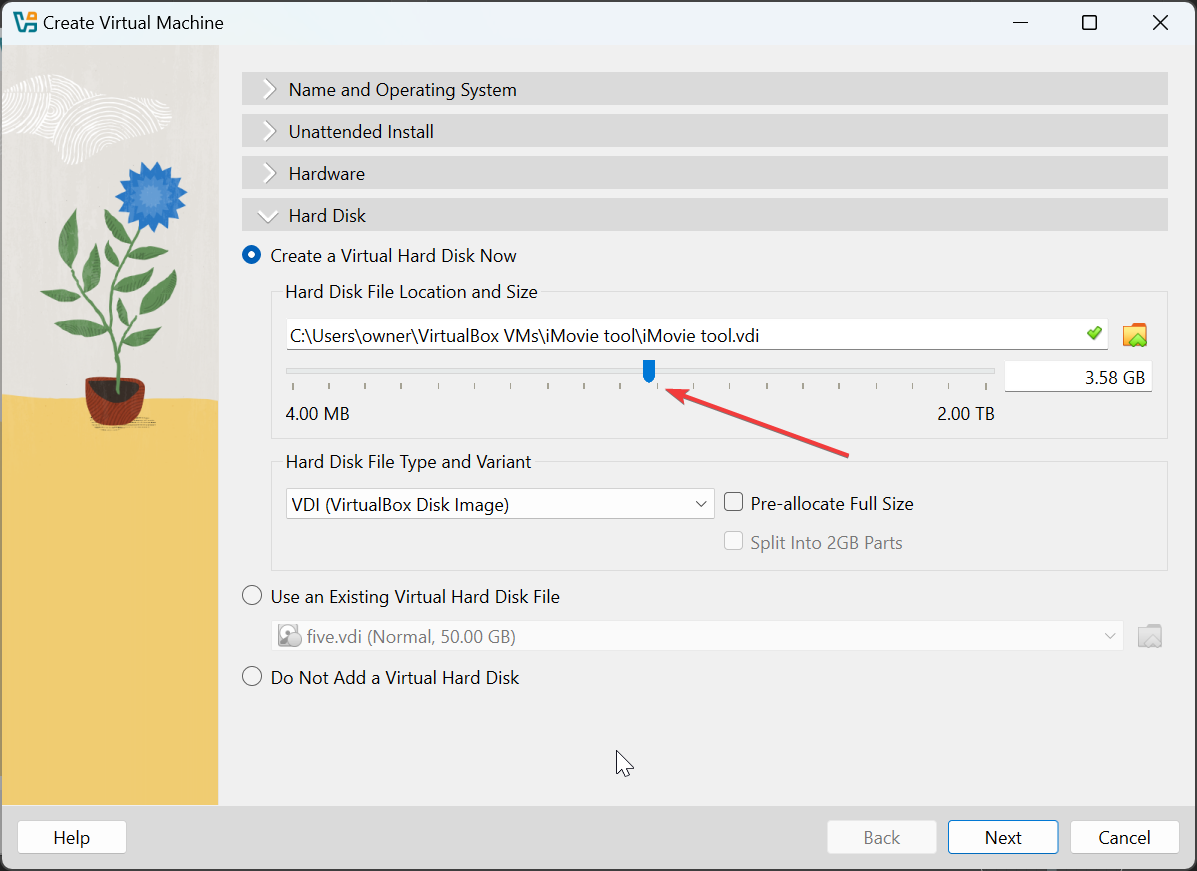
Finally, click Finish when all is set, start up the VM, and visit the App Store to download and install the iMovie app.
3) Use an iMovie alternative built for Windows
Editors like Movavi Video Editor, Clipchamp, or PowerDirector deliver a drag-and-drop workflow similar to iMovie. They support timeline editing, filters, and ready-made templates that make storytelling easy. Installation takes just a few minutes, and they all run smoothly on Windows 10 or 11.
4) Try online video editors that work in any browser
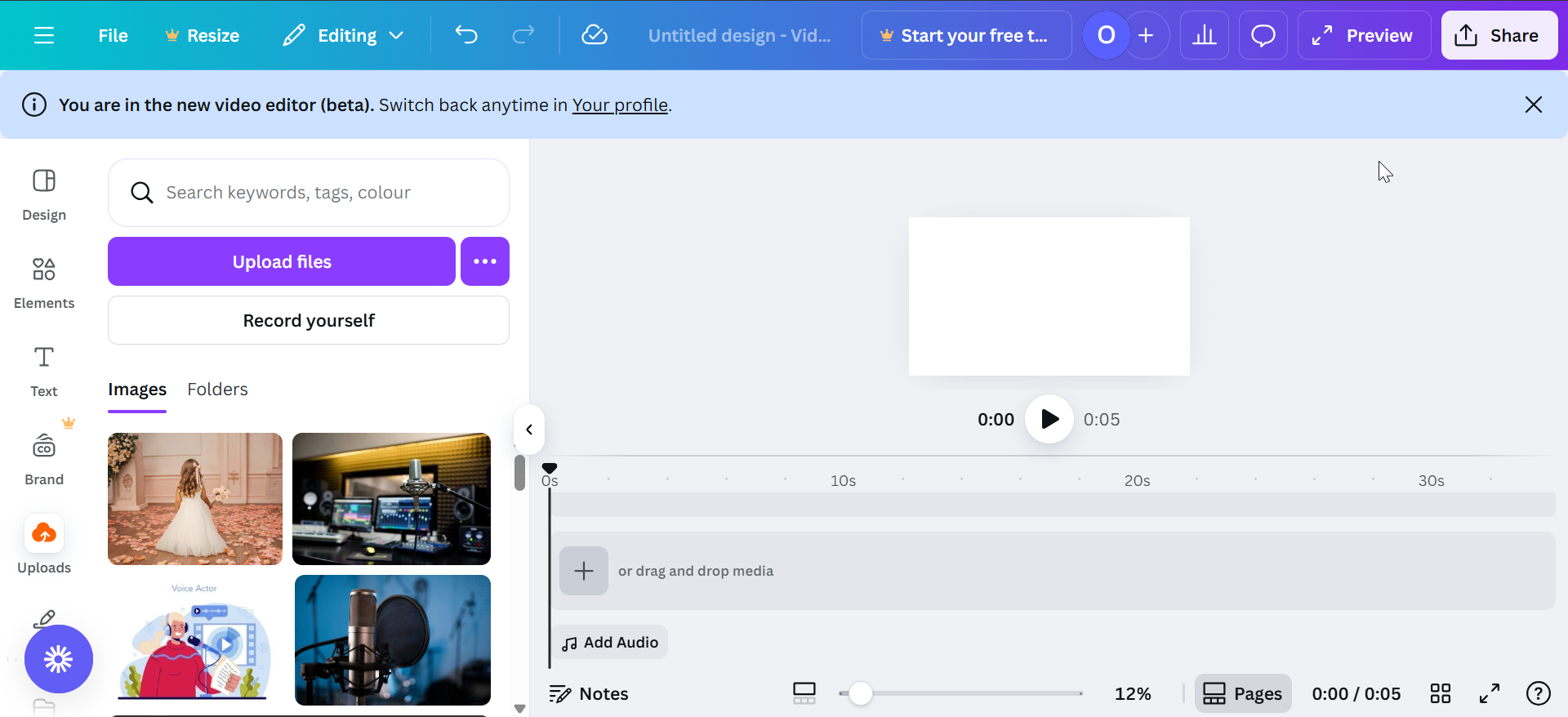
Web-based editors like CapCut, Canva Video, or FlexClip offer iMovie-style transitions, text, and music directly in your browser. They’re quick, require no installation, and work well for short clips or social content.
Troubleshooting Common Issues
- Installation Errors: If you can't install the software, ensure your system meets the minimum requirements. Try running the installer as an administrator or disable antivirus temporarily.
- Performance Issues: Slow editing or crashes may be caused by insufficient RAM or a slow hard drive. Try editing on an SSD, closing background apps, or upgrading your PC’s memory.
- Compatibility Problems: If the video editor isn’t working with certain file formats, check if your software supports them or install a codec pack like K-Lite to improve compatibility.
- Missing iMovie Features: If you can't find certain iMovie-like features (e.g., transitions or themes), look for preset packs or download additional effects from the editor’s website.
- Emulator Lag: Running macOS through an emulator can cause performance lag. Ensure your PC has adequate hardware (like a strong GPU) to run the virtual machine smoothly.
Tips to get the best editing experience on Windows
- Optimize PC performance for video editing: Keep your graphics drivers updated, close background apps, and edit from an SSD for faster rendering. These optimizations improve responsiveness in all video editors.
- Use iMovie-style presets and transitions: Most editors allow importing custom LUTs, titles, and transition packs. Choose styles that replicate iMovie’s clean cuts and smooth fades to keep the familiar look.
- Export in iMovie-compatible formats: Export your videos in MP4 (H.264) for easy sharing with iPhone or iPad users. This ensures your clips play smoothly across Apple and Windows devices.
FAQs About iMovie for Windows
Can I legally download iMovie on Windows? No. Apple restricts iMovie to macOS and iOS platforms only.
Is there a free version similar to iMovie? Yes. Clipchamp and CapCut both provide intuitive editing for free on Windows.
Can I open iMovie project files on Windows? Not directly. Export the project from iMovie as an MP4 or MOV, then import it into your Windows editor.
Which Windows editor feels most like iMovie? Movavi Video Editor and PowerDirector come closest in layout and tools.
Summary
- There is no native iMovie app for Windows
- Run iMovie through a macOS Emulator
- Use a Virtual Machine
- Try iMovie alternatives
- Use top-notch online video editors
Conclusion
If you’re searching for iMovie on Windows, remember that the genuine app doesn’t exist for PC. Instead, pick a reliable Windows editor that matches your skill level, or use a browser-based option for light projects. With the right setup, you’ll get iMovie’s clean, simple editing flow—no Apple hardware required.


Discussion (0)
Be the first to comment.