



Learning how to download Google Site content is essential if you want a backup or offline version of your website. Whether you use it for archiving, migration, or editing, downloading your Google Site ensures you have full access to your site’s files and structure, even without an internet connection. At the time of writing, the official and most reliable way to download a Google Site is through Google Drive and Google Takeout.
Why Download Your Google Site?
- Maintain an offline backup of your website in case of data loss or accidental edits.
- Transfer or migrate your Google Site to another web host or CMS.
- Work on website updates offline without affecting the live version.
- Save an archived version of your content for records or future reuse.
Before starting the process, make sure you have the right permissions and access to the Google Account that owns the site. You should also understand that downloading only exports static content and not dynamic features like forms or embedded tools.
How To Download Google Site (Official Method)
The official method uses Google Drive and Google Takeout to export your Google Site files. This ensures you get a complete, organized backup in a ZIP format. Here’s how to do it step-by-step:
- Step 1: Open Google Drive and create a new top-level folder in “My Drive.”
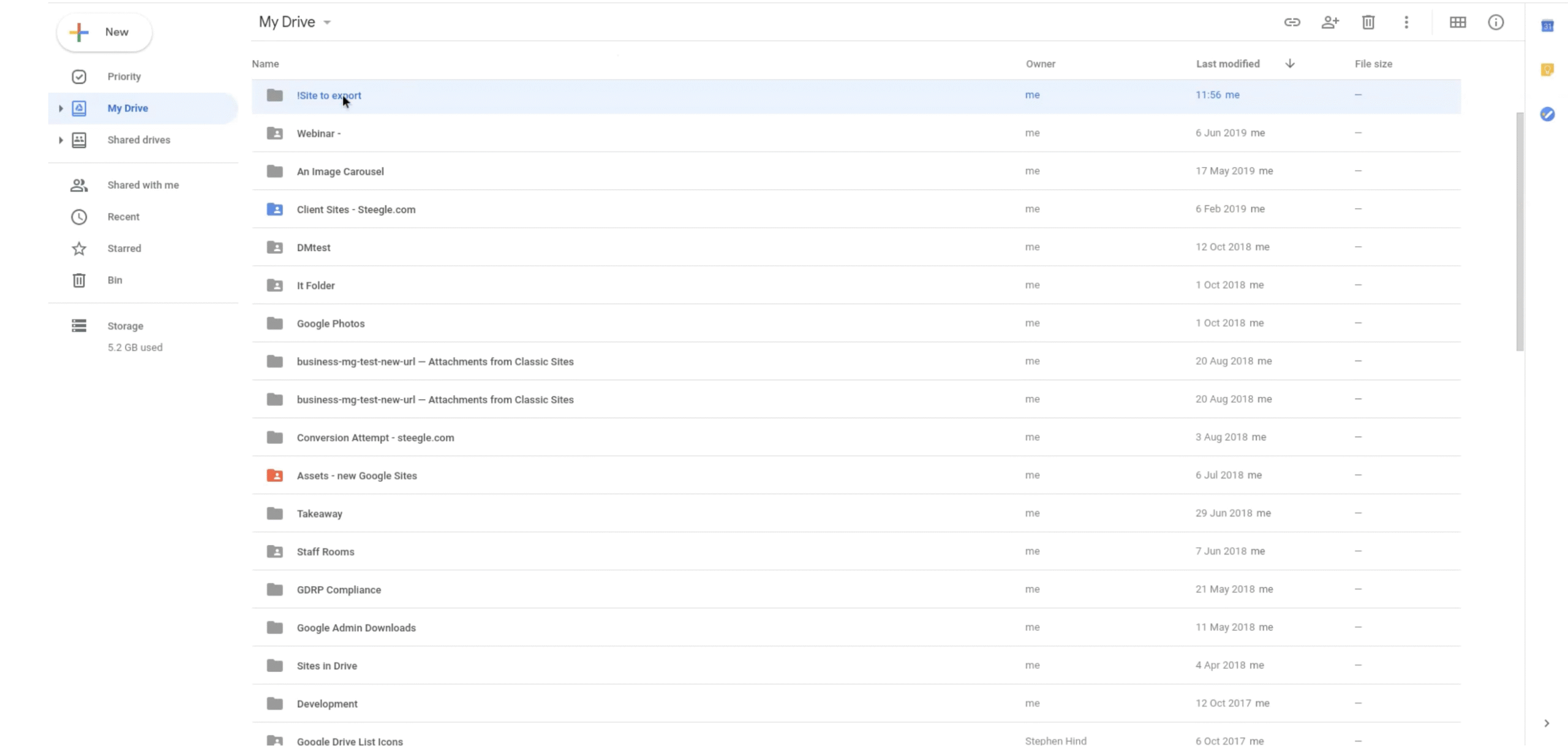
- Step 2: In the Drive search bar, type
type:siteto find your Google Sites files. - Step 3: Move your chosen site’s meta file into the new folder you created.
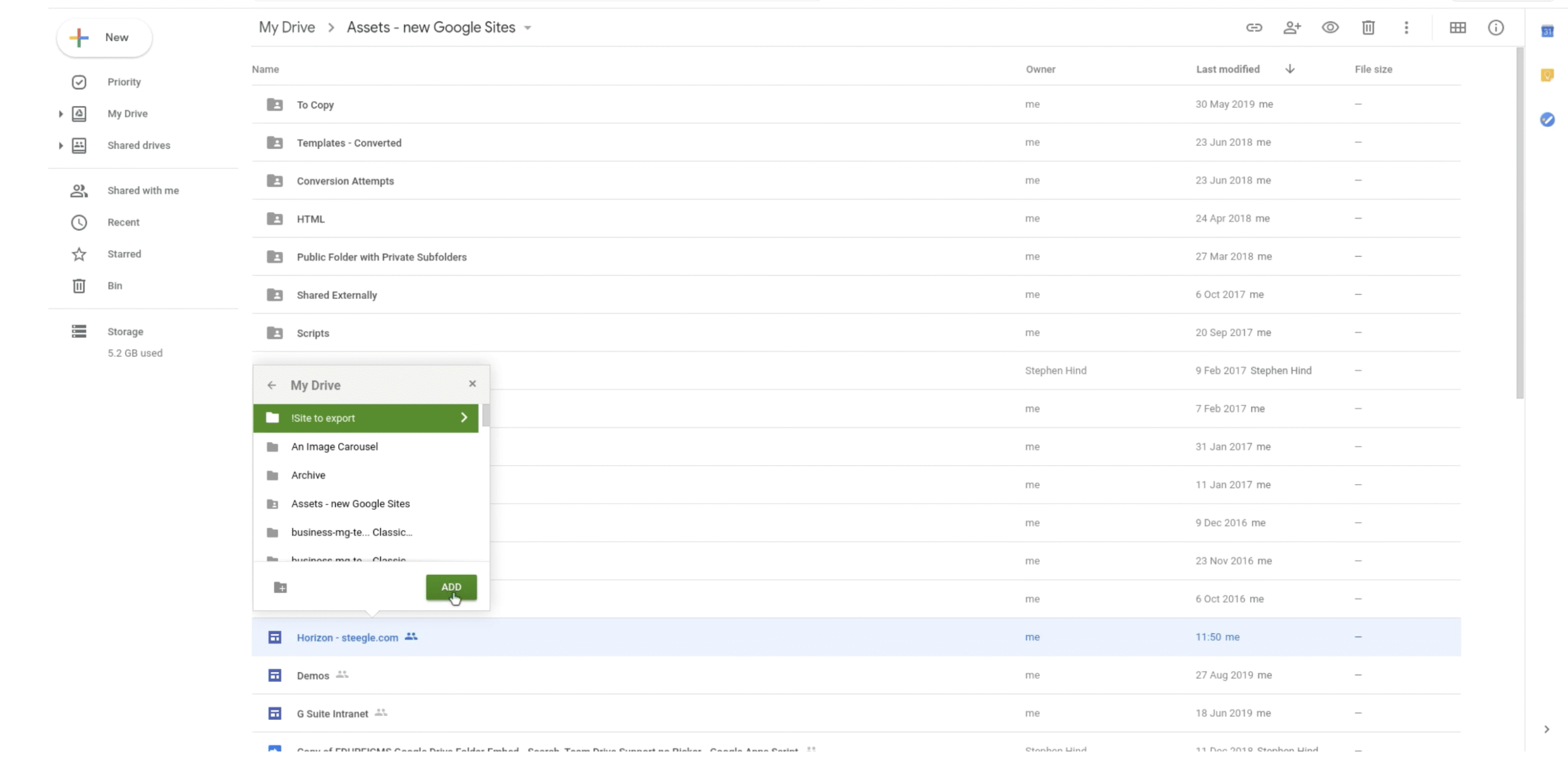
- Step 4: Go to Google Takeout and deselect all other data types except Google Drive.
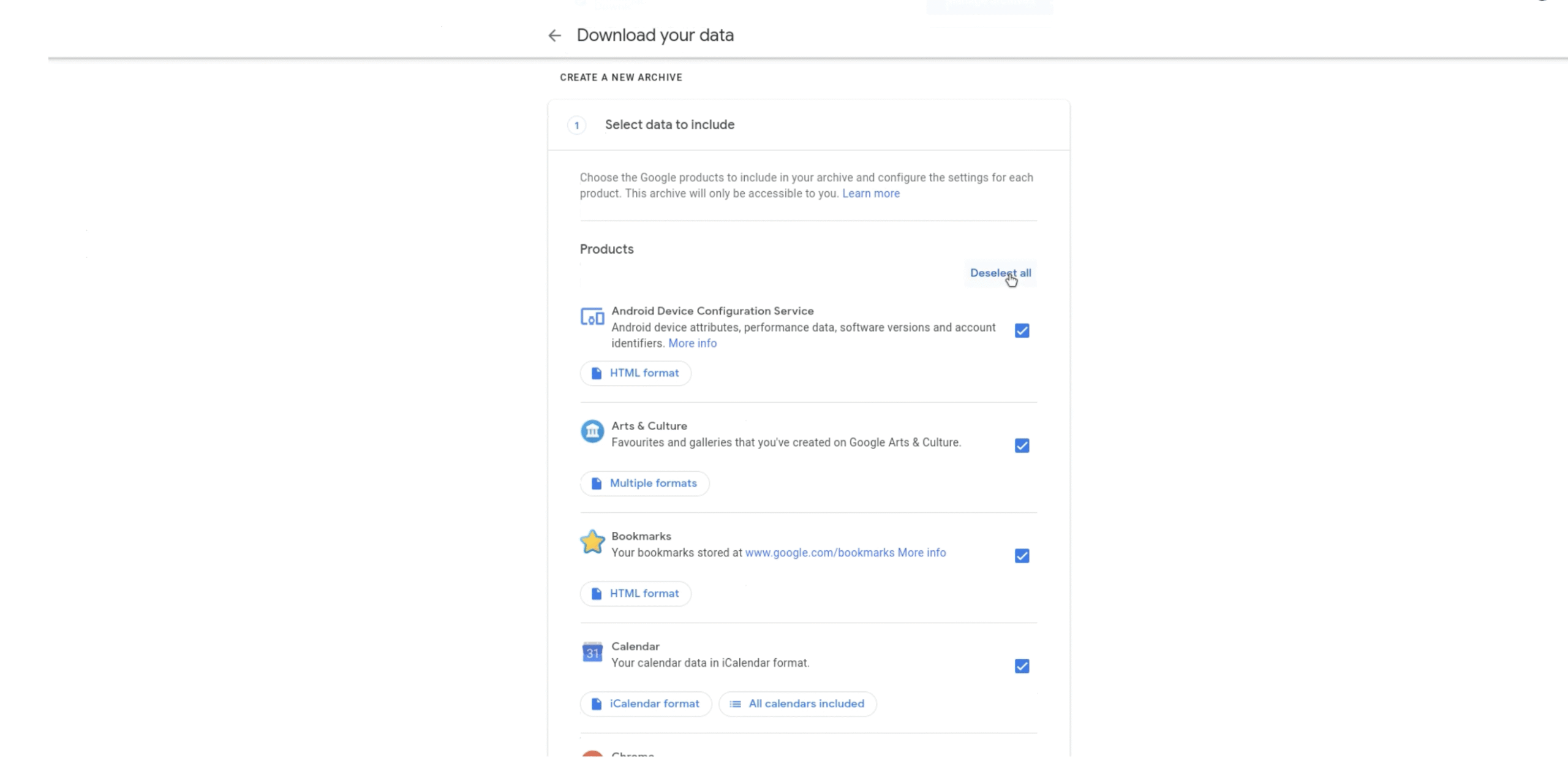
- Step 5: Choose your new folder as the export source.
- Step 6: Export your data and download the ZIP file containing your site.
This process creates an offline backup of your website’s HTML files, images, and media, ready for viewing or editing on your computer.
Alternative Method: Save Individual Pages
If you only need a specific page from your Google Site, you can use your browser’s “Save Page As” feature. This works for static pages and doesn’t require Google Takeout.
- Open the page you want to download in your browser.
- Right-click anywhere on the page and select “Save As” or “Save Page As.”
- Choose “Web Page, Complete” to download all assets (HTML and images).
- Save it to a preferred folder on your computer.
This is a quick and simple way to download Google Site pages individually, ideal for smaller backups or offline access to select content.
How To Download Google Site To Your Computer
If you followed the official method, your exported ZIP file will now contain your full Google Site. Here’s how to open and access it locally:
- Locate the downloaded ZIP file on your computer.
- Right-click on the ZIP file and select “Extract All.”
- Choose a destination folder and confirm extraction.
- After extraction, open the folder to explore your HTML, image, and asset files.
- Double-click an HTML file to view your site offline in a browser.
You can also host this backup on a local web server using tools like XAMPP or WAMP if you want to preview your Google Site as a functioning local website.
How To Download Google Site On Phone
If you need to download your Google Site on your phone, use the browser’s share or download options. Note that mobile downloads provide limited functionality compared to desktop exports.
- Open your Google Site in your mobile browser.
- Tap the menu (three dots) and select “Share” or “Download page.”
- Choose “Save as PDF” to keep a readable offline copy of your page.
- For full site downloads, you’ll need to use Google Takeout on a desktop device.
Troubleshooting Google Site Download Issues
- Missing pages: Check that the site and pages are set to “Public” or “Anyone with the link.”
- Incomplete export: Ensure all external content (like embedded Drive files) is accessible.
- Takeout errors: Retry export after clearing cache or use an incognito window.
- Non-public sites: Only the site owner can download restricted sites using their linked account.
If you still can’t export, refer to Google’s official support page for Google Sites offline backup solutions.
FAQs
Can I download my Google Site as a file?
Yes. You can use Google Takeout to export your site data as a ZIP file. Once downloaded, extract it to access all your site’s assets and HTML files offline.
Why can’t I download my Google Site?
If you can’t download Google Site content, make sure you’re signed in with the site owner’s account and that you’re using the official Drive and Takeout export process.
Can I export my Google Site to another platform?
You can migrate content manually by uploading your downloaded files to another CMS, but Google Sites does not have a direct export-to-host option.
Can I download Google Site as PDF?
Yes. Open any Google Site page, click the three-dot menu, and select “Print” → “Save as PDF.” This works well for archiving or sharing single pages.
Does downloading a Google Site keep all its features?
No. Downloaded sites lose interactive elements such as forms and dynamic embeds. However, you retain full static content, text, and media files.
Summary
- Use Google Drive and Takeout to export your full Google Site safely.
- Download individual pages using the browser’s “Save Page As” option.
- Extract and open ZIP files to view or edit your site offline.
- Keep permissions public and back up external media separately.
By following these steps, you can confidently download Google Site content, keep reliable backups, and work offline whenever needed. Always verify export completeness and ensure ownership rights before downloading.


Discussion (0)
Be the first to comment.