




Tenor hosts millions of looping animations that make messages and social posts more fun. Whether you want to save a funny reaction GIF or store a meme for offline sharing, downloading from Tenor only takes a few taps or clicks.
This guide shows exactly how to download a GIF on Tenor using a browser, the mobile app, and safe conversion tools so you can keep your favorites ready to use anytime.
1) Download GIFs from Tenor on desktop
Open Tenor in any browser and search for the GIF you want. Next, click the GIF to open its dedicated page and right-click the image. Now, select Save image as and choose a folder.

Make sure the file extension ends with .gif or .mp4. Finally, select Save to store it locally.

Chrome and Edge often save GIFs as MP4 videos to reduce size. You can still play or convert them later if you prefer the classic looping format.
2) Download GIFs from Tenor on mobile
Open the Tenor website or app on your phone and tap and hold the GIF you want to save. Then, choose Download image or Save video on Android and Save in Photos on iPhone. Finally, go to the Gallery/Photos app to find your saved file.
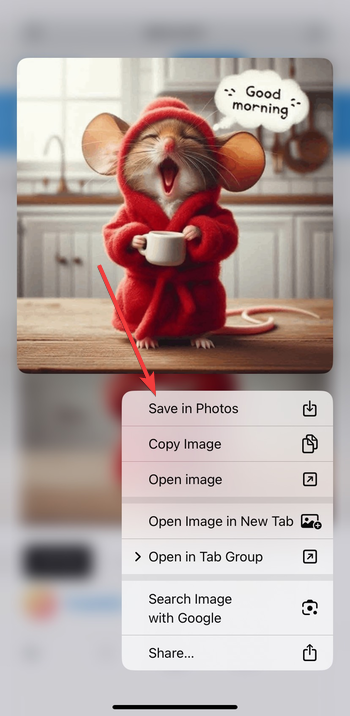
If the file appears as an MP4, it still loops like a GIF when shared through messaging apps or uploaded to social media.
3) Save GIFs from the Tenor app
Open the GIF you like in the Tenor app and tap the Send button below the image. Next, select Save GIF or pick a messaging app to send it instantly.
You can find the saved GIFs in your app’s downloads or the phone’s media folder. You can rename or move them using your file manager for easier access later.
4) Convert Tenor videos to GIF format
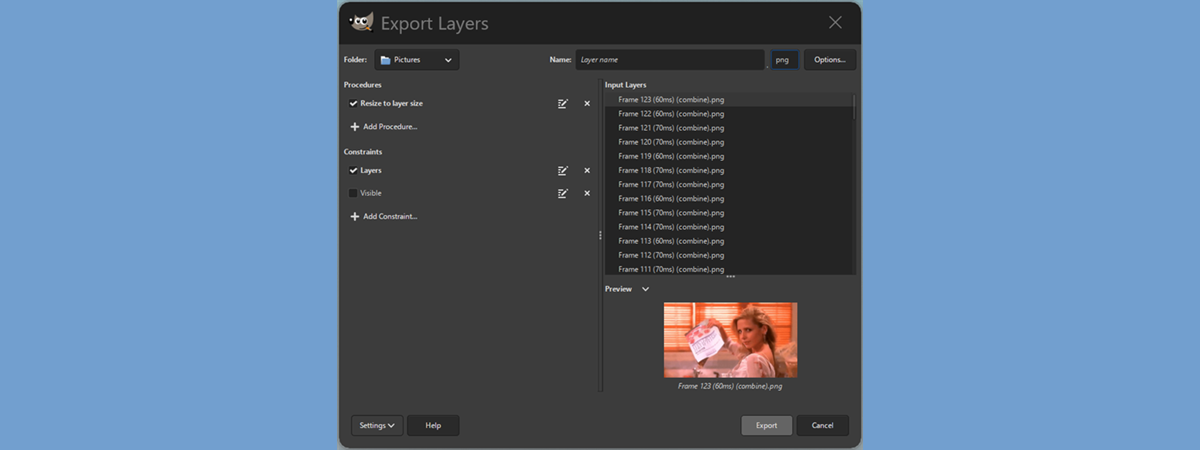
Tenor often serves GIFs as MP4 videos to optimize performance. If you need a traditional GIF, convert it using built-in tools or reliable free converters.
To do this, open your MP4 file in an online or offline converter and select Convert to GIF. Choose the desired resolution and save the new GIF. Lastly, test playback in your browser or Photos app.
Tip: MP4 files are smaller and play smoother, but GIFs loop automatically in most apps and remain easier to embed in messages.
5) Understand Tenor’s usage rights
Tenor GIFs are meant for personal sharing, not for commercial redistribution. Avoid re-uploading others’ creations in ads or branded content without permission. .
6) Fix common Tenor download problems
- GIF saves as video instead of image: This happens because Tenor compresses GIFs into MP4 format. Use a converter if you prefer a standard GIF file for editing or web uploads.
- Download button missing: Always open the full GIF page before saving. Preview images or embeds inside apps don’t include a proper file link.
- GIF not playing after download: Check the file extension. Rename it to
.gifor open it in a player that supports animation, such as Photos or VLC.
Tips for managing and sharing downloaded GIFs
- Keep folders by topic - reactions, memes, greetings - so you can find them quickly when texting or posting online.
- Use lightweight optimization tools to shrink file size before sharing.
- When embedding on websites, include proper credit if the artist is listed
FAQs about downloading GIFs on Tenor
Can I download GIFs without the Tenor app? Yes. Any browser can save them directly from the website.
Why does the file save as MP4? Tenor serves compressed video loops for faster loading.
Are Tenor GIFs copyrighted? Most are user-created. Share for personal use only.
Where do downloads go on my phone? Check the Downloads folder or Gallery/Photos app.
Can I make my own GIFs on Tenor? Yes. Create an account to upload and share your original animations.
Summary
- Use browsers or the Tenor app to save GIFs easily on any device.
- Mobile downloads may appear as MP4 files—convert if needed.
- Always open the full GIF page before downloading.
- Respect usage rights when sharing Tenor content.
- Organize your GIFs into folders for quick reuse.
Conclusion
Downloading GIFs from Tenor is quick once you know where to tap or click. Whether you use a desktop browser, the Tenor mobile app, or a third-party downloader, the key is opening the full GIF page and saving the right file format.
Most downloads arrive as MP4s to improve speed, but converting them back to GIF format only takes a minute. Keep your saved animations organized, respect creators’ rights, and you’ll have a ready library of GIFs for every message or mood.

Discussion (0)
Be the first to comment.