



Saving animated images should be easy, but many sites auto-serve .webp or even MP4 instead of a true .gif. This guide shows how to download GIF files from website pages on desktop and mobile, keep the animation intact, and convert formats when needed—without shady tools.
Before You Start: Permissions & Formats
Respect copyright and site terms. Many platforms re-encode GIFs to .webp or short videos for performance. That’s normal. If a site blocks direct saving, use approved share/download buttons when available.
Method 1: Classic “Right-Click & Save” (Desktop)
- Open the page and let the GIF play once.
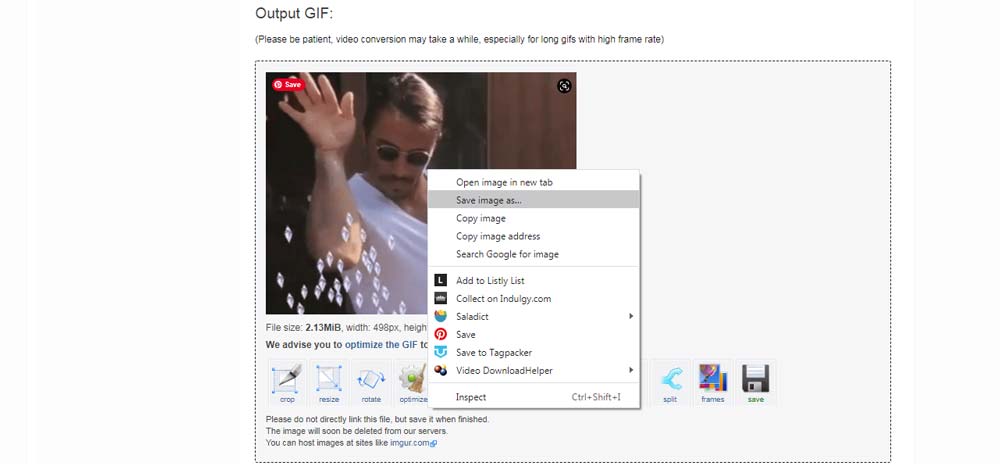
- Right-click the image → Save image as….
- Confirm the filename ends in
.gif. If it shows.webp, try Methods 2–4 below.
Method 2: Open Image in New Tab to Force the .gif URL
- Right-click the animation → Open image in new tab (or Copy image address then paste in a new tab).
- If the new tab URL ends with
.gif, press Ctrl/Cmd+S to save. - If it still ends with
.webp, use Method 3 or 4.
Method 3: Use Developer Tools to Grab the True File
- Press F12 (or Ctrl/Cmd+Shift+I) → open Network tab.
- Reload the page and filter by Img or search “
.gif”. - Click the request that ends in
.gif→ open in a new tab → save. - If only MP4/WebP loads, use Method 4 to convert.
Method 4: When Sites Serve WebP or MP4, Convert Back to GIF
If you can only save .webp or a short .mp4, convert it:
- Desktop converters: Use a reputable offline converter app to convert
.webpor.mp4to.gif. - Online tools: Trusted GIF utilities can convert WebP/MP4 to GIF and let you trim, resize, or optimize before downloading.
- Quick rename (Mac/limited cases): Renaming
.webpto.gifrarely preserves animation, so prefer a real conversion for reliable results.
Method 5: Browser Extensions That Save as .gif
If you save lots of GIFs, install a well-reviewed “Save as GIF” extension for your browser. It intercepts .webp and downloads a .gif automatically, when a source GIF exists. Stick to reputable extensions only.
Method 6: Google Images, GIPHY, and Tenor
- Google Images: Click the result to open the hosting page. Use Method 1 or 2 from the host, not the thumbnail in Google.
- GIF platforms (e.g., GIPHY/Tenor): Use the site’s own Download or Media button for a clean
.gif. Some offer multiple sizes for smaller file weight.
Method 7: Save GIFs on iPhone and Android
- iPhone (Safari): Touch-and-hold the GIF → Add to Photos or Save Image. If it saves as a still or
.webp, open the image in a new tab first, then save. - Android (Chrome): Touch-and-hold → Download image. If it’s
.webp, open in new tab or use a converter app. - From apps: Some social apps convert GIFs to video. Use the app’s share/export options or a converter to turn MP4 back into GIF.
Method 8: Third-Party Tool
Many “GIFs” are MP4. Use the post’s download/share to get the video, then convert it to a GIF if needed with a third-party tool like EZGIF.
- First, go to the site.
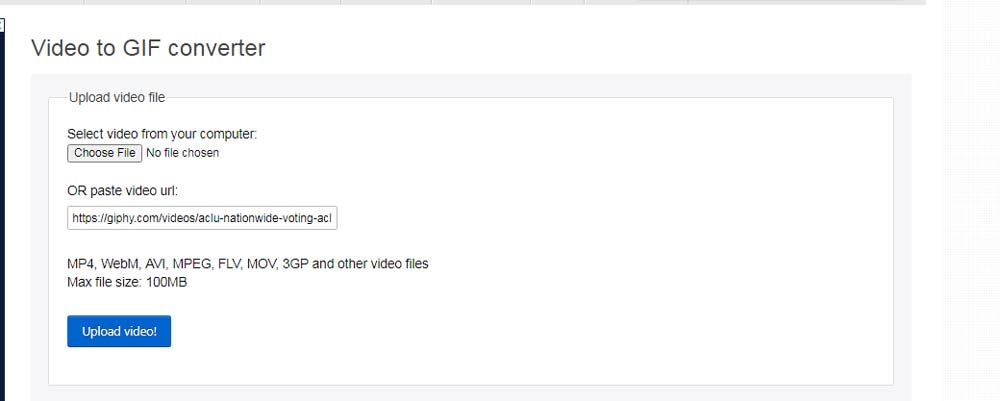
- Second, copy and paste the URL of the GIF you want to convert into the URL box. Click Upload video!
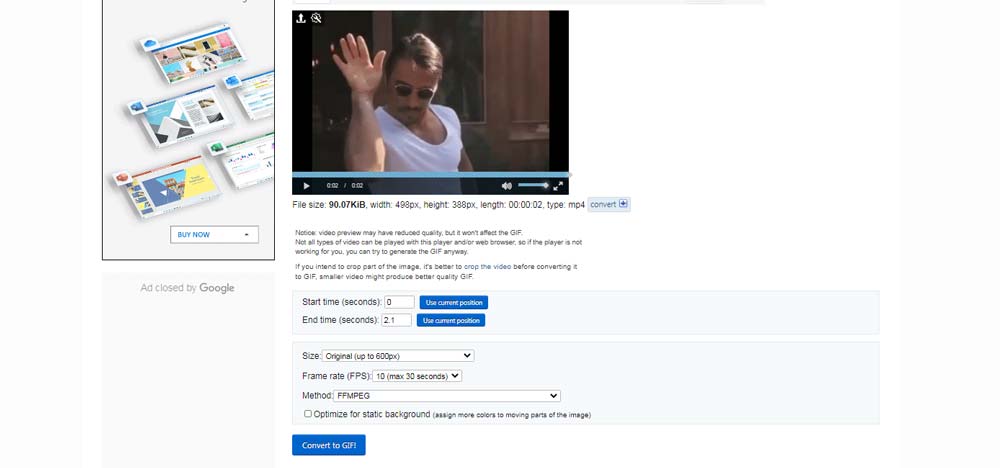
- Finally, on the next page you're redirected to, click Save video as…, then choose the file name and path where you want the file saved. Click Save to download it to your system.
Troubleshooting: Keep the Animation & Quality
- File is static: You saved a preview or thumbnail. Reopen the full media URL (Method 2) and save again.
- Downloads as .webp only: Grab the network URL (Method 3) or convert to
.gif(Method 4). - Huge file size: Use an optimizer to reduce frames, lower dimensions, or apply lossy compression.
- Choppy playback: The source uses few frames. Re-export with more frames or accept the source quality limit.
Legal & Ethical Reminder
Only download GIFs you have rights to use, or those clearly permitted for saving and sharing. When in doubt, credit the creator or use licensed sources.
Summary
- Try right-click save; if it’s
.webp, open the image in a new tab or use DevTools to find the true.gif. - When sites serve MP4/WebP, convert back to
.gifwith a trusted tool. - On mobile, long-press to save; if you get video or WebP, open in a new tab or convert.
- Use reputable extensions if you download often, and optimize large GIFs to reduce size.


Discussion (0)
Be the first to comment.