



If you're a Samsung device owner, you're already familiar with the Galaxy Store. The Galaxy Store is a proprietary app store that offers a wide range of Samsung-exclusive apps, games, themes, and services designed specifically for your Galaxy device. It provides access to apps that are optimized for your device, as well as Samsung-exclusive features, including software updates and system apps.
In this guide, we'll walk you through the correct process to access and use the Galaxy Store on your Samsung device. Note that you don’t need to download the Galaxy Store from the Google Play Store—it is pre-installed on all Samsung devices, and there’s no need for external downloads.
Step 1: Locate the Galaxy Store on Your Samsung Device
The Galaxy Store is already pre-installed on your Samsung device, so you don't need to download it from the Play Store. Here's how you can find it:
- Open your app drawer.

- Look for the "Samsung" folder (where many Samsung apps, including the Galaxy Store, are stored).
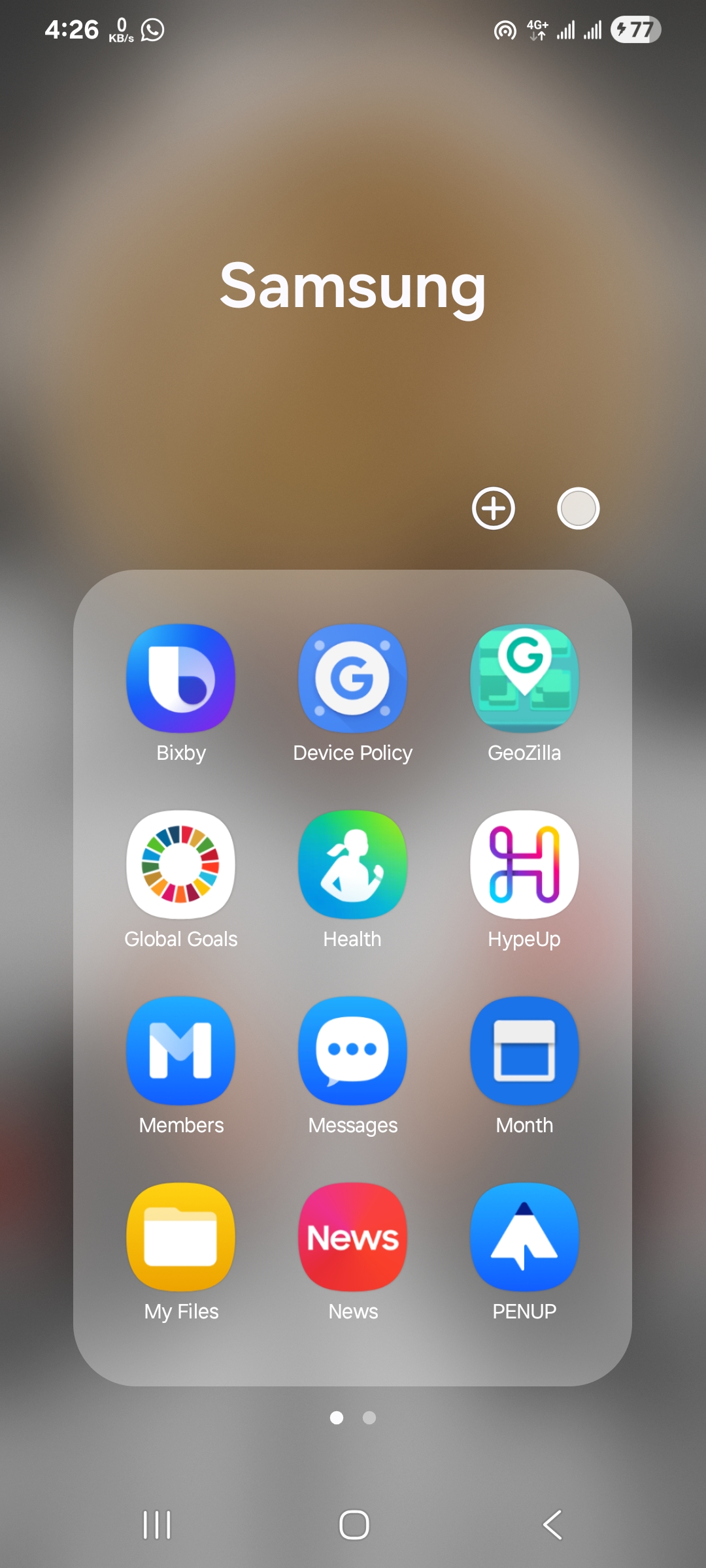
- Tap on the Galaxy Store icon to open it.
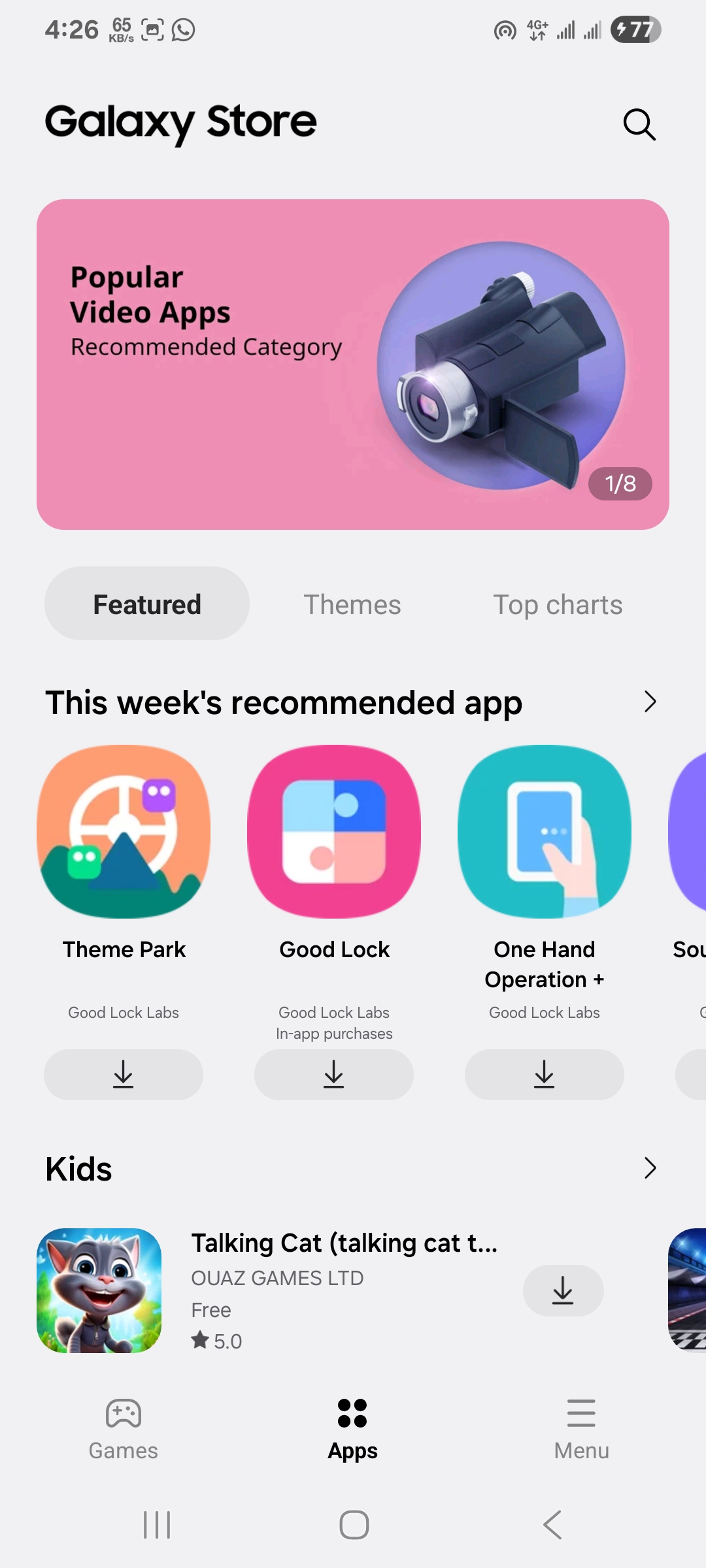
If you can't find the app in the Samsung folder, you can use the search bar in your app drawer to search for “Galaxy Store.” Once located, you can add it to your home screen for quick access.
Step 2: Explore the Galaxy Store
The Galaxy Store serves a different purpose than the Google Play Store. While the Google Play Store gives you access to a broad range of Android apps, the Galaxy Store is your go-to source for:
- Samsung-exclusive apps: Apps that are designed specifically to optimize the performance of your Samsung device.
- Themes: You can find custom themes, wallpapers, and icons designed for Samsung devices to personalize your phone.
- Samsung updates: The Galaxy Store provides software updates for exclusive Samsung apps and services.
Once you have opened the Galaxy Store, take some time to explore its features and discover apps tailored to your Samsung experience.
Step 3: Install Apps from the Galaxy Store
To install apps from the Galaxy Store, follow these steps:
- Open the Galaxy Store on your Samsung device.
- Browse or search for the app you’d like to install (you can search by category or by name).
- Once you find the app, tap it to view its details, then tap Install.
- If the app requires certain permissions, tap Accept to grant them.
- Wait for the app to finish downloading and installing, then open it directly from the store or from your app drawer.
The Galaxy Store is designed to seamlessly work with your Samsung device, ensuring that any app you download runs smoothly and efficiently.
Step 4: Access Galaxy Store Settings and Manage Your Account
The Galaxy Store allows you to customize your settings and manage your account. Here’s how you can access these features:
- Open the Galaxy Store app.
- Tap on the Menu icon (usually in the top-left corner of the screen).
- From here, you can access:
- Account Settings: Link your Samsung account, manage your subscriptions, and adjust preferences.
- Notifications: Customize the notifications you receive from the Galaxy Store.
- Downloads: View and manage your installed apps from the Galaxy Store.
By managing your account and settings, you ensure that your Galaxy Store experience remains personalized and streamlined.
Step 5: How to Use the Galaxy Store Alongside Google Play Store
The Galaxy Store and the Google Play Store serve different purposes, and both are essential for your Samsung device. Here's a breakdown of how you should use them:
- Galaxy Store: Focuses on apps that are exclusive to Samsung devices. It also provides apps optimized for Galaxy devices and offers Samsung-specific features, such as system updates and wallpapers.
- Google Play Store: The primary store for Android apps. It’s where you’ll find general apps that work across many different devices, including Samsung. You can download apps, games, and entertainment from the Google Play Store as well.
For most Samsung users, both stores are installed by default, and you’ll find that you use them together to get the best out of your device.
Conclusion
Accessing the Galaxy Store on your Samsung device is simple since it comes pre-installed and is designed exclusively for Galaxy users. While you don’t need to download it from the Google Play Store, you can rely on both the Galaxy Store and the Google Play Store to maximize your app library and enhance your smartphone experience.
The Galaxy Store provides apps and features tailored to Samsung devices, such as Samsung-exclusive apps, themes, and software updates, making it an essential part of your Samsung experience. Enjoy exploring new apps, personalizing your device, and taking full advantage of what your Samsung device has to offer!

Discussion (0)
Be the first to comment.