



Apple Books turns your iPhone, iPad, and Mac into a portable library. Once you learn how to download Apple Books properly, you can build a personal ebook collection, sync it across devices, and keep your favorite titles ready for offline reading.
This guide explains how the Apple Books app works, how to download books on iPhone, iPad, and Mac, and what to do when downloads fail. You will also see how to manage your Apple Books library so it stays organized as your reading list grows.
What Is Apple Books?
Apple Books is Apple’s built-in ebook and audiobook store. You can browse bestsellers, free classics, textbooks, and comics, then download them directly to your Apple devices for online or offline reading.
The Apple Books app comes pre-installed on most recent iOS, iPadOS, and macOS versions. If you removed it, you can reinstall it from the App Store like any other app.
Before You Download Apple Books
Check a few basics first so each Apple Books download completes smoothly and syncs across your devices.
- Confirm you signed in with the correct Apple ID that you want to use for your Apple Books purchases.
- Connect to a stable Wi-Fi network, especially when you download large illustrated books or audiobooks.
- Verify that your device has enough free storage for new Apple Books downloads.
- Update iOS, iPadOS, or macOS and the Apple Books app to the latest available version at the time of writing.
- Add or update a valid payment method in your Apple ID settings for paid ebooks and audiobooks.
How To Download Apple Books On iPhone Or iPad
You can download books on iPhone and iPad in the same way, because both devices use the Apple Books app and store.
Open The Apple Books App
Start inside the Apple Books app so you can reach the Book Store and your existing library.
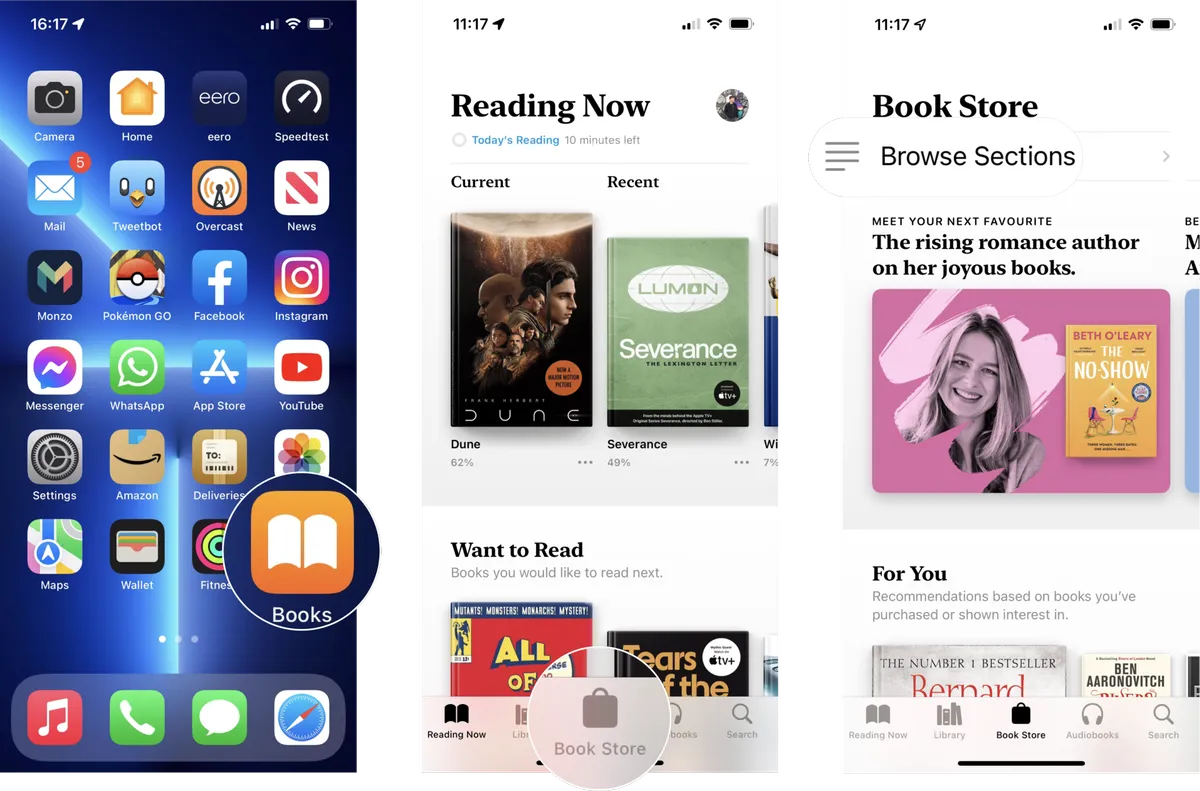
- Tap the Books icon on your Home Screen or in the App Library.
- Choose Reading Now to see what you recently opened, or switch to Library to view everything you already downloaded.
- Tap Book Store on the bottom bar when you want to find new Apple Books to download.
Browse Or Search The Book Store
The Book Store tab lets you discover new titles and find specific ebooks quickly.
- Scroll through sections like Top Charts, New Releases, and Free collections.
- Tap Categories or Genres to filter by fiction, non-fiction, comics, or other topics.
- Use the Search field to look up a title, author, or keyword such as “productivity” or “sci-fi”.
Open The Book Detail Page
Each book has its own detail page that shows the description, ratings, and price before you download Apple Books content to your device.
- Tap the book’s cover to open its detail page.
- Read the description and check the page count and supported devices.
- Scroll down to reviews to see what other Apple Books readers liked or disliked.
- Tap Sample if you want to read a preview before you commit.
Download A Free Or Paid Apple Book
Once you decide to grab the title, you only need a few taps to download the ebook to your iPhone or iPad.
- Tap Get if the book is free, or tap the price button if the book is paid.
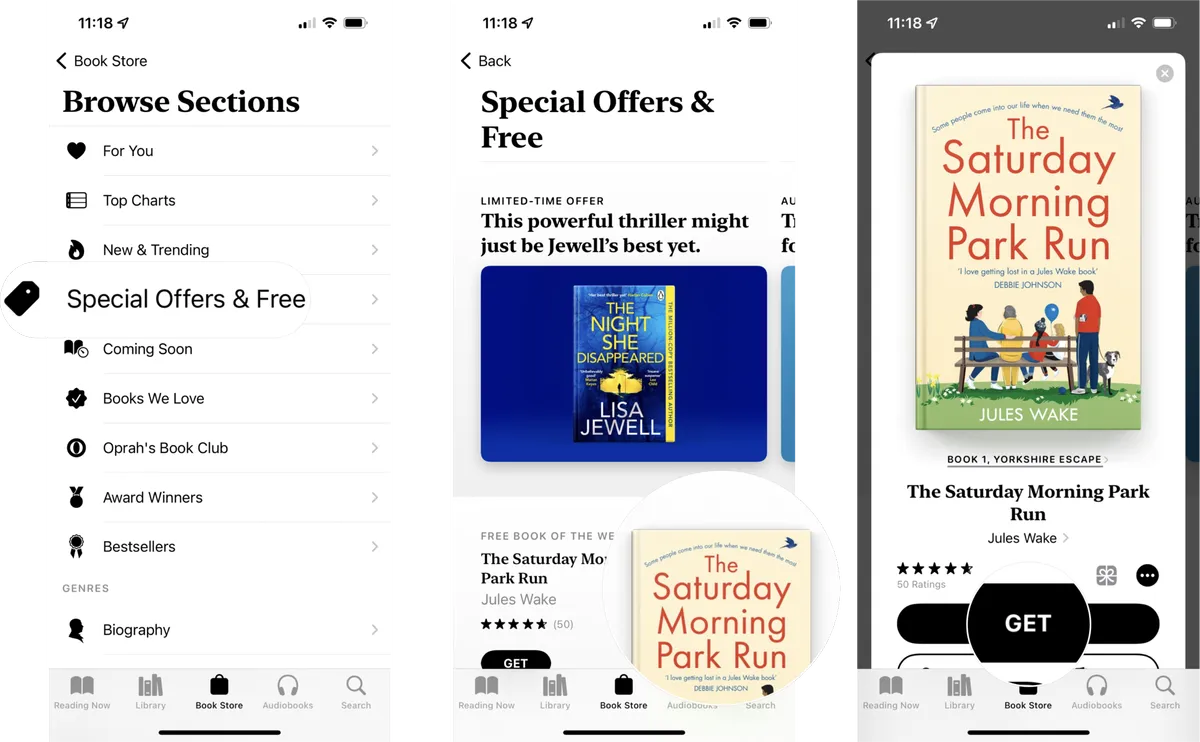
- Confirm with Side Button, Face ID, Touch ID, or your Apple ID password.
- Watch the download circle on the book’s cover while the Apple Books app saves the file.
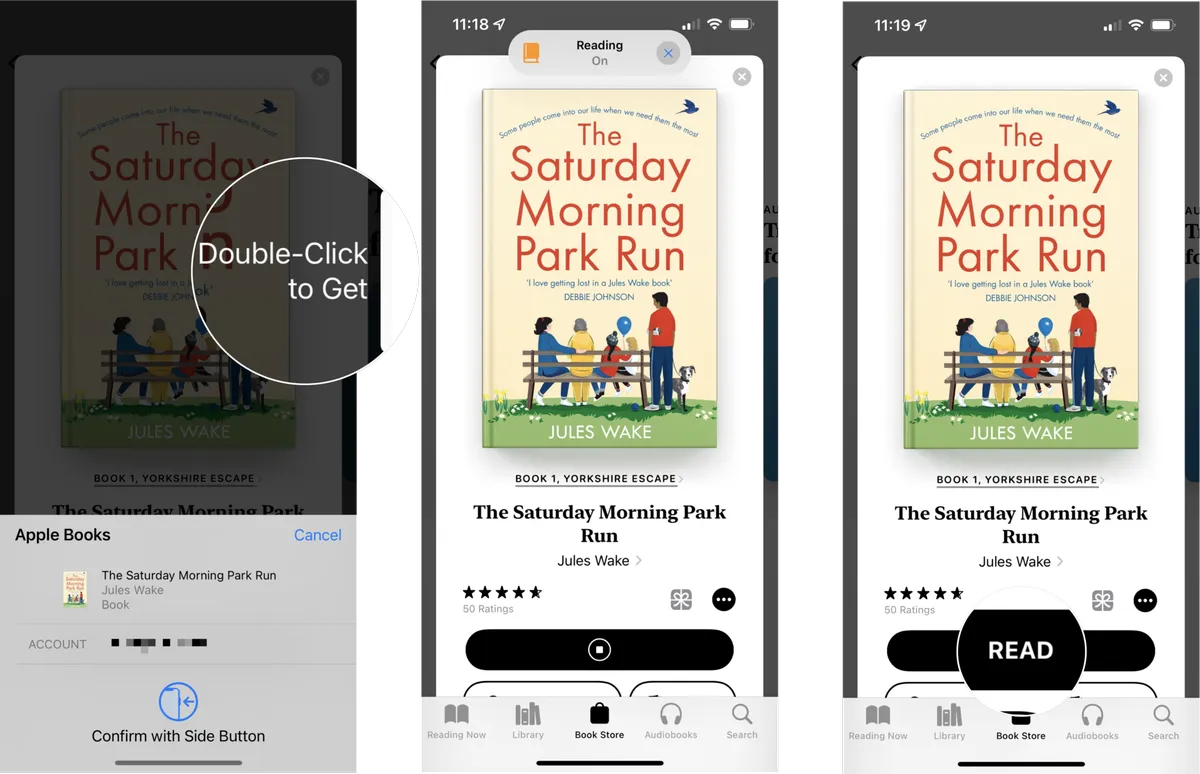
- Wait until the circle finishes and displays a small Downloaded check mark.
Read Your Downloaded Apple Books Offline
After the download completes, the ebook appears in your Library, and you can read it without an internet connection.
- Tap Library at the bottom of the Apple Books app.
- Choose All Books or filter by Downloaded to hide cloud-only items.
- Tap Read or the book’s cover to open it and continue where you left off.
- Use the aA menu to change fonts, themes, and line spacing for comfortable reading.
How To Download Apple Books On Mac
If you enjoy reading on a bigger screen, you can download Apple Books on Mac as well. The Books app on macOS uses the same Apple ID and keeps your library in sync.
- Open the Books app from the Dock or Applications folder.
- Click Book Store in the sidebar.
- Browse sections or use the Search field to find a title.
- Click the book cover to view details and sample pages.
- Select Get or click the price, then confirm with your Apple ID.
- Wait while macOS downloads the ebook; it appears under Library when the process finishes.
How To Manage Your Apple Books Library
As you download more Apple Books across devices, good library management keeps everything easy to find.
- Use Collections such as Want To Read, Finished, or custom folders like “Work” and “Travel.”
- Tap and hold a book, then choose Add To Collection to file it in multiple groups.
- Sort books by Title, Author, Recently Added, or Manual order.
- Remove downloads by tapping the three-dot menu on a book and choosing Remove > Remove Download. This frees storage but keeps the book available in the cloud.
- Hide purchased items you never plan to read by selecting Remove > Hide Book when you want a cleaner Apple Books app view.
How To Sync Apple Books Across Devices
When you sign in with the same Apple ID on several devices, Apple Books can sync your purchases, samples, and reading positions.
- On iPhone or iPad, open Settings and tap [Your Name].
- Select iCloud and switch on Books and iCloud Drive.
- On Mac, open System Settings, click Apple ID, then enable Books in the iCloud section.
- In the Apple Books app, turn on Sync Collections and Sync Reading Now in the preferences or settings menu.
- Open the same book on another device and confirm that your last page, highlights, and notes appear automatically.
Fixing Common Apple Books Download Issues
Sometimes downloads stall or Apple Books refuses to save a title. These quick checks usually solve the problem before you contact support.
- Restart The Apple Books App: Close the app completely, then reopen it and try the download again.
- Toggle Airplane Mode: Turn it on for a few seconds, turn it off, then reconnect to Wi-Fi and retry.
- Check Payment Details: Open Settings > Apple ID > Payment & Shipping and update expired cards that block paid Apple Books downloads.
- Sign Out And Back In: In Apple ID settings, sign out, restart the device, then sign in with the same Apple ID and open Apple Books.
- Free Up Storage: Delete old videos, photos, or unused apps if your device shows low storage, then attempt the ebook download again.
- Update The System: Install the latest iOS, iPadOS, or macOS updates to fix bugs that affect the Apple Books app.
Frequently Asked Questions About Downloading Apple Books
Can I Read Apple Books Offline?
Yes. As long as you tap the download icon and let the ebook finish downloading, you can read Apple Books offline on iPhone, iPad, or Mac without any connection.
Do Apple Books Work On Windows Or Android?
You can only download Apple Books on Apple devices. For Windows or Android, you need to use other ebook platforms because the Apple Books app does not exist there at the time of writing.
Why Does A Book Show A Cloud Icon Instead Of Open?
The cloud icon means you own the book but store it only in iCloud. Tap the cloud to download Apple Books content back to your device for offline reading.
Conclusion
Learning how to download Apple Books gives you a flexible reading setup that follows you from iPhone to iPad and Mac. You can browse the Apple Books Store, grab free samples or paid titles, and keep everything organized inside one synced library.
Use the steps in this guide whenever you want to download books on iPhone or iPad, read them offline, or troubleshoot the Apple Books app when a purchase refuses to finish. Once you set up syncing and collections, your next ebook is always only a few taps away.


Discussion (0)
Be the first to comment.