




Apex Legends is a free battle royale shooter for Windows that you install through the EA App or Steam. If you want to know how to download Apex Legends on PC safely and avoid launch problems, you need to check basic system requirements and use an official store only.
This guide explains how to get Apex Legends on a Windows 10 or Windows 11 gaming PC or laptop. You learn the minimum specs, how to install the EA App, how to download Apex Legends on PC through Steam, and what to do if the download gets stuck or the game does not launch.
Check If Your PC Can Run Apex Legends
Before you download Apex Legends on PC, confirm that your system meets the minimum requirements. You reduce crashes and stutters if your hardware matches at least the minimum spec and you leave enough free storage.
- OS: 64-bit Windows 10 or newer
- CPU (Minimum): Intel Core i3-6300 or AMD FX-4350
- CPU (Recommended): Intel Core i5-3570K or better
- RAM: At least 8 GB for a smoother experience
- GPU (Minimum): Nvidia GeForce GTX 950 or AMD Radeon HD 7790
- GPU (Recommended): Nvidia GeForce GTX 970 or AMD Radeon R9 290
- Storage: Around 75 GB of free space for the Apex Legends download size, plus some extra for updates
- Connection: Stable broadband for online play and large game updates
If your PC only meets the minimum Apex Legends system requirements, lower in-game graphics settings after installation. On a more powerful gaming PC, you can increase resolution and effects for better image quality.
Download Apex Legends On PC Using EA App
The EA App is Electronic Arts’ official launcher for PC games. You can use it to download Apex Legends on PC for free, manage updates, and verify game files if you run into issues later.
- Open your browser and search for the official EA App website.

- Go to the download page.
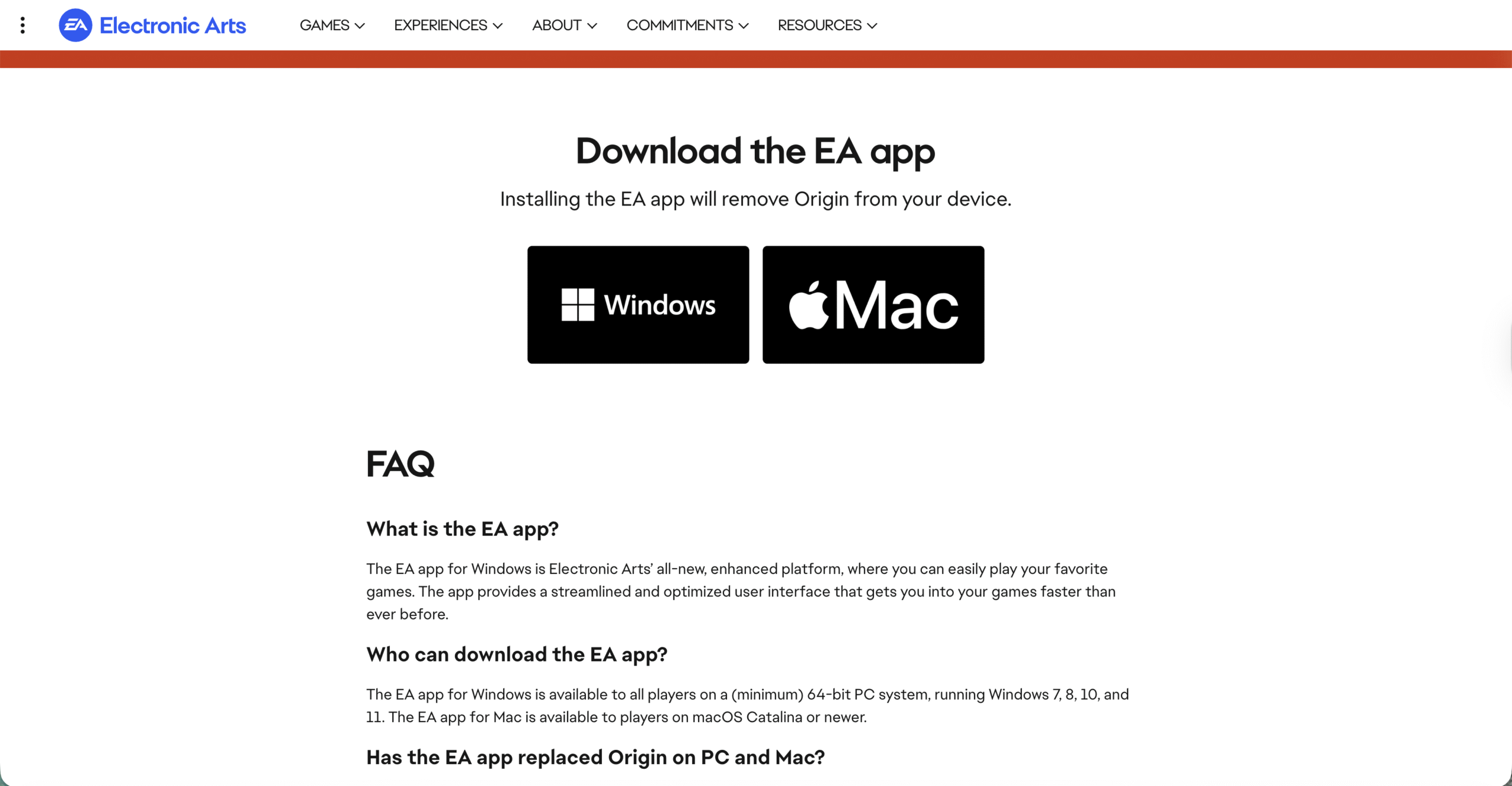
- Download the installer.

- Run the installer and follow the prompts to install the EA App on your Windows PC.
- Launch the EA App and sign in with your EA account, or create a new account if you do not have one.
- Use the search bar in the EA App to look for “Apex Legends.”
- Select the Apex Legends store page and choose the option to add the game to your library.
- Click the download button and pick your install drive with enough free space.
- Wait while the EA App downloads and installs Apex Legends in the background.
- When the status shows “Ready To Play,” click the play button to launch Apex Legends on PC.
This method works well if you want to keep your EA games together in one launcher and use built-in tools to repair the Apex Legends PC install when you see errors.
Download Apex Legends On PC Using Steam
You can also install Apex Legends on PC through Steam. Many players prefer this option because they already manage most of their games in the Steam library.
- Open the Steam client on your Windows PC and sign in with your Steam account.
- Click the Store tab and type “Apex Legends” into the search bar.
- Select the official Apex Legends page that shows the game as Free To Play.
- Click the “Play Game” or “Add To Library” button to begin the process.
- Choose your install drive and confirm the download settings and shortcut options.
- Let Steam download the full Apex Legends PC game files.
- On first launch, sign in with or create an EA account when prompted, since Apex Legends still links to EA services.
- After the link completes, start your first match and confirm everything runs smoothly.
Using Steam makes it easier to track playtime, use the Steam overlay, and keep the Apex Legends download updated alongside your other PC games.
Optimize Apex Legends Download And Installation
You can speed up the Apex Legends PC download and avoid file corruption with a few simple tweaks. These tips help on both the EA App and Steam versions.
- Connect your gaming PC to your router with Ethernet instead of Wi-Fi for more stable speeds.
- Pause other large downloads or streaming services until Apex Legends finishes installing.
- Install the Apex Legends download on an SSD if possible for faster load times.
- Keep your GPU drivers and Windows updates current before you launch the game.
- Leave enough free disk space on the install drive so updates can apply without errors.
Troubleshooting Common Problems
If your Apex Legends PC download fails, or the game crashes after you install it, you can fix many issues with the tools in your launcher and a few quick checks.
- Download Stuck At A Percentage: Pause and resume the download in the EA App or Steam, then restart the launcher if the progress bar does not move.
- “Game Failed To Launch” Error: Use the repair or verify feature in your launcher to scan Apex Legends PC files and replace anything that is missing.
- Game Crashes After Loading: Lower graphics settings, close background apps, and confirm that your PC still meets at least the minimum system requirements.
- EA Account Or Login Problems: Check your email and password, reset your EA password if needed, and make sure you also signed into the correct Steam account if you installed through Steam.
- Slow Performance On Laptop: Plug in the laptop, switch the Windows power plan to High Performance, and force the dedicated GPU to handle Apex Legends in your graphics control panel.
- “Insufficient Disk Space” Message: Delete old games or large files and keep extra free space above the Apex Legends download size so updates install correctly.
Tips
After you download Apex Legends on PC, a few small adjustments can improve your first matches and reduce lag or input problems.
- Turn off background downloads in the EA App or Steam while you play Apex Legends to keep bandwidth for the game.
- Use the in-game settings menu to cap your frame rate and match your monitor for a more stable experience.
- Drop texture quality one level if you only have 8 GB of RAM to avoid stutters when the map loads.
- Set Apex Legends to run in Fullscreen instead of Windowed for lower input lag on most systems.
- Update audio drivers if you notice sound cutouts or voice chat problems during matches.
FAQ
Is Apex Legends Free To Download On PC? Yes, Apex Legends is free to download and play on PC through both the EA App and Steam. You can spend money only on optional cosmetic items and battle passes.
Can I Download Apex Legends On A Laptop? You can play Apex Legends on a Windows gaming laptop if it meets the minimum system requirements. For weaker laptops, lower the resolution and graphics preset to keep a stable frame rate.
Do I Need An EA Account If I Use Steam? Yes, even if you download Apex Legends on PC through Steam, you still need an EA account. Steam links your profile to EA when you launch the game the first time.
Can I Move My Apex Legends Install To Another Drive? Both Steam and the EA App let you move the Apex Legends folder to a different drive. Use the built-in move or manage install feature instead of copying files manually.
Will Apex Legends Run On Windows 11? At the time of writing, Apex Legends supports current 64-bit versions of Windows, including Windows 11, as long as your hardware also meets the game’s PC requirements.
Summary
- You can download Apex Legends on PC for free through the EA App or Steam.
- Check Apex Legends system requirements first so your Windows gaming PC can run the game smoothly.
- Use only official launchers and keep enough free storage for the Apex Legends download size and future patches.
- Fix most installation and launch problems by repairing game files, updating drivers, and restarting your launcher.
- Optimize in-game settings and power options to get better performance on laptops and older desktops.
Conclusion
Learning how to download Apex Legends on PC is straightforward when you use the EA App or Steam and verify your hardware first. Once the Apex Legends download finishes and you complete the first launch setup with your EA account, you can focus on tuning performance and mastering your favorite legends.
Keep your launcher, Windows install, and graphics drivers current so updates apply cleanly and matches stay stable. With a little prep work and the right install path, your gaming PC can handle Apex Legends for long sessions without constant crashes or errors.


Discussion (0)
Be the first to comment.