




If you're tired of dealing with coaxial cables running all over your home and want to set up a cleaner and more flexible solution for watching TV, then wirelessly connecting your antenna to multiple TVs is the way to go. With the help of a wireless tuner, you can eliminate the need for extra wires while ensuring a solid connection to all your TVs.
Whether you’re using an indoor, attic, or outdoor antenna, we’ll walk you through the process of wirelessly connecting it to your TV setup, followed by a review of four popular wireless tuners that help you achieve this.
How To Wirelessly Connect Your TV Antenna
Connecting your TV antenna wirelessly to your TV involves using a wireless tuner, which acts as the bridge between your antenna and TV. The wireless tuner receives the over-the-air (OTA) signal from your antenna and then transmits that signal to your TVs over your Wi-Fi network. Here's how to set it up:
- Choose a Location for Your Antenna: The first step is placing your antenna in an optimal position, such as near a window or on the roof, to get the best reception. The antenna needs to be placed where it can clearly capture signals from nearby TV towers.
- Install a Wireless Tuner: The wireless tuner should be installed in a central location where it can connect to your home’s Wi-Fi router. This is the device that will wirelessly transmit the signal to all your TVs.
- Connect the Antenna to the Tuner: Use a coaxial cable to connect the antenna to the wireless tuner. This will allow the tuner to receive the OTA signal from the antenna.
- Connect the Tuner to Your Wi-Fi: The next step is to connect your wireless tuner to your home Wi-Fi network, either via Ethernet or Wi-Fi, depending on the model.
- Access the Signal on Your TV: Once your wireless tuner is connected to your Wi-Fi network, you can access the signal through compatible streaming devices like Roku, Fire TV, Apple TV, or directly on your smart TV. The signal will be sent over the Wi-Fi network to these devices, allowing you to watch free over-the-air channels without any cables.
Top 4 Wireless TV Antenna Tuners
Now that you understand the general setup, let's take a look at four popular wireless tuners that will allow you to wirelessly connect your TV antenna to multiple TVs in your home. These devices also function as DVRs, so you can record your favorite shows as you watch them.
1. Tableau Wireless Tuner
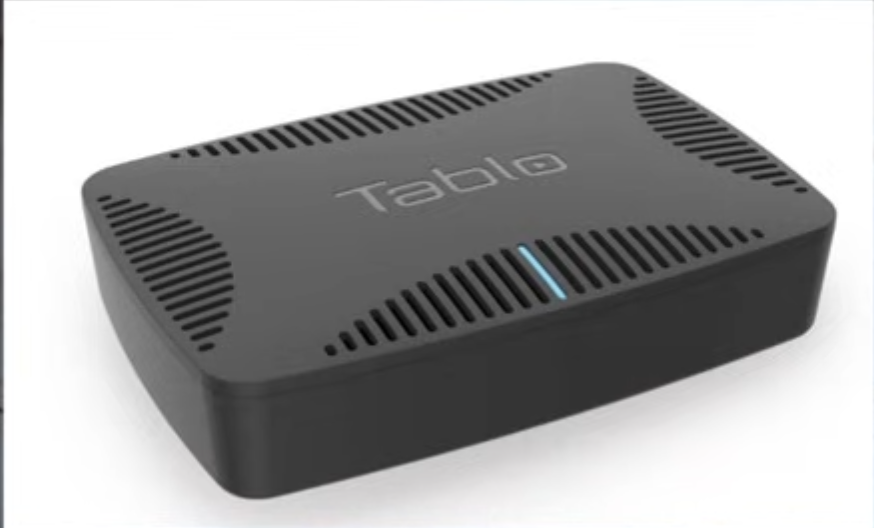
The Tableau wireless tuner is one of the easiest and most user-friendly options for connecting your TV antenna to multiple TVs. It’s simple to set up and offers detailed channel guide information for all over-the-air channels. Tableau also works as a DVR when connected to an external hard drive.
How it works:
- Connect Tableau to your modem using an Ethernet cable or wirelessly via Wi-Fi.
- It works with streaming devices like Roku, Fire TV, Apple TV, and select smart TVs.
- DVR functionality is enabled with an external hard drive. A subscription is only required for a two-week channel guide and out-of-home viewing.
Pros:
- Easy setup
- User-friendly interface
- Dual and quad tuner options
Cons:
- Subscription required for premium features
2. Silicon Dust HDHomeRun
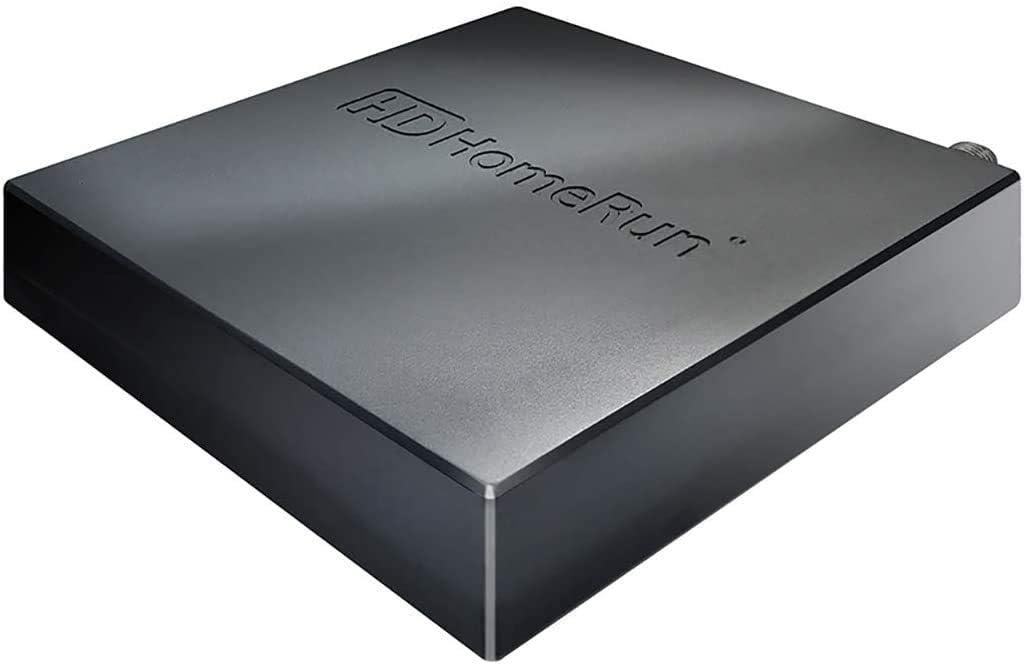
The HDHomeRun is a slightly more technical but robust option. This wireless tuner connects directly to your modem and requires an Ethernet connection. It offers a solid performance for tech-savvy users who want a reliable and future-proof solution.
How it works:
- Connect the HDHomeRun directly to your modem via Ethernet.
- Requires a subscription for DVR functionality, which costs around $35 per year.
Pros:
- ATSC 3.0 compatibility for future use
- Reliable performance for tech-savvy users
Cons:
- Requires an Ethernet connection to the modem
- Subscription required for DVR features
3. AirTV
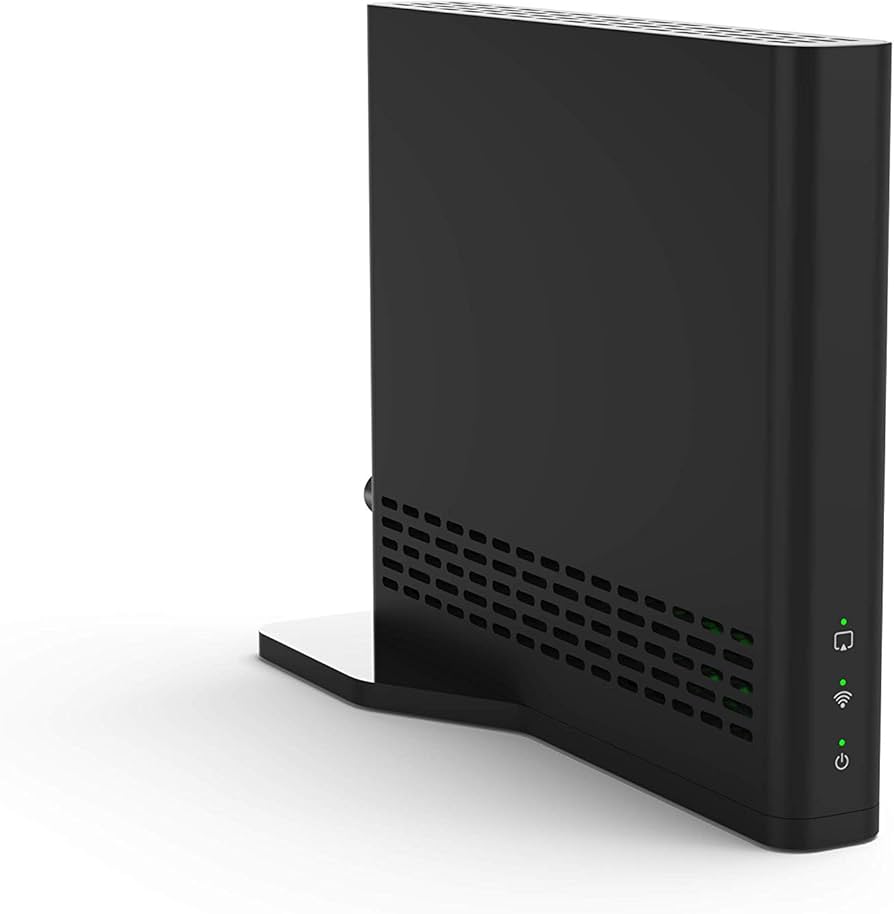
The AirTV is a great option for Sling TV users. It integrates over-the-air channels with the Sling TV guide, allowing you to watch your local channels seamlessly along with your subscription-based TV services. The AirTV is perfect for frequent travelers who want to access local channels outside of their home.
How it works:
- The AirTV integrates OTA channels into the Sling TV interface.
- Allows you to watch and record up to 2 or 4 channels simultaneously, depending on the model.
- Offers remote access to local channels for Sling TV subscribers.
Pros:
- Great for Sling TV users
- Remote access to local channels
Cons:
- Limited to Sling TV subscribers
4. Amazon Fire TV Recast
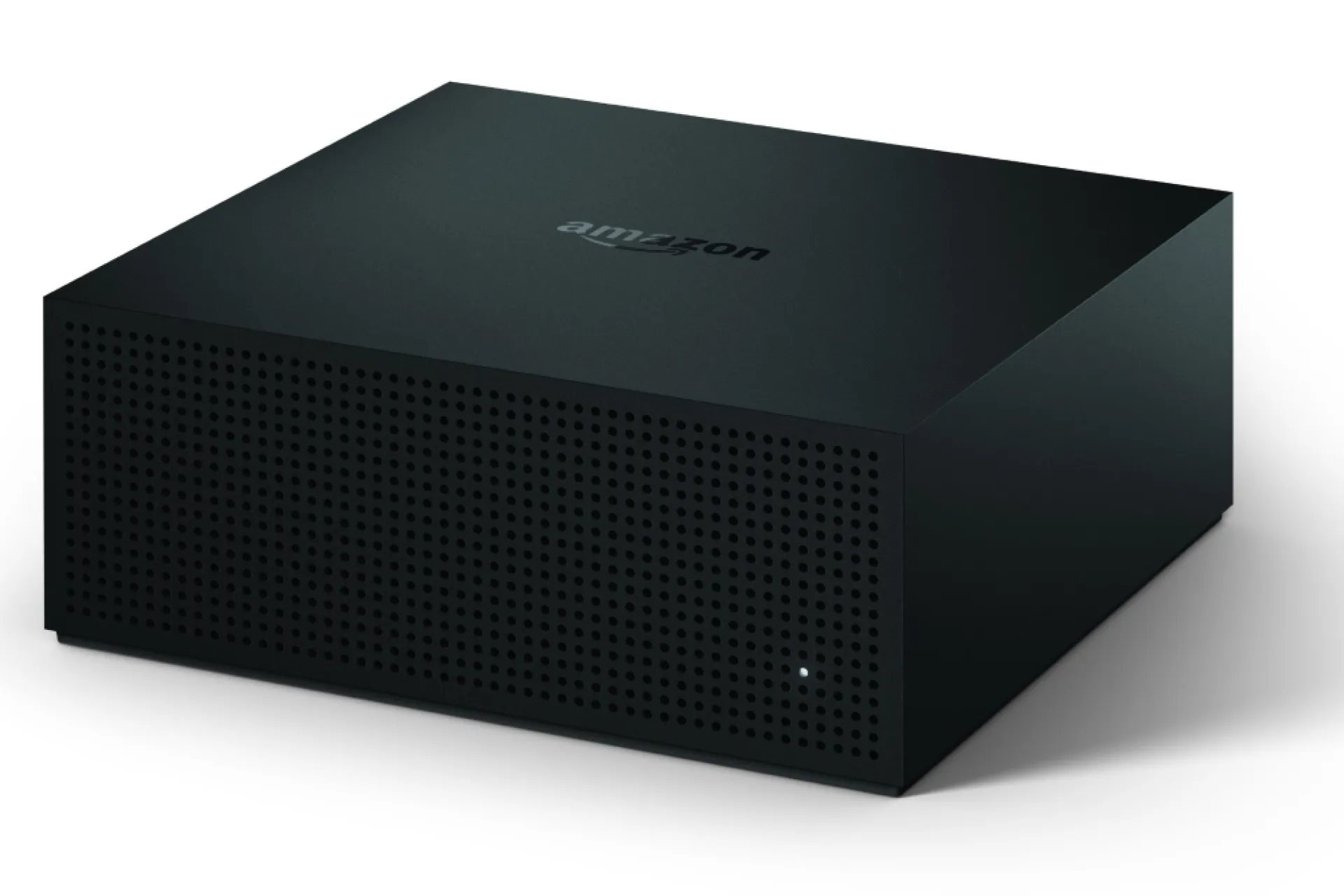
The Fire TV Recast from Amazon integrates over-the-air channels with Fire TV devices, such as Fire TV Stick or Fire TV itself. It comes with a built-in hard drive and doesn’t require a subscription for DVR services.
How it works:
- The Fire TV Recast connects to your antenna and streams channels to Fire TV devices.
- Does not require a subscription for DVR services.
- Works best in areas with strong signal reception.
Pros:
- Built-in DVR with no subscription required
- Works well with Fire TV devices
Cons:
- Occasional signal issues reported
- Limited compatibility with non-Amazon devices
How To Connect Your Wireless Tuner To Multiple TVs
Now that you’ve selected your wireless tuner, let’s walk through how to connect your wireless antenna to multiple TVs in your home:
- Connect the Tuner to Your Wi-Fi Network: Ensure the wireless tuner is connected to your home’s Wi-Fi network, either via Ethernet or Wi-Fi, depending on the model.
- Place the Tuner in a Central Location: Find a location for your wireless tuner that is accessible to all your TVs and offers a good Wi-Fi signal.
- Install a Streaming Device on Each TV: If your TVs don’t have built-in apps to support the tuner, install a streaming device like a Roku, Fire TV Stick, or Apple TV on each TV.
- Stream OTA Channels to Each TV: Use the corresponding app (HDHomeRun, Tableau, Sling, etc.) on each streaming device to access the OTA channels from your wireless tuner.
- Adjust Channel Settings: Configure each TV to receive channels via the wireless tuner, and perform a channel scan if necessary.
Once set up, you’ll have access to free over-the-air channels on all your TVs without any coaxial cables running across your home.
Conclusion
Connecting your TV antenna wirelessly to multiple TVs can greatly simplify your setup while improving flexibility and reception. Whether you’re using an indoor, attic, or outdoor antenna, a wireless tuner makes it easy to distribute the signal throughout your home. Choose the right tuner for your needs, whether it’s Tableau, HDHomeRun, AirTV, or Fire TV Recast, and enjoy crystal-clear TV without the hassle of cables!
By using a wireless tuner, you can place your antenna wherever you get the best reception, connect multiple TVs to the signal, and even enjoy DVR capabilities. Say goodbye to coaxial cable clutter and hello to a more streamlined and modern TV viewing experience!


Discussion (0)
Be the first to comment.