




If you want to change Taskbar size on Windows 11, you should know that Microsoft does not provide a built-in setting to resize it. However, you can still adjust the taskbar size using the Windows Registry.
Windows 11 introduced a redesigned taskbar with fewer customization options compared to Windows 10. While the interface looks cleaner, some users prefer smaller or larger taskbar icons. This guide explains why resizing is limited and how you can safely modify the taskbar size.
Why You Cannot Directly Resize the Taskbar in Windows 11
Unlike Windows 10, Windows 11 does not include an official setting to change taskbar height or icon size. The design focuses on a fixed layout for consistency across devices.
You cannot:
- Drag the taskbar edge to resize it
- Use Settings to adjust icon size
- Enable small taskbar buttons from the UI
However, Windows still allows size adjustments through a registry value.
How to Change Taskbar Size on Windows 11 Using Registry Editor
Before proceeding, create a system restore point. Editing the registry incorrectly can cause system issues.
Follow these steps carefully.
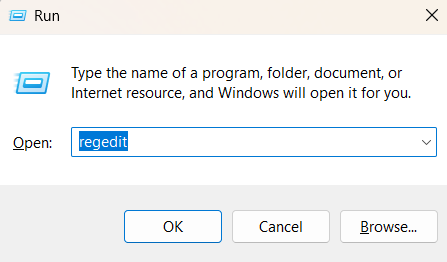
Step 1: Open Registry Editor
- Press Windows + R.
- Type
regeditand press Enter. - Click Yes if prompted by User Account Control.
Step 2: Navigate to the Taskbar Key
Go to:
HKEY_CURRENT_USER\Software\Microsoft\Windows\CurrentVersion\Explorer\Advanced
Step 3: Create or Modify the TaskbarSi Value
- In the right pane, right-click an empty area.
- Select New > DWORD (32-bit) Value.
- Name it:
TaskbarSi
- Double-click TaskbarSi and set its value to:
0for Small taskbar1for Medium (default size)2for Large taskbar
Click OK.
Step 4: Restart Windows Explorer
To apply the changes:
- Press Ctrl + Shift + Esc to open Task Manager.
- Find Windows Explorer in the list.
- Right-click it and select Restart.
Alternatively, restart your PC.
Your taskbar size will now reflect the selected value.
What Changes When You Resize the Taskbar?
Changing the taskbar size affects:
- Taskbar height
- Icon size
- System tray spacing
It does not change:
- Start menu size
- Notification panel layout
- Widgets panel
The modification strictly adjusts the taskbar scale.
How to Restore Default Taskbar Size
To revert to the default:
- Open Registry Editor.
- Navigate to the same location.
- Set TaskbarSi to
1, or - Delete the TaskbarSi entry entirely.
Restart Windows Explorer.
Is This Method Safe?
Yes, if you follow the steps carefully. However:
- Future Windows updates may override this setting
- Registry edits should be done cautiously
- Always create a restore point before making changes
Microsoft may change internal behavior in future builds, so results can vary.
Final Thoughts
Although Windows 11 does not offer a built-in option to change Taskbar size, you can still adjust it using a simple registry tweak. The process takes only a few minutes and gives you control over how compact or large your taskbar appears.
If you prefer more customization, keep in mind that Windows updates may reset registry changes. For most users, adjusting icon size through the registry is enough to improve usability without affecting system stability.
FAQs
Can I change Taskbar size on Windows 11 without editing the registry?
No. Windows 11 does not provide a built-in setting to resize the taskbar.
What does TaskbarSi mean in Windows 11?
TaskbarSi is a registry value that controls taskbar size. It supports three values: 0 (small), 1 (medium), and 2 (large).
Will changing Taskbar size affect system performance?
No. It only changes the visual size of the taskbar and icons.
Does this method work on all Windows 11 versions?
It works on most current Windows 11 builds, but major updates may change or remove this behavior.

Discussion (0)
Be the first to comment.