




Many iPhone and iPad users want to personalize iMessage conversations by changing bubble colors. iOS and iPadOS do not allow native iMessage bubble color changes, but you can still adjust how chats look using supported customization options and safe workarounds.
Table of contents
- Can you change iMessage bubble colors on iPhone or iPad?
- Why iMessage bubbles are blue and green
- What you can change instead (real customization options)
- How to simulate custom iMessage colors using apps
- iPhone vs iPad differences you should know
- What not to do
- Tips for making iMessage chats look better
- FAQs
- Summary
Can you change iMessage bubble colors on iPhone or iPad?
You cannot change the default blue or green iMessage bubble colors on iPhone or iPad. Apple locks these colors at the system level, so no built-in setting exists to customize them.
Why iMessage bubbles are blue and green
What blue and green bubbles actually mean
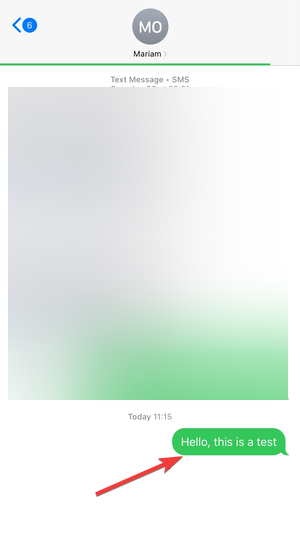
Blue bubbles indicate iMessage conversations that use Apple’s internet-based messaging system. Green bubbles show SMS or MMS messages sent through your carrier.
Why Apple doesn’t allow custom bubble colors
Apple uses fixed colors to keep messaging consistent, readable, and accessible across devices. This design choice also helps users instantly recognize message types.
What you can change instead (real customization options)
While bubble colors stay fixed, iOS offers several ways to make chats feel different. These options change appearance without breaking system rules.
Use iMessage message effects
Bubble effects like Slam, Loud, Gentle, and Invisible Ink add motion and emphasis to messages. Screen effects fill the entire display with animations that make conversations feel more dynamic.
Change the chat wallpaper
A custom wallpaper alters contrast and background tone behind message bubbles. Dark or colorful wallpapers can make blue and green bubbles look visually different.
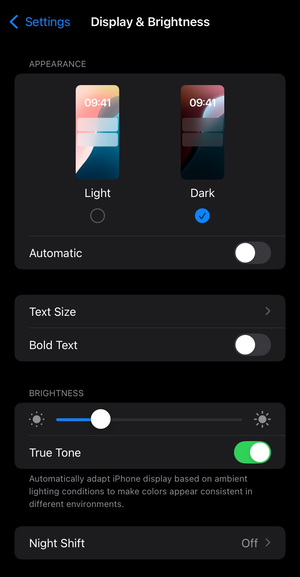
Enable Dark Mode or increase contrast
Dark Mode changes the entire interface and often improves bubble visibility. Accessibility contrast settings can further sharpen text and outlines.
How to simulate custom iMessage colors using apps
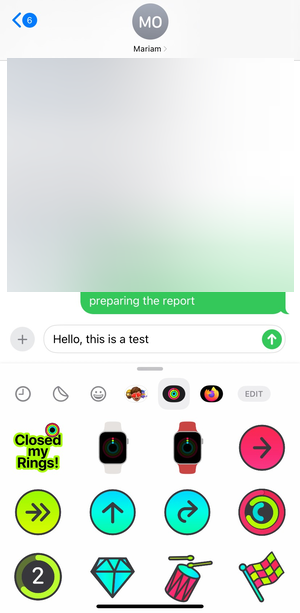
Use iMessage apps and sticker overlays
Some third-party iMessage apps create colored message images or stickers. You can also use the Stickers in the Messages app option. These do not change real bubbles, but they let you send messages that look custom.
Accessibility filters and color filters
Color filters apply to the entire screen, not just Messages. They can shift hues system-wide, which changes how bubbles appear, but they affect all apps.
iPhone vs iPad differences you should know
iPadOS places Messages settings and menus slightly differently than iOS. The customization options remain the same, but navigation paths can vary on larger screens.
What not to do
Jailbreaking and risky tweaks
Jailbreaking no longer works reliably on modern iOS and iPadOS versions. It also exposes your device to security and stability risks.
Misleading “bubble color” apps
Many apps promise real iMessage color changes but only generate images or fake previews. These apps cannot modify native message bubbles.
Tips for making iMessage chats look better
- Use high-contrast wallpapers for clearer conversations
- Combine Bubble effects with short messages for impact
- Enable Dark Mode for a cleaner, modern look
- Keep Accessibility contrast settings balanced for readability
FAQs
Why do my iMessage bubbles sometimes turn green?
Green bubbles appear when messages send as SMS or MMS instead of iMessage.
Does Dark Mode change iMessage bubble colors?
Dark Mode does not change colors, but it alters background and contrast.
Can Apple add custom bubble colors in the future?
Apple has not announced plans to allow custom iMessage bubble colors.
Summary
- iOS and iPadOS do not support native iMessage bubble color changes.
- Blue and green bubbles indicate different message types.
- Message effects, wallpapers, and Dark Mode offer safe customization.
- Third-party apps only simulate colored messages.
You cannot directly change iMessage bubble colors on iPhone or iPad, but you can still personalize chats in supported ways. Stick to built-in effects, display settings, and safe visual tweaks for the best experience without risking your device.


Discussion (0)
Be the first to comment.