



Adding a Visa gift card to Cash App gives you an easy way to move your gift card balance into your Cash App account for payments and transfers. At the time of writing, Cash App still supports adding most prepaid and gift cards issued by major networks, including Visa. If your card qualifies, you can link it from the Banking tab and use the available balance just like Cash App funds.
Before you start, make sure your Cash App is updated and that your Visa gift card is activated. Once those boxes are checked, follow the steps below to add the card to your Cash App account and access the balance.
How To Add A Visa Gift Card To Cash App
These steps work for most eligible Visa gift cards that allow transfers or mobile wallet use. If your card carrier restricts prepaid transfers, Cash App may not accept the card.
- Open the Cash App on your phone and sign in.

- Tap the Banking tab to open your payment options.
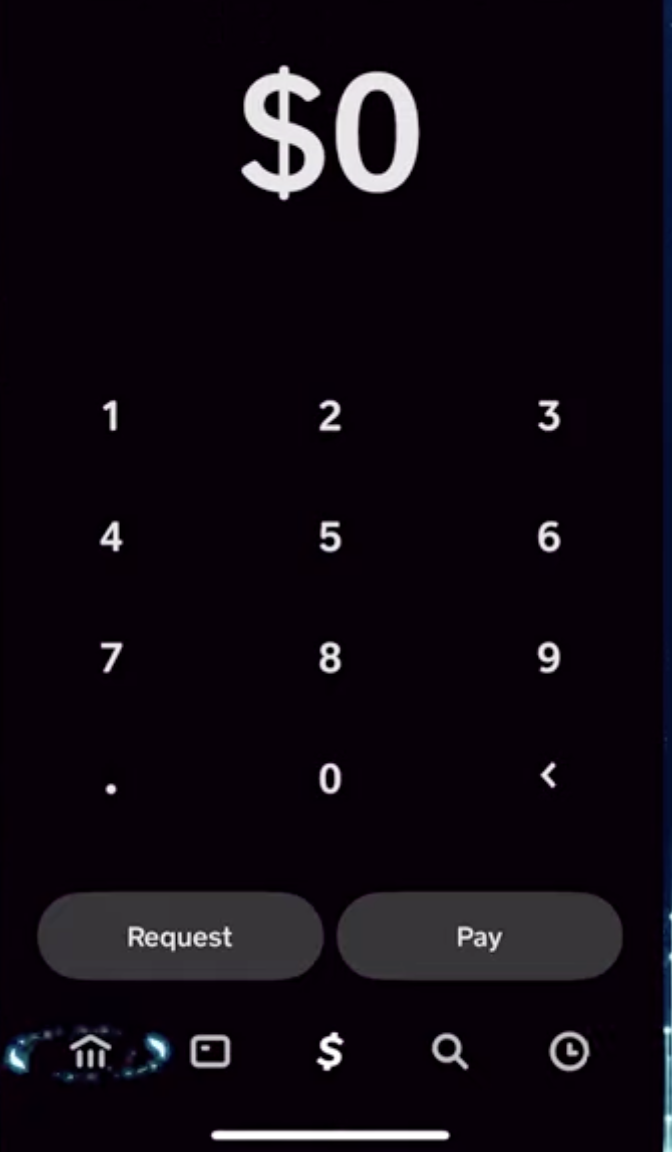
- Select Add Card under your linked accounts.
- Enter your Visa gift card number, expiration date, and CVV.
- Submit the information and wait for Cash App to verify the card.
- If prompted, complete any identity or card-ownership checks.
- Once verified, your Visa gift card will appear under your listed payment methods.
- Use the Add Funds/Add Money option to move the gift card balance into your Cash App balance, when allowed by the card issuer.

Some Visa gift cards allow direct spending after linking, while others require you to transfer the balance into Cash App first. This depends on the card issuer's policies, not Cash App itself.
Troubleshooting Common Problems
- Card won’t link: The Visa gift card may block wallet transfers or require online activation first.
- Verification fails: Make sure your billing ZIP code matches the card issuer’s registered ZIP code.
- Balance won’t transfer: Some prepaid cards only support point-of-sale purchases and cannot send funds to Cash App.
- Cash App rejects the card: Only US-issued cards supported by Visa typically work.
Tips
- Register your Visa gift card on the issuer’s website to ensure the ZIP code matches Cash App requirements.
- Keep a small balance on the card until you confirm the funds transfer worked.
- Use updated versions of Cash App to avoid failed verification attempts.
- Check the back of your gift card to confirm whether wallet transfers are supported.
FAQ
Does Cash App accept all Visa gift cards? No. Cash App accepts most reloadable prepaid Visa cards, but some restricted cards do not allow transfers.
Why won’t my Visa gift card transfer funds? Many single-use prepaid cards block person-to-person transfers and only support retail transactions.
Do I need a bank account to use a Visa gift card in Cash App? No, but linking a bank account helps you move funds in or out of Cash App more easily.
Can I use a Visa gift card to send money on Cash App? Yes, if the card issuer supports wallet use and Cash App verifies the card.
Summary
- Open Cash App and go to the Banking tab.
- Select Add Card and enter your Visa gift card details.
- Verify the card and confirm eligibility.
- Transfer the balance to Cash App when supported.
- Use your Cash App balance for payments and transfers.
You can use these steps to load eligible Visa gift card funds into Cash App and spend the balance more flexibly.
Conclusion
Adding a Visa gift card to Cash App takes only a few minutes, and once the balance is available, you can use it for payments, transfers, or Cash App’s built-in spending tools. If a card fails to link, it is usually due to restrictions from the card issuer, so check the card’s terms before attempting the transfer.


Discussion (0)
Be the first to comment.