




Most Windows users never need to open the AppData folder. But when you do need it, whether to back up application settings, troubleshoot a broken program, or clear cached data from a specific app, it is not immediately obvious where to find it. The folder is hidden by default, and it does not show up when you browse through your files normally.
This guide covers four ways to reach it, what you will find inside, and what you should and should not touch once you are there.
What AppData Is and Why It Is Hidden
AppData, short for Application Data, is a folder Windows creates for every user account on the PC. It stores settings, preferences, cached files, and configuration data that applications create and use while running. Your browser bookmarks, email client profiles, game save data, and software preferences often live here.
Windows hides the folder deliberately. Most of what it contains is not meant to be manually edited. Deleting or moving the wrong file can break an application or prevent it from launching at all. Keeping the folder hidden reduces the chance of accidental damage from users who do not know what they are looking at.
The folder sits at C:\Users\YourUsername\AppData, where YourUsername is the name of your Windows account. There are three subfolders inside it, each serving a different purpose.
The Three AppData Subfolders Explained
Roaming is the most important subfolder for most users. It stores data that is designed to travel with your account across different PCs on the same network, such as browser profiles, email client settings, and certain application configurations. If you sign into a new work PC, your roaming profile data comes with you.
Local stores data that is specific to the current PC and is not synced anywhere. This includes larger files like browser caches, game data, and application installers. Because it does not sync, Local tends to be larger than Roaming and is where you find most of the cache files that accumulate over time.
LocalLow is used by applications that run with restricted permissions, such as browser plugins or sandboxed processes. It stores data in a lower-integrity context that Windows' security model treats more cautiously than Local or Roaming.
Method 1: Use the Run Dialog (Fastest)
This is the quickest way to reach AppData without changing any settings.
Step 1: Open the Run Dialog
Press Windows and R together. The Run dialog appears in the bottom left corner of the screen.
Step 2: Type the AppData Command
Type the following into the box and press Enter:
%appdata%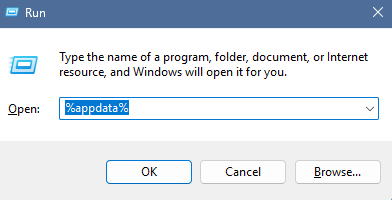
Step 3: Navigate to the Main AppData Folder
File Explorer opens directly inside the Roaming subfolder. To get to the main AppData folder containing all three subfolders, click AppData in the address bar at the top of File Explorer. The address bar shows the current path as a series of clickable segments. Clicking AppData takes you one level up to the parent folder.
This method works regardless of whether hidden items are enabled in File Explorer, making it the most reliable approach.
Method 2: Type Directly Into the File Explorer Address Bar
If File Explorer is already open, you do not need to open Run separately.
Step 1: Open File Explorer
Press Windows and E together, or click the File Explorer icon in the taskbar.
Step 2: Click the Address Bar
Click the address bar at the top of the File Explorer window. The current path becomes editable.
Step 3: Type the Path and Press Enter
Type the following and press Enter:
%USERPROFILE%\AppDataThis opens the main AppData folder directly, showing all three subfolders without any extra navigation steps. You can also type %appdata% here to land in Roaming, then navigate up from there.
Method 3: Use Windows Search
This method is quick when you want to jump to AppData without opening File Explorer first.
Step 1: Open the Search Bar
Click the Search icon on the taskbar or press Windows and S.
Step 2: Search for AppData
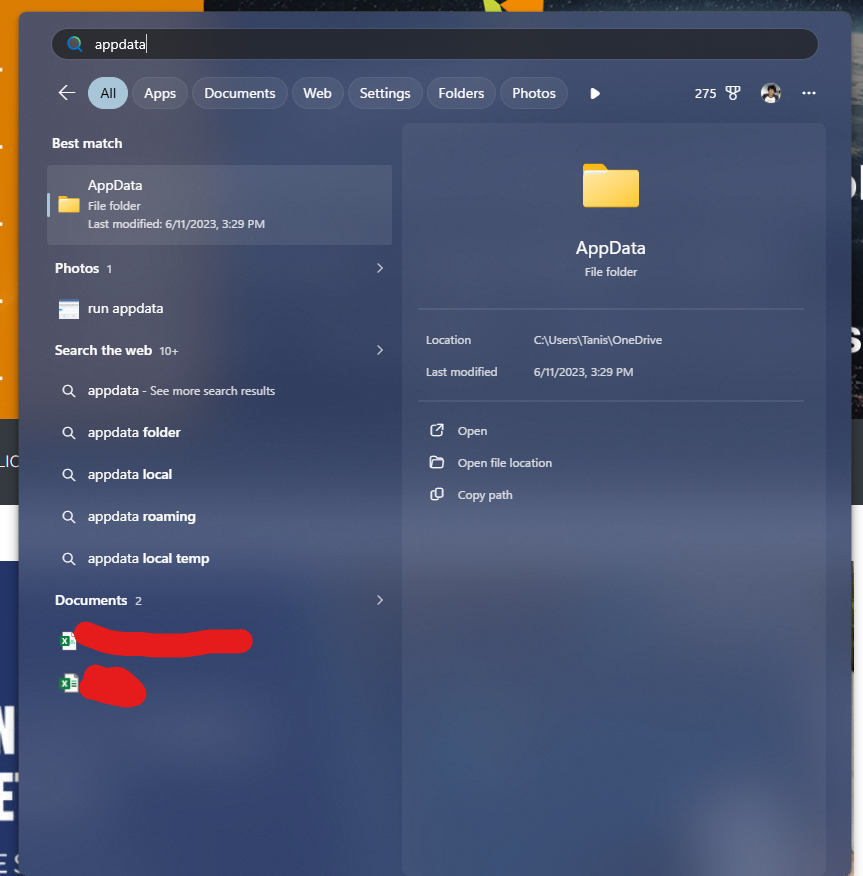
Type AppData into the search box. The search results show AppData as a folder option. Click Open folder to navigate to it directly in File Explorer.
This method opens the main AppData folder and works regardless of whether hidden items are enabled.
What You Can and Cannot Do Inside AppData
Once you are inside AppData, a few guidelines apply.
Backing up application data is safe and useful. Copying the contents of a specific application's folder inside Roaming or Local means you can restore settings if you reinstall the application or move to a new PC.
Clearing cached data is generally safe for the right folders. The cache folders inside Local for browsers, media players, and similar applications can be cleared without breaking the application. The application rebuilds its cache the next time it runs.
Deleting application configuration folders carries risk. Removing a folder entirely from AppData is the equivalent of resetting that application to its default state. Your customisations, saved settings, and stored data for that application disappear. If the application relies on a licence stored in AppData, deleting it may trigger reactivation or require you to sign in again.
Never delete the AppData folder itself or move it to a different location. Windows and every application installed on your PC expect AppData to be in its exact location. Moving or removing it causes widespread application failures.
Frequently Asked Questions
Why can't I see AppData even after enabling hidden items?
If AppData still does not appear after enabling hidden items in File Explorer, the Show protected operating system files option may also need to be adjusted. Open File Explorer, go to View, then Options, then Change folder and search options. In the View tab, scroll down and select Show hidden files, folders, and drives under Hidden files and folders, then uncheck Hide protected operating system files. Click Apply and OK, then navigate back to your user folder.
Can I delete the contents of AppData to free up space?
The Local folder's cache subfolders are the safest place to reclaim storage. Browser cache folders, temporary application files, and installer caches can be cleared without affecting application functionality. Windows' built-in Disk Cleanup tool handles much of this automatically. Deleting configuration or settings folders is riskier and is not recommended unless you are intentionally resetting a specific application.
Does every Windows user account have its own AppData folder?
Yes. Each user account on a Windows PC has a completely separate AppData folder containing that user's application data. If you sign into a different account on the same PC, you access a different AppData folder under a different username path. This is why application settings configured on one account do not automatically appear when another user logs in.



Discussion (0)
Be the first to comment.