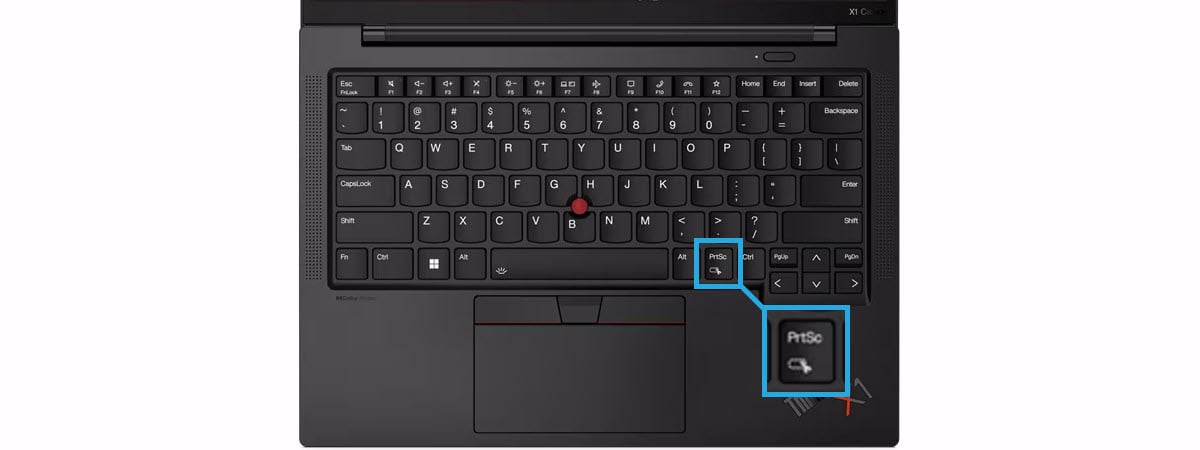
Windows 8.1 comes with a bundle of many apps, from Sports and News to Finance and Health & Fitness. Chances are you are going to stumble upon some interesting content while using these apps, and you may want to quickly share a screenshot with it. Traditionally this meant using the PrtScn key, saving the screenshot in an image editor and then using another program to email the screenshot. Sounds like too much hassle, right? One of the great things about working with modern apps in Windows 8.1 is that you can quickly share screenshots with anyone. Here's how it works.
How to Share Screenshots from Any Windows 8.1 App
To share a screenshot from any Windows 8.1 app, launch the app and find the content that you want to share in your screenshot. Then, bring up the Charms bar and select the Share charm. A sidebar is displayed on the right hand side of the screen. Click or tap the application's name under the Share text and select Screenshot. A screenshot is automatically taken and you have the option of selecting the channel through which you want to share it - email by default, or any social networking apps you have installed.
Please note that you need to manually install the apps for the social networks you want to share to (Facebook, Twitter, etc). They are not bundled with Windows 8.1.
To exemplify the entire procedure, I've chosen two modern apps bundled with Windows 8.1: News and Video, and I'm going to show how to share screenshots from each of them.
How to Share Screenshots from the News App in Windows 8.1
You've been browsing through your News app and you found a good picture in one article. You want to share it with your friends on Facebook. Here's how it is done:
screenshots, Windows 8.1, share, apps
To share screenshots from the News app, first make sure that you have the app on the screen. Bring up the Charms bar and select the Share charm.
screenshots, Windows 8.1, share, apps
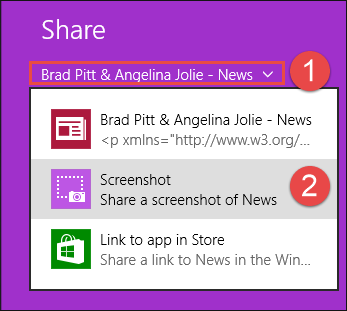
Click or tap the News drop down menu and select Screenshot.
screenshots, Windows 8.1, share, apps
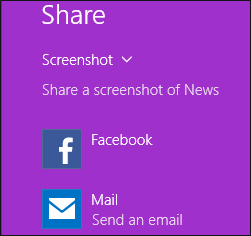
You will see a list with all the apps that you can use for sharing this screenshot. If you want to share on Facebook, tap the Facebook app.
screenshots, Windows 8.1, share, apps
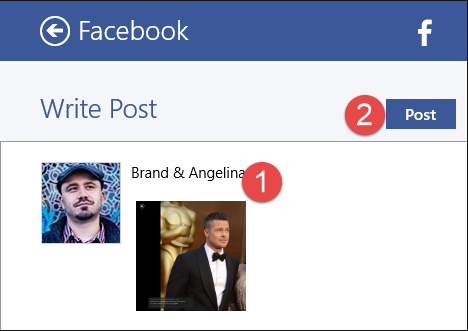
A sidebar is displayed where you can add a description for the picture you are about to share. To post it, press the Post button.
screenshots, Windows 8.1, share, apps
How to Share Screenshots via Email from the Video App in Windows 8.1
Did you ever watch a movie or a short video that included a scene that's just funny and you want to take a snapshot of it and share it with your friends? You can do that using the Share charm.
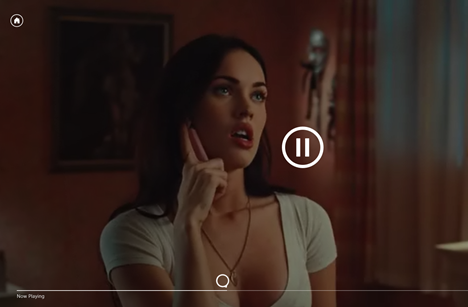
To share a screenshot from a video, pause the video at the moment you want to capture.
screenshots, Windows 8.1, share, apps
Bring up the Charms bar and select Share.
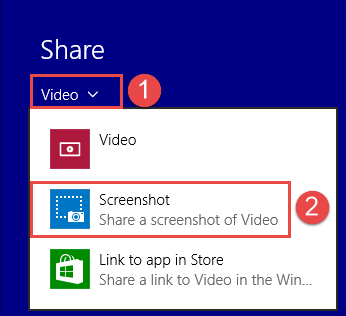
Click or tap the Video drop down menu and select Screenshot.
screenshots, Windows 8.1, share, apps
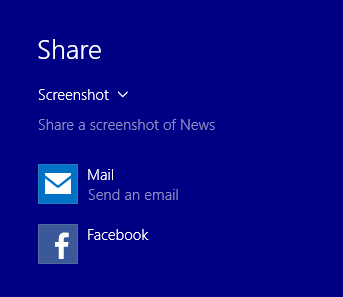
To share the screenshot via the Mail app, click or tap Mail.
screenshots, Windows 8.1, share, apps
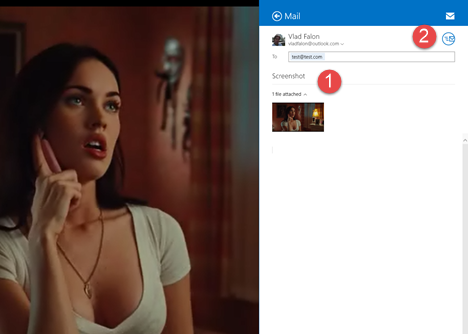
Type the email address or the name of the person you want to send it to, in the To field. Then, type a message (if you want to) and click or tap the Send button in the upper right hand corner of the sidebar.
screenshots, Windows 8.1, share, apps
Conclusion
As you can see from this guide, Windows 8.1 makes it really easy to share screenshots from all modern apps. Before you close this article, we would like to know if you had any problems sharing screenshots from Windows 8.1 apps. Are you happy with the way this feature works?
Let us know using the comments form below.
Apart from sharing the Windows 8 screenshots via email, you could also try to upload the screenshots to the cloud space provided by this Free Image Uploader. After uploading, you’re allowed to share the uploaded images via social networks like Facebook, Twitter and others. Guess that you would like it: https://screenshot.net/free-image-uploader
Brian Betts ·
How do I add new apps to share facility ie another email account or Facebook?















Discussion (2)
Apart from sharing the Windows 8 screenshots via email, you could also try to upload the screenshots to the cloud space provided by this Free Image Uploader. After uploading, you’re allowed to share the uploaded images via social networks like Facebook, Twitter and others. Guess that you would like it: https://screenshot.net/free-image-uploader
How do I add new apps to share facility ie another email account or Facebook?