




There is a persistent low-level anxiety around SSDs that did not exist with hard drives. With a traditional spinning drive, failure felt mechanical and obvious: a clicking noise, a grinding sensation, something that made it clear the hardware was physically deteriorating. SSDs fail quietly. No moving parts, no audible warning, and for many people very little understanding of what is actually happening inside the drive over time.
The honest answer about SSD lifespan is that for most people, the drive will outlast the rest of the computer by a significant margin. The more interesting and useful conversation is about understanding why that is true, when it might not be, and how to actually check what condition your SSD is in right now.
Why SSDs Have a Limited Lifespan at All
SSDs store data in NAND flash memory cells. Writing and erasing data to these cells is not a free operation in terms of wear. Each cell can only be written and erased a finite number of times before it becomes unreliable. This is measured in Program/Erase cycles, or P/E cycles. When a cell has been through enough of these cycles, the oxide layer that stores the charge degrades and the cell can no longer reliably hold data.
The type of NAND flash determines how many P/E cycles each cell can handle. SLC, which stores one bit per cell, can handle 50,000 to 100,000 cycles. MLC stores two bits per cell and manages 3,000 to 10,000 cycles. TLC, which stores three bits per cell and dominates the consumer market, runs to around 500 to 3,000 cycles. QLC stores four bits per cell and handles fewer still.
None of these numbers are as alarming as they sound. A modern consumer TLC drive handling typical daily workloads spreads the wear across an enormous number of cells using a process called wear leveling, which distributes writes as evenly as possible to avoid burning out any single area of the drive prematurely. The theoretical lifespan of a well-managed TLC drive under typical consumer use is measured in decades.
TBW: The Number That Actually Tells You the Lifespan
Every SSD ships with a specification called TBW, which stands for Terabytes Written. This is the total amount of data that can be written to the drive over its lifetime before failure becomes likely. A 1TB consumer SSD typically carries a TBW rating somewhere between 300 and 600 terabytes. A 2TB drive usually doubles that.
To put TBW into real terms: the average person doing everyday computing, including gaming, browsing, productivity work, and media consumption, writes somewhere between 10 and 40 gigabytes to their SSD per day. Take a 1TB drive with a 600 TBW rating and a user writing 30GB per day. Divide 600,000 gigabytes by 30 gigabytes per day and you get 20,000 days, which is approximately 54 years.
Even at more intensive usage, the numbers are not alarming. A content creator writing 100GB per day to the same drive would exhaust the TBW rating in about 16 years. A developer with heavy workloads constantly compiling and building might write 150 to 200GB daily and still get ten or more years of rated life.
The point is not to be complacent. It is to calibrate the anxiety correctly. The scenarios where TBW becomes a real concern are sustained enterprise or professional workloads, not typical home computing or even intensive gaming.
What Actually Kills SSDs Before TBW
Here is the thing that TBW ratings do not fully capture: most SSD failures in practice are not from wearing out the NAND cells through excessive writes. They are from other causes.
Electronic component failure is more common than NAND exhaustion in consumer drives. The controller chip, which manages all the read, write, and wear-leveling operations, is its own point of failure. DRAM cache chips on drives that include them can fail. Power surges can damage the drive's circuitry.
Heat is a significant and underappreciated factor. Every 10 degrees Celsius above the drive's ideal operating temperature can roughly halve its effective lifespan. NVMe M.2 drives installed in compact cases without heatsinks, or in laptops with poor thermal management, run hotter than they should. Over years of sustained elevated temperatures, this causes real degradation in ways that TBW calculations do not account for.
Sudden power loss at the moment the drive is writing data can cause corruption that permanently damages cells or scrambles the drive's mapping table. Enterprise drives have capacitors that allow them to complete writes even during power failure. Consumer drives generally do not.
Data retention in storage is a less known issue. An SSD that is stored without power for an extended period loses the charge that represents stored bits more quickly at higher temperatures. A drive stored in a hot garage for two years may have lost data that appeared intact when it was last used.
For most people in normal computing environments, none of these are reasons to panic. They are reasons to understand that TBW is an optimistic ceiling rather than a guaranteed lifespan.
How to Check Your SSD's Health Right Now
The most useful free tool for this on Windows is CrystalDiskInfo, available at crystalmark.info. Download and run it and it reads the SMART data from every drive in the system. SMART, which stands for Self-Monitoring Analysis and Reporting Technology, is a set of diagnostic metrics that SSDs report continuously about their own condition.
Open CrystalDiskInfo and look at the Health Status at the top. Good means the drive is healthy. Caution means one or more concerning readings. Bad means imminent failure and you should back up immediately. Below the summary you can see individual SMART attributes, each identified by a number and a name.
The specific SMART attributes worth paying attention to for SSDs are:
Total Host Writes or Total Bytes Written depending on the manufacturer. This tells you how much data has been written to the drive since it left the factory. Compare this to the drive's TBW rating to see what percentage of the rated lifespan has been consumed.
Percentage Used or Wear Indicator, shown as an attribute in some drives, directly reports the estimated remaining lifespan as a percentage. Some drives start at 100 and count down. Others start at 0 and count up. Check the drive's documentation or forum posts about the specific model to understand which direction it counts.
Reallocated Sectors Count in SSDs represents bad cells that have been retired and replaced by reserve cells the manufacturer built into the drive. A small number is not necessarily alarming. A rapidly growing count is a warning sign.
Power On Hours tells you how long the drive has been running. Combined with the write data, it helps contextualise how heavily the drive has been used relative to its age.
Temperature shows the drive's current operating temperature. NVMe drives should ideally run below 50 degrees Celsius during normal operation. Sustained temperatures above 70 degrees during heavy workloads indicate inadequate cooling.
For Mac users, the equivalent tool is DriveDx or smartmontools through the terminal. Linux users can access SMART data directly through smartmontools with the command smartctl -a /dev/sda.
A Simple Calculation to Check Your Drive
If you want a quick sense of where your SSD sits in its rated lifespan:
Open CrystalDiskInfo and find the The Overall Health of the drive and Total Host Writes figure for your drive.
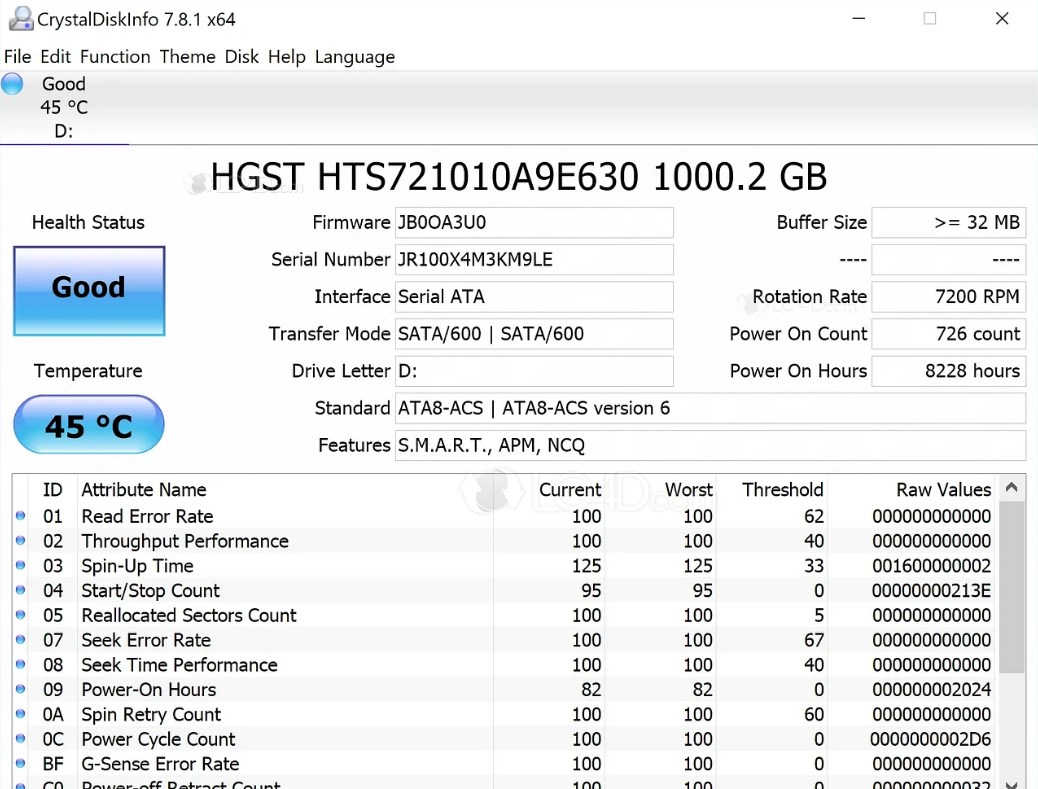
If a 1TB Samsung 970 Evo Plus has a 600 TBW rating and CrystalDiskInfo shows 24 terabytes written after three years of use, the drive has consumed 4% of its rated endurance. At that rate it would take approximately 75 years to exhaust the rating entirely.
Most people running this calculation on their everyday drives find they have used a single-digit percentage of the rated lifespan, even after several years of use.
Warning Signs to Watch For
In the unlikely event your SSD is approaching the end of its useful life, there are signs worth knowing.
Slowdowns that appear suddenly rather than gradually can indicate the drive is running out of spare cells and its garbage collection is struggling. You may notice large file transfers that used to be fast becoming noticeably slower.
Files that appear corrupted when you know the original was intact, or applications that crash in ways they never did before, can indicate cells that are no longer reliably holding data.
The drive entering read-only mode is a deliberate self-protection mechanism some SSDs employ when they detect that the remaining reserve cells are critically low. You can still read data from the drive but cannot write anything new. This is the drive telling you it is in its final phase. Back everything up immediately and replace it.
CrystalDiskInfo reporting Caution or Bad status should be taken seriously. Do not wait to see if it resolves. Back up and investigate.
The drive becoming intermittently undetectable by the system, disappearing from file explorer and reappearing after a restart, can indicate failing controller circuitry or a connector issue. Either way, treat it as a failing drive until proven otherwise.
How to Make Your SSD Last Longer
Most of these recommendations are passive and require very little ongoing effort.
Keep some free space. SSDs need room to perform garbage collection and wear leveling efficiently. Running a drive at 95% capacity consistently reduces its ability to spread wear evenly. Staying below 80 to 85% full is a reasonable guideline.
Keep the drive cool. If you have an NVMe M.2 drive, use the heatsink that often comes with the motherboard. If your case has poor airflow, improving it helps every component including storage.
Enable TRIM. TRIM is a command that allows the operating system to inform the SSD which data blocks are no longer needed, allowing the drive to clear them efficiently rather than during a write operation. On Windows, TRIM is enabled by default for SSDs. You can verify it is active by opening Command Prompt as administrator and running fsutil behavior query DisableDeleteNotify. A result of 0 means TRIM is enabled.
Use a quality power supply and consider an uninterruptible power supply if the drive contains data you cannot afford to lose. Sudden power loss during writes is one of the more damaging events for an SSD.
Final Thoughts
SSDs are reliably durable for the vast majority of users and the anxiety around their lifespan is mostly disproportionate to the actual risk. A modern 1TB or 2TB drive used for everyday computing will very likely outlast the rest of the system by years, and the TBW calculations bear this out comprehensively.
The things genuinely worth doing are running CrystalDiskInfo or an equivalent tool occasionally to confirm the drive's health status, keeping it reasonably cool and with some free space, and maintaining backups of anything important regardless of how healthy the drive appears. Storage can fail for reasons unrelated to wear, and a backup is not about expecting failure; it is about not being catastrophically surprised if it happens.
Frequently Asked Questions
How do I find my SSD's TBW rating?
Search for your drive's model number on the manufacturer's website and look in the product specifications. TBW is listed in the endurance or warranty section. If it is not listed, check a review from a hardware site that typically includes full specifications in their coverage.
Can reading data wear out an SSD?
No. Reading data from an SSD does not consume P/E cycles or cause meaningful wear. Only writing and erasing data wears the NAND cells. You can read from an SSD as many times as you like without affecting its lifespan.
What happens when an SSD reaches the end of its lifespan?
Modern SSDs are designed to enter read-only mode rather than fail abruptly when they detect critically low reserves. This gives you a window to back up your data before the drive stops functioning entirely. The drive does not necessarily fail immediately when TBW is reached; the TBW rating is a conservative estimate of where reliability begins to decline.
Is it worth replacing an SSD before it fails?
If your drive is several years old and showing health concerns in SMART data, or if it is in a machine where downtime would be costly, replacing it proactively is a reasonable decision. For a drive showing no concerning attributes after five years of typical use, replacement is not urgent.



Discussion (0)
Be the first to comment.