



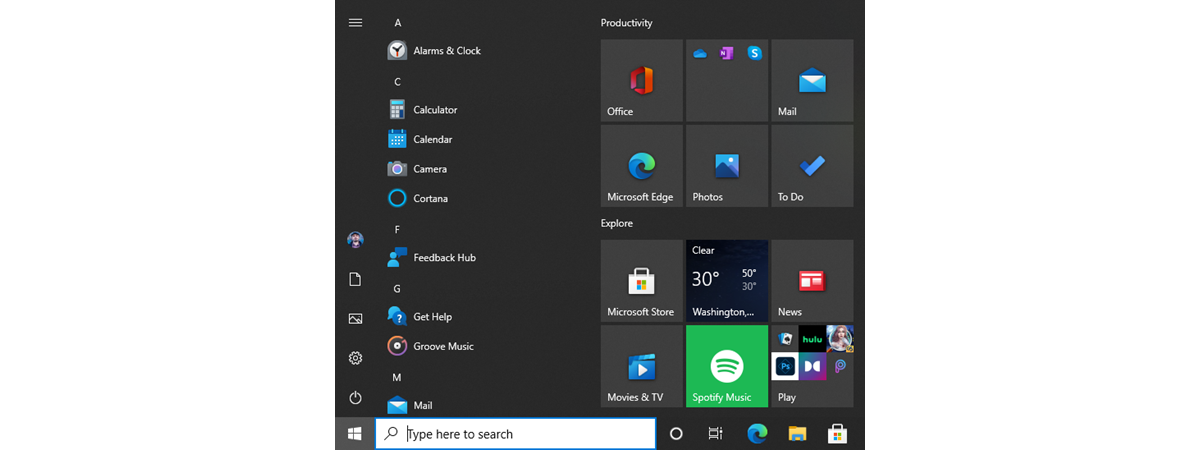
Folders are one of the defining concepts of Windows, as they’re one of the best ways to organize files and other folders on your computer or device. The same is also true for the Window 10 Start Menu, which can include live folders for your app tiles and shortcuts. This guide tells you everything you need to know about live folders, sometimes called tile folders or app folders, including how to create a folder in the Start Menu from Windows 10:
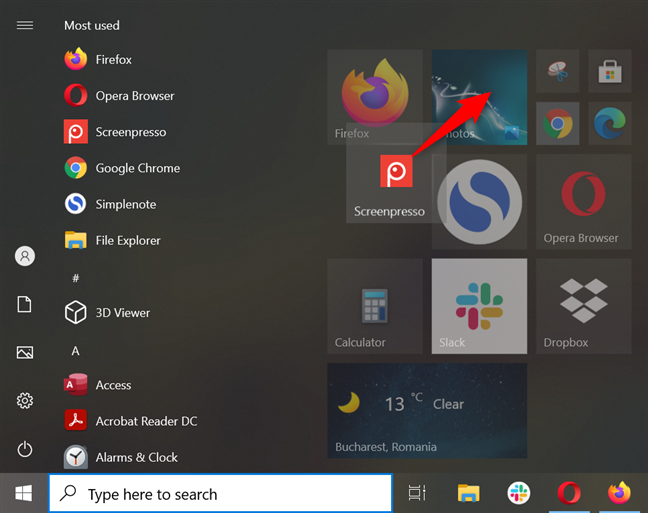
 Drag and drop an icon or a tile on another to create a live folder
When you drop one tile or shortcut on top of another, the two of them automatically create a live folder. The folder is shown in its expanded form, pushing down other items in the Start Menu tiles section, as seen below.
Drag and drop an icon or a tile on another to create a live folder
When you drop one tile or shortcut on top of another, the two of them automatically create a live folder. The folder is shown in its expanded form, pushing down other items in the Start Menu tiles section, as seen below.
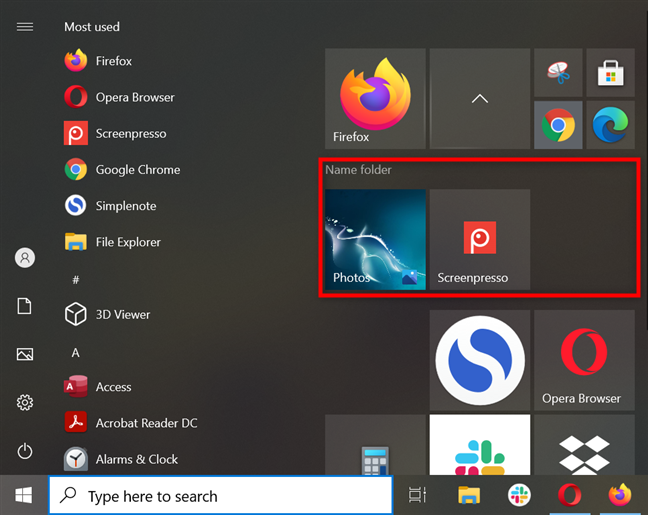
 An expanded live folder
To close a folder from the Start Menu, click or tap on the arrow tile shown above the expanded live folder view.
An expanded live folder
To close a folder from the Start Menu, click or tap on the arrow tile shown above the expanded live folder view.
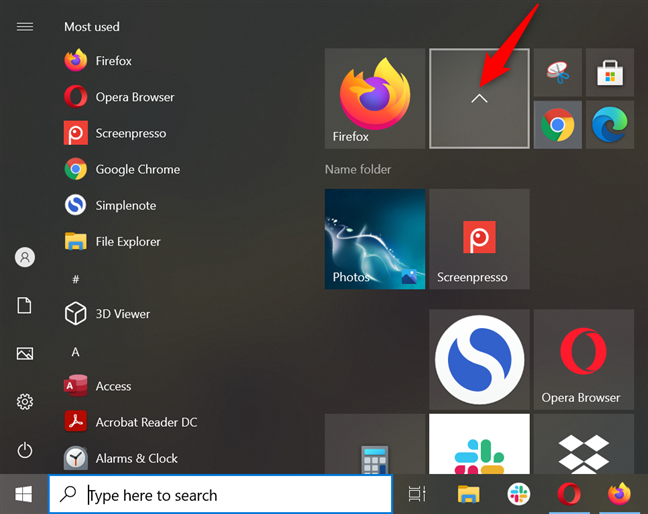
 Press on the arrow tile to close the folder
A closed or collapsed live folder shows miniature icons of the apps it includes. Click or tap on a folder to open it and access the apps inside.
Press on the arrow tile to close the folder
A closed or collapsed live folder shows miniature icons of the apps it includes. Click or tap on a folder to open it and access the apps inside.
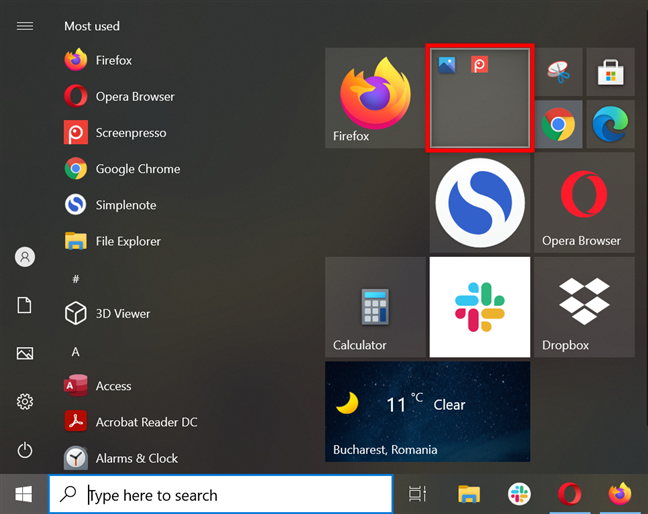 A closed live folder takes less space in the Start Menu
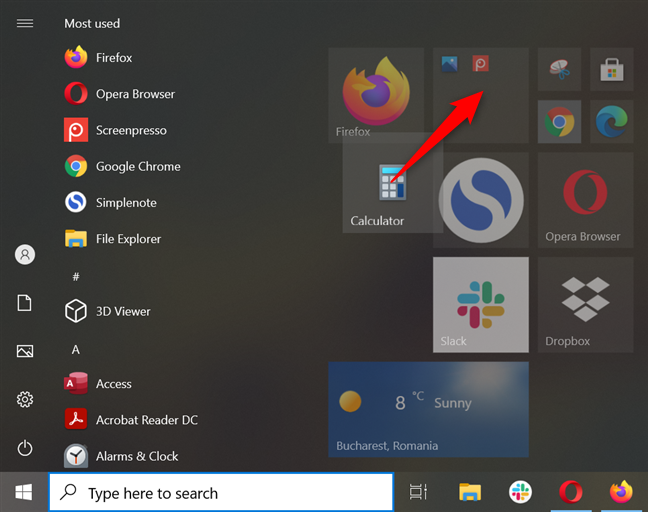
 To add more items, drag and drop them onto the folder
TIP: Did you know you can also choose the folders shown on the left margin of the Windows 10 Start Menu?
To add more items, drag and drop them onto the folder
TIP: Did you know you can also choose the folders shown on the left margin of the Windows 10 Start Menu?
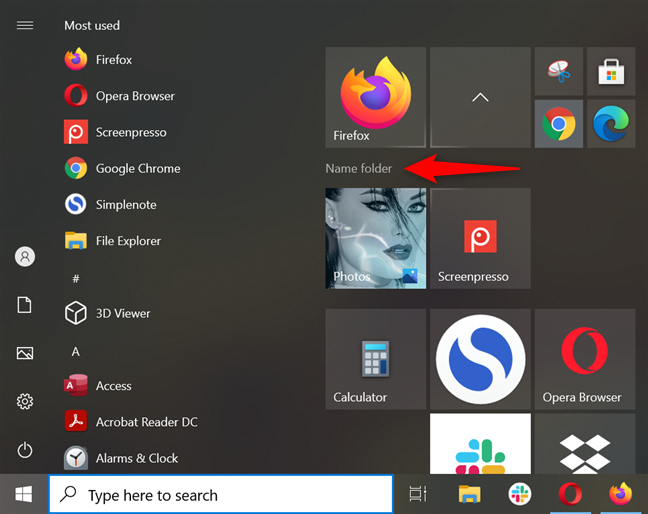 Click or tap on Name folder
Type the name you want for your folder inside the field.
Click or tap on Name folder
Type the name you want for your folder inside the field.
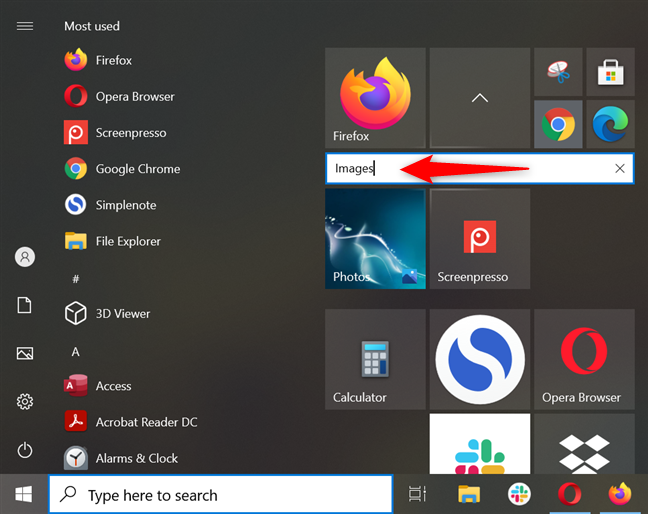 Insert a new name for your live folder
To save the change, close the folder by clicking or tapping on the arrow tile or anywhere else on your screen. The new name is displayed inside the folder.
Insert a new name for your live folder
To save the change, close the folder by clicking or tapping on the arrow tile or anywhere else on your screen. The new name is displayed inside the folder.
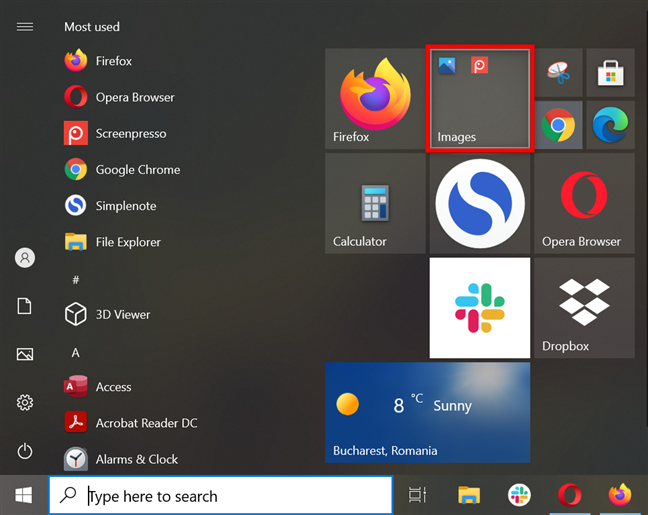 You can see the folder's name at the bottom of its tile
NOTE: The live folder’s name is no longer displayed if you change its size to Small, as shown in the next chapter.
You can see the folder's name at the bottom of its tile
NOTE: The live folder’s name is no longer displayed if you change its size to Small, as shown in the next chapter.
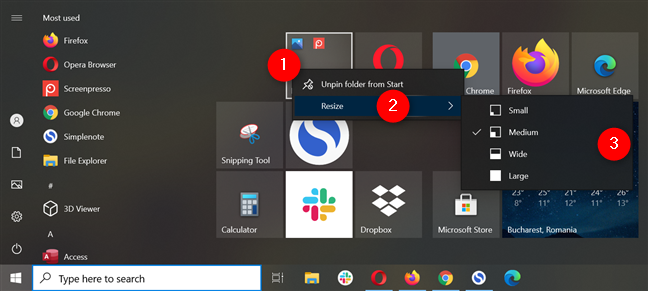
 Resize a live folder in Windows 10
Our article on resizing tiles provides more details on the available sizes.
Resize a live folder in Windows 10
Our article on resizing tiles provides more details on the available sizes.
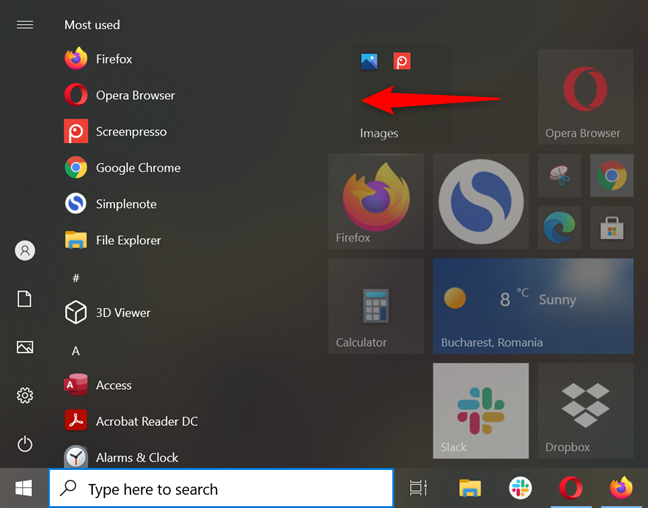
 Drag and drop a live folder to move it
TIP: Did you know you can also organize Start Menu items into groups of tiles and shortcuts?
Drag and drop a live folder to move it
TIP: Did you know you can also organize Start Menu items into groups of tiles and shortcuts?
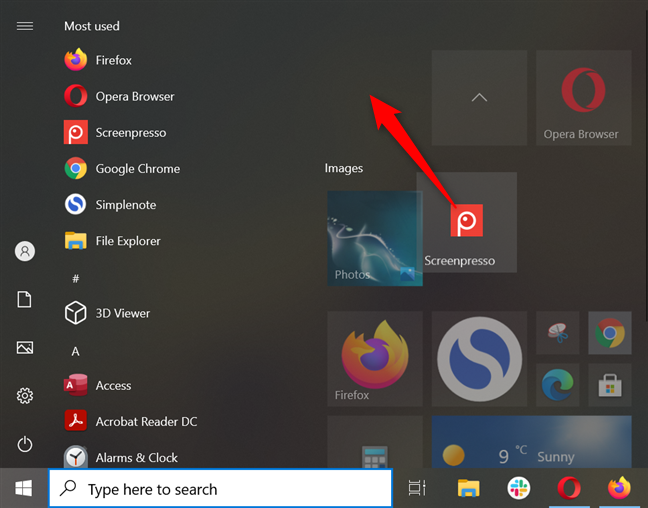 Expand the Start Menu and drag away the tile or shortcut you want to remove
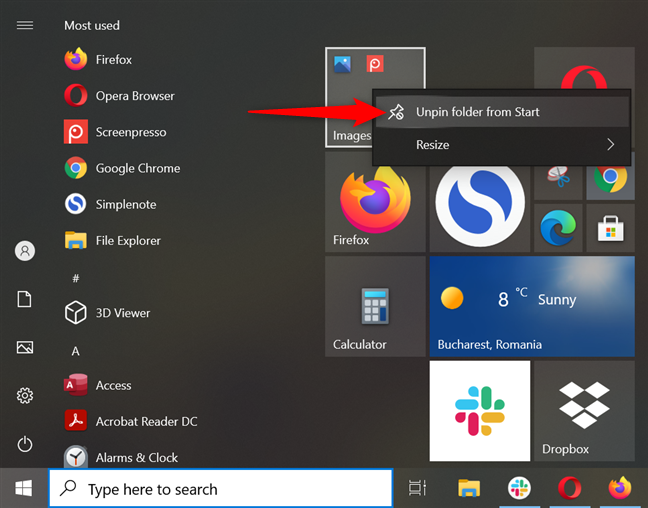 Unpin a folder from the Start Menu
The folder is immediately unpinned from the Start Menu. Keep in mind that using the second option removes the shortcuts and tiles inside your folder as well.
TIP: To further customize the Windows 10 Start Menu, check out our guide showing 10 ways to organize it and change it according to your needs.
Unpin a folder from the Start Menu
The folder is immediately unpinned from the Start Menu. Keep in mind that using the second option removes the shortcuts and tiles inside your folder as well.
TIP: To further customize the Windows 10 Start Menu, check out our guide showing 10 ways to organize it and change it according to your needs.
How to create a live folder in the Windows 10 Start Menu
After pinning to Start everything you need, you can save space by organizing tiles and shortcuts into live folders. You need at least two tiles or shortcuts to create a folder in the Start Menu in Windows 10. Click/tap and hold on one item, and then drag and drop it on top of the other.How to add more tiles and shortcuts to a Start Menu live folder in Windows 10
To add more tiles or shortcuts to the live folder you created, simply drag and drop them onto the folder using your mouse or finger (if you have a touchscreen).How to rename a live folder in Windows 10
While it wasn’t possible to rename live folders when they were first introduced, you can now do that to identify them better. First, click or tap on a live folder to expand it. Then, press on the Name folder option.How to resize live folders and their contents in the Windows 10 Start Menu
Live folders can be resized just like any other tile. Right-click or press-and-hold on a live folder from your Start Menu, click or tap Resize, and then choose the size you want.How to move a Start Menu live folder in Windows 10
Moving live folders from your Start Menu is the same as moving tiles or shortcuts. Click or tap on the live folder to grab it, and then drag and drop it where you want it.How to remove icons from a live folder in Windows 10
To remove a tile or shortcut from a live folder, expand it, and then drag-and-drop the item to another space inside the Start Menu.How to delete a live folder from the Windows 10 Start Menu
There are two ways to remove a live folder from the Start Menu in Windows 10. The first option is to remove all the live tiles and shortcuts from it, as shown in the previous chapter. Alternatively, you can also right-click or press-and-hold on a live folder to open a contextual menu. Then, click or tap on “Unpin folder from Start.”
Discussion (4)
Th e first line says “Creating live folders in your Start Menu is probably one of the simplest things you can do. […]
Once you drop one tile or shortcut on top of another tile or shortcut, the two of them will automatically create a live folder and display it in its expanded form”
This is not working in my W10, the underlying tile just moves aside as to make room to drop the tie I hold !
We also state very clearly that this will work starting with Windows 10 Creators Update. Unless you are a Windows Insider, this won’t work today. However, after the upgrade will be made available to everyone, starting April, you will be able to do what we share in this tutorial.
Funny how they keep taking some of the best features from Windows mobile OS’s (WP8 and W10M) that no one wants and suddenly it is a great feature in Windows 10! They should also add the naming of the live folders just like W10M has; it does help a lot!
Ironic, isn’t it?