




Google Maps uses your Home address to calculate commute times, suggest routes, and trigger Assistant alerts. When Home points to the wrong place, directions break, ETAs drift, and traffic alerts stop making sense.
Updating your Home address takes less than a minute, but the steps differ on Android, iPhone, and desktop, and sync issues can block the change.
Table of contents
- What “Home” means in Google Maps
- Change Home address on Google Maps on Android
- Change Home address on Google Maps on iPhone
- Change Home address on Google Maps on desktop
- What to do if Home address does not update
- How long changes take to sync
- How Home affects navigation and commute routes
- Temporarily change Home for navigation only
- Remove Home address completely
- Privacy considerations
- Tips for managing Home and Work addresses
- FAQs
- Summary
What “Home” means in Google Maps
Home is a labeled place tied to your Google account, not just a random saved spot. Google Maps uses it for commute cards, quick directions, and Assistant prompts across devices.
Change Home address on Google Maps on Android
- Open Google Maps.
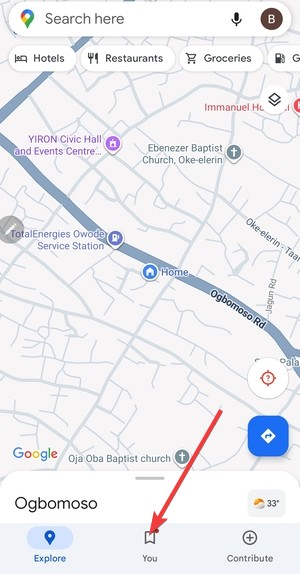
- Next, tap the You icon at the bottom of the page.

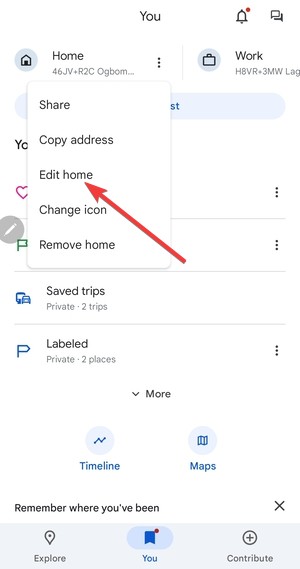
- Then, tap the three dots next to Home.
- Now, tap Edit home.

- Lastly, enter the new address.
Change Home address on Google Maps on iPhone
The iPhone app uses similar menus, but the wording can differ slightly. Use the steps below to reach the Home label quickly.
Edit home in Google Maps for iPhone
- Open Google Maps.
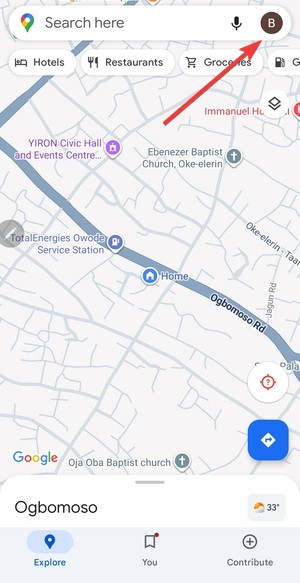
- Next, tap your profile picture.

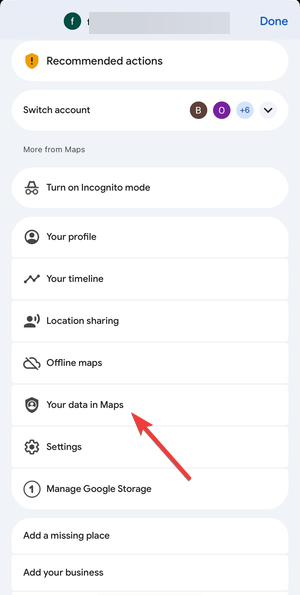
- Now, tap Your data in Maps.

- From here, select Home under the Home & work addresses section.
- Lastly, enter the new home address.
Change Home address on Google Maps on desktop
Desktop edits can feel easier because you can type and review the location on a larger screen. Google syncs changes back to the same Google account on your phone.
Edit Home from Google Maps web
- Go to maps.google.com and sign in.
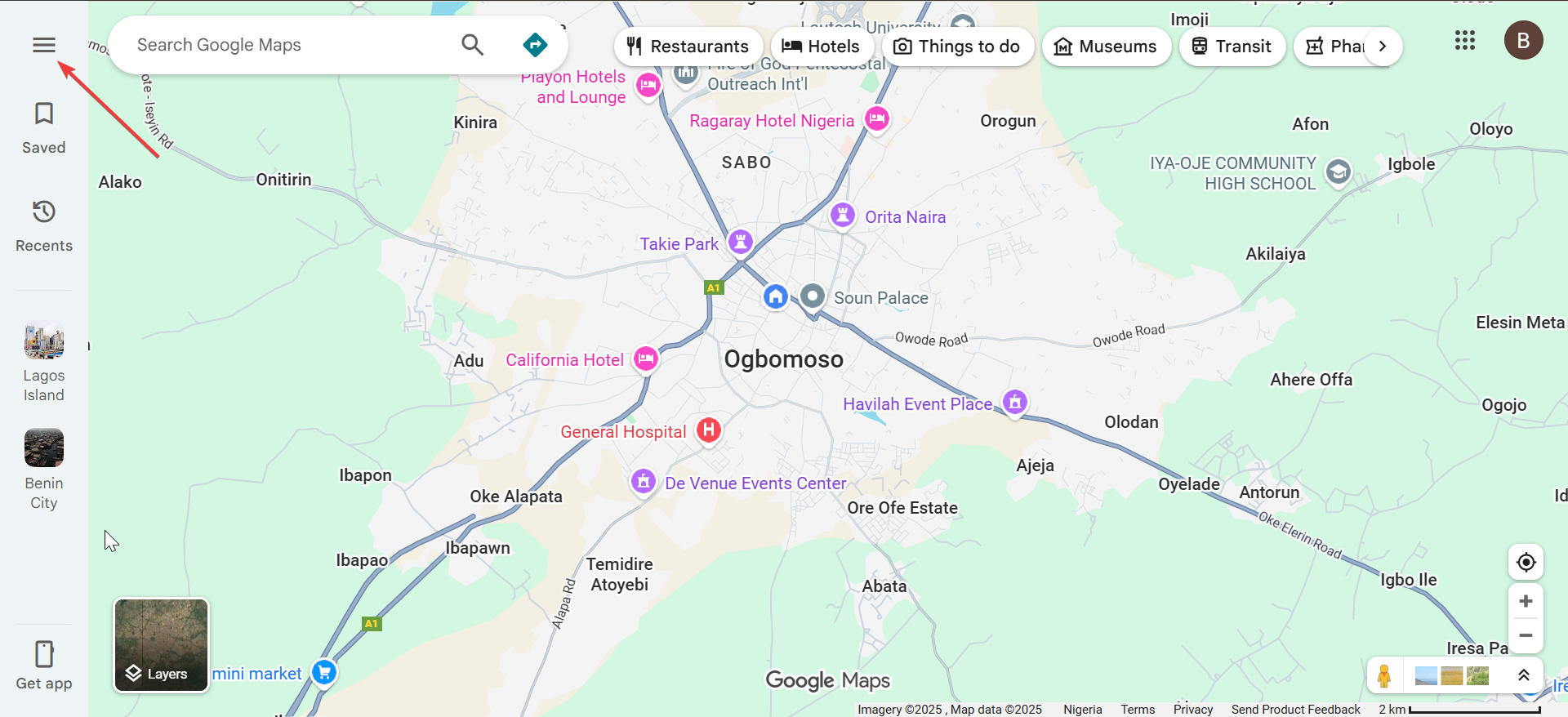
- Next, click the three horizontal lines in the top left corner.

- Then, select Your data in Maps.

- Now, click Home under the Home & work addresses section.
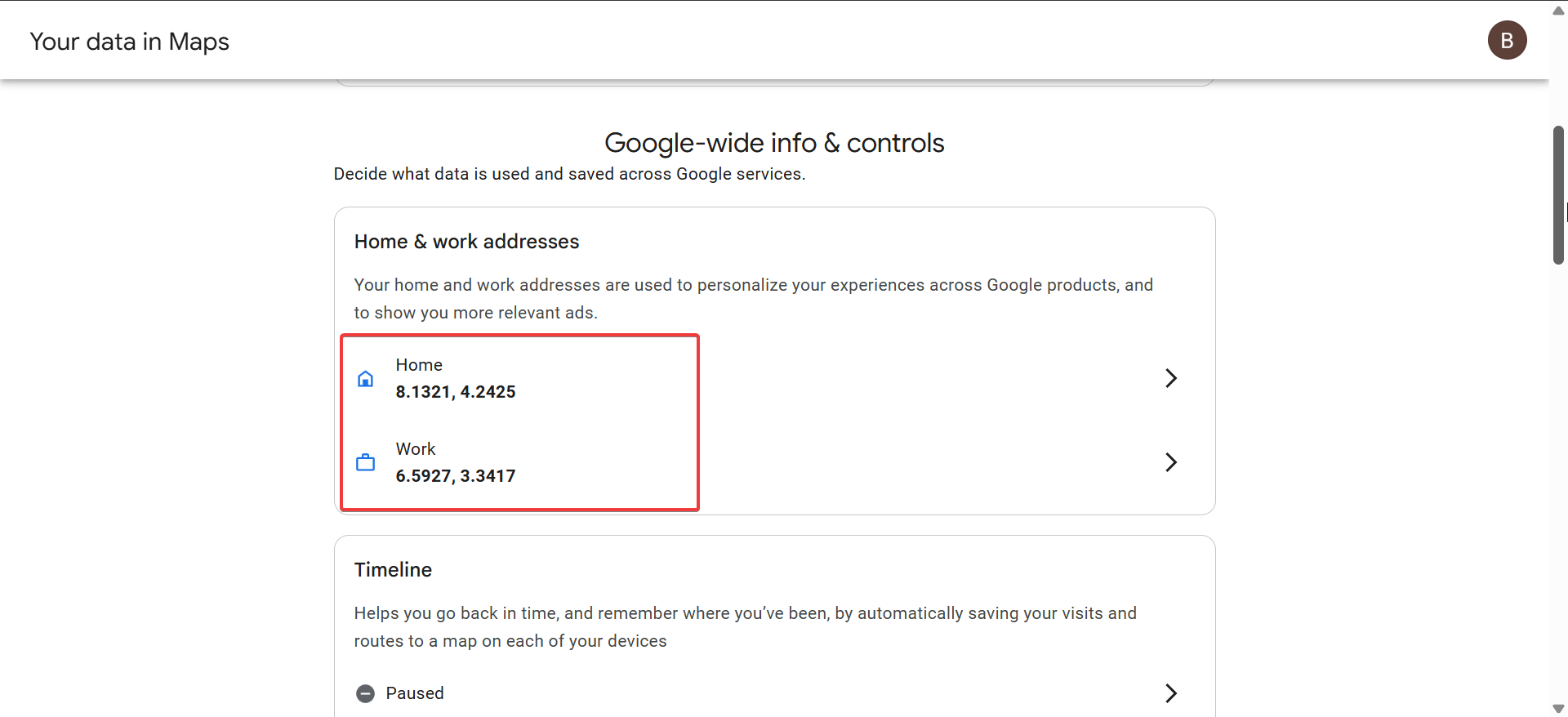
- From here, edit your home address accordingly.
What to do if Home address does not update
If Google Maps keeps the old Home, one of these issues usually causes it. Work through the fixes in order because they take only a minute each.
Check the active Google account
Google Maps saves Home per account, so changes will not sync if you edit Home on the wrong profile. Open your profile icon in Maps and confirm you use the same account everywhere.
Force sync and app refresh
- Close Google Maps completely, then reopen it.
- Turn Airplane mode on for 10 seconds, then turn it off.
- Open Google Maps again and check Saved → Labeled.
Clear and re-add Home
Removing Home and adding it again can fix a stuck label. This helps when Maps routes to an old Home even after you edit it.
- Open Saved → Labeled.
- Tap Home, then choose Remove or Remove home.
- Restart Google Maps.
- Return to Labeled and tap Add home.
How long changes take to sync
If you change your home and work address on Google Maps, it often updates within a few minutes on the same account. Google Assistant and in-car experiences can lag, so give it up to an hour before you troubleshoot again.
How Home affects navigation and commute routes
Google uses Home to build commute cards, pick suggested departure times, and offer quick “go home” navigation. A wrong Home can also skew traffic alerts because Maps thinks you commute somewhere else.
Temporarily change Home for navigation only
You do not need to change the saved Home label to drive somewhere else. Search the destination and tap Directions so Google Maps treats it as a one-time trip.
Remove Home address completely
If you do not want Google to store Home at all, remove the label. You can add it back later at any time.
- Open Google Maps and tap Saved.
- Tap Labeled.
- Tap Home, then select Remove home.
Privacy considerations
Home ties to your Google account and syncs anywhere you sign in. Google uses it to personalize navigation, commute suggestions, and Assistant answers, so remove it if you share a device.
Tips for managing Home and Work addresses
- Set Home using the exact street address to improve ETAs.
- Check your profile icon to confirm the correct Google account before you edit Home.
- Update Home after you move to prevent wrong commute alerts.
- Remove Home on shared devices to reduce personal suggestions.
- Re-add Home if Google Maps keeps routing you to the previous address.
FAQs
Why does my Home address keep reverting? Google Maps usually reverts Home when you edit it under one account but use another account on a different device.
Why does Google Assistant still use my old Home address? Assistant can take longer to sync than Maps, so wait up to an hour, then reopen Maps and confirm Home under Saved → Labeled.
Why can’t I find Home in Google Maps? Look under Saved → Labeled because Home does not always show inside your regular saved lists.
Summary
- Edit Home from Saved → Labeled on Android or iPhone.
- Use Google Maps on desktop if you prefer editing on a larger screen.
- Confirm you use the same Google account on every device.
- Remove and re-add Home if updates refuse to sync.
If Home still points to the wrong place after these steps, remove the label and add it again from scratch. That reset fixes most stubborn routing and commute issues.


Discussion (0)
Be the first to comment.