




If Google Play keeps showing an “Authentication required” error, your phone cannot verify your Google account. In most cases, clearing Google Play data or re-syncing your account fixes the issue in minutes.
This problem usually appears after a sync failure, a corrupted cache, or a Google Play Services glitch. Start with the quick checks below, then move through the fixes in order.
Table of contents
- What “authentication required” means on Google Play
- Common reasons this error appears
- Fix Google Play authentication required
- Device-specific steps that often fix the error
- Advanced fixes if the error keeps returning
- How to confirm the error is fixed
- Prevent Google Play authentication errors in the future
- FAQs
- Summary
What “authentication required” means on Google Play
Google Play uses temporary account tokens to confirm downloads, updates, and purchases. When those tokens expire or break, the Play Store blocks actions and shows the authentication error.
The issue rarely involves your password. It almost always comes from local data, sync, or service problems.
Common reasons this error appears
- Background sync interruptions stop Google Play from validating your account.
- Corrupted Play Store or Play Services cache
- Outdated Google Play Services
- Network or VPN interference
Fix Google Play authentication required
Follow these fixes in order. Stop once Google Play starts working again.
Clear Google Play Store cache and data
This forces Google Play to rebuild local authentication files.
- Open Settings.
- Tap Apps or Apps & notifications.
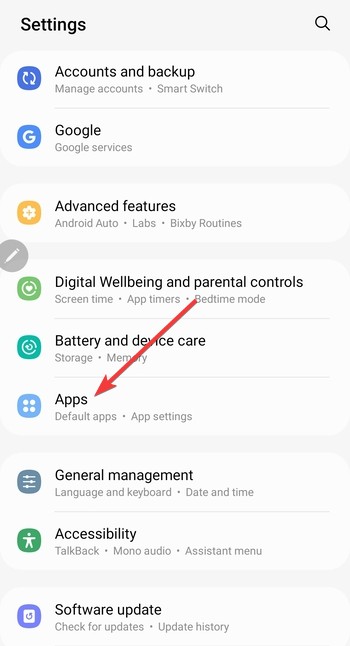

- Select Google Play Store.


- Tap Storage.
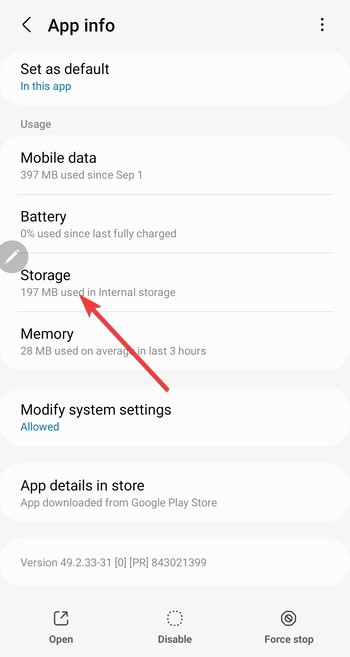

- Next, tap Clear cache.
- Tap Clear data.
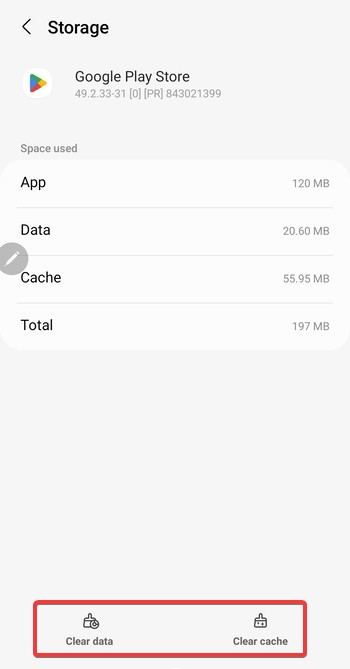
- Reopen Google Play Store.
Clear Google Play Services cache and data
Play Services controls account validation behind the scenes.
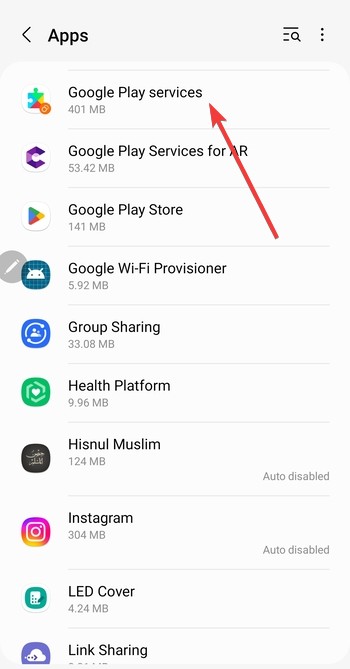
- Open Settings.
- Tap Apps.
- Select Google Play Services.
- Tap Storage.
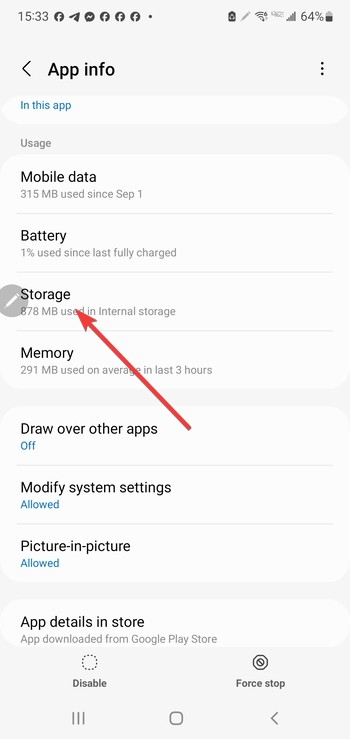

- Tap Clear cache.
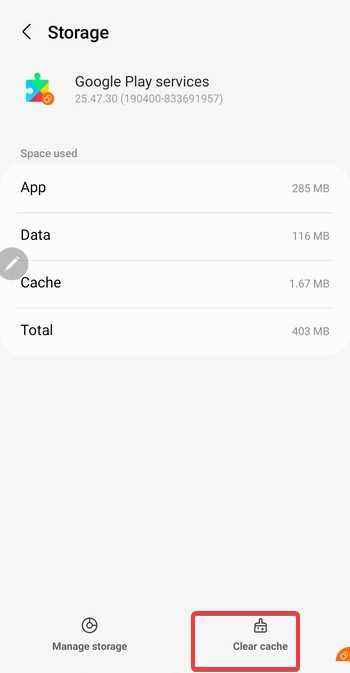

- Restart your phone.
Remove and re-add your Google account
This regenerates fresh authentication tokens.
- Open Settings.
- Tap Accounts.
- Select the Google account.

- Tap Remove account.


- Restart your phone.
- Go back to Accounts.
- Tap Add account.
- Sign in again.
Update Google Play Services and Play Store
Outdated system apps often trigger authentication errors.
- Start by opening Google Play Store on your phone.
- Search for Google Play Services.
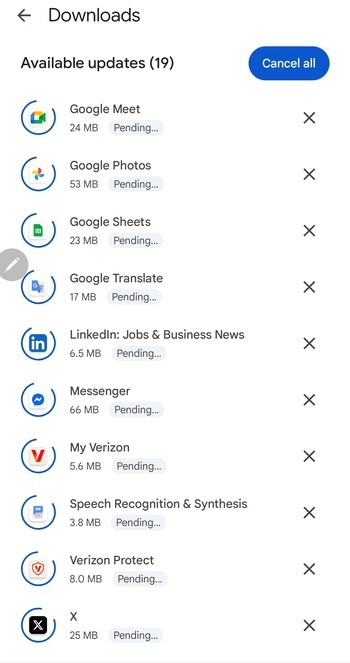

- Tap Update if available.
- Repeat for Google Play Store.
Reset network settings
This fixes hidden DNS or connectivity issues.
- Open Settings.
- Tap System.
- Tap Reset.
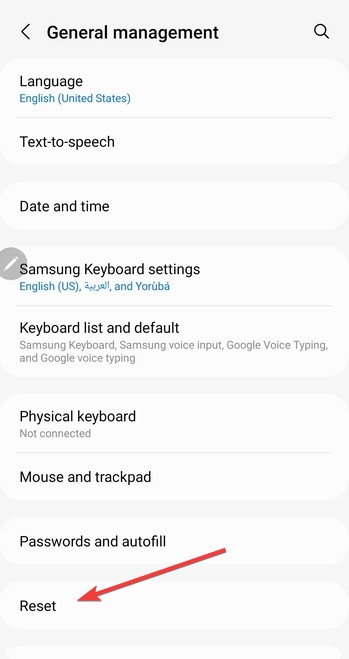

- Tap Reset network settings.
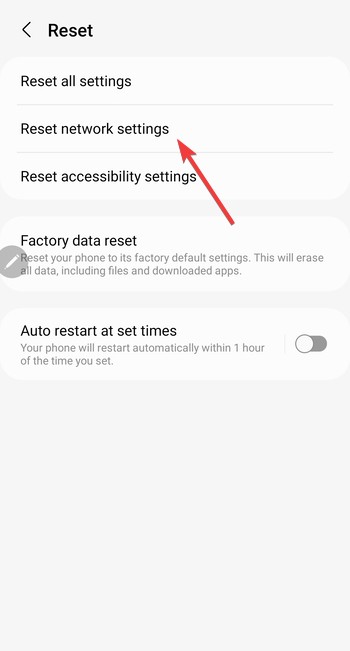

- Restart your phone.
Device-specific steps that often fix the error
Samsung Galaxy devices
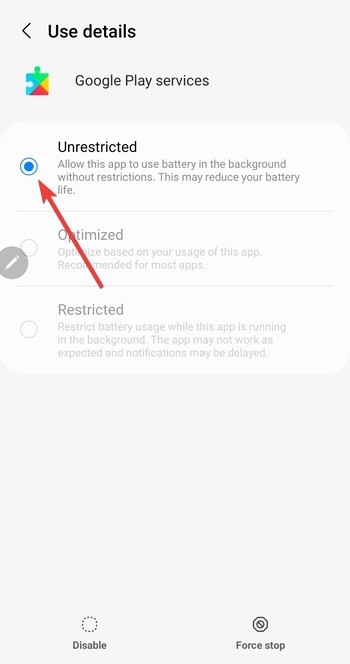
Samsung hides Google services under extra menus, and battery controls can block background authentication.
- Open Settings.
- Tap Apps.
- Tap the menu icon, then enable Show system apps if available.
- Open Google Play Services and check Battery.
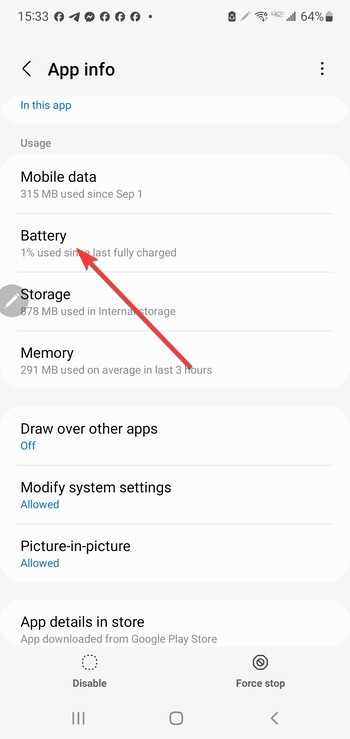
- Allow background activity and remove restrictions.

Google Pixel phones
Pixels depend on background permissions for Google services, so battery limits can trigger repeated sign-in prompts.
- Open Settings.
- Tap Apps.
- Select Google Play Services.
- Tap Battery.
- Set usage to Unrestricted.
Xiaomi, OnePlus, and other Android skins
Some Android skins aggressively stop background apps, which can break Google authentication and account sync.
- Disable battery optimization for Google Play Store and Google Play Services.
- Enable background activity and auto-start if your phone offers these toggles.
- Retry a download in Google Play Store.
Advanced fixes if the error keeps returning
Disable VPN, private DNS, or ad blockers
Authentication can fail when traffic filtering blocks Google endpoints used for account verification.
Check system date and time settings
Incorrect time can break certificate validation, which prevents Google Play from authenticating your account.
- Open Settings.
- Next, select General management.
- Tap Date & time.
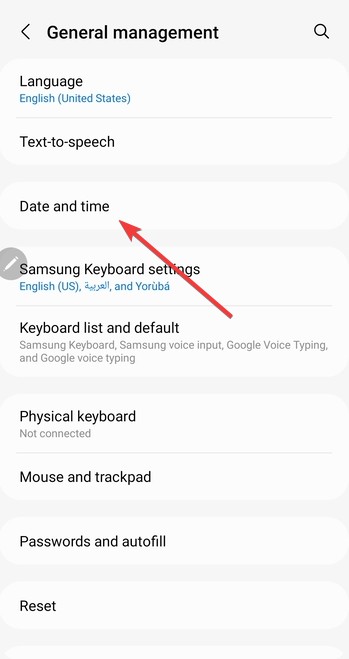
- Enable Automatic date & time.


Update Android system software
Some Play Store authentication loops come from OS bugs that Android updates resolve.
- Open Settings.
- Tap Software update or System update.
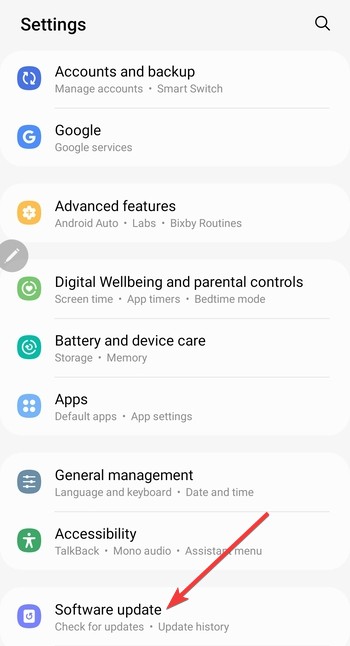
- Install any available updates, then restart your phone.
How to confirm the error is fixed
Test with a free app download
Free apps confirm basic authentication without payment checks.
Test a Play Store update or purchase
Updates and purchases confirm that full Google Play verification works again.
Prevent Google Play authentication errors in the future
Keep Google services updated
Auto-updates reduce mismatches between the Play Store and Google Play Services.
Avoid aggressive battery or background restrictions
Overly strict battery controls often stop Google services from syncing and refreshing account tokens.
FAQs
What causes Google Play authentication required to keep popping up? Sync failures, corrupted cache files, or blocked network traffic usually cause it.
Is this error related to my Google password? No. Password changes rarely trigger this error.
Does a factory reset fix Google Play authentication errors? Yes, but it should remain a last resort after all other fixes fail.
Can VPNs cause Google Play authentication issues? Yes. VPNs and private DNS often block Google authentication servers.
Summary
- Restart your phone and confirm internet access works.
- Clear cache and data for Google Play Store and Play Services.
- Remove and re-add your Google account.
- Update Google services and reset network settings if needed.
- Disable VPNs and check system date and time.
The Google Play “Authentication required” error almost always comes from local account or service issues, not your password. Clearing Google app data and re-syncing your account resolves the problem for most users within minutes. If the error returns, check VPNs, battery restrictions, and system updates before considering drastic steps like a factory reset.


Discussion (0)
Be the first to comment.