



For a GL-MT6000 WireGuard server, first ask whether the client completes a handshake. No handshake points toward the endpoint, port, or upstream reachability. A connected tunnel with no useful traffic points toward routing, overlapping subnets, or DNS.
Check the endpoint and UDP port
- Open the router’s WireGuard server configuration and note the listening port; the default is UDP 51820.
- Generate a separate client profile and import its configuration into the client.
- If you changed the server port, confirm that the client Endpoint and any upstream port-forwarding rule use the same port.
- Check whether your ISP connection provides a reachable public address before expecting inbound access through an upstream router.
GL.iNet’s server guide covers profile creation. A DDNS hostname can follow a changing public IP, but it does not bypass carrier-grade NAT. If you switch to DDNS, regenerate or update the client configuration so the endpoint actually uses it.
If the handshake works but resources do not
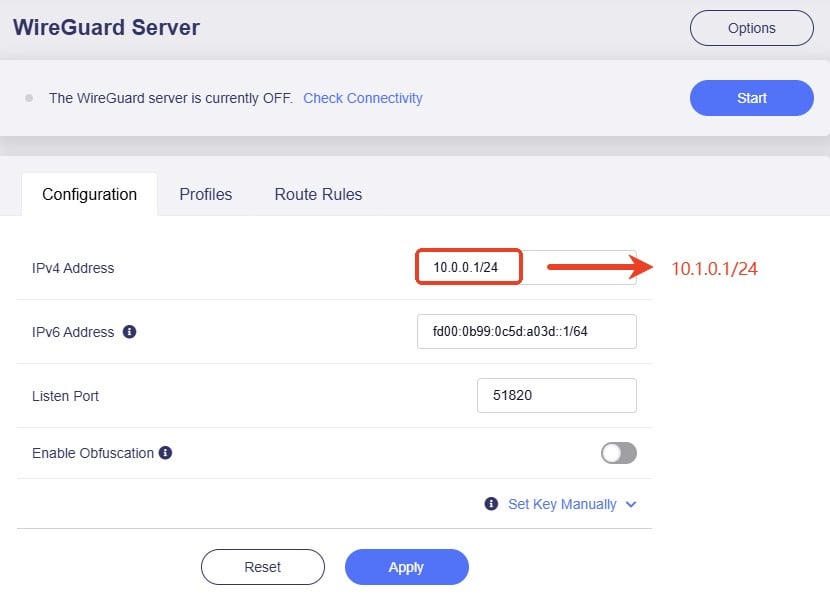
Compare the client’s local LAN with the server-side LAN. Overlapping address ranges can make a destination ambiguous; change one LAN subnet according to your network plan rather than adding arbitrary routes.
GL.iNet’s troubleshooting also calls for checking DNS and tunnel-address configuration when internet access fails after connection. Test access to the intended private resource separately from general web browsing so you know which path is failing.
Keep the repair narrow
Do not place the router in a blanket DMZ or disable its firewall to make the VPN work. If using AmneziaWG obfuscation, the client must support that mode too.
After a change, test from a genuinely external network and verify the intended access. Never share private keys or complete client configurations publicly when requesting help; report the handshake state and sanitized network layout instead.
Featured image: AI-generated illustration of representative equipment, not an exact product photograph or a hands-on test.
Discussion (0)
Comments are closed.