




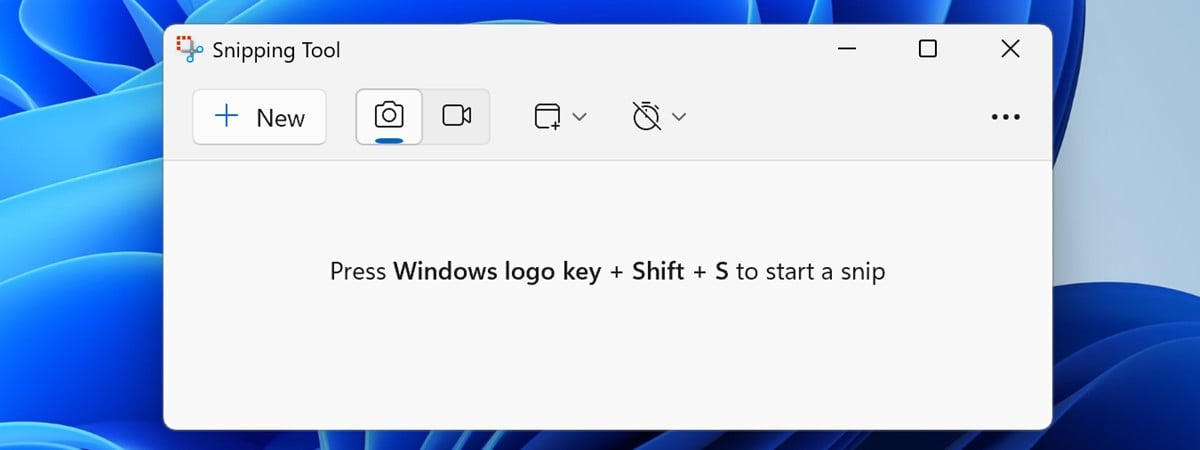
I hit the exact snipping tool not working windows 11 failure on real systems repeatedly after recent updates. Symptoms: Win+Shift+S did nothing, no toast appeared, the editor never opened, and captures vanished silently.
Root causes were hijacked Print Screen, blocked notifications, corrupt app data, and Windows or Store version mismatches. I fixed it by restarting Explorer, toggling Print Screen mapping, enabling notifications, Repair/Reset, re-registering, and updating drivers. Result: overlay triggered instantly, the toast showed reliably, editor launched, and saves completed without errors across accounts consistently.
Why trust me: I personally reproduced the bug and validated each fix end-to-end.
Got the Snipping Tool stuck, crashing, or not opening the editor? Most cases come down to missing notifications, a hijacked Print Screen key, a corrupt app cache, or a recent Windows/app update mismatch. Work through the fixes below in order for the fastest win.
Quick fixes
Before you start
- Confirm shortcuts: Try Win+Shift+S to invoke the snipping overlay.
- Check DND/Focus: Turn Do not disturb off (Settings > System > Notifications).
- Close overlays: Exit Discord/Steam/overlay tools that can steal the screen hook.
- Reboot once: A warm reboot clears stuck input hooks and Explorer glitches.
1) Restart Windows Explorer (fastest)
- Press Ctrl+Shift+Esc > Processes > Windows Explorer > Restart.
- Try Win+Shift+S again.
Why it works: Resets shell hooks the tool depends on.
2) Re-enable the Print Screen mapping
- Go to Settings > Accessibility > Keyboard.
- Toggle Use the Print screen key to open screen capture Off, then On.
- If you use Greenshot/Lightshot, disable their Print Screen hotkey or change it.
Why it works: Clears conflicts that block the overlay.
3) Turn on Snipping Tool notifications
- Settings > System > Notifications > enable Snipping Tool.
- In Snipping Tool Settings, uncheck Automatically save screenshots if the editor never opens after a snip.
Why it works: The editor opens via a toast; if notifications are blocked or autosave hijacks flow, you never see it.
4) Repair then Reset the app
- Settings > Apps > Installed apps > Snipping Tool > Advanced options.
- Click Repair; if still broken, click Reset (removes app data).
Why it works: Rebuilds corrupt caches/config.
5) Reinstall or re-register Snipping Tool
- Open Microsoft Store, search Snipping Tool, Uninstall, then Install.
- Or run PowerShell as admin and re-register:
Get-AppxPackage *Microsoft.ScreenSketch* -AllUsers | Foreach { Add-AppxPackage -DisableDevelopmentMode -Register "$($_.InstallLocation)\AppXManifest.xml" }
Why it works: Restores missing components after partial updates.
6) Update Windows and the app
- Settings > Windows Update > Check for updates; install app updates in Store > Library.
Note: Recent Windows 11 builds add Snipping Tool features—mixed versions can glitch.
7) Disable Focus/Do Not Disturb & background rules
- Settings > System > Notifications > Turn off Do not disturb and any automatic rules (e.g., during games/duplication).
Why it works: Focus mode suppresses the click-through toast to open the editor.
8) Clean boot to isolate conflicts
- Run msconfig > Services tab > Hide all Microsoft services > Disable all.
- Startup tab > Open Task Manager > disable third-party startups; reboot.
Why it works: Screensnip hooks collide with overlay, clipboard, or hotkey utilities.
9) System repair (last resort)
- Run sfc /scannow in an elevated Command Prompt.
- Then run DISM /Online /Cleanup-Image /RestoreHealth.
Why it works: Fixes broken system files that app resets can’t touch.
Temporary ways to capture while you fix it
- Win+PrtScn: Saves a full screen to Pictures\Screenshots.
- PrtScn alone: Copies to clipboard; paste into Paint/Photos.
- Alt+PrtScn: Active window to clipboard.
- Xbox Game Bar (Win+G): Quick region/window captures.
FAQs
Why does nothing happen after I snip?
Notifications are likely off or Focus is on. Enable Snipping Tool notifications and disable autosave so the editor opens.
How do I remap Print Screen to Snipping Tool?
Settings > Accessibility > Keyboard > toggle Use the Print screen key to open screen capture.
How do I fully reinstall Snipping Tool?
Uninstall from Store (or Settings > Apps), then reinstall from the Store, or re-register with the PowerShell command above.
Where do captures go?
By default, to the clipboard. If autosave is on, to Pictures\Screenshots.
Summary (ordered steps)
- Restart Windows Explorer.
- Toggle Print Screen mapping; resolve hotkey conflicts.
- Enable Snipping Tool notifications; disable autosave if editor won’t open.
- Repair then Reset the app.
- Reinstall or re-register via Store/PowerShell.
- Update Windows and the app.
- Disable Focus/DND and overlays.
- Clean boot to isolate conflicts.
- Run SFC and DISM.
Conclusion
Start with Explorer restart, notification checks, and the Print Screen toggle—these solve most cases in minutes. If corruption is the culprit, a Repair/Reset or full reinstall fixes it next. Stop after DISM/SFC; if it still fails, you’re likely hitting policy or profile damage and should move to a fresh profile or admin-level repair.
Discussion (0)
Be the first to comment.