




The “Call Failed” error on iPhone appears when the device cannot complete or maintain a cellular connection. In most cases, the issue relates to network instability, SIM problems, incorrect call settings, or temporary iOS glitches.
This error can occur on any iPhone model and may happen intermittently or on every outgoing call, depending on the underlying cause.
How To Fix “Call Failed” On iPhone
Start with the quickest fixes first. Many call issues resolve after refreshing the connection or correcting a simple setting.
- Force close the Phone app, reopen it, and try calling again.
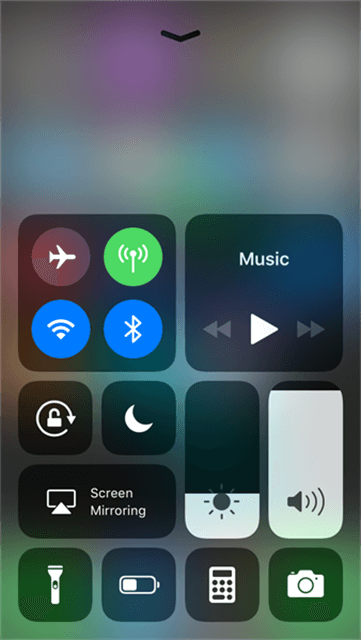
- Toggle Airplane Mode on and off to refresh the cellular connection.
- Move to an area with stronger cellular signal.
- Restart the iPhone to clear temporary software glitches.
If the problem continues, proceed with deeper troubleshooting steps.
- Turn off Wi-Fi Calling under Cellular or Phone settings.
- Check for carrier settings updates in General → About.
- Enable automatic network selection.
- Confirm the correct SIM or eSIM is set as the default voice line.
- Remove and reinsert the physical SIM card, or re-add the eSIM.
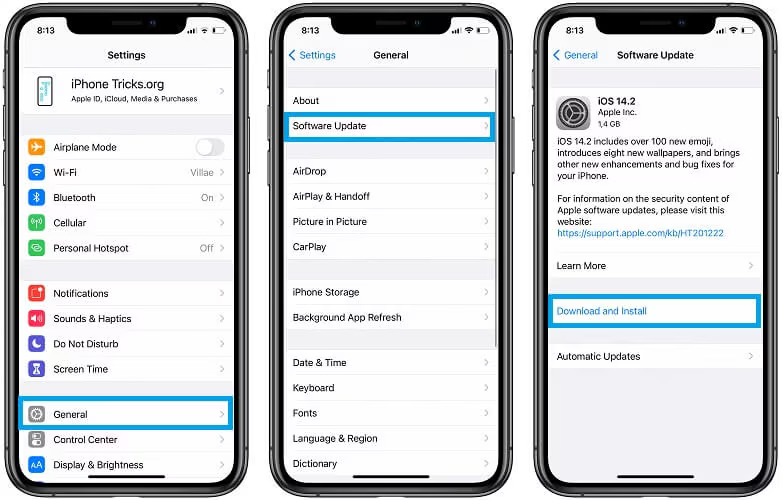
- Update iOS to the latest available version.
- Reset All Settings to clear corrupted configurations.

Troubleshooting Common Problems
If calls fail instantly, the issue may be related to call blocking, carrier restrictions, or an unpaid account balance. Dual-SIM users should verify the correct line is selected for voice calls.
If the error only occurs with specific contacts, confirm the number is not blocked and that caller ID settings are enabled.
Tips
- Keep iOS and carrier settings updated to prevent call-related bugs.
- Avoid switching networks manually unless necessary.
- Use Wi-Fi Calling only when cellular signal is weak and stable Wi-Fi is available.
- Reset network settings before considering a full device reset.
FAQ
Why does my iPhone say “Call Failed” even with full signal?
Network congestion, carrier issues, or corrupted network settings can cause call failures even when signal bars appear strong.
Can a bad SIM card cause call failures?
Yes. A damaged or improperly provisioned SIM or eSIM can prevent outgoing calls.
Does updating iOS help fix call issues?
Yes. iOS updates often include modem and connectivity fixes that resolve call problems.
Summary
- The “Call Failed” error usually relates to network or SIM issues.
- Quick fixes include restarting the Phone app and refreshing the signal.
- Advanced fixes involve network resets, SIM checks, and iOS updates.
- Carrier assistance may be required if the issue persists.
Conclusion
Call failures on iPhone are frustrating but rarely permanent. In most cases, refreshing the network, adjusting call settings, or updating iOS restores normal calling behavior.
If none of the fixes work, contacting your carrier or Apple Support can help rule out account or hardware-related issues.



Discussion (0)
Be the first to comment.