



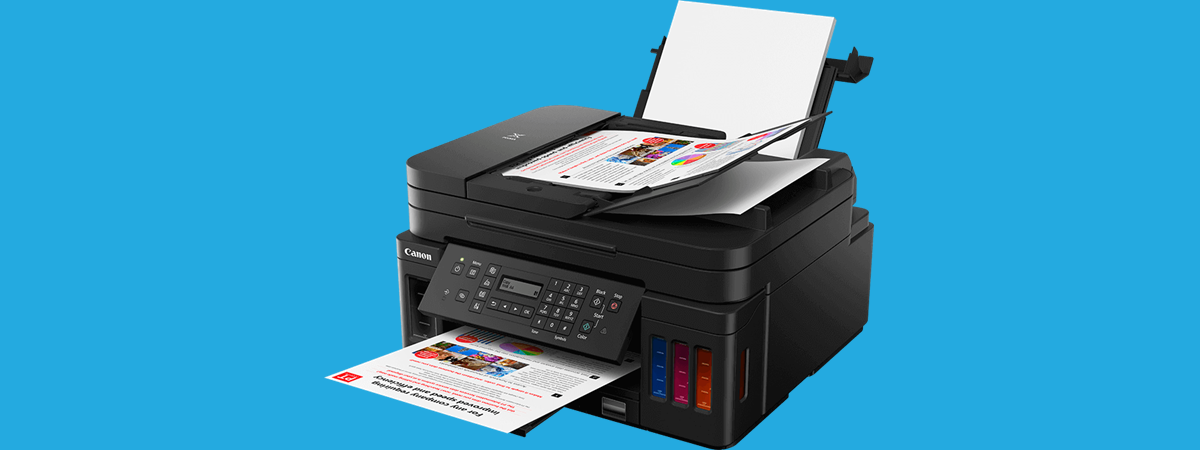
Epson ScanSmart is Epson’s modern scanning software designed to make document and photo scanning easier on Windows 11. If your Epson scanner is detected but you cannot scan properly, or if older Epson Scan software no longer works, ScanSmart is usually the recommended solution.
This guide explains how to download Epson ScanSmart for Windows 11, how to install it correctly, and how to fix common problems if it does not work.
What Is Epson ScanSmart
Epson ScanSmart is Epson’s updated scanning application that replaces older scanning utilities for many modern scanners. It offers a simplified interface and supports common scanning tasks without advanced manual configuration.
With ScanSmart, you can:
- Scan documents and photos
- Create searchable PDFs
- Save scans as PDF or JPEG
- Combine multiple pages into one file
- Scan directly to your computer
It is designed for home and office users who want quick and reliable scanning.
Do You Need Epson ScanSmart on Windows 11
You should install Epson ScanSmart if:
- You are using a newer Epson scanner
- Epson Scan or Epson Scan 2 does not work
- You upgraded to Windows 11
- You want a simpler scanning interface
Some Epson scanners require ScanSmart instead of older scanning software.
How to Download Epson ScanSmart for Windows 11
Always download Epson ScanSmart from Epson’s official website.
Official Download Steps
- Open a web browser
- Go to Epson’s official support website
- Search for your Epson scanner model
- Select Windows 11 as the operating system
- Download Epson ScanSmart
Avoid downloading ScanSmart from third-party websites.
How to Install Epson ScanSmart
Installation Steps
- Locate the downloaded ScanSmart installer
- Double-click the file
- Follow the on-screen instructions
- Allow required components to install
- Restart your PC if prompted
Connect your scanner only when the installer asks you to.
How to Scan Documents Using Epson ScanSmart
Once installed, scanning is straightforward.
Steps:
- Power on and connect your Epson scanner
- Open Epson ScanSmart from the Start menu
- Select the scan type
- Adjust basic settings if needed
- Click Scan
- Save the scanned file to your PC
ScanSmart automatically handles page size, color detection, and file organization.
Fix Epson ScanSmart Not Working on Windows 11
If ScanSmart does not open or cannot detect your scanner, try these fixes.
Check Scanner Connection
Fix:
- Reconnect the USB cable
- Try a different USB port
- Restart the scanner
For Wi-Fi scanners, ensure both devices are on the same network.
Install or Update Scanner Drivers
ScanSmart requires proper drivers.
Fix:
- Visit Epson support
- Download the latest scanner driver
- Install and restart the PC
Reinstall Epson ScanSmart
Steps:
- Open Settings
- Go to Apps
- Uninstall Epson ScanSmart
- Restart your PC
- Reinstall the latest version
Disable Conflicting Scan Software
Other scanning utilities can interfere.
Fix:
- Close or uninstall third-party scan software
- Restart Windows
Epson ScanSmart Supported Devices
Epson ScanSmart supports many newer Epson scanners, including:
- Epson flatbed scanners
- Epson all-in-one printers with scanning
- Wireless Epson scanners
Always check your specific model’s support page for compatibility.
Final Thoughts
Epson ScanSmart is the recommended scanning software for many Epson scanners on Windows 11. It offers a simple interface, reliable detection, and modern scanning features without complex setup.
Installing the correct version from Epson’s official website ensures smooth scanning and avoids compatibility issues.
FAQs
Is Epson ScanSmart free
Yes, it is free for Epson scanner users.
Does ScanSmart replace Epson Scan 2
For some models, yes. Compatibility depends on the scanner.
Can I scan over Wi-Fi using ScanSmart
Yes, if your scanner supports wireless scanning.
Do I need ScanSmart if Windows detects my scanner
Yes, for full scanning features and proper file handling.


Discussion (0)
Be the first to comment.