




In-app purchases make it easy to unlock premium features, remove ads, or buy digital items inside apps and games. They also make it easy to spend money by accident, especially on shared devices or phones used by kids.
If you want to stop unwanted charges, you can disable in-app purchases directly from your device settings. This guide explains how to turn off in-app purchases on Android, iPhone, and iPad, and how to add extra protection with parental controls.
How To Disable In-App Purchases On Android
Android lets you restrict game and other purchases through Google Play authentication settings. Once enabled, every in-app purchase requires account verification.
- Open the Google Play Store app
- Tap your profile icon in the top-right corner
- Select Settings
- Tap Authentication
- Select Require authentication for purchases
- Choose For all purchases through Google Play on this device
- Enter your Google account password to confirm
This setting prevents accidental taps and forces approval before any purchase completes.
How To Disable In-App Purchases On iPhone
Apple uses Screen Time to control App Store and in-app purchases. Once disabled, apps cannot process payments.
- Open the Settings app
- Tap Screen Time

- Select Content & Privacy Restrictions
- Turn on Content & Privacy Restrictions

- Tap iTunes & App Store Purchases
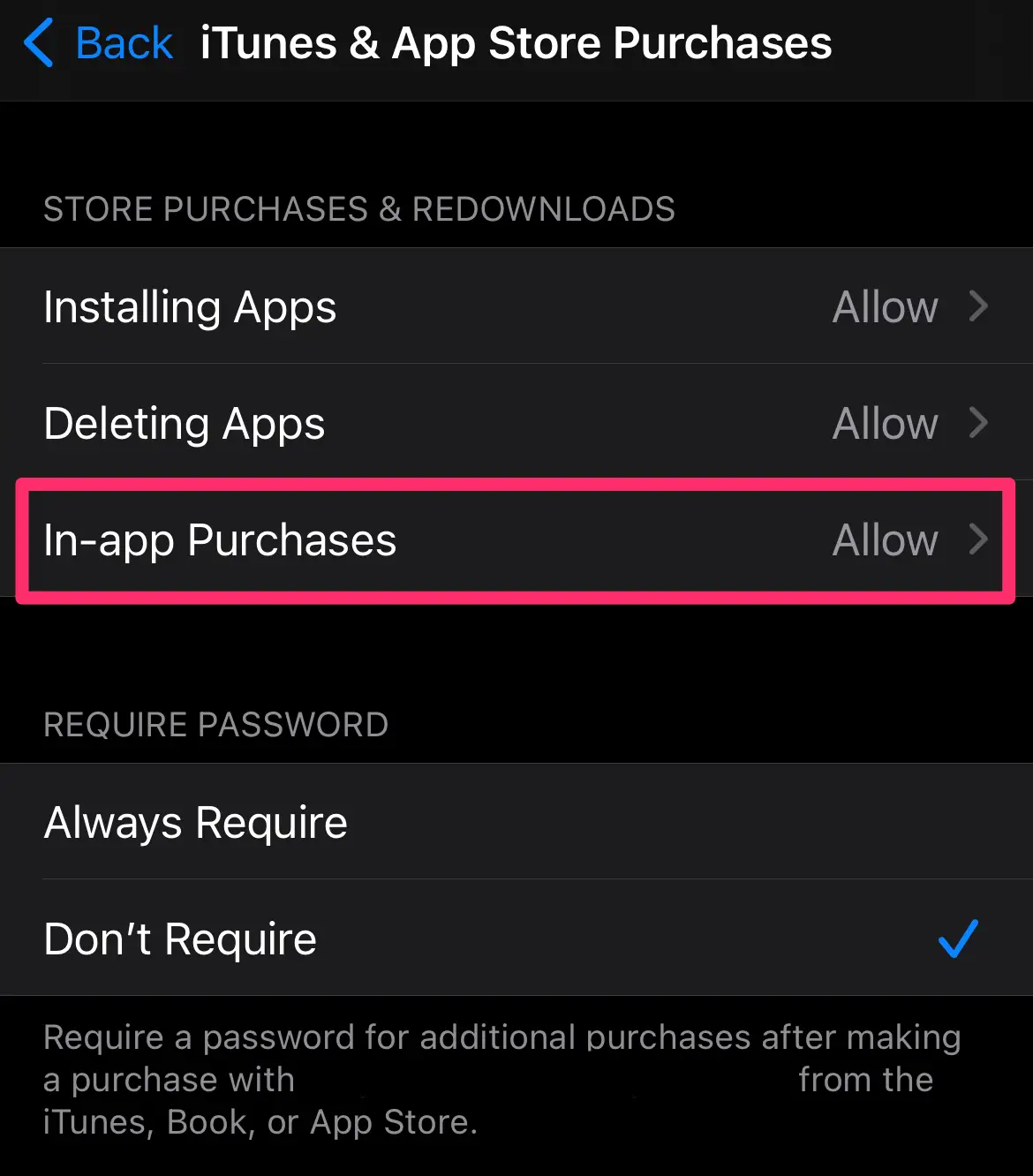
- Select In-App Purchases
- Choose Don’t Allow
Once enabled, in-app purchases stop working across all apps on that device.
How To Disable In-App Purchases On iPad
The process on iPad mirrors the iPhone setup and uses the same Screen Time controls.
- Open Settings
- Tap Screen Time
- Select Content & Privacy Restrictions
- Enable Content & Privacy Restrictions
- Tap iTunes & App Store Purchases
- Select In-App Purchases
- Choose Don’t Allow
Set Up Parental Controls For Extra Protection
Disabling in-app purchases works best when combined with parental controls, especially on shared or child-owned devices.
Parental Controls On Google Play Store
- Open the Google Play Store
- Tap your profile icon
- Select Settings
- Tap Parental controls
- Turn parental controls on and create a PIN
- Choose content restrictions based on age
Google Play parental controls limit content visibility, so purchase authentication should remain enabled.
Parental Controls On Apple App Store
- Open Settings and tap Screen Time
- Tap Content & Privacy Restrictions
- Select iTunes & App Store Purchases
- Set In-App Purchases to Don’t Allow
- Enable Ask To Buy under Family Sharing
Ask to Buy requires approval before any purchase or download completes.
How To Re-Enable In-App Purchases
If you want to allow purchases again, you can reverse the settings at any time.
Android
- Open Google Play Store
- Tap your profile icon
- Select Settings
- Tap Authentication
- Set Require authentication for purchases to Never
iPhone And iPad
- Open Settings
- Tap Screen Time
- Select Content & Privacy Restrictions
- Tap iTunes & App Store Purchases
- Set In-App Purchases to Allow
Troubleshooting Common Problems
If purchases still go through, confirm that Screen Time or authentication settings apply to the correct account. On Android, verify the active Google account. On Apple devices, check Family Sharing roles and Screen Time passcodes.
Tips
- Enable biometric or password authentication for every purchase
- Review purchase history regularly
- Turn off auto-renewal for subscriptions you no longer use
- Use Family Sharing controls for children’s devices
FAQ
Can I disable in-app purchases without disabling the App Store?
Yes. Both Android and Apple allow purchase restrictions without blocking downloads.
Does disabling in-app purchases cancel subscriptions?
No. You must cancel subscriptions separately from account settings.
Will this stop one-tap purchases?
Yes. Requiring authentication blocks one-tap or instant purchases.
Summary
- In-app purchases can lead to accidental charges
- Android uses Google Play authentication to block purchases
- iPhone and iPad rely on Screen Time restrictions
- Parental controls add an extra layer of protection
Conclusion
Disabling in-app purchases is one of the easiest ways to control spending on mobile devices. Whether you want to protect your wallet or prevent kids from making accidental purchases, Android and Apple both provide reliable tools to lock things down. Once enabled, you stay in control of when and how money gets spent.



Discussion (0)
Be the first to comment.