




If you just bought a colorful new UBOTIE wireless keyboard and want to start typing right away, you first need to pair it with your computer, phone, or tablet. This guide explains how to connect a UBOTIE wireless keyboard over Bluetooth or with a USB receiver, using simple steps that work on Windows, macOS, Android, and iOS at the time of writing.
The UBOTIE Bluetooth keyboard behaves like a standard wireless keyboard, so you do not need extra drivers for basic use. Once you power it on, put it into pairing mode, and select it from your device’s Bluetooth list, you can use it for work, school, or casual browsing in just a few minutes.
Set Up And Pair Your UBOTIE Wireless Keyboard
Follow these steps to connect your UBOTIE wireless keyboard to any compatible device. You can reuse the same process whenever you pair it with a new phone, tablet, or PC.
- Install or check the keyboard's batteries. Most UBOTIE models use two AAA batteries. Open the battery cover on the back, insert the batteries with the correct polarity, and close the cover firmly so the keyboard does not lose power while you type.

- Turn on the UBOTIE wireless keyboard. Look for a small power switch on the side or back and slide it to the On position. Some models wake as soon as you press any key; if you do not see a light immediately, tap a key.
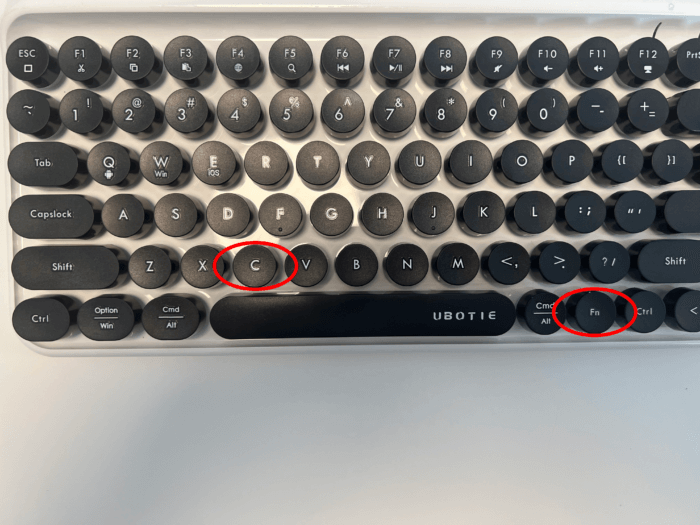
- Put the keyboard into Bluetooth pairing mode. On many UBOTIE Bluetooth keyboards, you press and hold a dedicated Bluetooth or Connect button for a few seconds until the LED starts blinking. On others, you press a key combo such as Fn + C or Fn + 1. The blinking light means the keyboard is ready to pair.
- Open Bluetooth settings on your Windows PC. Select Start > Settings > Bluetooth & Devices, turn on Bluetooth if it is off, then choose Add Device. When you see “UBOTIE Keyboard” or a similar name in the list, select it to connect. If Windows shows a pairing code, type it on the UBOTIE keyboard and press Enter.
- Connect the UBOTIE keyboard to a Mac. Click the Apple menu > System Settings > Bluetooth, make sure Bluetooth is on, and wait for the keyboard to appear in the device list. Select the UBOTIE keyboard and choose Connect, then enter any on-screen code using the UBOTIE keyboard if macOS requests one.
- Pair the keyboard with an Android phone or tablet. Open Settings > Bluetooth (or Connected Devices on some phones), turn on Bluetooth, and tap Pair New Device. Choose the UBOTIE wireless keyboard from the list and confirm any pairing request that appears.
- Connect the UBOTIE keyboard to an iPhone or iPad. Go to Settings > Bluetooth, enable Bluetooth, and wait for the keyboard to show under Other Devices. Tap the UBOTIE keyboard entry and confirm pairing when iOS asks for permission or a code.
- Test the UBOTIE wireless keyboard. Open a text field on your device, such as a browser address bar or a simple notes app, and type a short sentence. If the characters appear correctly, your UBOTIE wireless keyboard connection works.
- Use a USB receiver or cable if your model includes one. Some UBOTIE wireless keyboards ship with a small USB dongle for 2.4 GHz wireless, or a USB cable for wired use. Plug the receiver or cable into your computer, wait a few seconds, and then test typing. This method connects the keyboard without Bluetooth and can reduce lag.
- Switch between multiple paired devices when your model supports it. On multi-device UBOTIE keyboards, you usually press key combos like Fn + 1, Fn + 2, or Fn + 3 to jump between a laptop, tablet, and phone. Give each device its own channel so you can move between them quickly.
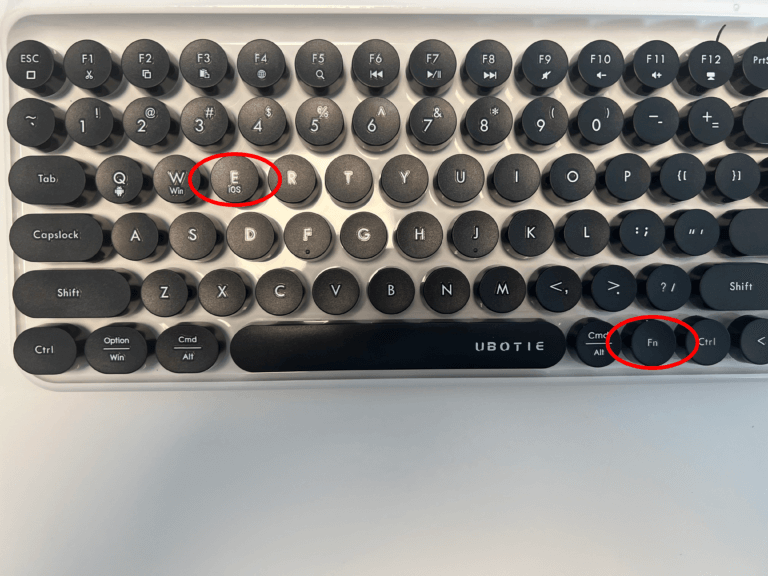
- Optional: Switch OS Modes On Supported UBOTIE Models. Some UBOTIE wireless keyboards include shortcut keys that change the operating system mode. These shortcuts are optional and only apply to models that list them in their manual. Press Fn + Q to switch to Android mode. Press Fn + W to switch to Windows mode. Press Fn + E to switch to iOS or macOS mode. If your keyboard types correctly after pairing, you do not need to use these shortcuts.
Troubleshooting Common Problems
If your UBOTIE wireless keyboard does not connect or stops responding, these quick checks often fix the problem without extra tools.
- Verify the power and batteries first. Replace weak AAA batteries, confirm the power switch sits in the On position, and make sure the battery cover closes fully so it does not lose contact during movement.
- Check that Bluetooth is actually on. Open Bluetooth settings on your device and confirm it is enabled. If you do not see any devices at all, toggle Bluetooth off and back on to refresh the list.
- Make sure the keyboard still sits in pairing mode. The LED should blink while it waits for a connection. If it stops, hold the pairing button or key combo again until the light starts blinking.
- Move the UBOTIE keyboard closer to the device. Thick walls, metal desks, or other wireless devices can create interference. Try pairing within a few feet first, then move back to a normal working distance.
- Remove old or stuck pairings. On your computer or phone, locate previous entries for the UBOTIE Bluetooth keyboard and choose Forget or Remove. Put the keyboard into pairing mode again and create a fresh connection.
- Reboot the computer, phone, or tablet. A quick restart often clears a frozen Bluetooth stack or a minor system glitch that blocks new pairings.
- Try the USB receiver if Bluetooth still fails. If your UBOTIE wireless keyboard came with a dongle, plug it into the computer and test the keyboard in that mode. This helps you confirm that the keyboard hardware works properly.
Tips
These simple tips help your UBOTIE Bluetooth keyboard stay connected and feel better to use every day.
- Keep spare AAA batteries nearby so you can swap them quickly if the keyboard starts dropping keystrokes or disconnecting.
- Turn the keyboard off with the power switch when you travel or store it to extend battery life.
- Set your operating system’s keyboard layout to match your language, especially if you use special characters or shortcuts frequently.
- Rename the UBOTIE wireless keyboard in your Bluetooth settings if you own multiple keyboards, so you can identify it easily later.
- Clean the keycaps gently with a soft cloth from time to time to keep the keys responsive and comfortable.
FAQ
Can I Use A UBOTIE Wireless Keyboard Without Bluetooth?
Some UBOTIE models include a USB receiver or support a wired USB cable. In that case, you can plug the receiver or cable into your computer and use the keyboard without turning on Bluetooth.
Why Does My UBOTIE Keyboard Type The Wrong Characters?
This usually happens when the device uses a different keyboard layout than the one printed on your keycaps. Open your language and keyboard settings, choose the correct layout, and test again in a text editor.
How Many Devices Can I Pair With A UBOTIE Bluetooth Keyboard?
Many UBOTIE wireless keyboards support up to three devices at once, but the exact number depends on the model. Look for labels such as BT1, BT2, and BT3 on the keys, or check the printed manual that came with your keyboard.
Does A UBOTIE Keyboard Work With Smart TVs Or Streaming Devices?
If the TV or streaming box supports standard Bluetooth or USB keyboards, you can usually pair the UBOTIE keyboard with it. The pairing steps look very similar to pairing with a computer, but you perform them inside the TV’s Bluetooth menu.
Summary
- Install fresh batteries, power on the UBOTIE wireless keyboard, and start Bluetooth pairing mode.
- Open Bluetooth settings on your Windows PC, Mac, phone, or tablet and select the UBOTIE keyboard from the device list.
- Confirm any on-screen code, then test typing in a simple notes app or text field.
- Use the included USB receiver or cable if your model supports 2.4 GHz or wired mode, especially on devices without Bluetooth.
- Fix problems by checking batteries, re-entering pairing mode, forgetting old pairings, and moving the keyboard closer to your device.
Conclusion
Learning how to connect a UBOTIE wireless keyboard takes only a few minutes when you follow the right order: power it on, enter pairing mode, select it in Bluetooth settings, and confirm the connection. Once everything works, you can enjoy a compact, cable-free typing experience on your laptop, desktop, tablet, or phone. Keep these pairing steps handy, and you can quickly add the keyboard to any new device you use in the future.

Discussion (0)
Be the first to comment.