




Your SteelSeries gaming keyboard offers far more than standard typing. With the right setup and customization, you can improve gameplay, sharpen reaction time, and take full advantage of features like RGB lighting, macros, and app-specific profiles. SteelSeries Engine (also called SteelSeries GG at the time of writing) handles most of the customization, giving you control over lighting, key assignments, and performance settings.
This guide explains how to set up your SteelSeries keyboard, customize every major feature, and fix common issues. The steps work across most modern SteelSeries models, including Apex keyboards, mechanical variants, and hybrid units. You’ll also learn how to optimize responsiveness for PC gaming and maintain your keyboard long term.
Most SteelSeries keyboards connect instantly, but installing SteelSeries Engine unlocks performance settings and device-specific tools. You should set everything up before gaming so the keyboard runs with the right firmware and configuration.
- Plug your SteelSeries keyboard into your PC using the included USB cable.
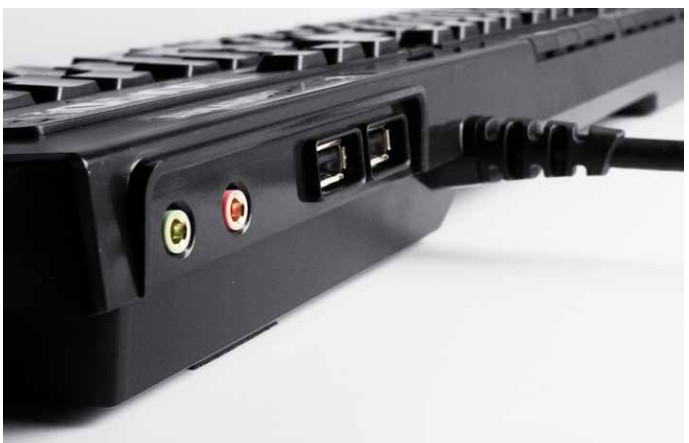
- Download and install SteelSeries Engine (SteelSeries GG) to unlock lighting and macro tools.

- Open the software and confirm the keyboard appears under the Gear tab.
- Install available firmware updates for improved stability and features.
Customize Lighting And Effects
SteelSeries keyboards support per-key RGB lighting, zones, and reactive effects. Custom lighting improves visibility and helps highlight important keys for shooters, MOBAs, and MMOs.
- Open SteelSeries Engine and select your keyboard.
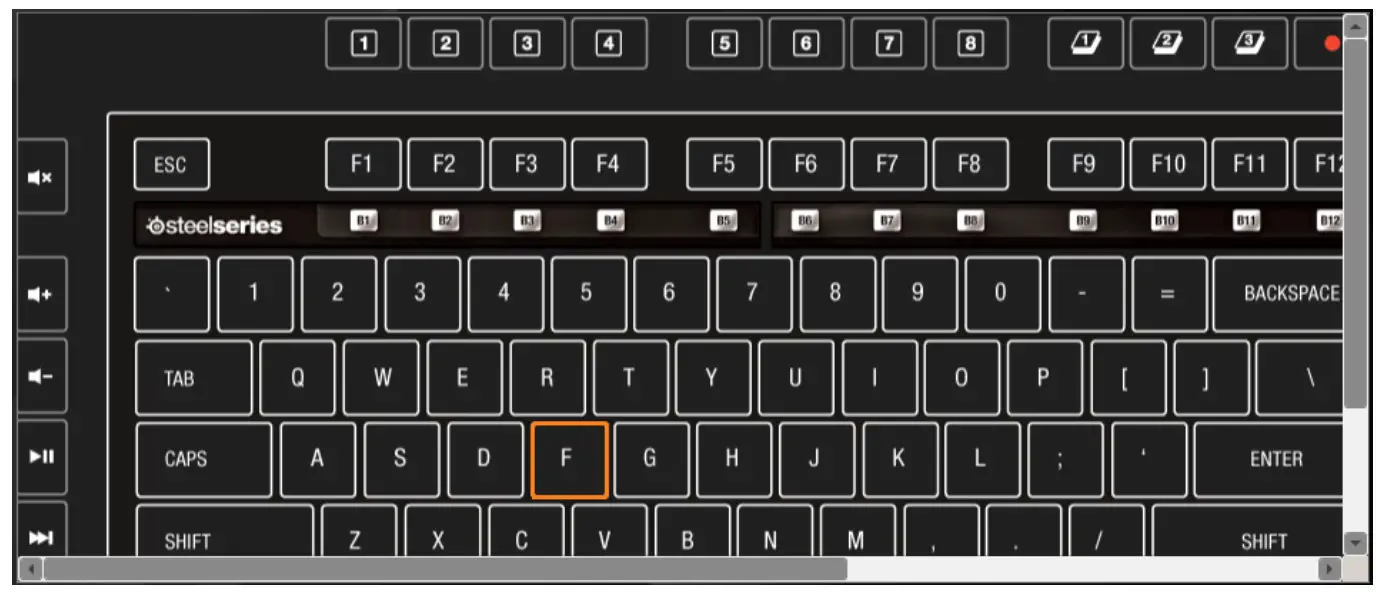
- Choose Illumination to adjust brightness, color waves, or per-key lighting.
- Apply reactive effects for in-game actions or use static colors for clarity and focus.
Set Up Keybindings And Remaps
Keybinding control is one of the biggest advantages of a SteelSeries gaming keyboard. You can move essential functions to easier positions, reduce travel distance, and simplify menu actions.
- Select Key Bindings inside SteelSeries Engine.
- Click a key and remap it to a game command, shortcut, or system function.
- Create different layouts for FPS, MMO, or productivity apps.
Create And Use Macros
Macros help automate complex actions, especially in MMOs, creative software, and repetitive tasks. SteelSeries keyboards store macros directly in onboard memory on supported models.
- Open your keyboard inside SteelSeries Engine and select Macros.
- Record a sequence of keystrokes and delays.
- Assign the macro to a function key or any remappable key.
- Save the macro inside a profile for specific games.
Create Profiles For Different Games
Profiles make it easy to switch between lighting, macros, and keybindings depending on the game you’re launching. SteelSeries Engine supports automatic profile switching.
- Open Configurations in SteelSeries Engine.
- Create a new profile and customize it for a specific game.
- Link the profile to the game’s executable for automatic switching.
Clean And Maintain Your SteelSeries Keyboard
Regular cleaning preserves responsiveness and prevents dust buildup under switches and keycaps. Mechanical keyboards especially benefit from maintenance.
- Unplug the keyboard before cleaning.
- Use compressed air to clear dust around switches.
- Remove keycaps gently using a puller and wipe them with a microfiber cloth.
- Check for firmware updates every few months to improve stability.
Troubleshooting Common Problems
Most issues come from firmware conflicts, software crashes, or debris under the keys. Here are common fixes.
- If keys stop responding, switch USB ports and restart SteelSeries Engine.
- If RGB lighting freezes, reinstall the SteelSeries software and reboot the PC.
- If macros fail randomly, verify the profile is active and update firmware.
- If the keys are double-pressed, clean the switch area and reinstall the keycap.
Tips
- Create separate profiles for work and gaming to avoid accidental macro triggers.
FAQ
Why won’t my SteelSeries keyboard show up in Engine?
You may need to reinstall the USB driver, switch ports, or update the software.
Can I use macros in every game?
Many games allow them, but some competitive titles restrict macros to prevent unfair advantage.
Why are my RGB effects delayed?
Background applications may be interfering with SteelSeries Engine. Close unused apps and reboot.
Do SteelSeries keyboards store settings onboard?
Most gaming models include onboard memory, but older units may require software to stay open.
Summary
- Connect your SteelSeries keyboard and install SteelSeries Engine.
- Customize lighting, keybindings, and macros for each game.
- Create profiles for automatic switching.
- Clean switches and keycaps regularly.
- Troubleshoot issues with firmware updates and software resets.
Conclusion
A SteelSeries keyboard becomes far more powerful with the right setup. Custom lighting, responsive keybinds, and well-built macros help you perform better and play comfortably. With regular cleaning and troubleshooting, your keyboard stays responsive and ready for competitive gaming.
Discussion (0)
Be the first to comment.