




Streaming apps continue to expand on LG Smart TVs, and Paramount Plus remains one of the most requested additions. The app brings a wide range of movies, TV shows, live channels, and exclusive originals directly to your home screen. Before you start watching, you need to confirm compatibility and install the Paramount Plus app from the LG Content Store. This guide walks you through each step clearly so you can begin streaming without issues.
At the time of writing, Paramount Plus supports most LG Smart TVs running webOS 3.0 or newer. Once the app is installed, you only need to sign in and start streaming. If you run into problems, the troubleshooting section below covers the most common fixes.
Check Compatibility And Prepare Your LG Smart TV
Make sure your LG Smart TV supports the Paramount Plus app and has a stable internet connection. Updating the TV first helps avoid installation issues and improves streaming performance.
- Turn on the LG Smart TV and open Settings.
- Select All Settings and scroll to General.
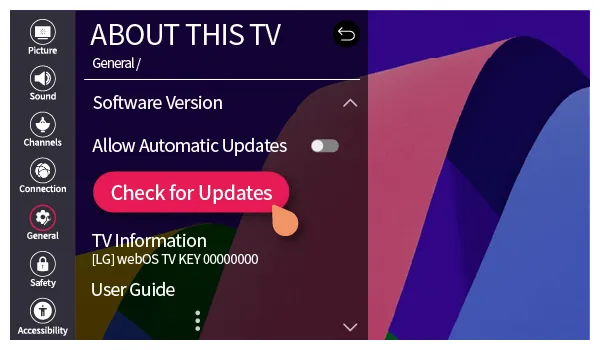
- Choose About This TV and update the firmware if available.
- Confirm the TV is connected to Wi-Fi or Ethernet.
- Verify you are using webOS 4.0 or newer, which supports modern streaming apps.
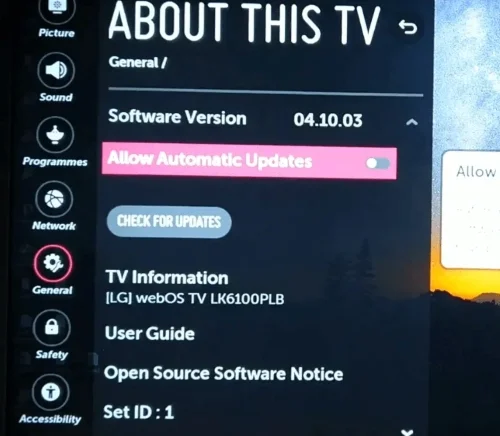
- If you're not up to date, click Check for Updates to get the latest update.
Open The LG Content Store
The LG Content Store is where you install new apps, including Paramount Plus. It comes preinstalled on every LG Smart TV.
- Press the Home button on your LG remote.
- Navigate to the LG Content Store.
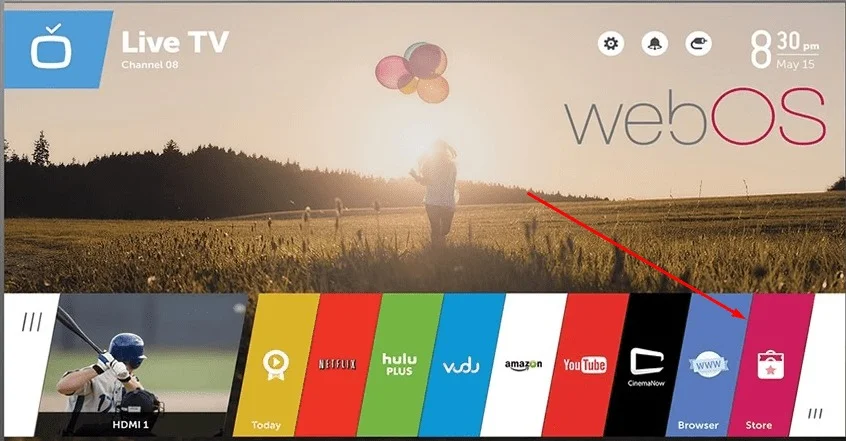
- Open the store to browse available apps.
Search For The Paramount Plus App
Use the built-in search tool to quickly find the Paramount Plus app within the LG Content Store.
- Go to the Search icon inside the Content Store.
- Type Paramount Plus using the on-screen keyboard.

- Select the app when it appears in the results.
Install The Paramount Plus App
Once you locate the app, you can install it directly on your LG Smart TV. The download usually takes only a few seconds, depending on your connection.
- Select Install on the app page.
- Wait for the installation to finish.
- Once installed, access the app from the home screen.
Sign In To Your Paramount Plus Account
Signing in connects your subscription, watchlist, and viewing history to your LG Smart TV.
- Launch the Paramount Plus app.
- Select Sign In.
- Choose to sign in directly on the TV or through a device activation code.
- Enter your email and password to complete setup.
Start Watching Paramount Plus On LG Smart TV
Once signed in, you can browse categories, stream exclusives, and pick up where you left off. The interface is almost identical to other Paramount Plus apps, so navigation feels familiar.
- Open the Paramount Plus app from the home screen.
- Browse shows, movies, and live channels.
- Select a title and press Play.
Troubleshooting Common Problems
If Paramount Plus fails to install or load, these quick fixes solve most issues.
- Restart the LG Smart TV to refresh the operating system.
- Check your Wi-Fi speed since slow connections affect streaming.
- Update the LG Content Store and system firmware.
- Reinstall the Paramount Plus app if it won’t open or buffers frequently.
- Sign out and sign back in to refresh your account authentication.
Tips
- Use a wired Ethernet connection for more stable streaming.
- Clear unused apps to help your LG TV run faster.
- Enable auto-updates so you always get the latest app version.
- Keep your Paramount Plus account info saved in a secure password manager.
FAQ
Why isn’t Paramount Plus showing up in the LG Content Store?
Older LG Smart TVs running unsupported versions of webOS may not offer the app. Check for system updates or use a streaming device as a workaround.
Do you need a subscription to watch Paramount Plus?
Yes. A valid subscription is required to sign in and stream content on any device, including LG Smart TVs.
Why does Paramount Plus keep buffering?
Slow internet speeds or temporary server issues may cause buffering. Restart the app, upgrade your Wi-Fi, or reduce other network activity.
Can you watch live TV through Paramount Plus?
Yes. Paramount Plus offers live channels, including local CBS stations, depending on your subscription plan.
Summary
- Check that your LG Smart TV supports the Paramount Plus app.
- Open the LG Content Store.
- Search for the Paramount Plus app.
- Install the app and sign in.
- Start watching movies, shows, and live channels.
Conclusion
Adding Paramount Plus to your LG Smart TV is quick and straightforward when the TV is updated and connected to the internet. Once installed, the app gives you full access to exclusive originals, live TV, and a large on-demand library. Use the troubleshooting tips in this guide if the app fails to install or stream smoothly. After setup, you can enjoy Paramount Plus directly from your LG Smart TV without needing extra devices.


Discussion (0)
Be the first to comment.