



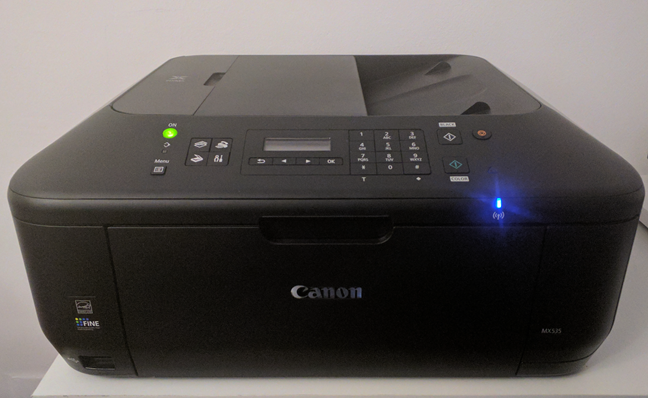
The Canon MF3010 is a reliable monochrome laser printer, but it does not have a dedicated Windows 11 driver. This often leads users to think the printer is incompatible. In reality, the Canon MF3010 works on Windows 11 by using older, compatible Canon drivers with the correct installation method.
This guide explains how to download the Canon MF3010 driver for Windows 11, how to install it properly, and how to fix common printing issues.
Does Canon MF3010 Work on Windows 11
Canon does not provide a native Windows 11 driver for the MF3010.
However, the printer does work on Windows 11 using:
- Canon MF3010 Windows 10 driver
- Canon MF3010 Windows 8.1 driver
- Compatibility mode during installation
Printing functionality works normally once the correct driver is installed.
Which Canon MF3010 Driver Is Compatible
The recommended driver is the Canon MF3010 UFRII LT driver designed for earlier Windows versions.
Best options:
- Windows 10 (64-bit) Canon MF3010 driver
- Windows 8.1 (64-bit) Canon MF3010 driver
These drivers are stable and compatible with Windows 11.
How to Download Canon MF3010 Driver
Always download drivers from Canon’s official website.
Steps:
- Open a web browser
- Go to Canon’s official support website
- Search for Canon MF3010
- Select Windows 10 or Windows 8.1 as the OS
- Download the MF3010 UFRII LT driver
Avoid third-party driver download sites.
How to Install Canon MF3010 on Windows 11
Standard Installation Method
Steps:
- Download the Canon MF3010 driver package
- Extract the downloaded file
- Right-click the setup file
- Select Run as administrator
- Follow the on-screen instructions
- Connect the printer via USB when prompted
- Restart your PC
Install Using Compatibility Mode (If Setup Fails)
Steps:
- Right-click the driver setup file
- Select Properties
- Open the Compatibility tab
- Enable Run this program in compatibility mode
- Select Windows 10
- Apply changes and run the installer
Fix Canon MF3010 Not Printing on Windows 11
If the printer installs but does not print, try the following fixes.
Set Canon MF3010 as Default Printer
Steps:
- Open Settings
- Go to Bluetooth & devices
- Select Printers & scanners
- Choose Canon MF3010
- Click Set as default
Restart Print Spooler Service
Steps:
- Press Windows + R
- Type services.msc
- Restart Print Spooler
Remove and Reinstall the Printer
Steps:
- Remove the printer from Settings
- Restart the PC
- Reinstall the driver
- Reconnect the printer
Run Windows Printer Troubleshooter
Steps:
- Open Settings
- Go to System
- Select Troubleshoot
- Run the Printer troubleshooter
Common Errors and Solutions
Printer not detected
Use a different USB port or cable.
Driver installation failed
Use compatibility mode and admin privileges.
Print jobs stuck
Clear print queue and restart Print Spooler.
Printer shows offline
Disable offline mode and set as default.
Final Thoughts
Although Canon MF3010 does not have an official Windows 11 driver, it works reliably using Canon’s older UFRII LT drivers. Installing the Windows 10 or Windows 8.1 driver in compatibility mode is the most effective solution.
As long as the driver is downloaded from Canon’s official website and installed correctly, the MF3010 remains a dependable printer on Windows 11.
FAQs
Is Canon MF3010 officially supported on Windows 11
No, but compatible drivers work reliably.
Should I use third-party driver tools
No, they are not recommended.
Can Canon MF3010 scan on Windows 11
Scanning support is limited and driver-dependent.
Does MF3010 work on Windows 11 64-bit
Yes, using Windows 10 or 8.1 drivers.


Discussion (0)
Be the first to comment.