



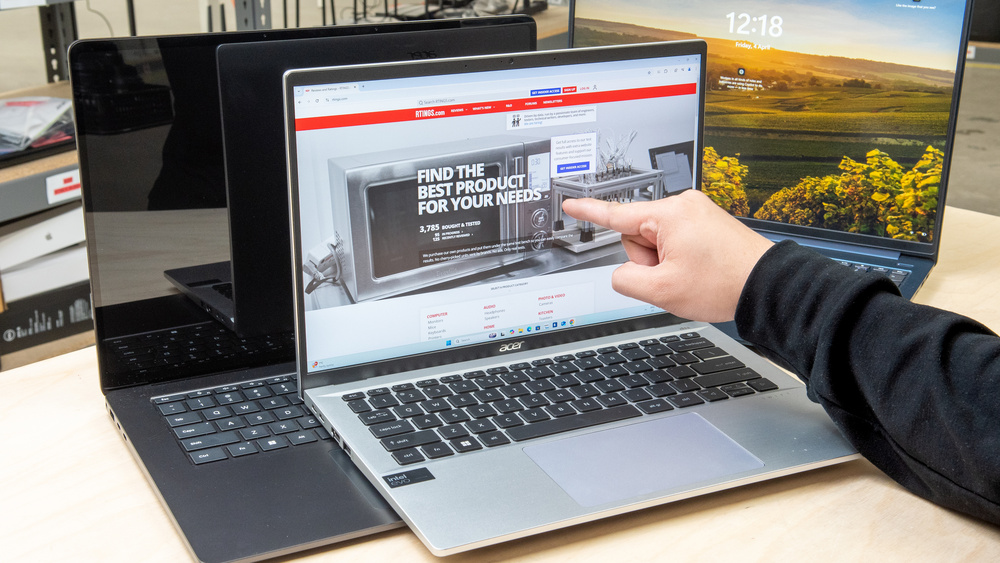
If your touchscreen is not responding properly on Windows 11, calibration issues are often the cause. You may notice delayed responses, incorrect touch points, or the screen registering taps in the wrong location.
This guide explains how to calibrate a touchscreen on Windows 11, fix common touchscreen problems, and troubleshoot issues when calibration does not work.
Why Touchscreen Calibration Matters
Touchscreen calibration ensures that the points you touch on the screen match the system’s response. Over time, calibration can drift due to driver updates, display scaling changes, or system upgrades.
Common signs of calibration issues include:
- Touch input registering in the wrong area
- Screen responding slowly to taps
- Touch gestures not working correctly
- Parts of the screen not responding
Calibration helps realign touch accuracy.
Check If Your Device Supports Touch Input
Before troubleshooting, confirm that your device actually supports touch.
Steps:
- Press Windows + X
- Select Device Manager
- Expand Human Interface Devices
- Look for HID-compliant touch screen
If this device is missing, your screen may not support touch or the driver may be disabled.
Calibrate Touchscreen Using Built-In Tool
Windows 11 includes a touchscreen calibration tool, but it is hidden by default.
Steps
- Press Windows + R
- Type control and press Enter
- Switch View by to Large icons
- Open Tablet PC Settings
- Click Calibrate
- Choose Touch input
- Follow the on-screen instructions
- Save the calibration data
Restart your PC after calibration for best results.
Reset Touchscreen Calibration Settings
If calibration makes things worse, resetting may help.
Steps
- Open Tablet PC Settings
- Click Reset under Display options
- Confirm the reset
- Restart your PC
This restores default calibration values.
Fix Touchscreen Not Working After Calibration
If your touchscreen still does not work properly, try these fixes.
Disable and Re-Enable Touchscreen
Steps:
- Open Device Manager
- Expand Human Interface Devices
- Right-click HID-compliant touch screen
- Select Disable device
- Restart your PC
- Enable the device again
Run Hardware Troubleshooting
Steps:
- Restart your device
- Test touchscreen in BIOS or UEFI if supported
If touch works in BIOS, the issue is software-related.
Update or Reinstall Touchscreen Drivers
Driver issues are common after Windows updates.
Update Driver
Steps:
- Open Device Manager
- Right-click HID-compliant touch screen
- Select Update driver
- Choose Search automatically
Reinstall Driver
Steps:
- Right-click the touch screen device
- Select Uninstall device
- Restart the PC
Windows will reinstall the driver automatically.
Check BIOS and Hardware Settings
Some devices allow disabling touch input in BIOS.
Steps:
- Restart your PC
- Enter BIOS or UEFI
- Look for Touchscreen or Internal Pointing Device
- Make sure it is enabled
- Save and exit
If the touchscreen does not work even in BIOS, hardware damage may be the cause.
Final Thoughts
Touchscreen calibration is an effective way to fix inaccurate or unresponsive touch input on Windows 11. Using the built-in Tablet PC calibration tool, updating drivers, and checking BIOS settings resolves most issues without advanced troubleshooting.
If calibration does not help and the touchscreen fails even in BIOS, the problem is likely hardware-related and may require professional repair.
FAQs
Why is my touchscreen inaccurate on Windows 11
Calibration drift, scaling changes, or driver updates are common causes.
Does Windows 11 automatically calibrate touchscreens
Basic calibration is automatic, but manual calibration improves accuracy.
Can I calibrate touchscreen on non-touch devices
No. Calibration works only on touch-enabled displays.
Should I reset Windows to fix touchscreen issues
Only as a last resort. Most issues are fixed with drivers and calibration.


Discussion (0)
Be the first to comment.