




Moving to a new computer often means setting up everything again, and browser bookmarks usually top the priority list. Whether you are switching PCs, migrating to a Mac, or changing browsers entirely, transferring bookmarks does not have to be complicated.
Most modern browsers support bookmark sync, but manual transfer remains the most reliable option when sync is unavailable or disabled. Using a bookmarks HTML file ensures compatibility across Chrome, Edge, Firefox, Safari, and Opera.
How To Transfer Bookmarks Automatically
If you plan to use the same browser on both computers, automatic bookmark sync offers the fastest solution. Sync relies on signing into the browser with the same account and enabling data synchronization.
This method transfers bookmarks, browsing history, and saved settings as soon as you sign in on the new computer.
- Sign in to your browser on the old computer
- Enable sync in browser settings
- Sign in to the same browser account on the new computer
- Wait for bookmarks to sync automatically
If sync fails or internet access is unavailable, manual transfer provides a dependable fallback.
How To Transfer Bookmarks Manually Using An HTML File
Manual bookmark transfer works across different browsers and operating systems. All major browsers allow exporting bookmarks to an HTML file that you can import elsewhere.
Transfer Bookmarks In Google Chrome
Chrome uses the Bookmark Manager to export and import bookmarks in HTML format.
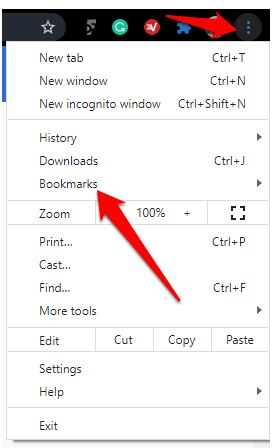
- Open Chrome and click the three-dot menu
- Go to Bookmarks
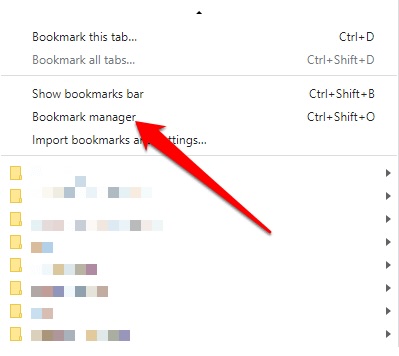
- Bookmark Manager
- Click the three-dot menu.
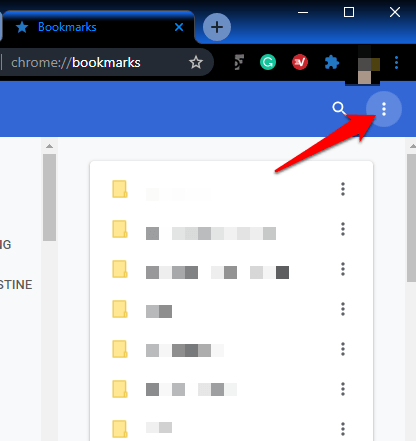
- Choose Export Bookmarks

- Save the HTML file to external storage or cloud storage
- On the new computer, open Chrome and choose Import Bookmarks
- Select the saved HTML file
Transfer Bookmarks In Microsoft Edge
Microsoft Edge refers to bookmarks as Favorites, but the export process works the same way.
- Open Edge and select Favorites from the menu
- Click the three-dot menu and choose Export Favorites
- Save the HTML file
- Open Edge on the new computer
- Select Import Favorites and choose the HTML file
Transfer Bookmarks In Mozilla Firefox
Firefox includes import and export options inside its bookmarks library.
- Open Firefox and click the menu button
- Select Bookmarks and open Manage Bookmarks
- Choose Export Bookmarks To HTML
- Save the file to a portable location
- On the new computer, choose Import Bookmarks From HTML
Transfer Bookmarks In Opera
Opera supports HTML bookmark files and cross-browser imports.
- Open Opera and go to the Bookmarks page
- Select Export Bookmarks
- Save the HTML file
- Open Opera on the new computer
- Select Import Bookmarks and load the file
Transfer Bookmarks In Safari
Safari bookmark transfer works exclusively on macOS but supports HTML imports.
- Open Safari and click File
- Select Export Bookmarks
- Save the HTML file
- On the new Mac, choose Import Bookmarks
- Select the saved HTML file
Troubleshooting Common Problems
If bookmarks fail to appear after import, confirm that the correct HTML file was selected. Some browsers place imported bookmarks inside a separate folder.
Sync issues usually resolve after signing out and signing back in. If problems persist, disable extensions temporarily and retry the import process.
Tips
- Use an external USB drive to avoid file corruption
- Keep a backup copy of your bookmarks HTML file
- Organize bookmarks before exporting for cleaner imports
- Restart the browser after importing bookmarks
FAQ
Can I transfer bookmarks between different browsers?
Yes, HTML bookmark files work across Chrome, Edge, Firefox, Safari, and Opera.
Does bookmark transfer include passwords?
No, passwords require browser sync or a dedicated password manager.
What happens if I import bookmarks twice?
The browser may create duplicate entries or additional folders.
Do I need an internet connection?
Manual bookmark transfer works entirely offline.
Summary
- Browser sync offers the fastest bookmark transfer
- HTML export works across all major browsers
- Manual transfer remains the most reliable option
- Bookmarks stay intact when imported correctly
Conclusion
Transferring bookmarks from one computer to another does not require advanced tools or technical expertise. Whether you rely on automatic sync or manual HTML export, modern browsers make the process straightforward.
Keeping a bookmark backup ensures you never lose access to important websites, even when switching computers or browsers.


Discussion (0)
Be the first to comment.