




Apple Notes does not include a built-in template feature, but you can still create and reuse templates easily. The app relies on duplicating notes, which lets you build reusable layouts for meetings, journals, to-do lists, and projects without installing extra apps.
This guide shows exactly how to create, organize, and use templates in Apple Notes on iPhone, iPad, and Mac.
Why Apple Notes doesn’t have built-in templates
Apple Notes focuses on simplicity and fast note creation. Apple never added a dedicated template system, so the app treats every note as a standalone document.
Instead, Apple Notes relies on duplication. Once you understand this behavior, templates become easy to manage and surprisingly flexible.
What “templates” mean in Apple Notes
In Apple Notes, a template is a note you duplicate whenever you need it. The original note stays unchanged, while the copy becomes your working version.
This approach works across all devices and syncs automatically through iCloud.
How to create a basic template in Apple Notes
Creating a good template starts with building a clean, reusable note. Structure matters more than design.
Create a template note from scratch
Open Apple Notes and create a new note. Add headings, bullet lists, checklists, or tables that you plan to reuse often.

Keep the content generic so the template works in multiple situations.
Save and name your template correctly
Give the note a clear name like “Meeting Notes Template” or “Daily Journal Template.” Clear naming prevents confusion once you create multiple templates.
Avoid dates or specific details in the template title.
How to use a template on iPhone and iPad
Apple Notes on iOS makes duplication fast, but the option stays hidden if you do not know where to look.
Duplicate a template note on iPhone or iPad
Open the template note. Tap the Share icon in the top-right corner, then select Copy.
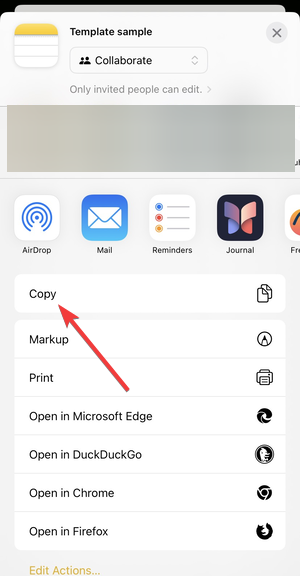
Now, open a new note, tap and hold the screen, and select Paste. Apple Notes creates a copy instantly, which you can rename and edit.

Edit the duplicated note without affecting the template
Only edit the duplicated note. Leave the original template untouched so you can reuse it again later.
This workflow prevents accidental changes to your base layout.
How to use a template on Mac
On macOS, Apple Notes offers more visible duplication options and faster shortcuts.
Duplicate templates using right-click or menu options
Right-click the template note in the sidebar or notes list. Select Duplicate to create a copy immediately.
You can also use the menu bar by clicking Note → Duplicate.
Use keyboard shortcuts for faster reuse
Select the template note and press Command + D. This shortcut duplicates the note instantly and speeds up repetitive workflows.
How to organize Apple Notes templates effectively
Templates only help if you can find them quickly. Organization plays a key role.
Create a dedicated Templates folder
Create a folder named “Templates” and store all template notes there. This separation reduces clutter and prevents accidental edits.
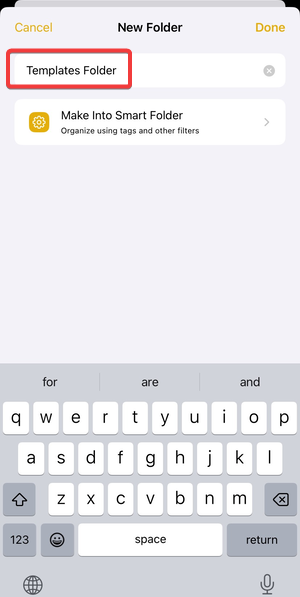
You can place the folder at the top of your Notes list for visibility.
Pin templates for quick access
Pin important templates so they always appear at the top. This trick works well if you use only a few core templates daily.
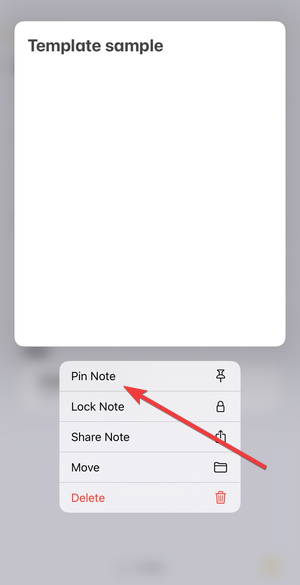
Pinned notes sync across devices automatically.
Use emojis or prefixes for visibility
Add emojis or prefixes like “TEMPLATE –” to template names. This visual cue makes templates stand out from regular notes.
Common Apple Notes template examples
These examples cover the most common use cases and work well as starting points.
Meeting notes template
Include sections for agenda items, discussion notes, decisions, and action items. This structure keeps meetings consistent and easier to review later.
Daily journal or log template
Add headings for date, mood, highlights, and reflections. A consistent layout helps maintain journaling habits.
To-do list and task planning template
Use checklists and priority sections. This setup works well for daily planning without a dedicated task manager.
Project notes template
Create sections for goals, resources, milestones, and notes. This lightweight structure suits small projects and personal workflows.
Tips to get more value from templates
- Keep templates simple and flexible
- Review templates occasionally and refine them
- Use tables for structured information
- Combine templates with pinned notes for speed
Limitations of Apple Notes templates
Apple Notes templates work well, but they have clear limits.
What Apple Notes templates can’t do
Templates cannot auto-fill dates, create recurring notes, or generate dynamic fields. Apple Notes also lacks automation rules for templates.
Workarounds that still keep things simple
Manual duplication remains the most reliable method. For advanced automation, users often combine Apple Notes with Shortcuts, but this adds complexity.
FAQs about Apple Notes templates
Can Apple Notes create templates automatically?
No. Apple Notes relies entirely on manual duplication for template reuse.
Do templates sync across devices?
Yes. Templates sync through iCloud like any other note.
Can I lock template notes?
Yes. Locking templates adds protection against accidental edits.
Summary
- Apple Notes does not include native templates, but duplication replaces that feature
- A template is simply a reusable note you duplicate
- You can duplicate templates on iPhone, iPad, and Mac
- Organizing templates in folders or pinned notes improves usability
Apple Notes templates rely on a simple duplication workflow, but they remain effective for everyday use. With clear naming, smart organization, and consistent layouts, you can turn Apple Notes into a flexible system for meetings, planning, and journaling without adding extra apps.


Discussion (0)
Be the first to comment.